A hover effect is one of those small touches that quietly tells a visitor a page was built with care. A button that fills with color as the cursor reaches it, an image that gently zooms, a card that lifts off the page.
None of it is essential, and all of it makes a site feel more finished. The catch is that there are about four different ways to add hover effects in Elementor, and people often reach for the most complicated one first.
This guide walks through all of them, from the no-code hover styling built into Elementor, to custom CSS, to dedicated widgets, with a clear answer at the end for which route fits your situation.
It also covers the part most hover tutorials skip: what happens to these effects on phones, where there is no cursor to hover with.
Where hover effects live in Elementor
Before picking a method, it helps to know that a hover effect can be applied at three levels: a single widget such as a button or image, a column or container, or a whole section.
Elementor lets you attach hover behavior at any of these levels, and you can combine them, so a card can lift while the image inside it zooms. Knowing which level you are targeting saves a lot of trial and error.
The no-code way: Elementor’s built-in hover styling
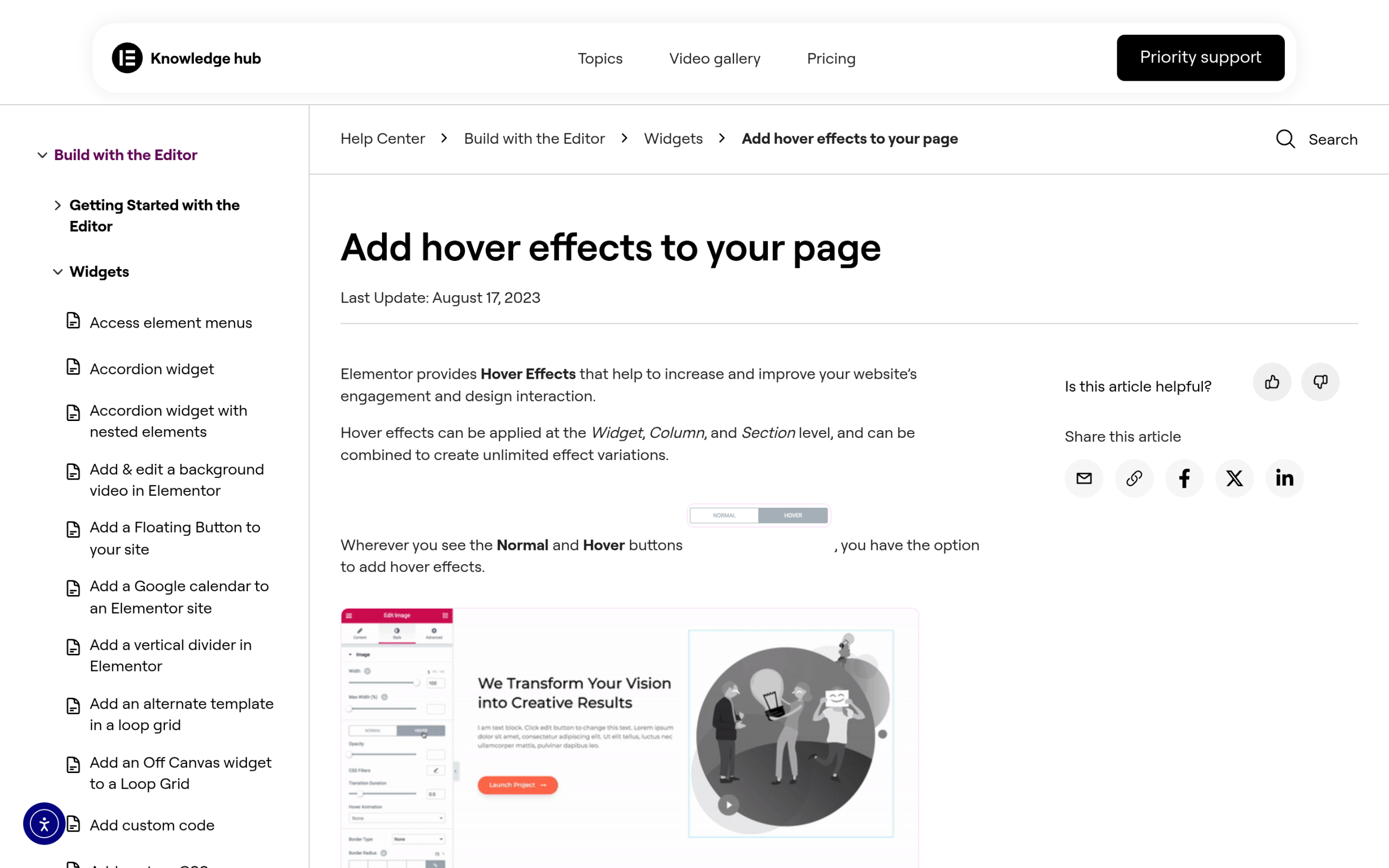
The fastest hover effect needs no code at all. Most Elementor widgets have a Hover tab in their Style settings. Select a button, open Style, and switch from the Normal tab to the Hover tab.
From there you can change the text color, background color, and border, and Elementor transitions between the two states for you. Add a transition duration so the change eases in smoothly rather than snapping.
This built-in approach covers the everyday cases: a button that changes color, an image box that shifts its background, a link that underlines. It is available in the free editor and is the right starting point for most people.
The limit is range. You get color, background, border, and basic transforms, but not the more elaborate fill, slide, or reveal animations.
Custom CSS hover effects in Elementor (Pro)
When the built-in options run out, the next step is the CSS :hover selector. You add a CSS class to an element in the CSS Classes field on its Advanced tab, then write a rule that styles that class on hover.
A common pattern uses the ::before pseudo-element to create a layer that fills the button from one side as you hover, which is the classic fill-in effect.
One important note: the Custom CSS field inside Elementor is an Elementor Pro feature. On the free plugin you would need to add the CSS through the WordPress Customizer or a code snippet plugin instead, or use one of the addon routes below.
If you are comfortable with a few lines of CSS, our guide on how to add custom CSS in Elementor covers exactly where the code goes.
Hover effects without Pro or code: The Plus Addons
If you want richer hover effects but do not want to pay for Pro or hand-write CSS, dedicated widgets are the middle path. The Plus Addons for Elementor includes several widgets and extensions built around hover interactions.
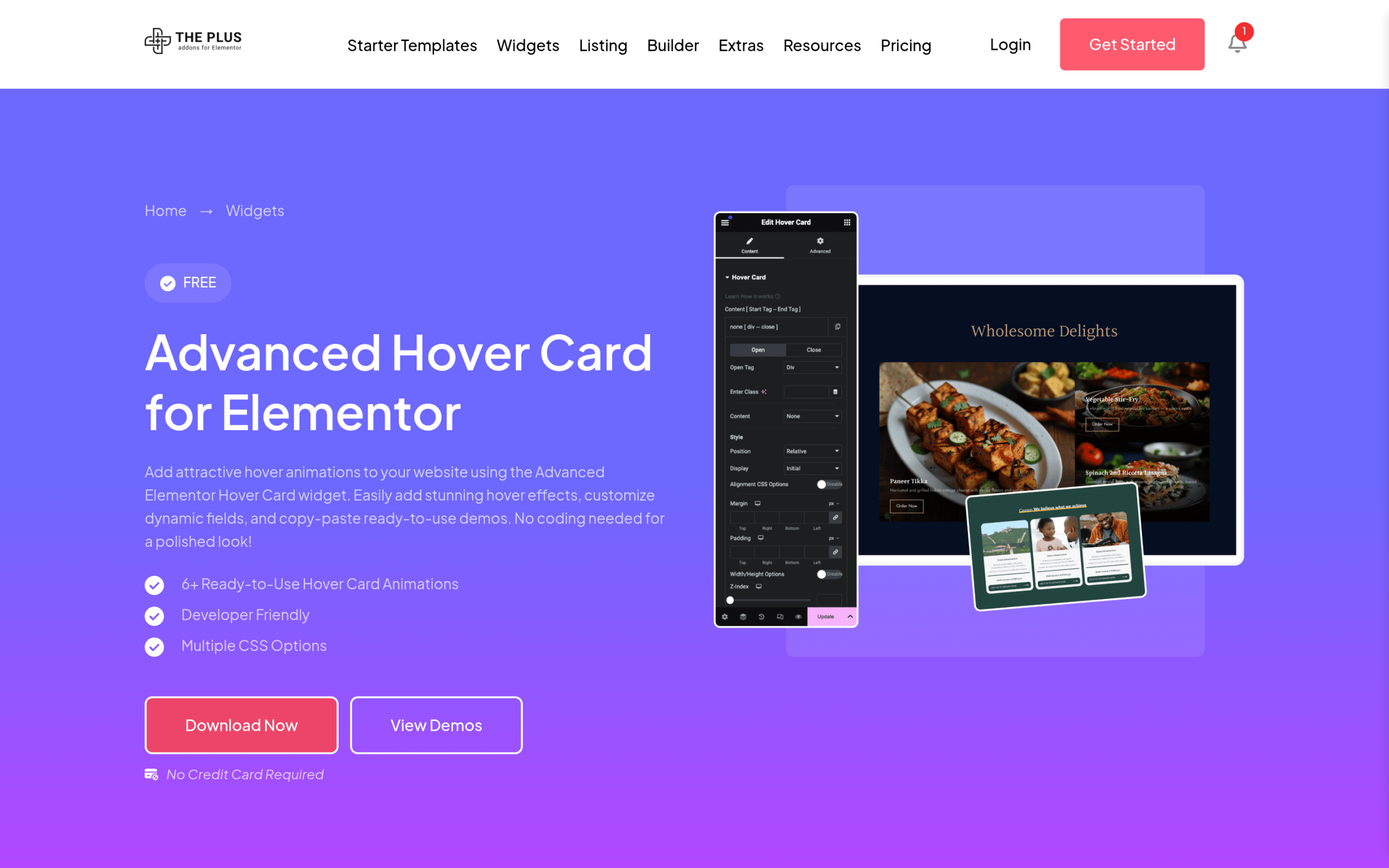
- Hover Card for card layouts with built-in hover states.
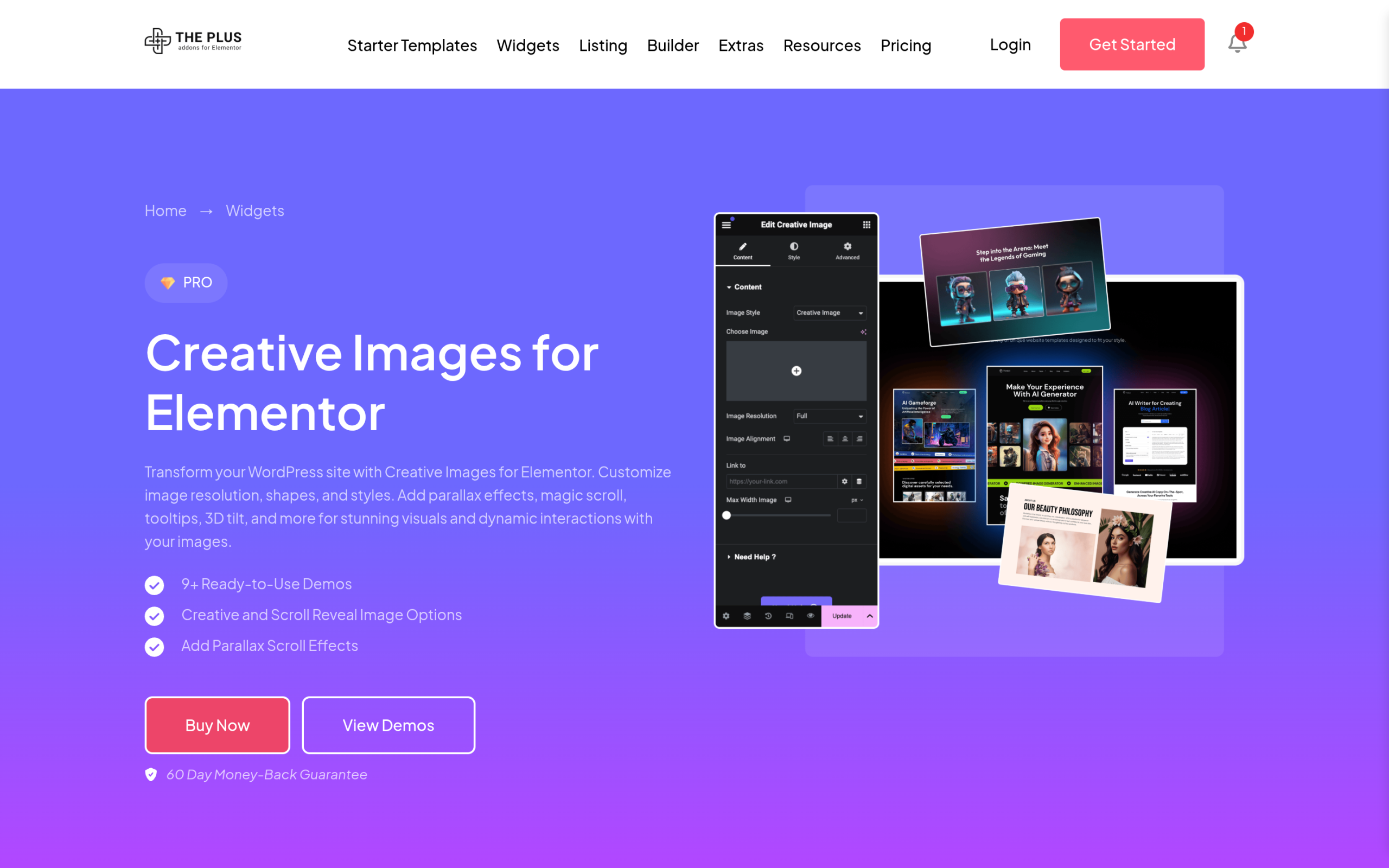
- Creative Images for image hover treatments without writing CSS.
- Advanced Buttons for buttons with hover options beyond a basic color change.
- Custom CSS as an extension if you do want to drop in your own
:hoverrules.
These are configured visually inside the editor, so you pick the options from the widget controls. Check each widget’s own page for the exact effects it offers. For the wider set of what the plugin adds, the best Elementor addons overview is a useful map, and if you are specifically comparing hover-card tools, we rounded up the best WordPress hover card plugins.
Button hover effects
Buttons are where hover effects earn their keep, because the whole point of a button is to be clicked. The most effective button hover effects are the simple ones: a color or background change, a subtle scale up, or a fill that sweeps across the button.
Flashy spins and bounces tend to distract from the action rather than invite it.
For a plain color change, the built-in Hover tab is enough. For a fill or slide, either an Advanced Buttons widget or a short custom CSS rule with ::before gets you there.
Whichever you choose, a transition duration of roughly a quarter to half a second tends to feel responsive rather than sluggish.
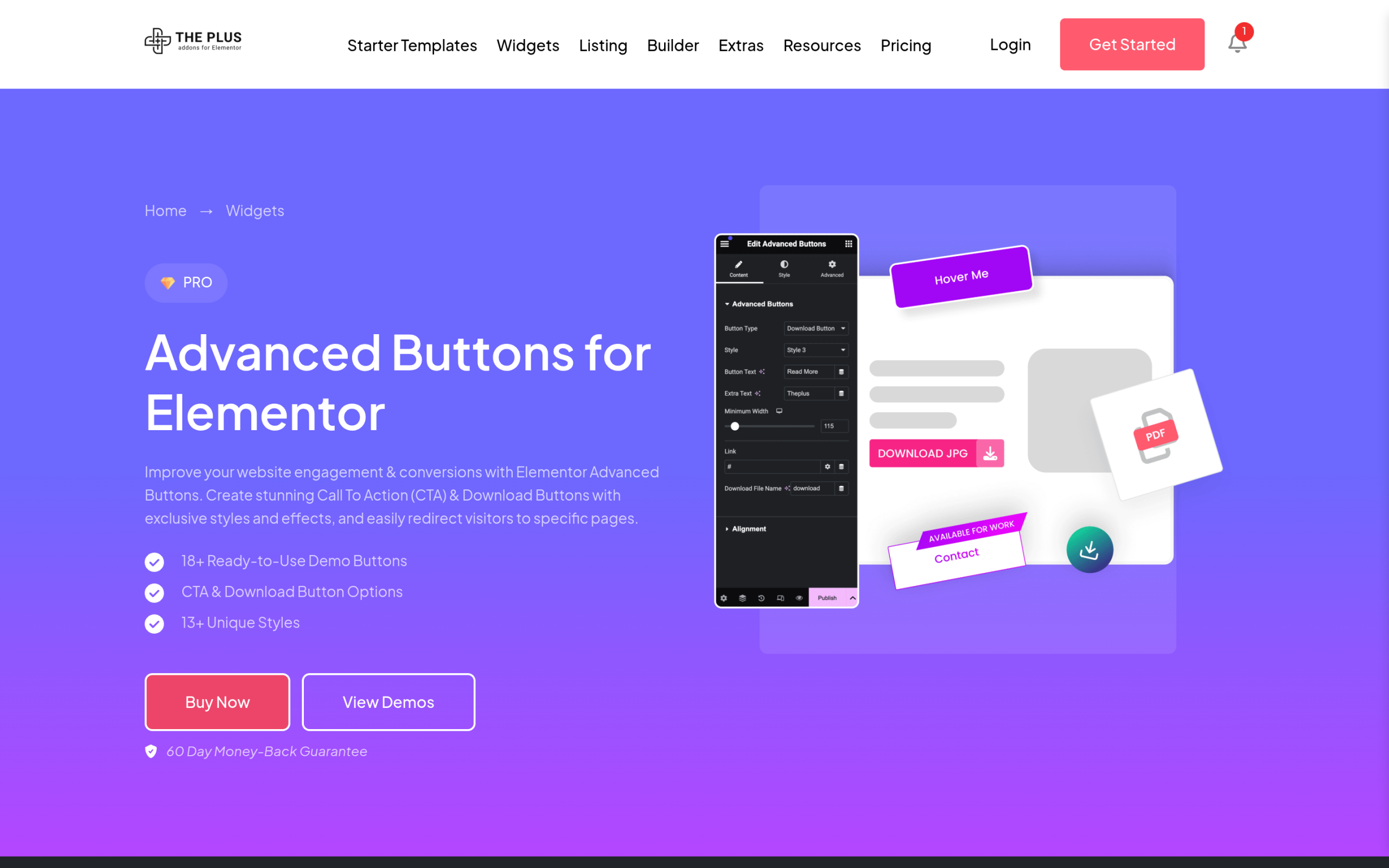
Image hover effects
Image hover effects are popular for portfolios, galleries, and product grids. The common ones are a slow zoom, a color or dark overlay that fades in, a grayscale image that turns to color, and a caption that slides up.
These work best when the effect reveals information or adds polish, not just motion for its own sake. Just keep an eye on file sizes, since a large image is also what usually drags down your Elementor hero image LCP.
One quirk worth knowing: a hover effect usually needs to be applied through an image widget that supports it, rather than added to an image you have already placed. A dedicated image widget such as Creative Images is built for exactly this.
Hover effects, mobile, and accessibility
This is the section most hover tutorials leave out, and it matters more than the effects themselves. On a phone or tablet there is no cursor, so there is no true hover.
Touch devices fake it: the effect often fires on the first tap, which can mean a visitor taps a button once to trigger the hover and again to actually click it.
- Never hide essential content behind hover only. If a caption, price, or link only appears on hover, mobile visitors may never see it. Make sure the important information is reachable without hovering.
- Keep the animation cheap. Prefer transform and opacity changes, which browsers handle smoothly, over animating size or position properties that can cause layout shift and hurt your Core Web Vitals.
- Respect reduced motion. Some visitors set their device to reduce motion. Honoring that is part of building an accessible Elementor site, and good widgets handle it for you.
Which approach should you use?
Match the method to what you actually need.
| You want to… | Use this |
|---|---|
| Change a button or element color on hover | Elementor’s built-in Hover tab (free) |
| Build a fill, slide, or fully custom effect | Custom CSS :hover (Elementor Pro, or a snippet plugin on free) |
| Get rich button and image hover effects without code | The Plus Addons widgets (Hover Card, Creative Images, Advanced Buttons) |
| Add zoom or overlay to images specifically | A dedicated image hover widget |
Wrapping up
Hover effects reward restraint. Start with Elementor’s free Hover tab for the everyday color and background changes, reach for custom CSS or a dedicated widget when you want a fill or image treatment, and always check how the effect behaves on a phone before you ship it.
A couple of well-chosen hover effects make a page feel considered. A dozen of them make it feel busy.
If you want hover-ready widgets you can configure visually, explore the full Plus Addons widget library.