Free Elementor has no way to tell WordPress that one design should be the header on every page. A header and footer builder plugin fills that gap, and the plugins that do it draw the line between free and paid in very different places. This guide compares five that Elementor users commonly choose between: The Plus Addons for Elementor, Ultimate Addons for Elementor, the Elementor Pro Theme Builder, Header Footer Builder for Elementor and Magical Addons for Elementor.
We make The Plus Addons for Elementor, so it has an entry here and we have an interest in how that entry reads. We kept the facts apart from the opinion. Install counts, versions and update dates come from the WordPress.org plugin API, and feature claims come from each vendor’s own plugin listing, pricing page or documentation. Everything was checked on 8 October 2026. We did not build the same header in all five plugins, so where a vendor page does not confirm something, the table says so instead of guessing.
What A Header And Footer Builder Plugin Has To Do
A header you design is only half the job. Before you compare feature lists, it helps to split the work into five parts, because plugins differ most in how many of them they cover.
- Placement. Display rules decide where a header or footer loads: the whole site, one post type, or every page except the landing pages. Without placement, a header only appears on the page where you built it.
- Design in Elementor. You build the header with widgets and containers instead of the theme customizer, so it matches the rest of the site.
- Scroll behavior. Sticky, transparent-on-scroll, shrinking or hide-on-scroll headers keep navigation reachable without eating screen space.
- Navigation depth. A site with dozens of pages usually needs dropdowns, and a larger one may need a mega menu with images and links inside the panel.
- Mobile navigation. Phones and tablets need a toggle, an off-canvas panel or a bottom bar, not a squeezed desktop menu.
Want sticky and transparent header effects, a mega menu and a mobile menu from one set of widgets? See the Header Builder in The Plus Addons for Elementor, then check which plan covers it before you decide.
Elementor Free has the design canvas but not the placement. Elementor’s own plugin listing tags the Theme Builder as a Pro feature, which is why the plugins below exist. Some replace the Theme Builder outright. Others only supply widgets and leave placement to a separate tool, and that distinction matters when you read the table.
Elementor Header And Footer Builder Plugins At A Glance
This table covers the six things most buyers ask about. A cell that says “Not listed” means we found no mention on the vendor’s plugin page, widget list or documentation. It does not prove the feature is missing.
| Plugin | Free tier | Display rules | Sticky and transparent header | Mega menu | Mobile menu | Last updated |
|---|---|---|---|---|---|---|
| The Plus Addons for Elementor | Navigation Menu Lite only. Header Builder, Footer Builder and Mega Menu Builder are Pro | Set in the theme builder that places the header (Nexter Builder is free, or Elementor Pro) | Yes, Pro: 7 header effects | Yes, Pro builder. A simple template mega menu works in Free via Repeater | Yes: toggle, swiper or off-canvas in the menu, plus a Pro Mobile Menu widget | 7 Oct 2026 (Free 6.5.3) |
| Ultimate Addons for Elementor | Yes, header and footer builder is free | Entire site or specific pages and posts. Advanced conditions are Pro | Sticky Header is a Pro feature, with transparent background on scroll | Not listed | Navigation Menu widget; its changelog mentions a Flyout layout | 25 Sep 2026 (2.9.5) |
| Elementor Pro Theme Builder | No. Theme Builder is Pro | Yes: Include or Exclude conditions with Entire Site | Yes: Sticky set to Top under Motion Effects | Yes: Menu widget with Dropdown Content | Yes: compact menu with a breakpoint setting | 5 Oct 2026 (Elementor 4.3.4) |
| Header Footer Builder for Elementor | Yes | Yes, with exclusions and an Edit Conditions modal | Yes: sticky, plus a transparent-to-solid Header Effects panel | Yes: template per menu item, or a Mega Menu widget | Yes: hamburger with an accordion-style menu | 17 Sep 2026 (1.3.3) |
| Magical Addons for Elementor | Yes, theme builder is free | Yes: include and exclude rules | Header Builder lists sticky or transparent headers | Not listed | Responsive headers, no menu detail listed | 30 Sep 2026 (1.5.1) |
Install counts and ratings come from the same WordPress.org data. Ultimate Addons for Elementor shows 2,000,000+ active installs and a 4.9 out of 5 rating from 2,527 ratings. The Plus Addons for Elementor shows 100,000+ installs and 4.6 from 387 ratings. Header Footer Builder for Elementor shows 30,000+ installs with 5 ratings, and Magical Addons for Elementor shows 4,000+ installs with 12 ratings. Elementor itself shows 10,000,000+ installs and 4.5 from 7,317 ratings. Install counts tell you about adoption, not about which one fits your build.
The Best Elementor Header And Footer Builder Plugins, Reviewed
1. The Plus Addons For Elementor Header Builder
The Plus Addons for Elementor is a library of 120+ widgets for Elementor, and its header tools sit in the Pro plan. The free plugin on WordPress.org has 100,000+ active installs, and its latest release, version 6.5.3, was published on 7 October 2026.
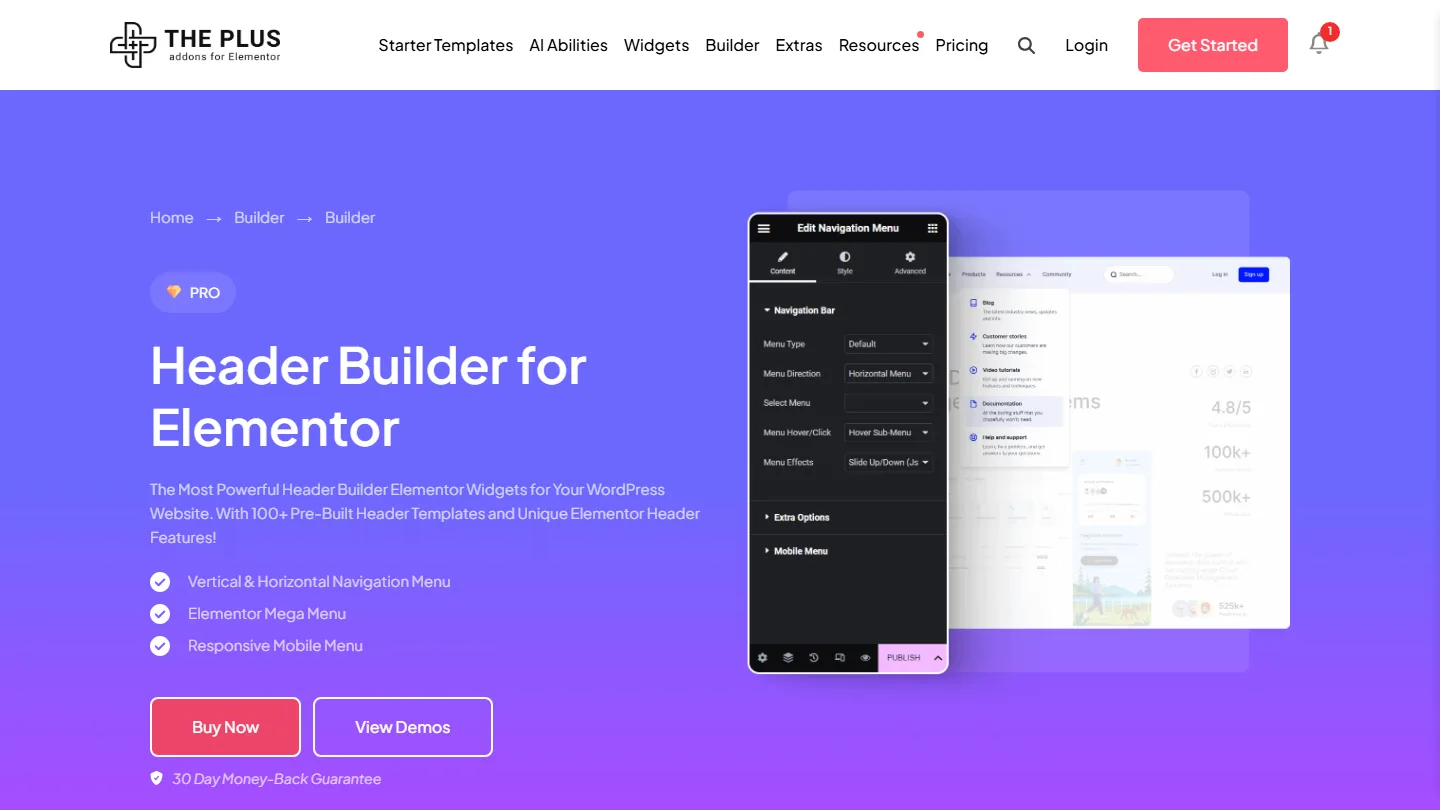
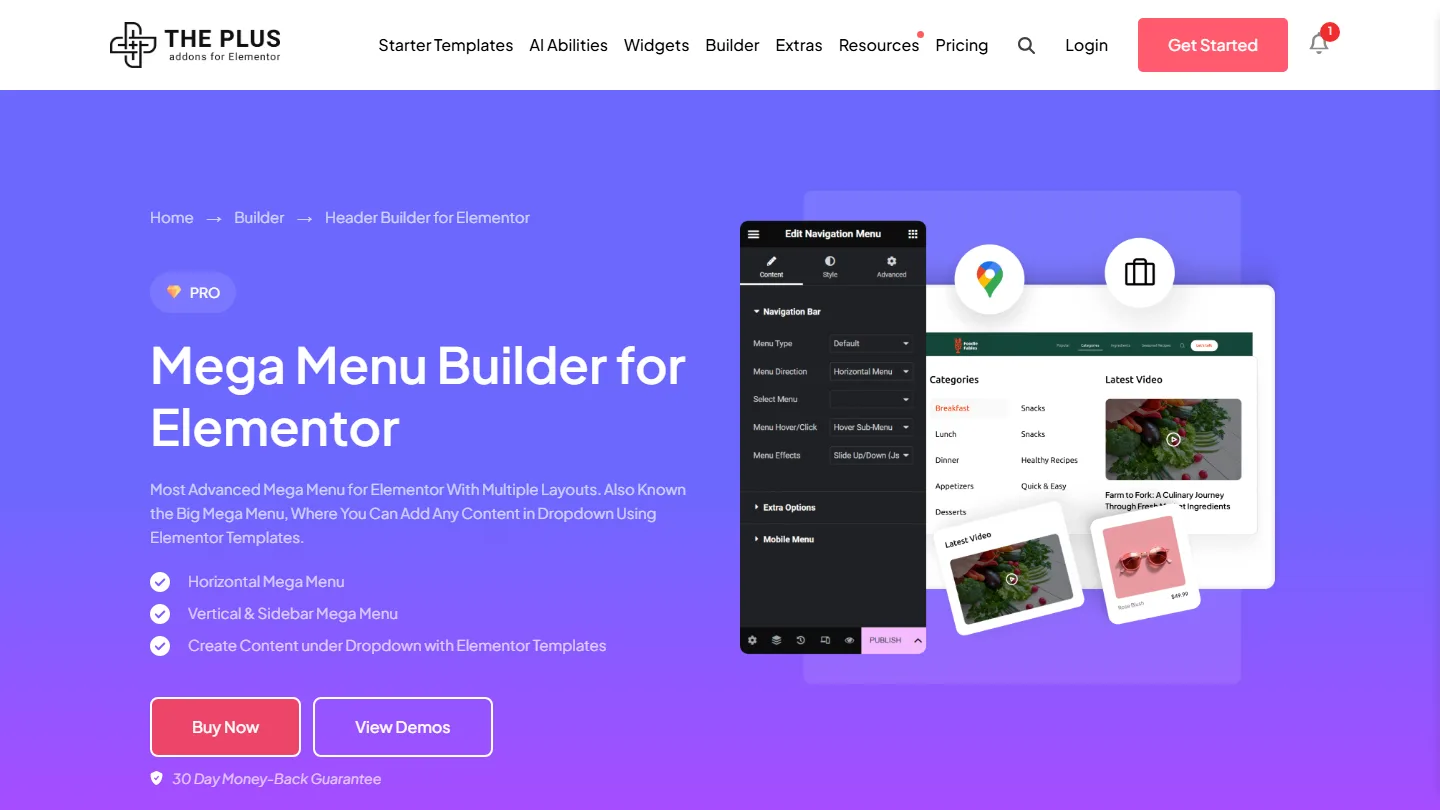
The Header Builder page lists four building blocks: a Navigation Menu for horizontal and vertical menus, a Mega Menu that can hold any Elementor widget in the dropdown, a Mobile Menu widget and a set of header effects. A Header Extras widget adds a search bar, a WooCommerce mini cart, CTA buttons, a language switcher and an extra toggle menu, and a Site Logo widget can swap the logo on hover or on scroll.
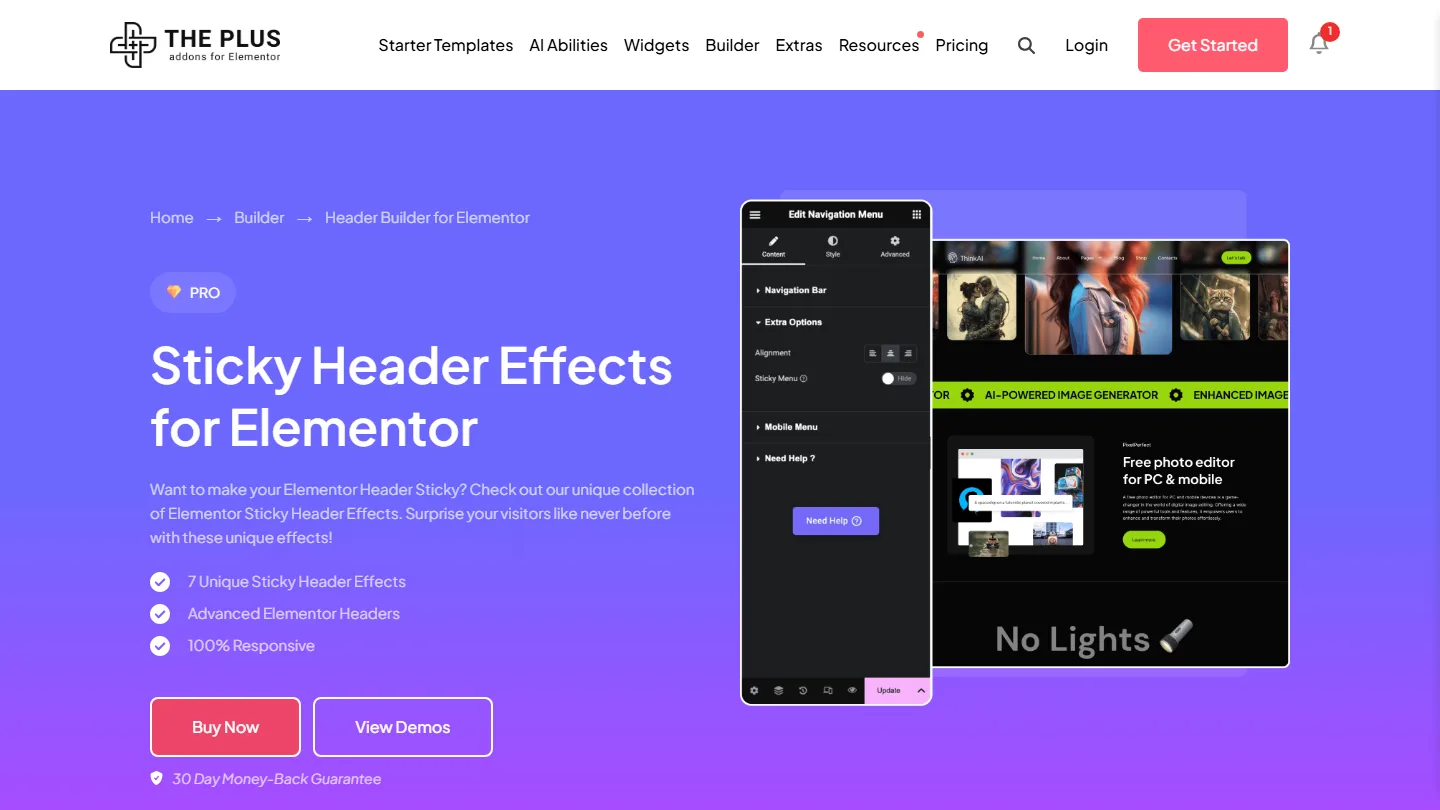
The scroll behavior is the strongest part of this entry. The header effects page lists seven: a plain sticky header, a sticky menu that changes color on scroll, a transparent sticky header, a glassmorphism or blurred sticky header, hide on scroll down, a header that shrinks in height as you scroll, and a logo that changes on scroll. If your design depends on one of those, you do not need custom CSS to get it.
Mobile navigation has two layers. The Navigation Menu widget turns on a Responsive Mobile Menu by default, with Toggle, Swiper and Off Canvas options, and the Open Mobile Menu setting defaults to 991 px. The separate Mobile Menu widget builds an app-style bar pinned to the top or bottom of the screen, with icon and text items, and it is also Pro.
Best for: sites that need scroll effects, a large menu or a store-style header with search and cart, and that are fine buying Pro. A WooCommerce store or an agency build are typical examples.
Honest limitations:
- The builders are Pro only. Our Free vs Pro table marks Header Builder, Footer Builder and Mega Menu Builder as Pro. The free plugin ships Navigation Menu Lite, which has horizontal and vertical menus, hover or click dropdowns, the Repeater menu with mega menu templates and a toggle mobile menu. It has no sticky options and no Swiper or Off Canvas mobile menu. So a “free header builder” from this plugin is a menu, not a builder.
- It needs a tool that places the header. The widget docs tell you to build the header with the free Nexter Builder (part of Nexter Extension) or with the Elementor Pro Theme Builder. Display rules come from that tool, and Nexter lists Display Rules for Theme Builder sections as free.
- Sticky fixes the whole container. The Sticky Menu switch sticks the container that holds the Navigation Menu widget, so keep your logo and buttons in the same container or they will scroll away.
- Hover dropdowns have a width limit. The hover script runs only above 991 px. If you lower the mobile breakpoint, use Click Sub-Menu so tablets can open dropdowns.
- It is a large plugin. You can switch off unused widgets under The Plus Addons > Widgets, but you are installing a 120+ widget library to get a header.
On price, the pricing page lists a one-site Starter plan at $43 per year before a promotional discount, which brings it to $39 per year at the time of writing. Check the page for current numbers, since promotions change.
2. Ultimate Addons For Elementor
Ultimate Addons for Elementor, from Brainstorm Force, is the plugin many people know as the original Elementor Header & Footer Builder. Its WordPress.org listing says it began life as that builder, and the plugin still uses the slug header-footer-elementor. The directory reports 2,000,000+ active installs, version 2.9.5 and a last update on 25 September 2026.
The free header and footer builder lets you design both in Elementor with widgets such as Site Logo, Navigation Menu, Search and Cart. The listing says display rules let you show different headers or footers across the entire site or only on specific pages and posts, and that it works with any theme, with a manual method you can pick under UAE > Settings > Theme Support if automatic detection fails. It also adds a Before Footer area for site-wide calls to action.
Scroll effects are where free stops. Ultimate Addons lists Sticky Header as a Pro feature. Its Sticky Header page describes a transparent background on scroll, a background that appears only once the header sticks, auto-hide on scroll down and per-device control. Pro also adds Advanced Display Conditions by user role, device and login status, and its pricing page shows Pro from $69 per year.
Best for: a standard, free header and footer on almost any theme, from a vendor with a long track record and the largest install base in this list.
Honest limitations: the sticky and transparent effects are Pro. We found no mega menu in the plugin description or on its widget list, so a large menu probably needs another tool. And because the plugin is a broad widget library, a site that wants only a header carries more code than it uses unless you disable widgets in the UAE dashboard.
3. Elementor Pro Theme Builder
Elementor Pro is the vendor’s own answer. Elementor’s WordPress.org listing tags the Theme Builder as Pro for headers, footers, posts and archives, and Elementor’s Pro vs Free help article lists it as a Pro capability. The free Elementor plugin has 10,000,000+ installs, version 4.3.4, and was updated on 5 October 2026.
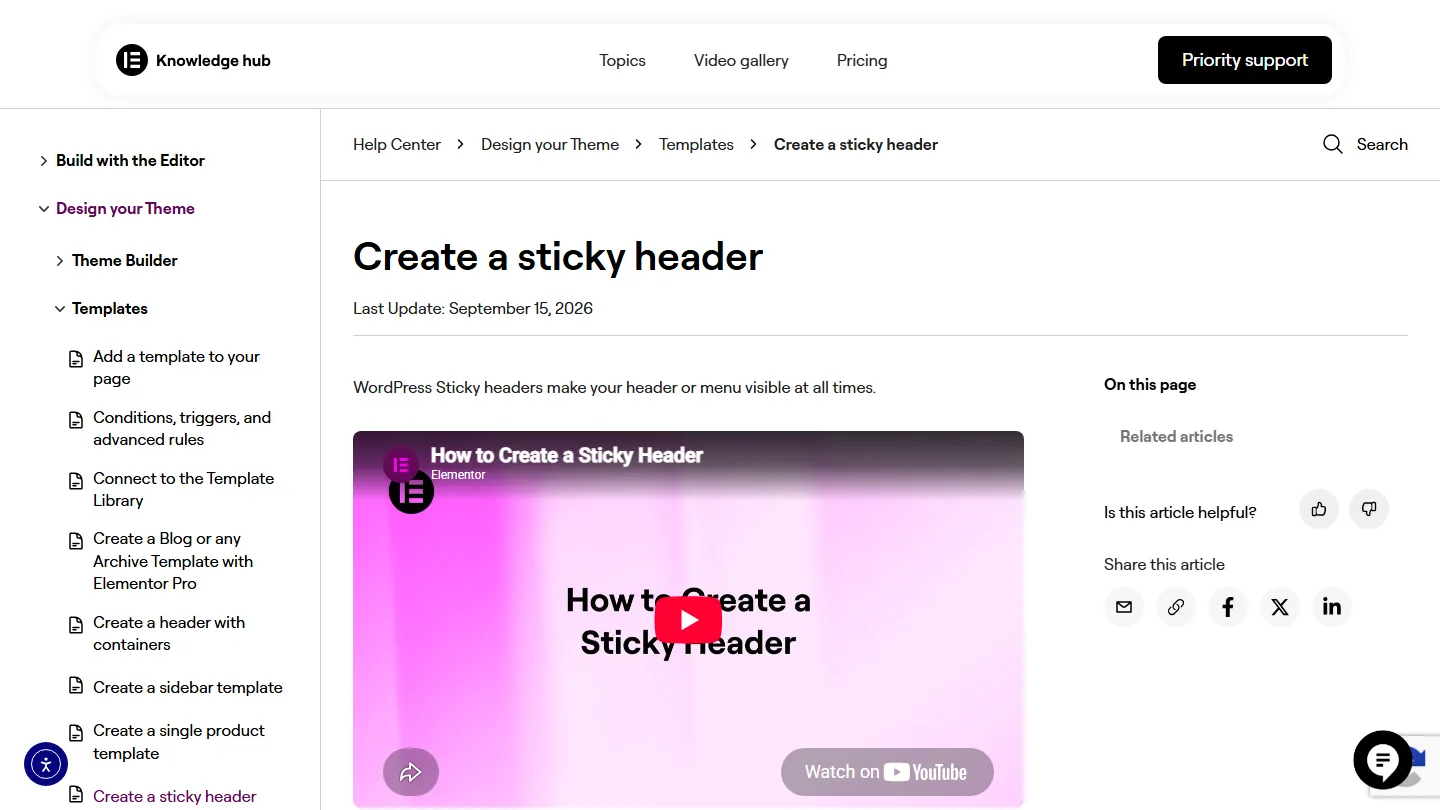
Placement is solid. After you publish a header template, Elementor’s conditions window opens, you add a condition, and you can leave the default to show the header on all pages or use the Include and Exclude dropdowns to limit it. Elementor warns you when a condition conflicts with another site part. For sticky headers, the help center says to select the header’s parent container, open Advanced, expand Motion Effects and set the Sticky dropdown to Top, then choose the devices under Sticky On. Offset and Effects Offset control how far the page scrolls before the effect begins.
Mega menus use the Menu widget. A mega menu is made by switching on the Dropdown Content option for an item and dropping widgets into the panel. Elementor’s mega menu article, updated 15 September 2026, still tells you to activate experimental features, so check the steps against your installed version before you follow them. The plugin listing puts the WordPress Menu and Mega Menu widgets in its Pro widget section.
Best for: teams that already pay for Elementor Pro, or that want templates, forms, popups and dynamic content from one vendor.
Honest limitations: it is a subscription, and the header tools come with the whole Pro package. Our Elementor Pro pricing breakdown has the plan costs. For transparent-on-scroll headers, the help center documents a Custom CSS method, so check whether the effect you want exists as a setting in your version. It also has no free tier for this job, which is the reason the rest of this list exists.
4. Header Footer Builder For Elementor
Header Footer Builder for Elementor, published by Turbo Addons, is a small plugin with a long feature list. The WordPress.org listing shows 30,000+ active installs, version 1.3.3 and a last update on 17 September 2026. Its description calls it Turbo Header Footer Builder for Elementor, so you may see either name.
According to the listing, you set display conditions when you create the template, exclude specific pages, and edit conditions later from the template list. Sticky header and scroll animation are checkboxes in the template settings. A Header Effects panel appears in the Advanced tab of any section or container in a header template, with a transparent header that turns solid on scroll, a configurable scroll distance, a custom solid background color and a bottom shadow.
It also lists a mega menu. You assign an Elementor template to a top-level menu item from Appearance > Menus, or use a standalone Mega Menu widget, and the panel can open on hover or on click. The mobile menu is a hamburger toggle with a scrollable, accordion-style menu, and large mega menu content can load on demand.
Best for: a free, all-in-one header toolkit when you want sticky, transparent and mega menu features and do not need the backing of a large vendor.
Honest limitations: the plugin has only 5 ratings, so there is little public feedback on how it behaves on large sites. The feature list comes from its own description, which we did not test, so build a sample header on staging before you rely on it. The listing also describes header and footer templates only, with no single post or archive templates.
5. Magical Addons For Elementor
Magical Addons for Elementor is a widget plugin with a free theme builder attached. The WordPress.org listing shows 4,000+ active installs, 4.7 out of 5 from 12 ratings, version 1.5.1 and a last update on 30 September 2026.
The theme builder covers headers, footers, single posts and pages, archives, search results and 404 pages without Elementor Pro. The Header Builder is described as responsive, sticky or transparent headers with menus, logos and action buttons. Display conditions include and exclude rules for the entire site, singular pages, archives, specific pages, categories, tags and custom post types, and you can combine several conditions on one template.
Best for: people who want a free theme builder that goes past the header and footer to include single and archive templates, inside a plugin that also ships widgets.
Honest limitations: it has the smallest install base and the fewest ratings here. We found no mega menu in the listing, and it gives no detail on scroll effect controls or the mobile menu beyond calling the headers responsive.
Which Plugin Should You Pick
The right choice depends on what your header has to do and what you already own. These are starting points, not rules.
- You want a normal header and footer for free, on any theme: start with Ultimate Addons for Elementor, which has the longest track record, or Header Footer Builder for Elementor if you also want sticky and mega menu features without paying.
- You want a free theme builder that also covers single posts, archives and 404 pages: look at Magical Addons for Elementor. Our tutorial on the Elementor Theme Builder without Pro shows another free route, with Nexter Extension handling placement.
- You already pay for Elementor Pro: use its Theme Builder for placement and conditions, and add a widget set only if you need effects or menus it does not give you.
- You need sticky, transparent, hide-on-scroll or shrinking headers plus a mega menu and a mobile menu, and you are happy to pay: The Plus Addons for Elementor puts all of that in one set of widgets. Our transparent header on scroll guide shows one of the effects end to end.
- You build many client sites: pick one placement tool and one widget set, then reuse them. Switching engines between projects costs more than any single license.
The placement tool and the widget set are separable, and that is worth knowing. A site can use a free theme builder for display rules and a widget plugin for the navigation, which is how the Nexter Builder and Pro header widgets from The Plus Addons for Elementor combine. What does not work well is stacking two placement engines for the same header, because two templates competing for the same position can leave you with a missing or doubled header.
How To Build A Header With The Plus Addons For Elementor
This walk-through assumes The Plus Addons for Elementor Free and Pro are active and Elementor is installed. The labels below come from our widget documentation and the Nexter Extension Theme Builder screens.
- Go to The Plus Addons > Widgets, search for Navigation Menu and switch it on.
- Create the header template. In Nexter Extension go to Theme Builder > Add New Template, pick Sections in the Select Template dropdown, then choose Header. Name it, click Next, set the display conditions to the entire site and click Create. If you use Elementor Pro, create the header in its Theme Builder instead.
- In the Elementor editor, build one container that holds your logo, the Navigation Menu widget and any button. Keeping them together matters because the sticky option fixes the whole container.
- Set Menu Type to Default to use a menu from Appearance > Menus, or Repeater to build items inside the widget. Choose Horizontal Menu for a top bar.
- Open Content > Extra Options and switch on Sticky Menu. Turn on On Mouse Scroll Up Sticky if you want the header to hide on the way down and return on the way up.
- For a transparent sticky header, go to Style > Sticky Main Menu > Section Background Options, open the Sticky tab, set Background Type to Classic and lower the color opacity. Remove any background from the container’s own Style tab, or it will cover the see-through color.
- For a mega menu, build an Elementor template for the dropdown content, set Menu Type to Repeater, make an item a first-level item, choose Mega Menu as its sub menu type and pick your template. The mega menu page summarizes the idea in four steps: drag in the widget, build the dropdown template, select it and publish.
- Under Mobile Menu, check that Responsive Mobile Menu is on and choose Toggle, Swiper or Off Canvas. Set Open Mobile Menu to the widest screen that should get the mobile layout.
- Publish the template, then scroll the front end on desktop, tablet and phone widths.
If you want the full list of controls, the Navigation Menu settings overview in our docs covers every tab, and the sticky menu guide goes deeper on the scroll options.
Checks Before You Publish A New Header
Most header problems are placement problems, not design problems. A few checks catch nearly all of them.
- Look for conflicting rules. If two templates claim the same position on a page, one will not show. Elementor shows a warning when site-part conditions conflict.
- Check the page layout. Elementor’s help center explains that a page set to the Elementor Canvas layout hides the header and footer on purpose. Switch it to Default or Full Width if a header is missing on one page.
- Test the tablet range. Hover menus behave differently between the mobile breakpoint and the desktop width, so test a tablet in both orientations.
- Clear caches. A cached page can show the old header after you publish. Clear your caching plugin and the Elementor files before you assume the rule failed.
- Keep one header per position. Disable the theme’s built-in header options if the plugin does not do it for you.
Frequently Asked Questions
Do I Need Elementor Pro To Build A Custom Header?
No. Elementor’s own Theme Builder is Pro, but Ultimate Addons for Elementor, Header Footer Builder for Elementor and Magical Addons for Elementor all list a free header and footer builder that works with the free Elementor plugin.
Is The Header Builder In The Plus Addons For Elementor Free?
No. Header Builder, Footer Builder and Mega Menu Builder are Pro features. The free plugin includes Navigation Menu Lite, which has horizontal and vertical menus, dropdowns, a Repeater mega menu template option and a toggle mobile menu, but no sticky options.
Which Plugin Used To Be Called Elementor Header & Footer Builder?
Ultimate Addons for Elementor by Brainstorm Force. Its WordPress.org listing says it began as the original Elementor Header & Footer Builder, and it keeps the slug header-footer-elementor.
Can I Use More Than One Header Plugin At The Same Time?
You can combine a placement tool with a widget plugin, such as a free theme builder with menu widgets from another plugin. Avoid using two plugins to place the header on the same pages, because the templates compete and one may not appear.
How Do I Make An Elementor Header Sticky?
In Elementor Pro, select the header’s parent container, open Advanced, expand Motion Effects and set Sticky to Top. In The Plus Addons for Elementor Pro, switch on Sticky Menu under Content > Extra Options in the Navigation Menu widget.