Search for Elementor Pro templates and you land on a library, a marketplace and a pricing page, but rarely on a straight answer to the question most people are really asking: what does paying for Pro change about templates? The answer depends on which meaning of the word you have in mind, because Elementor uses "template" for two different things, and only one of them is a design you drop into a page.
This guide separates the two. We compare what the free Elementor template library gives you, what Elementor Pro adds on top, and where free template kits, including the starter templates from The Plus Addons for Elementor, fit into that picture. Every Elementor claim below comes from Elementor’s own pricing page, Knowledge Hub or WordPress.org listing, checked on 2 October 2026, and we say plainly where Elementor does not publish a number.
What Elementor Pro Templates Actually Means
Elementor’s own help article, What is a Template?, states the split clearly. In the first meaning, a template is a standardized document you can edit to suit your needs, and these are "primarily saved and accessed through the Template Library". In the second, a template is a primary document that gets replicated throughout your website, such as the header and footer. Elementor calls those site parts, and you reach them through the Theme Builder.
That distinction explains most of the confusion around the keyword. Someone who types "Elementor Pro templates" might want a ready-made landing page layout, or might want to know whether a header they design once will appear on every page. Those are different products inside the same plugin, and they sit on different sides of the free and Pro line.
| Template type | What it is | Where you find it | Free or Pro |
|---|---|---|---|
| Blocks and Pages | Designer-made layouts you insert into a page | Add Template folder icon in the editor | Free, after connecting a free Elementor account. Some layouts are marked as Pro |
| Saved templates | Your own sections and pages, reusable on one site | Templates > Saved Templates | Free (site templates) |
| Cloud templates | Your own designs, reusable across sites | Template library, cloud storage | Needs an Elementor Pro subscription |
| Theme Builder site parts | Header, Footer, Single and Archive templates | Templates > Theme Builder | Pro |
| Popup templates | Modal windows with triggers and conditions | Templates > Popups | Pro, and not on the Essential plan |
| Website templates (kits) | A whole site: pages, site parts and settings | Elementor > Editor > Home > Tools > Website Templates | Import is in the editor. Export options depend on your plan |
What The Free Elementor Template Library Gives You
Elementor’s article on how to Use a template from the Template Library describes the library as access to "hundreds of designer-made" Page layouts and Blocks that you can use freely on your site. To open it, click the add template icon on the canvas in the Elementor Editor. The first time you insert a template, Elementor asks you to connect a free Elementor account, and you can register for one during that step.
From there the flow is simple. You pick a Block, an entire Page, or one of your own templates, use the search field to find something specific, and click Insert. The library window has three tabs in the captures we have seen: Blocks, Pages and My Templates.
Saved Templates And Moving Them Between Sites
Anything you build can become a template. The same help article covers exporting a saved template and uploading templates as .json or .zip files, which is how people move designs between sites without a subscription.
Elementor stores templates in one of two places. In the article on the difference between site templates and cloud templates, Elementor says site templates are "available to all users with an Elementor account" and are stored locally on your site, while cloud templates are available to users with an Elementor Pro subscription and can be used on any site they are working on. That single line is the clearest free versus Pro boundary Elementor publishes for the template library itself.
Free Website Kits
The WordPress.org listing for Elementor describes the Template Library as a way to "apply complete website kits for instant setups", or to choose from single pages, blocks and pop-up templates. Elementor’s kit page advertises 100+ responsive website kits that you customize in the editor.
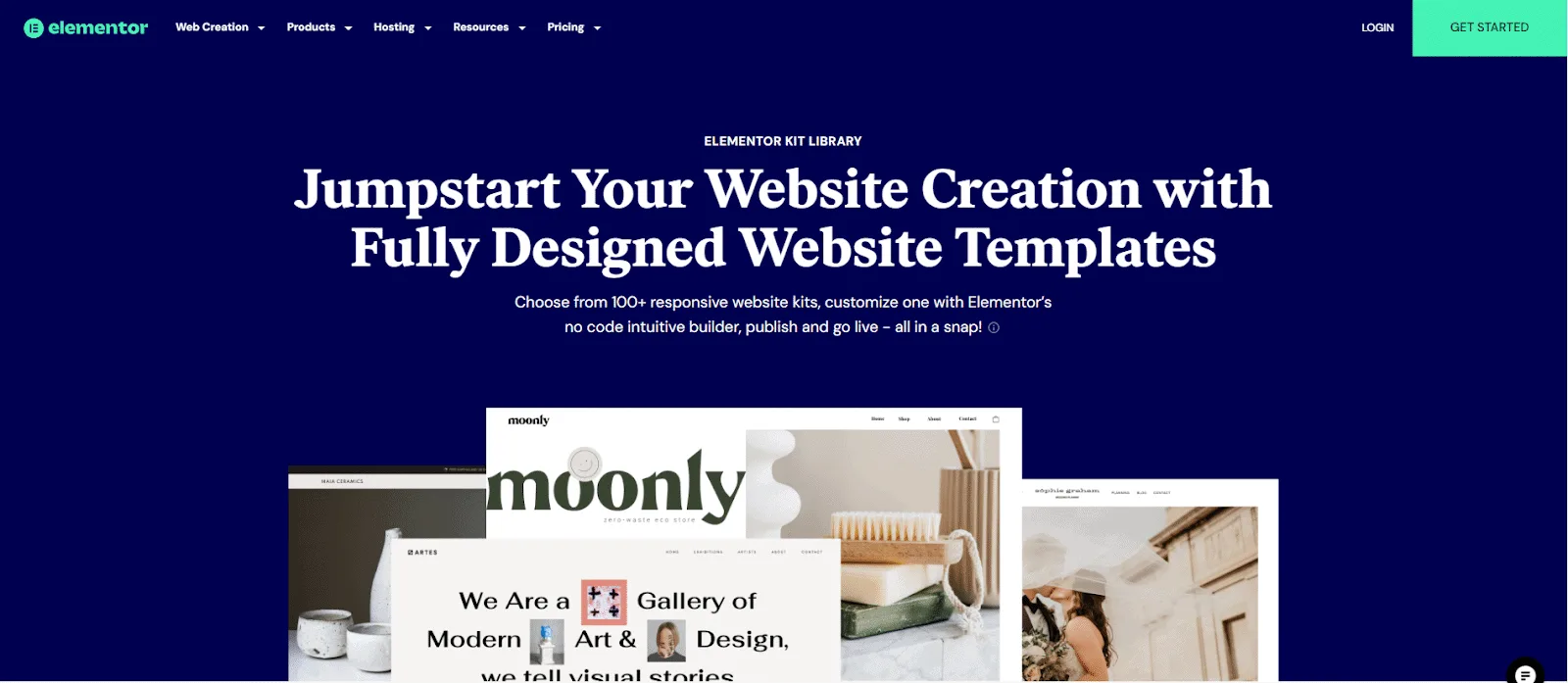
What Elementor does not publish is a split of how many of those layouts are free and how many need Pro. In the Pages tab, several layouts carry a PRO badge, which means the visible library mixes both. Because there is no official count, we do not quote one. The practical advice is to check for the badge on the specific kit or page you want before you design a project around it.
Looking for ready-made layouts that are not tied to an Elementor subscription tier? Browse the starter website and section templates from The Plus Addons for Elementor, where every template is labelled Free or Pro so you can filter before you import.
What Elementor Pro Adds To Templates
Pro changes templates in four ways. It unlocks the Theme Builder, it unlocks Popup Builder, it adds Form and WooCommerce template types, and it adds cloud storage for your own designs. Elementor’s WordPress.org listing tags each of these with [Pro]: Theme Builder for "headers, footers, posts, and archives", Popup Builder, Forms, WooCommerce Builder and Dynamic Content.
Theme Builder Site Parts
The Templates menu in Elementor lists what the Theme Builder covers: Header, Footer, Single and Archive templates, plus WooCommerce archive and single product templates. The Templates menu article groups them under Theme Builder, next to Saved Templates and Popups. This is the part of the keyword that has no free equivalent inside Elementor itself. A header you design once and show on every page is a Pro feature.
Elementor’s walkthrough, Create a complete website using Elementor website templates and Theme Builder, shows how the pieces combine. You choose the Hello theme, create pages and insert a kit page into each from the template library, then open the Theme Builder, pick Header from the Template Type dropdown, and insert the matching header from the same kit. After that you click Publish, then Add Condition, and choose Include > Entire Site as the condition. The kit supplies the design, and the Theme Builder supplies the placement.
If you only need the placement part without paying for Pro, we cover a free route in Elementor Theme Builder Without Pro. It pairs a free template-assignment plugin with the Elementor editor you already have.
Popup Templates
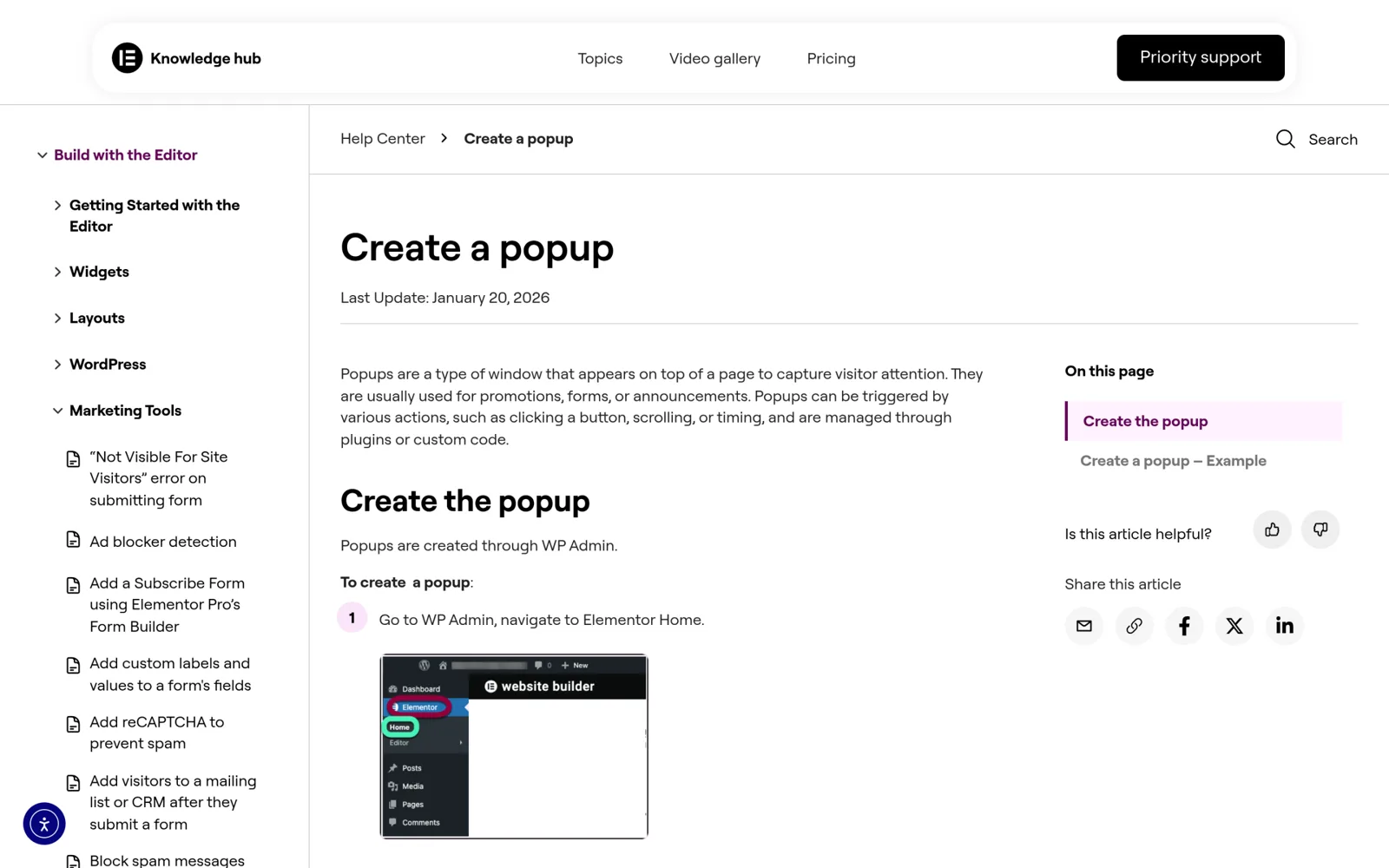
Popups are the second Pro-only template type. Elementor’s popup guide says you build them from Elementor > Editor > Templates, then control the layout, conditions, rules and styles, and then design the content. The Publish settings add Conditions, which decide where a popup appears, and Triggers such as On Page Load, On Scroll, On Scroll To Element and On Click. The pricing page confirms the gating: Popup Builder is listed as not included on the Essential plan and included on every plan above it.
Form And WooCommerce Templates
Forms follow the same pattern. The listing marks Forms as Pro, and the pricing page shows Form Builder as included on Essential, with the note that form submissions are not available on that plan. For a store, the Pro WooCommerce Builder is what Elementor lists for designing product pages, shop layouts, archives, carts, checkout and account pages.
Cloud Templates And Storage Limits
Cloud templates are the Pro answer to site templates. The pricing page lists a storage limit for each plan, which we put in the table below. This matters if you maintain a personal library of sections that you reuse across client sites, because the limit runs from 10 on Essential to 50,000 on One Agency.
Elementor Pro Plans Compared By Template Features
Here is what each plan includes for the template-related features, from Elementor’s pricing page on 2 October 2026. Prices are per month on annual billing.
| Plan | Price | Sites | Editor Pro widgets | Theme Builder | Popup Builder | Cloud templates |
|---|---|---|---|---|---|---|
| Essential | $5/mo ($60/yr) | 1 | 57 | Included | Not included | 10 |
| Advanced Solo | $7/mo | 1 | 85 | Included | Included | 20 |
| Advanced | $9/mo | 3 | 85 | Included | Included | 30 |
| Expert | $17/mo | 25 | 85 | Included | Included | 5,000 |
| One | $15/mo | 1 | 85 | Included | Included | 30 |
| One Agency | $36/mo | Unlimited | 85 | Included | Included | 50,000 |
Two things stand out. First, the Theme Builder is on every plan, including the cheapest, so the real jump for site parts is from Free to any paid plan, not between paid plans. Second, popups are what the Essential plan leaves out, along with the larger widget set. If you need a popup template, the cheapest realistic starting point is Advanced Solo. For the full price and renewal picture, read Elementor Pro Pricing Explained, or see the plan options on the The Plus Addons for Elementor pricing page if you are comparing add-on routes.
Pro Templates Vs Free Template Kits Side By Side
Now the comparison the keyword was asking for. We use "Pro templates" for what Elementor Pro unlocks and "free template kits" for ready-made page and section designs that do not depend on a Pro subscription, whether they come from Elementor’s free library or from an add-on vendor.
| Question | Elementor Pro templates | Free template kits |
|---|---|---|
| What do you get? | Theme Builder site parts, popup templates, Form and WooCommerce templates, cloud storage | Designed pages, sections and sometimes full site kits you import and edit |
| Can it show a header on every page? | Yes, through Theme Builder conditions such as Include > Entire Site | A kit can supply the header design, but placing it site-wide needs a Theme Builder or a free alternative |
| Popups | Popup Builder with conditions and triggers | Popup designs can be imported, but triggers come from the popup tool you use |
| Cost | Paid, from $60 a year on Essential | Free to download, though the page builder features a kit uses may not be |
| Reuse across sites | Cloud templates tied to your Elementor account and subscription | Zip or JSON file import on any site |
| Risk | Cloud storage and Pro editing depend on an active subscription | A kit built on Pro-only widgets can look broken on a free setup |
| Best for | Sites where one design must apply everywhere, or where conversions depend on popups | Landing pages, section libraries and fast starting points |
The table points to a rule that saves time: kits give you looks, Pro gives you placement and behavior. A free kit can hand you a beautiful header, but it will not make that header appear on 400 posts without something that understands display conditions. A Pro popup template can trigger on scroll, but it will not give you a finished design unless you start from a library layout.
There is also a subtler point about kit contents. A kit page that uses a widget from the Pro set will not render in full on a free install, which is why checking the badge before committing matters. Our Elementor Free vs Pro comparison goes through the full widget and feature split if you want to know what else changes.
Importing A Kit: What The Import Screen Actually Asks
Elementor’s article Import and export Elementor website templates documents the kit workflow end to end. In WP Admin you go to Elementor > Editor > Home, click Tools, open the Website Templates tab and choose Import. You can either open the library for a cloud-stored kit or upload a zip file.
When you import, Elementor asks which parts to bring in. The three options are worth understanding, because they decide whether you replace your site’s look or only borrow content.
- Templates imports site parts such as headers and footers plus any template you saved. Elementor suggests selecting it only if you want to recreate the elements of the site with different content.
- Content imports pages, posts and custom post types, which is good for bringing in the text and images in the kit.
- Site Settings imports global fonts, theme style, layout, lightbox and background settings, and is for replicating the look and feel of the site.
Selecting all three imports the entire site as it was. Elementor recommends backing up your site before importing a file. If the zip contains SVG files, you may see a prompt to enable SVG imports, which you should accept only when you created the kit or trust its source.
Where Your Plan Limits The Kit Workflow
The export side is where the plan shows up. The same article says "the availability of export options depends on your Elementor subscription plan". It then spells out the splits: saving media to the cloud is for the Advanced plan and up, granular content selection is for the Expert plan and above, and exporting custom files or a public theme is for Pro and above. It also notes that importing from your cloud library requires an Advanced subscription or better. In short, importing a kit from a zip is open to everyone, but building and storing your own kits scales with what you pay.
Elementor > Editor > Home > Tools > Website Templates
  Import  > Open the Library | Import a zip file
  Apply   > Templates | Content | Site Settings
What Happens To Your Templates If Pro Expires
A reasonable worry for anyone who builds on Pro templates is what happens at renewal. Elementor’s help article says cloud templates are tied to the individual user’s Elementor account and Elementor Pro subscription, so only the user who connects an account can reach their own cloud space. Using cloud templates is also described as separate from activating Elementor Pro on a site. We claim no more than that. Our guide on what happens when Elementor Pro expires covers the editing and rendering side in more detail.
For planning, keep an exported zip of anything important, since designs that depend on cloud storage or Pro site parts depend on the subscription staying active.
Where The Plus Addons Starter Templates Fit
This is the part where we are not neutral, so here are the facts we can stand behind. The starter templates page for The Plus Addons for Elementor advertises 2000+ Elementor templates, made up of 100+ page kits, 500+ sections and 1000+ ready-to-use full pages. It carries an AI Compatible filter and a Free or Pro filter, so you see which templates need the paid add-on before you import anything. The page also describes a free Theme Builder optimized for SEO.
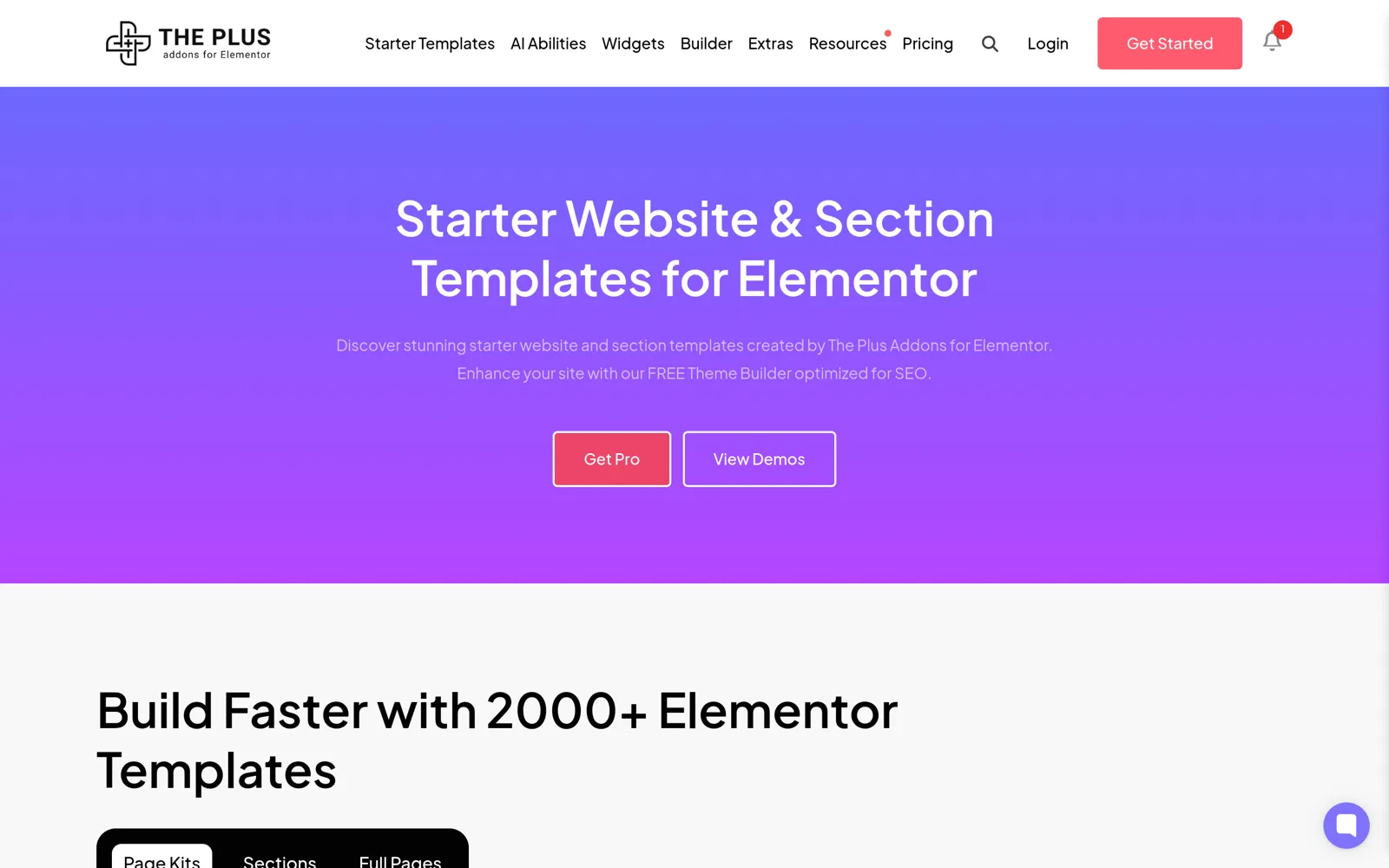
These templates work with either edition of Elementor. The FAQ on that page says The Plus Addons for Elementor is fully compatible with Elementor Pro and with the free version, and that Elementor Pro is not required to use its features. That makes them a fit for the gap this article keeps returning to: you want finished designs but not an Elementor subscription tier you do not otherwise need.
There are limits to state honestly. Templates that use Pro widgets from the add-on need the paid plan, which is why the filter exists. And a template, free or paid, does not give you the site-wide placement behavior of the Theme Builder. For that you either use Elementor Pro or the free route in our Theme Builder guide. If you are comparing add-on plans against Elementor’s, the free versus Pro comparison lists what the add-on’s free version includes.
Many of the widgets that kits depend on are individually available too. For example, the Accordion, Advanced Tabs and Switcher widgets cover the interactive sections that most landing-page kits include.
Which Option Fits Your Project
The right choice follows from what the project needs, not from which side of the debate sounds better. Use the cases below as a quick filter.
- A brochure site with five pages and no popups. A free kit plus the free editor is enough. Insert the pages, set site fonts and colors, and move on.
- A business site that needs one header and footer everywhere. You need placement, so either a Pro plan or a free Theme Builder route. A kit alone will not do it.
- A marketing site where popups drive sign-ups. Popup Builder means Advanced Solo or higher, since Essential does not include it.
- A WooCommerce store. Template design for product, cart and checkout pages needs the Pro WooCommerce Builder. A free kit can style the marketing pages around the store.
- An agency building many sites. Reuse matters most, so look at cloud template limits (5,000 on Expert, 50,000 on One Agency) and keep exported kits as a backup.
Whichever route you choose, test a kit on a staging copy first and import its parts one at a time.
Frequently Asked Questions
Does Free Elementor Include Templates?
Yes. Elementor’s help article describes a Template Library with designer-made Page layouts and Blocks, available after you connect a free Elementor account. Some layouts carry a PRO badge, and the Theme Builder, popups and forms need Pro.
What Is The Difference Between Site Templates And Cloud Templates?
Site templates are stored on your site and available to all users with an Elementor account. Cloud templates are available to Elementor Pro subscribers and can be used on any site they work on, with storage that depends on the plan.
Do I Need Elementor Pro To Import A Website Kit?
Elementor documents kit import under Tools and Website Templates, where you can upload a zip file. Export options and cloud library access depend on your plan, and a kit that contains Pro widgets will not fully render without Pro.
Which Elementor Plan Includes Popup Templates?
Per the pricing page on 2 October 2026, Popup Builder is not included on Essential and is included on Advanced Solo, Advanced, Expert, One and One Agency.
Can I Use Free Template Kits From Add-On Vendors With Elementor Pro?
Yes. Templates built for Elementor import into any edition. The starter templates from The Plus Addons for Elementor state that they work with both Elementor Pro and the free version.