Open Templates in free Elementor and you will find Saved Templates, but no way to tell WordPress that one design should be the header on every page. That job belongs to the Elementor Pro Theme Builder. Elementor’s own plugin listing marks the Theme Builder as a Pro feature for headers, footers, posts and archives, and its pricing FAQ says the same thing: the free editor covers the drag-and-drop basics, and Pro adds the Theme Builder.
You can still get custom headers, footers, single post templates, archive pages and a 404 page without paying for Pro. This guide shows the free route we use: Nexter Extension handles the template assignment, Elementor handles the design, and The Plus Addons for Elementor supplies the navigation menu. We also mark clearly where the free route ends and a paid tool starts to pay for itself.
What The Elementor Pro Theme Builder Actually Does
People treat the Theme Builder as one feature. In practice it bundles three separate jobs, and splitting them apart shows you exactly what you need to replace.
- Template types. A header, footer, single post, archive or 404 template is a design saved with a role attached to it.
- Display conditions. Rules decide where that template loads, for example the whole site, only blog posts, or every page except the homepage.
- Theme override. The template replaces what your active theme would normally print in that position.
Free Elementor gives you the design canvas but none of the three jobs above. A free alternative has to cover all three, or you end up with a nice header that only appears on the one page where you dropped it. Nexter Extension covers the three jobs, and Elementor stays the tool you design in.
If you are still deciding whether to pay for Pro at all, our breakdown of Elementor Pro pricing covers the plan costs. This article stays on one question: how to get theme templates without it.
The Free Stack At A Glance
Here is how each Theme Builder job maps to a free tool. Every row comes from the vendor’s own comparison page or plugin listing, checked on 30 September 2026.
| Theme Builder job | Elementor Free | Free route | Source |
|---|---|---|---|
| Header template | Not included | Nexter Extension Header template, designed in Elementor | nexterwp.com/free-vs-pro |
| Footer template | Not included | Nexter Extension Footer template | nexterwp.com/free-vs-pro |
| Single post template | Not included | Nexter Extension Singular template | nexterwp.com/free-vs-pro |
| Archive template | Not included | Nexter Extension Archives template | nexterwp.com/free-vs-pro |
| 404 page | Not included | Nexter Extension 404 Page template | nexterwp.com/free-vs-pro |
| Display conditions | Not included | Nexter display rules | nexterwp.com/free-vs-pro |
| Navigation menu | Menu widgets are Pro | Navigation Menu Lite from The Plus Addons for Elementor (Free, limited) | theplusaddons.com/free-vs-pro |
Build A Free Elementor Header With Nexter And The Plus Addons
Want sticky, transparent or shrinking effects and a header toolbar with search, cart and CTA buttons without stitching tools together? See the Header Builder in The Plus Addons for Elementor. It is part of the Pro plan, and the steps below show what you can build before you need it.
The header is the template most people want first, so start there. Nexter Extension’s own documentation states that its Theme Builder works with all WordPress themes, so you do not need to switch your active theme. The WordPress.org listing names Hello Elementor, Astra, GeneratePress, Kadence, Blocksy, OceanWP and Neve as compatible. If you already run Hello Elementor, keep it.
Step 1: Create The Header Template
- Install and activate Nexter Extension from Plugins > Add New. It is free on WordPress.org.
- In the dashboard, go to Nexter Extension > Theme Builder > Add New Template.
- In the Select Template dropdown, pick Sections, then choose Header.
- Type a name in the Name of Template field and click Next.
- Set the display conditions. For a site-wide header, target the entire site. Click Create.
- When the editor opens, switch to Elementor and design the header like any other section.
- Publish the template. It replaces the theme header wherever the conditions match.
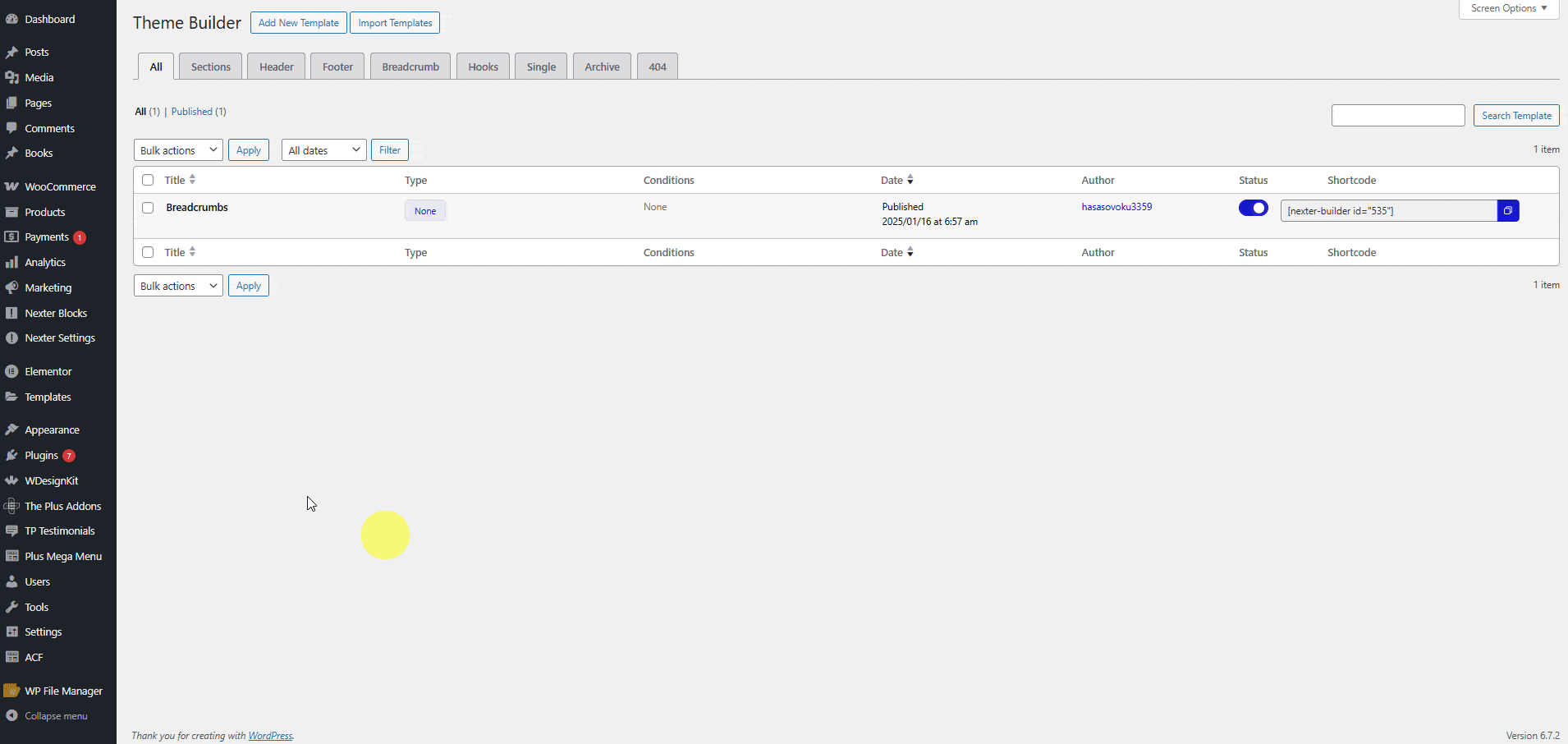
The tabs across the top of that screen are your template types. Header, Footer, Breadcrumb, Hooks, Single, Archive and 404 all sit in one list, so a site with ten templates stays easy to audit.
Step 2: Add The Navigation Menu Lite Widget
Free Elementor does not include a styled navigation menu widget. Its plugin listing places the WordPress Menu and Mega Menu widgets in the Pro widget list. The Plus Addons for Elementor fills that gap with Navigation Menu Lite, which is in the free plugin. Our free-vs-pro page lists it as “Limited” in Free, meaning the core menu is there and the extra layouts sit in Pro.
Drag the widget into the header template and work through these controls:
- Menu Type: choose “Default” to load a menu from Appearance > Menus, or “Repeater” to build the items inside the widget.
- Menu Direction: “Horizontal Menu” for a top bar, “Vertical Menu” for a sidebar layout.
- Alignment: left, center or right.
- Responsive Mobile Menu: set to “Show” to give phones and tablets their own toggle menu.
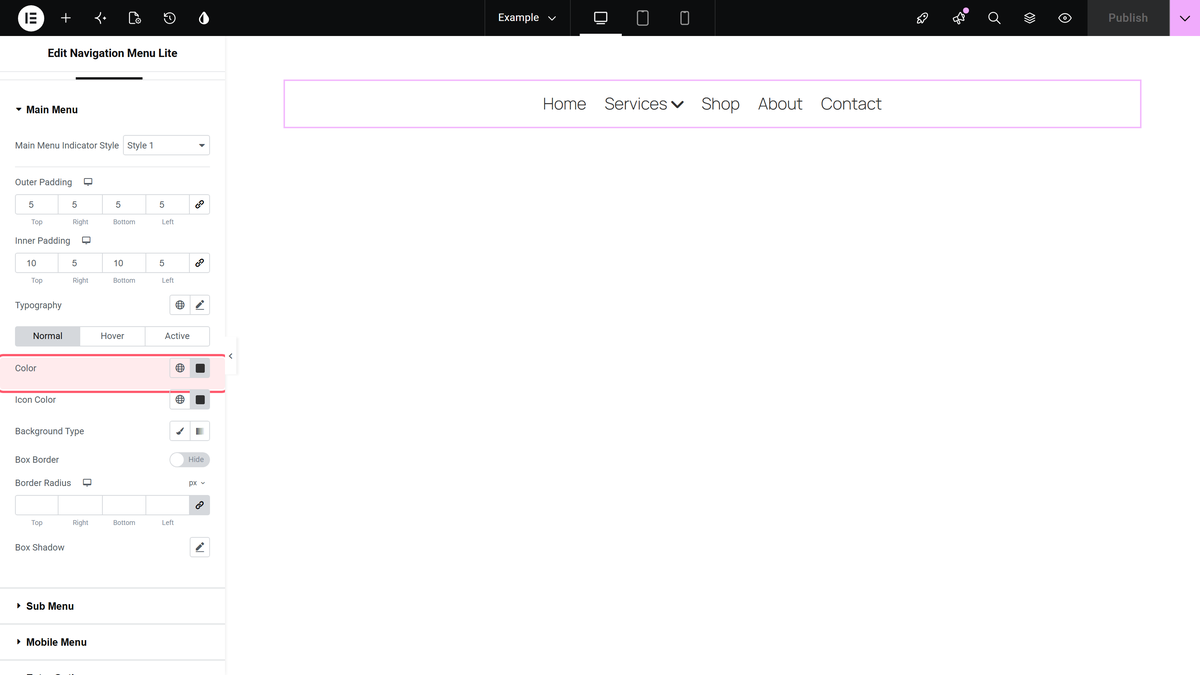
The Navigation Menu settings overview in our docs walks through every tab if you want the full control list.
Step 3: Add A Simple Mega Menu For Free
The Repeater mode hides a useful free feature. Each repeater item has a Menu Level dropdown from “0 Level” to “6 Level”. Set an item to “1 Level” and a Sub Menu Type dropdown appears with “Link” and “Mega Menu”. Pick “Mega Menu”, choose an Elementor template in the Template field, and that template opens as the dropdown panel.
A Mega Menu Type dropdown then sets the panel width: “Default”, “Container” or “Full Width”. That covers a services dropdown with icons, a featured post, or a short product grid. Our guide to building a menu with the Repeater covers the setup, and the broader mega menu guide for WordPress explains when a mega menu helps and when it just adds noise.

Build A Free Footer Template
Footers follow the same path. In the Theme Builder, click Add New Template, choose Sections, then Footer. Set the conditions to the entire site and design it in Elementor.
Free Elementor already has what most footers need: Heading, Text Editor, Icon List, Social Icons and Image widgets inside a flexbox container. A common layout is four columns on desktop (logo and short blurb, two link columns, and a contact column) that stack to one column on mobile. A second, thinner container below holds the copyright line.
One tip saves a lot of rework. Build the footer link columns with the Icon List widget instead of separate text links. Icon List gives you consistent spacing, and you can edit the whole column from one place when a page URL changes.
If you later want footer-specific widgets and prebuilt footer layouts, the Footer Builder in The Plus Addons for Elementor adds them. It is a Pro feature, so treat it as an upgrade path, not a requirement.
Single Post, Archive And 404 Templates With Nexter
Headers and footers get the attention, but the templates that change how a blog feels are single posts and archives. Elementor Pro puts these in the Theme Builder too. Nexter Extension’s free-vs-pro table marks Single Pages, Archive Pages and 404 Page as free.
Single Post Template
In Add New Template, choose Pages, then Singular. Target posts, a specific post type, or selected posts. Design the layout in Elementor: title area, featured image, content area, author box and related posts.
This is where the free route has its first real limit. Elementor’s pricing page lists dynamic content controls as part of Editor Pro. A single template usually needs to pull the current post’s title, content and meta, so check which dynamic elements your design relies on and confirm they work in free Elementor before you build. Nexter Extension also supports the block editor, so some teams design single templates with blocks and keep Elementor for pages. Test on a staging copy first.
Archive Template
Choose Pages > Archives. Nexter’s docs describe this type as covering archive pages such as search and author archives. Use it for the blog index, category pages and author pages so they match the rest of the site instead of falling back to the theme’s plain list.
404 Page Template
Choose Pages > 404 Page. A good 404 template is short: a clear message, a search form, and three or four links to your most visited pages. It is the cheapest template to build and one of the most often forgotten.
Display Rules And Shortcodes
Every template gets display conditions when you create it, and Nexter lists Display Rules for Theme Builder sections as free. The Theme Builder list also shows a shortcode for each template, so you can drop a section anywhere a shortcode works, such as a promo bar above selected pages:
Swap the ID for the one shown in your own Shortcode column. Nexter templates also export as XML files and import on another site, which is handy when you reuse one header across client builds. Nexter’s docs note that the plugins and widgets used in the template must be active on the destination site.
Where The Free Route Stops
Being honest about limits saves you a rebuild later. This is what The Plus Addons for Elementor includes in each plan for header and footer work, taken from our Free vs Pro comparison.
| Feature | Free | Pro |
|---|---|---|
| Navigation Menu (Lite) | Limited | Yes |
| Scroll Navigation | Limited | Yes |
| Header Builder | No | Yes |
| Footer Builder | No | Yes |
| Mega Menu Builder | No | Yes |
| Sticky Header Effects | No | Yes |
| Login/Signup widget | No | Yes |
| Ajax Search | No | Yes |
The free stack gets you a working, site-wide header with a menu, a footer, and single, archive and 404 templates. It does not get you scroll effects, a header toolbar with search and cart icons, or dedicated vertical and sidebar mega menus.
When The Plus Addons Pro Header Builder Is Worth It
Most people upgrade the header before anything else, because that is where visitors notice polish. The Pro Header Builder is worth it in three situations.
- You need scroll behaviour. The header effects set covers a sticky header, transparent sticky header, hide on scroll, logo change on scroll, colour change on scroll, glassmorphism and a shrinking header. Our tutorial on the Elementor transparent header on scroll shows one of these end to end.
- You run a store or a multilingual site. Header Extras adds search, a language switcher, a Woo mini cart, a login form and CTA buttons in one widget row.
- Your menu is large. The Mega Menu Builder adds horizontal, vertical and sidebar mega menu layouts beyond the free Repeater option.
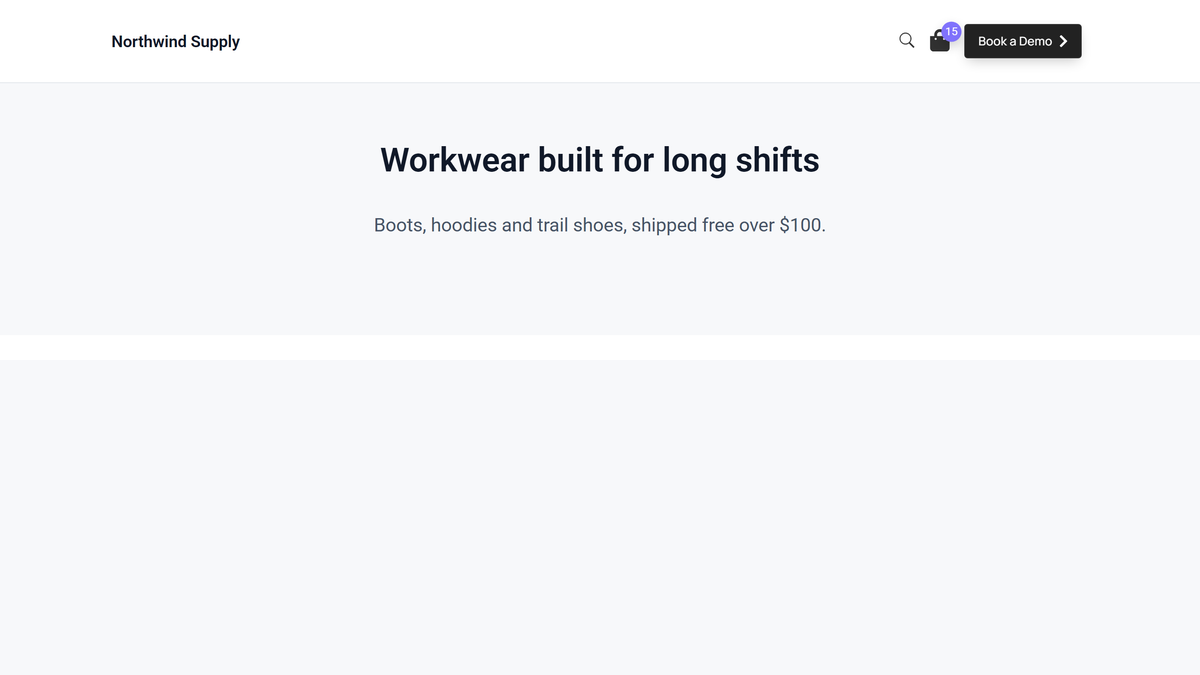
You can keep Nexter Extension as the template engine either way. The Pro widgets from The Plus Addons for Elementor drop into the same Nexter header template you already built.
When Elementor Pro Is Still Worth It
The free route is not right for every site. Elementor Pro is still the better call when:
- Your templates depend on dynamic content. If single and archive templates need dynamic content and custom fields throughout, Pro keeps all of it in one tool.
- You build WooCommerce product and shop templates. Elementor lists its WooCommerce Builder as Pro, covering product pages, shop layouts, archives, cart, checkout and account pages.
- You want forms and popups from the same vendor. Pro bundles the Form widget and Popup Builder, which some teams prefer to managing more plugins.
- Your team already knows it. Retraining a team on a new template workflow has a real cost, and for an agency that cost can exceed the licence.
For a brochure site, a portfolio or a content blog, the free stack in this guide covers the Theme Builder jobs most people actually use. For a wider view of what else sits behind the paywall, see our Elementor Free vs Pro comparison.
Frequently Asked Questions
Does Free Elementor Include The Theme Builder?
No. Elementor’s WordPress.org listing tags the Theme Builder as Pro, and its pricing FAQ lists the Theme Builder among the features Pro adds.
Do I Need The Nexter Theme To Use Nexter Extension’s Theme Builder?
No. Nexter’s documentation says the Theme Builder works with all WordPress themes, and the plugin listing names Hello Elementor, Astra, GeneratePress and others as compatible.
Can I Design Nexter Templates In Elementor?
Yes. Nexter’s docs state that once a template is created, you can design it with WordPress blocks or with Elementor.
Is The Mega Menu In The Plus Addons For Elementor Free?
A simple one is. Navigation Menu Lite’s Repeater mode offers a “Mega Menu” sub-menu type that loads an Elementor template. The dedicated Mega Menu Builder with vertical and sidebar layouts is Pro.