


































Do you want to add a pie chart to an Elementor website? Pie charts are a powerful tool for visualizing data and presenting complex information in a clear and concise manner.
With the Chart widget from The Plus Addons for Elementor, you can easily show your data in a pie or doughnut chart on your Elementor website.
To check the complete feature overview documentation of The Plus Addons for Elementor Chart widget, click here.
Requirement – This widget is a part of The Plus Addons for Elementor, make sure it’s installed & activated to enjoy all its powers.
To do this, add the Chart widget to the page and follow the steps –
1. You can select Custom from the Chart Type dropdown under the Layout tab.
2. You have to select Doughnut & Pie from the Select Chart section under the Chart tab.
3. Then from the Orientation dropdown, select Pie.
Note: You can also select Doughnut to make a doughnut chart.
4. After that, in the Label Value field, you have to add chart labels separated by a pipe sign (|).
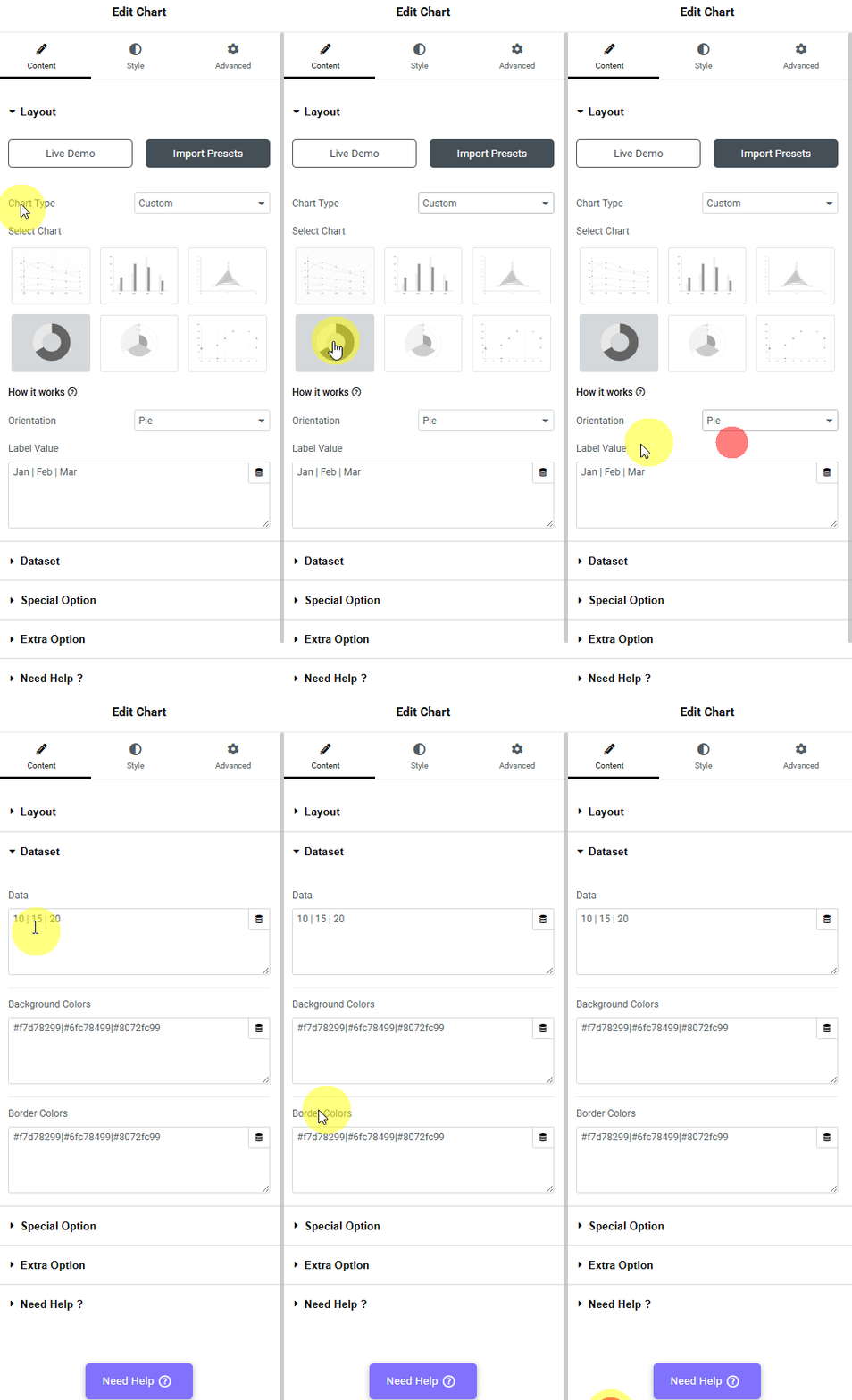
5. Then, in the Dataset tab, you have to add the data for the chart.
- Data – Here, you have to add the values of the dataset separated by a pipe sign (|). Make sure to add the same number of data points as added in the Label Values field of the Chart tab.
- Background Colors – Here, you can change the individual dataset background color. To do so, you have to add the color hex codes separated by a pipe sign (|). Make sure to add the same number of colors as added in the Data field.
- Border Colors – Here, you can change the individual dataset border color. To do so, you have to add the color hex codes separated by a pipe sign (|). Make sure to add the same number of colors as added in the Data field.
Note: For the Doughnut option, you’ll find these options inside individual item tabs.
You can customize the chart further from the Special Option and Extra Option tabs.
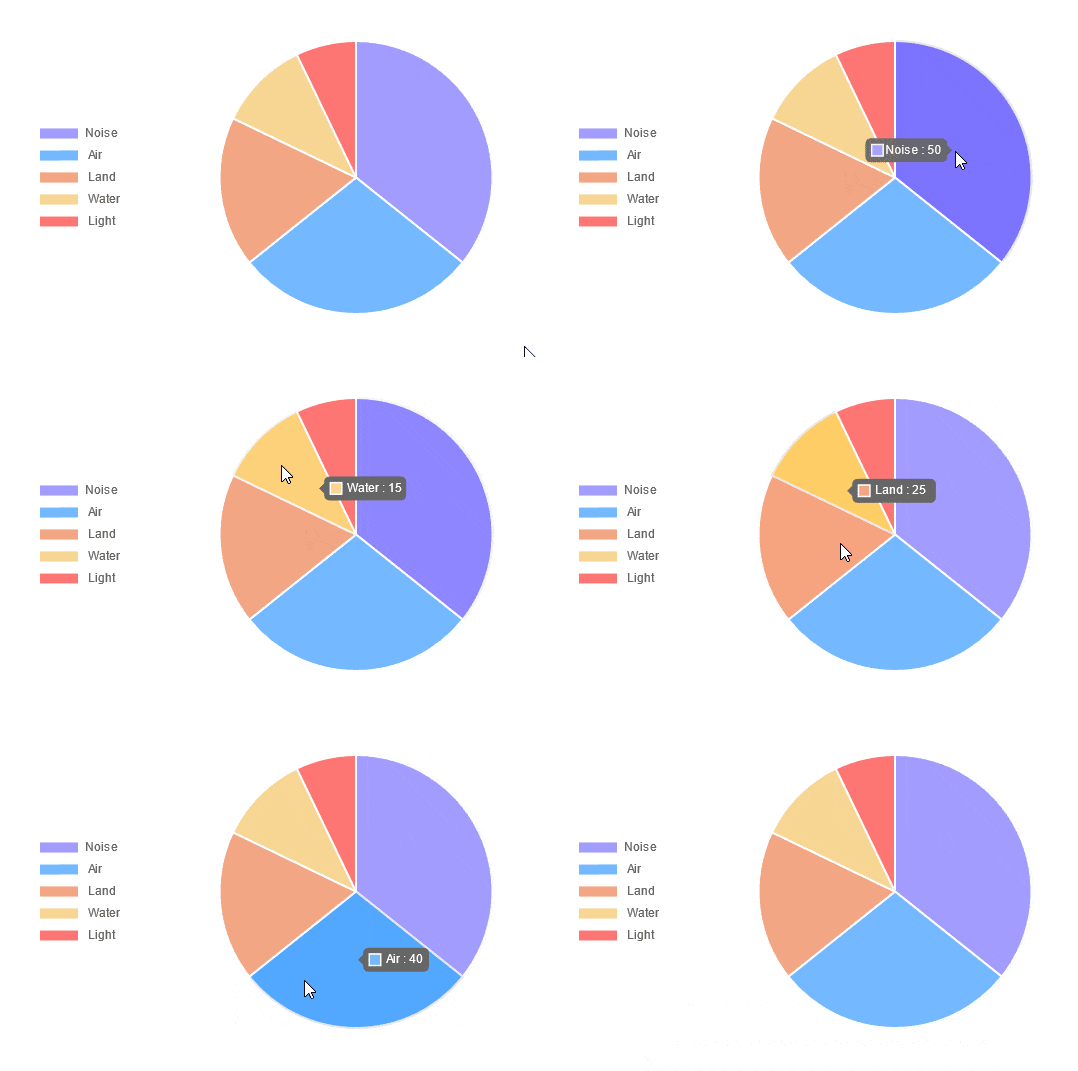
Now you should have a beautiful pie chart.
Suggested Read: How to create a bubble chart in Elementor

