




How to Use LottieFiles Animation with the Animated Service Box in Elementor?

Key Takeaways

  • LottieFiles are lightweight files that allow users to add complex animations to their websites.
  • The Plus Addons for Elementor Animated Service Boxes widget requires the JSON file URL of the LottieFile for integration.
  • Users can style and control the Lottie animation from the Style tab after adding it to the Animated Service Box.
Table Of Content

Do you want to use the LottieFiles animation in the Animated Service Box widget? LottieFiles are very lightweight files that allow you to easily add complex animations to your website.

By using LottiesFiles animation with the Animated Service Boxes widget from The Plus Addons for Elementor you can create unique and engaging designs.

To check the complete feature overview documentation of The Plus Addons for Elementor Animated Service Boxes widget, click here.

Requirement  – This widget is a part of The Plus Addons for Elementor, make sure its installed & activated to enjoy all its powers.

For this, you need to have the JSON file URL of the LottieFile you want to use.

First, go to LottieFiles.com and create a free account there if you don’t have one.

Now log into your account and go to Featured here you’ll find all the free Lottie files.

Click on the animation you like, it will open in a popup, click on the Save to workspace to generate button.

It will open the Lottie animation in a new window.

From the right panel enable the Enable Asset Link toggle. 

Then copy the Lottie file URL from the Asset link field. 

Then, add the Animated Service Boxes widget to a page and follow the steps –

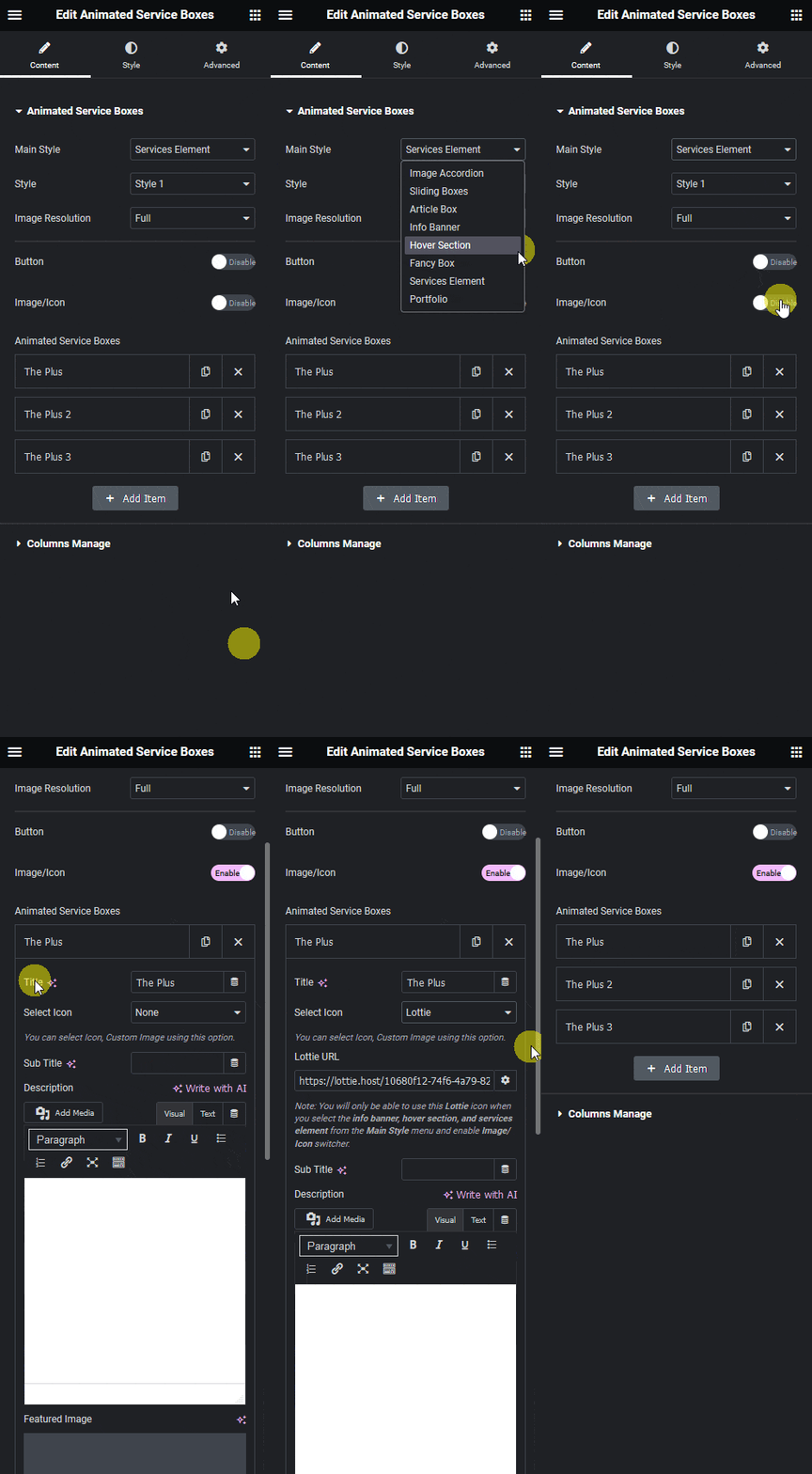
1. Select Info Banner, Hover Section or Services Element from the Main Style dropdown.

Let’s select the Services Element here.

2. After selecting the appropriate style enable the Image/Icon toggle.

3. In the Animated Service Boxes section, you have to add the content. By default, you’ll find three items, open one item.

4. You can add a title in the Title field. 

5. Then select Lottie from the Select Icon dropdown.
Animated service boxes lottie how to use lottiefiles animation with the animated service box in elementor? From the plus addons for elementor

6. After that paste the copied JSON link in the Lottie URL field.

Then add the necessary information in the remaining fields as per your requirement.

Following this process you can add Lottie files to the other items.

You can style and control the Lottie animation from the Style tab.

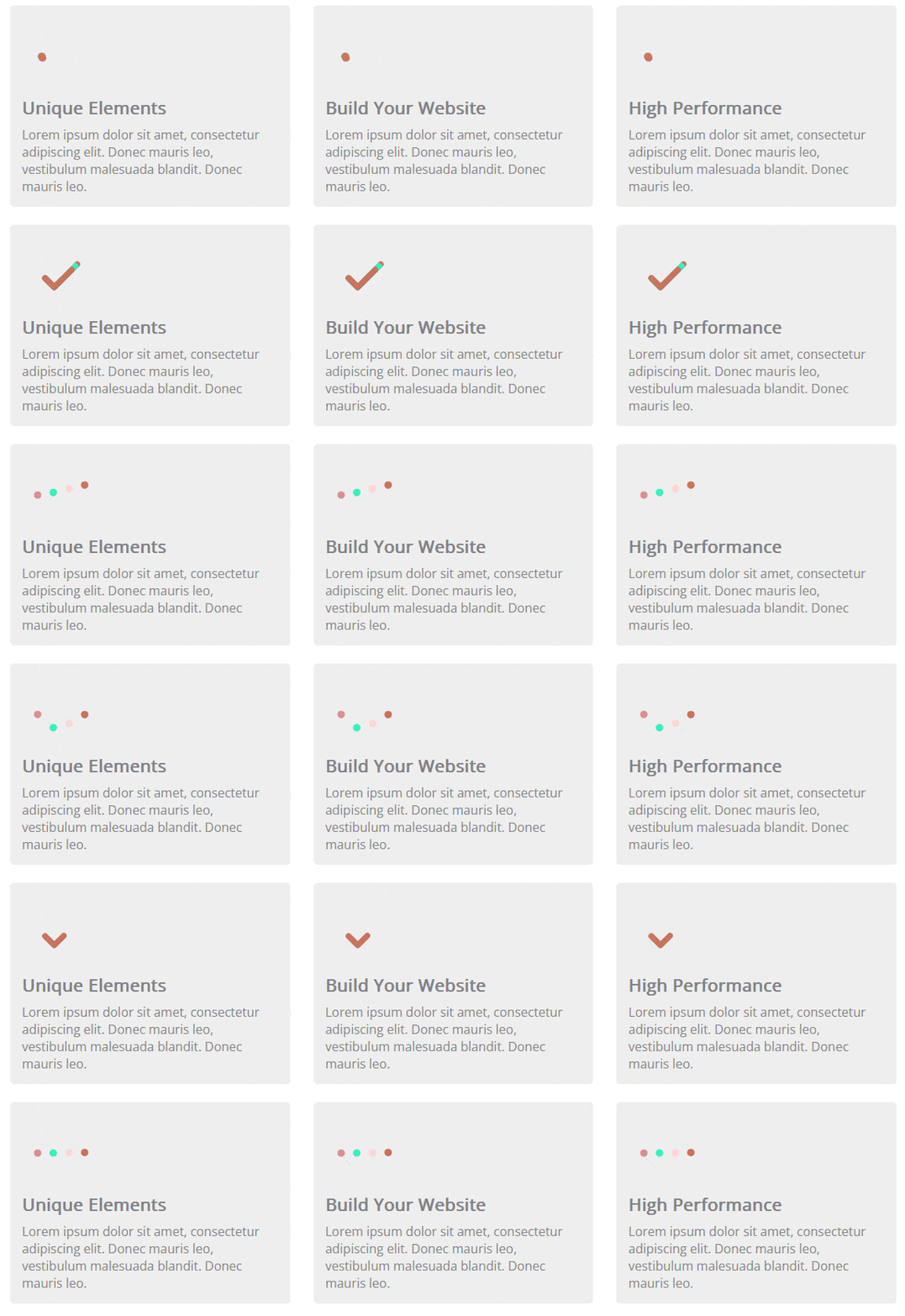
Now you’ll see beautiful Lottie animation on your selected Animated Service Box style.
Animated service boxes lottie demo how to use lottiefiles animation with the animated service box in elementor? From the plus addons for elementor

About the Author

Photo of Aditya Sharma CMO of The Plus Addons for Elementor
CMO · The Plus Addons for Elementor · 10 years experience

He has spent years in the WordPress ecosystem building, breaking, and optimizing sites until they actually perform. He works at the intersection of speed, growth, and usability, helping creators ship websites that load fast and convert. An active WordPress community contributor sharing through tools, tutorials, and direct collaboration. Tested practice, not theory.

WordPressElementorn8nAIClaudeAutomationServer
Get Instant Answers to all your questions about The Plus Addons for Elementor, trained on 1000+ Docs and Videos

Related Frequently Asked Questions

What should I do if the LottieFiles animation is not displaying in the Animated Service Box?

If the LottieFiles animation isn't showing, double-check that you have copied the correct JSON file URL from LottieFiles. Ensure that the 'Enable Asset Link' toggle is activated in your LottieFiles settings. Additionally, verify that the Animated Service Boxes widget from The Plus Addons for Elementor is installed and activated, as this widget is essential for using Lottie animations.

Can I use LottieFiles animations for different styles in the Animated Service Box?

Yes, you can use LottieFiles animations for various styles within the Animated Service Box widget. The widget allows you to select from different styles such as Info Banner, Hover Section, or Services Element. Choose the style that best fits your design needs, and then add your Lottie animation accordingly. This flexibility enables you to create diverse and engaging designs.

What is the best practice for selecting Lottie files for my Animated Service Box?

When selecting Lottie files for your Animated Service Box, choose animations that complement your website's overall theme and message. LottieFiles offers a range of free animations; ensure they are lightweight to maintain site performance. Using animations that are visually appealing but not overly complex can enhance user engagement without slowing down your page.

What happens if I forget to enable the Image/Icon toggle in the Animated Service Box?

If you forget to enable the Image/Icon toggle in the Animated Service Box, the Lottie animation will not appear as intended. This toggle is crucial for displaying your selected Lottie animation. Always ensure that this setting is activated before pasting your Lottie URL to avoid display issues.

Are there any limitations when using LottieFiles with the Animated Service Box?

One limitation to consider is that LottieFiles animations require a JSON file URL, which means you need to create an account on LottieFiles.com to access and save animations. Additionally, the Animated Service Boxes widget is part of The Plus Addons for Elementor, so it won't work with other page builders like Gutenberg or Divi. This restriction is important to keep in mind when planning your design.

How can I style the Lottie animation in the Animated Service Box?

You can style the Lottie animation in the Animated Service Box using the Style tab within the widget settings. This feature allows you to control various aspects of the animation's appearance, such as size and alignment. Proper styling ensures that the animation integrates seamlessly with your overall page design, enhancing visual appeal.

Last reviewed: April 9, 2026
