
















How to Include Custom Post Types by Post Id in Elementor?

Key Takeaways

  • Dynamic Listing widget from The Plus Addons for Elementor allows inclusion of posts from custom post types by post ID.
  • Users must create at least one custom post type, such as Books, to utilize the Dynamic Listing widget.
  • Multiple post IDs can be added in the Include Post(s) field, separated by a comma.
Table Of Content

Do you want to show some specific posts from the list of custom post types on your Elementor website? By including certain posts from the custom post types you can customize what you want to show to the visitors.

With the Dynamic Listing widget from The Plus Addons for Elementor, you can easily include posts from custom post types by post id. 

To check the complete feature overview documentation of The Plus Addons for Elementor Dynamic Listing widget, click here.

Requirement  – This widget is a part of The Plus Addons for Elementor, make sure its installed & activated to enjoy all its powers.

To do this, make sure you have created at least one custom post type, you can use the free Advanced Custom Fields (ACF) to create a custom post type.

For instance, we have created a custom post type called Books.

Once you’ve created your custom post type, follow the steps – 

1. Add the Dynamic Listing widget to a page or template. 

2. Select Normal Page or Single Page Related Posts from the Post Listing Types dropdown. 

3. Then select your custom post type from the Post Type dropdown, 

4. After that select the appropriate style and layout.

5. Then go to the Content Source tab, and in the Include Post(s) field, you can add the IDs of the posts you want to include.

Note: You can add multiple IDs separated by a comma(,).

Note: You can also include posts by selecting a custom taxonomy from the Taxonomies dropdown and then adding a taxonomy slug in the Taxonomies Slug field.

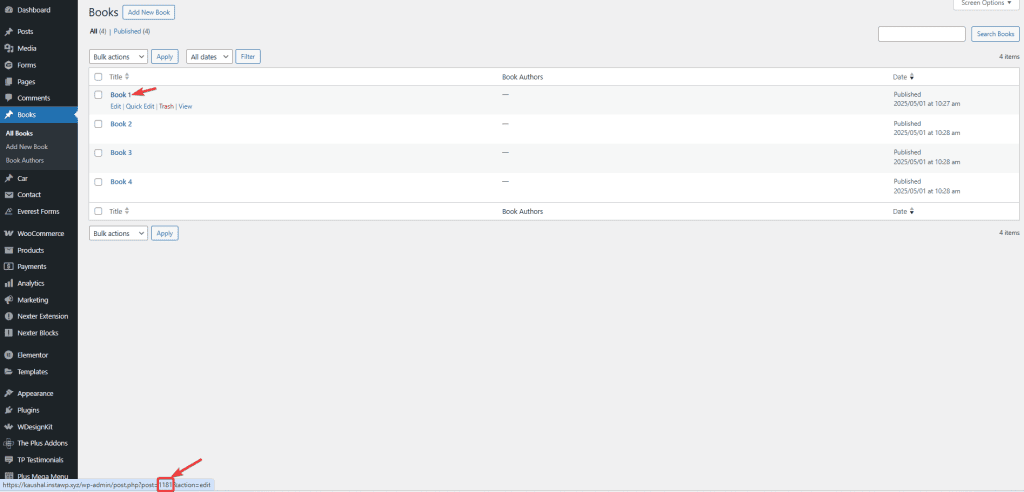
To find the post id from the Dashboard, go to your custom post type.

Hover over the post you want to get the id of, and you’ll see the id at the bottom of the browser, it will show the post edit URL with its id. The number after ‘post=’ is the post id.

Tpae dynamic listing include cpt books by post id 2 how to include custom post types by post id in elementor? From the plus addons for elementor

Now only that specific post will show.

Similarly, you can exclude posts by ID from the Exclude Post(s) field.

About the Author

Photo of Aditya Sharma CMO of The Plus Addons for Elementor
CMO · The Plus Addons for Elementor · 10 years experience

He has spent years in the WordPress ecosystem building, breaking, and optimizing sites until they actually perform. He works at the intersection of speed, growth, and usability, helping creators ship websites that load fast and convert. An active WordPress community contributor sharing through tools, tutorials, and direct collaboration. Tested practice, not theory.

WordPressElementorn8nAIClaudeAutomationServer
Get Instant Answers to all your questions about The Plus Addons for Elementor, trained on 1000+ Docs and Videos

Related Frequently Asked Questions

What should I do if the Dynamic Listing widget doesn't show my custom post types?

If the Dynamic Listing widget from The Plus Addons for Elementor isn't displaying your custom post types, ensure that you have created at least one custom post type. You can use the free Advanced Custom Fields (ACF) to create it. Also, verify that the widget is installed and activated to access its features.

Can I include multiple posts from custom post types using their IDs?

Yes, you can include multiple posts by adding their IDs in the Include Post(s) field, separated by commas. This allows for greater control over what specific posts are displayed on your Elementor page, ensuring that you can tailor content to your audience effectively.

What is the best way to find the post ID for my custom post types?

To find the post ID of your custom post types, navigate to the custom post type in your WordPress Dashboard. Hover over the post, and the ID will appear in the post edit URL at the bottom of the browser. Look for the number after 'post=' to identify the post ID accurately.

Can I exclude certain posts from being displayed in my custom post types?

You can exclude specific posts by ID using the Exclude Post(s) field in the Dynamic Listing widget. This feature allows you to refine what your visitors see, ensuring that unwanted posts do not clutter the display and maintaining a focused content presentation.

Is there a practical example of using the Dynamic Listing widget?

A practical example of using the Dynamic Listing widget is creating a custom post type for 'Books' and including specific book entries by their IDs. This can help showcase selected book reviews or recommendations on your Elementor page, enhancing user engagement by curating content.

What happens if I don't separate multiple post IDs with commas?

If you fail to separate multiple post IDs with commas in the Include Post(s) field, the widget will not recognize them as distinct entries. This could result in only the first ID being processed, limiting the content displayed on your Elementor page and potentially missing out on showcasing other relevant posts.

Last reviewed: April 9, 2026