




How to Add Parallax Effect to Elementor Gallery Listing?

Key Takeaways

  • The Plus Addons for Elementor includes a Gallery Listing widget that allows users to add a mouse hover parallax effect to gallery images.
  • Users can manage the parallax effect from the Parallax Options after enabling the Mouse Move Parallax toggle in the Style section.
  • To utilize the Gallery Listing widget, The Plus Addons for Elementor must be installed and activated.
Table Of Content

Want to make your Elementor gallery more visually appealing? By adding the parallax effect, you can create a visually stunning gallery that can grab the attention of your website visitors.

With the Gallery Listing widget from The Plus Addons for Elementor, you can easily add a mouse hover parallax effect to your gallery images.

To check the complete feature overview documentation of The Plus Addons for Elementor Gallery Listing widget, click here.

Requirement  – This widget is a part of The Plus Addons for Elementor, make sure its installed & activated to enjoy all its powers.

To do this, add the Gallery Listing widget on the page, and select the appropriate listing style, layout and source from the Layout and Content tab, respectively.

Once you’ve added images to your gallery, go to Style > Extra Options and turn on the Mouse Move Parallax toggle.
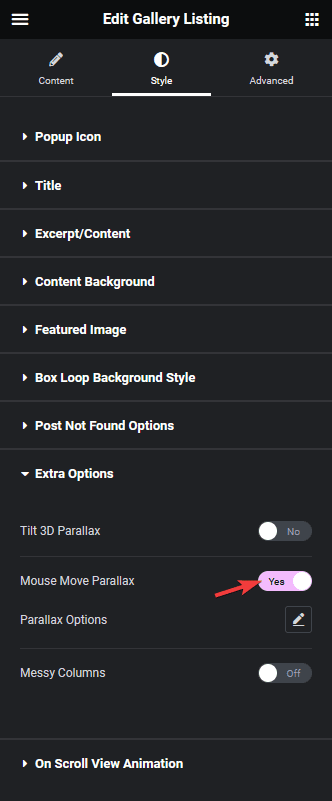
Gallery listing mouse move parallax

You can manage the effect from the Parallax Options.

Now if you hover over the image, you’ll see a parallax effect.

Also, read How to Add 3D Tilt Effect to Elementor Gallery Listing.

About the Author

Photo of Aditya Sharma CMO of The Plus Addons for Elementor
CMO · The Plus Addons for Elementor · 10 years experience

He has spent years in the WordPress ecosystem building, breaking, and optimizing sites until they actually perform. He works at the intersection of speed, growth, and usability, helping creators ship websites that load fast and convert. An active WordPress community contributor sharing through tools, tutorials, and direct collaboration. Tested practice, not theory.

WordPressElementorn8nAIClaudeAutomationServer
Get Instant Answers to all your questions about The Plus Addons for Elementor, trained on 1000+ Docs and Videos

Related Frequently Asked Questions

What should I do if the parallax effect isn't working on my Elementor gallery?

If the parallax effect isn't showing up, first ensure that you have the Gallery Listing widget from The Plus Addons for Elementor installed and activated. After adding images to your gallery, check that you've enabled the Mouse Move Parallax toggle in the Style > Extra Options section. If these settings are correct and the effect still doesn't work, try refreshing the page or clearing your browser cache.

Can I use the parallax effect on mobile devices with Elementor?

The parallax effect is primarily designed for desktop interactions, as it relies on mouse movement. On mobile devices, the effect may not function as intended due to the lack of a mouse. If you want to create engaging visuals for mobile users, consider using static images or explore other effects like the 3D tilt effect, which you can learn more about here.

What is the best way to manage the parallax effect settings in Elementor?

To effectively manage the parallax effect settings, navigate to the Parallax Options after enabling the Mouse Move Parallax toggle. Adjusting these settings allows you to customize the intensity and behavior of the effect, ensuring it complements your gallery's design. Fine-tuning these options can enhance user engagement, making your gallery more visually appealing.

Are there any limitations to using the parallax effect in Elementor galleries?

One limitation of the parallax effect is that it may not work well on all devices, particularly mobile, where mouse movement is absent. Additionally, excessive use of parallax effects can lead to performance issues, potentially slowing down page load times. It's essential to balance visual effects with site performance to maintain a smooth user experience.

How do I add the Gallery Listing widget to my Elementor page?

To add the Gallery Listing widget, simply drag it onto your page from the Elementor panel. After placing it, select your preferred listing style, layout, and source from the Layout and Content tab. This widget is part of The Plus Addons for Elementor, so ensure it is installed and activated to access all its features. For more details, check the complete feature overview documentation here.

Last reviewed: April 11, 2026