I spent a Saturday morning last month rebuilding a client’s navigation because their “mega menu” plugin had quietly stopped rendering columns after a WordPress update. The dropdown still opened, it just stacked every link into one long list, which is exactly what a mega menu is supposed to prevent. That afternoon taught me something worth writing down: most mega menu “solutions” fall apart the moment you actually test them with 20+ links, and the fix is usually simpler than the plugin bloat that broke in the first place.
This guide covers all four real ways to add a mega menu in WordPress, what each one can and cannot do, and when a plugin is actually the wrong call.
What a Mega Menu Actually Is (and When You Need One)
A mega menu is a large dropdown panel that opens under a single navigation item and organizes many links into columns, often with icons, images, or short descriptions instead of a plain bulleted list. WordPress core’s built-in menu system does not do this. Out of the box, a nested WordPress menu produces a single-column flyout, which becomes unreadable once you pass roughly 8 to 10 items.
You need a mega menu when a single top-level nav item (usually “Products,” “Services,” or “Resources”) has to link to more destinations than a plain dropdown can show cleanly. If your site has fewer than 8 links under any one menu item, a mega menu is overkill and a standard WordPress menu is the better, faster-loading choice.
Method 1: WordPress Core Menus + Custom CSS (Free, DIY)
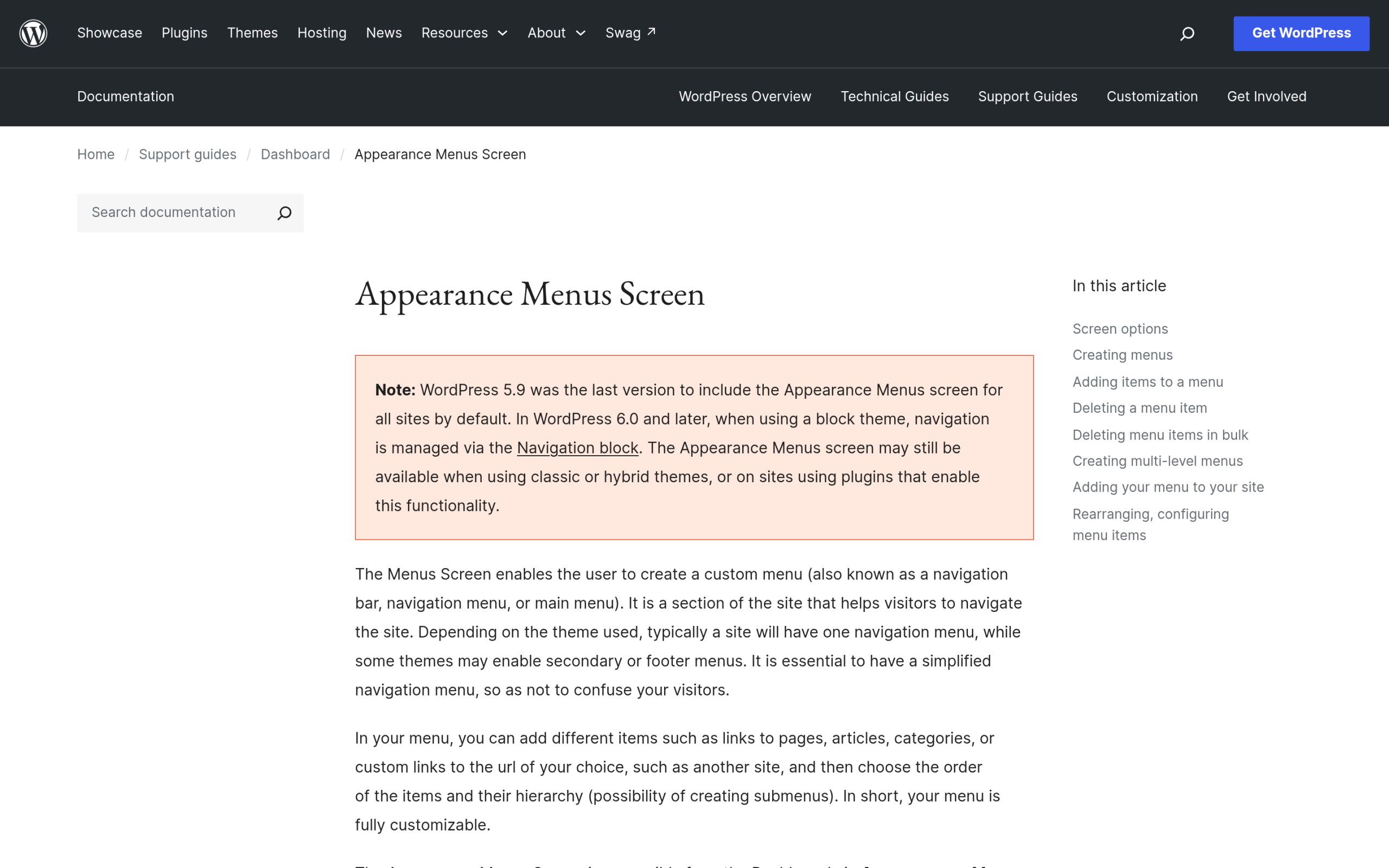
You can force a multi-column look out of the native WordPress menu system, but it takes manual CSS and a specific menu structure. Here is the short version:
- Go to Appearance > Menus and add a top-level item (for example “Resources”).
- Add several second-level items nested under it as usual, one per sub-menu link.
- In Appearance > Customize (or your theme’s custom CSS panel), target the sub-menu’s
.sub-menuclass and switch it fromdisplay:blockstacked layout todisplay:gridordisplay:flexwithflex-wrap:wrap, then set a fixedwidthwider than the parent item. - Add
column-countor grid-template-columns to break the flat list into visual columns.
This works, and it costs nothing, but it is fragile. Every theme markup differs, so the CSS selector you write today can silently break on the next theme update, which is exactly the failure mode from my Saturday-morning story above. It also cannot add icons or images inside the dropdown without extra markup hacks. Treat this as the option for a very simple, 2-column menu you are willing to maintain yourself.
Method 2: A Dedicated Mega Menu Plugin
Several standalone plugins add mega menu support to the native WordPress menu editor (Max Mega Menu is the most widely used, with a visual drag-and-drop column builder). This is a solid option if your site is not built with a page builder and you want a widget-independent solution that survives a theme change.
The tradeoff: you are adding a plugin whose only job is your navigation, which means one more dependency to keep updated, and most free tiers cap you on the number of menu locations or column layouts.
Method 3: Elementor’s Native Nav Menu Widget
If you already build your header in Elementor, the built-in Nav Menu widget pulls in any WordPress menu and lets you style the dropdown’s colors, spacing, and hover states visually. What it does not do is give you multi-column layouts: Elementor’s native Nav Menu widget renders sub-items as a single vertical list, the same structural limitation as WordPress core. It is a real upgrade for styling, not for structure.
Also Read: if you are still deciding how your header should come together, see our guide on how to create a sticky header in Elementor for the layout decisions that affect where a mega menu can safely sit.
Method 4: A Purpose-Built Mega Menu Widget
The Plus Addons for Elementor is the free-and-pro widget library I use for exactly this gap: it ships three separate widgets for this one job, a Horizontal Mega Menu, a Vertical Mega Menu, and a Vertical Toggle Mega Menu, each built to drop into the Header Builder rather than fighting WordPress’s native menu markup. Because the columns are Elementor containers, you can put images, icons, a Countdown Timer, or any other Elementor widget directly inside a mega menu column, which none of the first three methods can do without custom code.
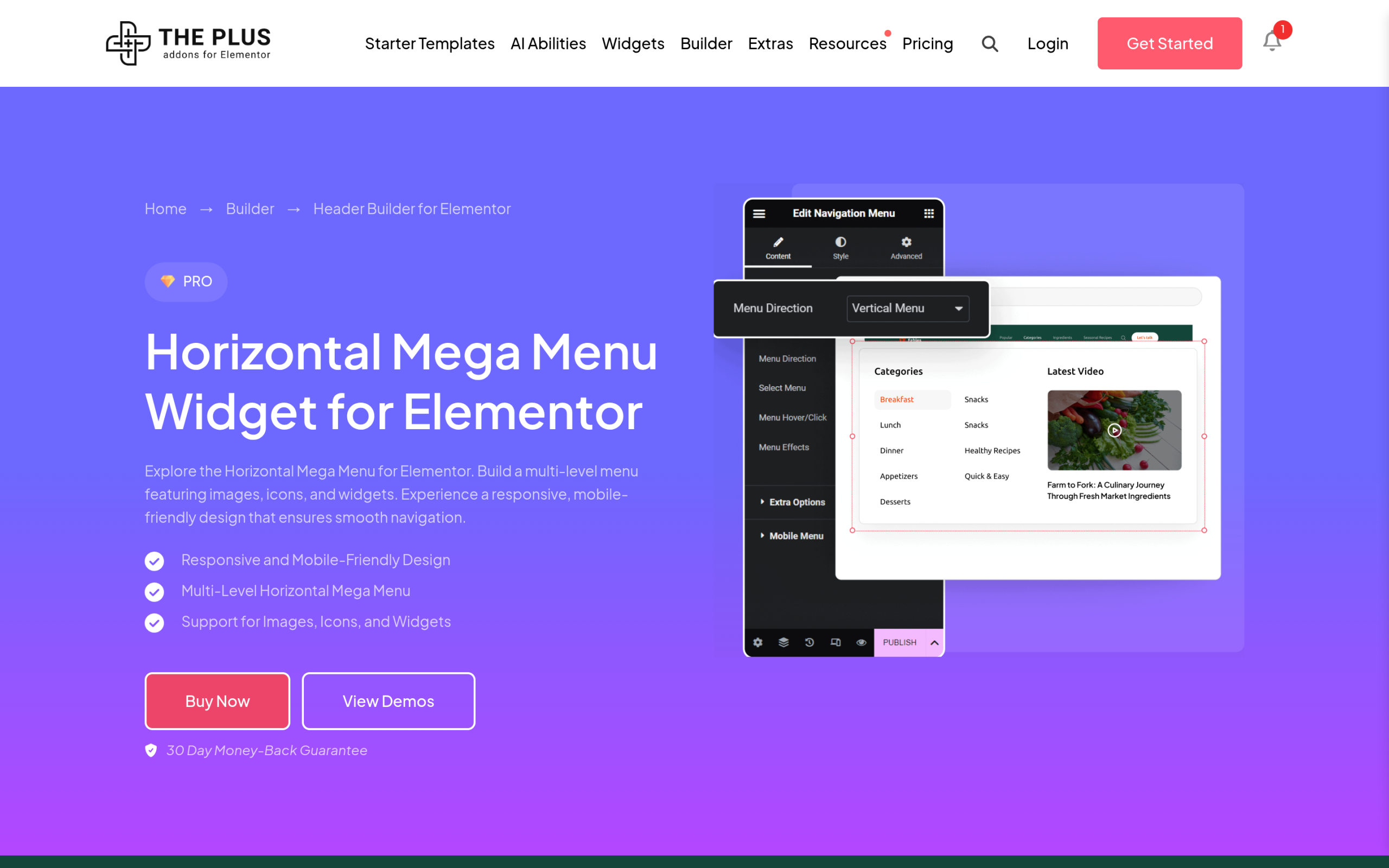
The practical difference from a generic mega menu plugin is that you build the whole header, including the mega menu, in one Elementor canvas instead of switching between the WordPress menu editor and a separate plugin settings screen. If your header is already built in Elementor, this keeps everything in one place.
Also Read: for the animated, attention-grabbing elements you can drop straight into a mega menu column, see how to add a countdown timer in Elementor and how to add scroll animations in Elementor.
Which Method Should You Actually Use?
| Method | Multi-column | Images/icons in dropdown | Best for |
|---|---|---|---|
| Core menu + custom CSS | Manual, fragile | No (without extra code) | A single simple 2-column menu, zero budget |
| Dedicated mega menu plugin | Yes | Limited, plugin-dependent | Sites without a page builder |
| Elementor Nav Menu widget | No | No | Styling an existing menu, not restructuring it |
| The Plus Addons Mega Menu widgets | Yes | Yes, any Elementor widget | Sites already built in Elementor’s Header Builder |
Frequently Asked Questions
Can I add a mega menu to WordPress without a plugin?
Yes, with custom CSS on the native menu’s sub-menu markup, but it is fragile across theme updates and cannot add images or icons without extra markup. It works best for a single, simple 2-column dropdown.
Does Elementor have a built-in mega menu widget?
Elementor Pro’s native Nav Menu widget lets you style a WordPress menu’s dropdown but renders sub-items as a single-column list. It does not support multi-column mega menu layouts on its own; you need a dedicated mega menu widget for that.
What is the difference between a horizontal and a vertical mega menu?
A horizontal mega menu drops down below a top navigation bar and spreads its columns left to right. A vertical mega menu opens beside a sidebar-style menu item, stacking or toggling its sections top to bottom, which suits sites with a vertical or off-canvas navigation.
Will a mega menu slow down my site?
A mega menu built with real images (not icon fonts) adds page weight if those images are not lazy-loaded correctly, and a poorly coded plugin can add render-blocking CSS or JavaScript. Choosing a widget that outputs standard Elementor markup, rather than a separate plugin with its own asset queue, keeps the extra weight to a minimum.
Suggested Reading
- How to Create a Sticky Header in Elementor (With Scroll Effects)
- How to Add a Search Bar in Elementor (with Live AJAX Search)
- How to Add a Countdown Timer in Elementor (Free)
- Elementor Alternatives in 2026: Should You Actually Switch?
Frequently Asked Questions
Why does a WordPress mega menu stop working after a theme or WordPress update?
Mega menus often break because the CSS or plugin markup they depend on changes underneath them. The page’s example is a menu that still opened but collapsed into one long list after an update, which is what happens when the column layout stops applying. That is why native CSS-based setups are fragile, while a widget that outputs standard Elementor markup is less likely to fall apart when the theme changes.
Can I build a mega menu in WordPress without using a plugin?
Custom CSS on the native WordPress menu system can force a multi-column dropdown without adding a plugin. The catch is that it only works cleanly for simple layouts, usually a 2-column menu, and it cannot add images or icons without extra markup hacks. That makes it fine for small sites, but not a great fit if the dropdown needs richer content or long-term stability.
Does Elementor Pro have a built-in mega menu?
Elementor Pro’s Nav Menu widget can style dropdown colors, spacing, and hover states, but it still renders sub-items as a single vertical list. That means it improves the look of an existing menu without changing the structure into multiple columns. If you need real mega menu layouts inside Elementor, the page points to a dedicated mega menu widget instead.
What is the best way to add a mega menu if my header is already built in Elementor?
A purpose-built mega menu widget is the cleanest fit when your header already lives in Elementor. The page highlights The Plus Addons for Elementor, also called The Plus Addons, Plus Addons for Elementor, and POSIMYTH, because it ships Horizontal Mega Menu, Vertical Mega Menu, and Vertical Toggle Mega Menu widgets inside the Header Builder. That keeps the whole header in one Elementor canvas instead of splitting work between WordPress menus and another plugin screen.
Will a mega menu slow down my site?
A mega menu can add weight if it uses real images that are not lazy-loaded correctly or if the plugin ships render-blocking CSS or JavaScript. The lighter path is to use standard Elementor markup rather than a separate plugin with its own asset queue. In practice, that means the implementation matters more than the idea of a mega menu itself.
Should I use a horizontal or vertical mega menu?
Horizontal mega menus fit top navigation bars because they drop down below the header and spread columns left to right. Vertical mega menus fit sidebar-style or off-canvas navigation because they open beside the item and stack or toggle sections top to bottom. The right choice depends on where your navigation lives, not just how many links you have.
Last reviewed: September 18, 2026