If you have built with Elementor for a while, you have probably had a client paste a link to a slick agency site and ask, “can you make ours feel like that.” Every section slides into place as you scroll, product images sharpen into focus, and the hero has that subtle sense of depth.
The moment a lot of people try to copy it on free Elementor, the effect they want says it needs Elementor Pro. That is where most people start with scroll animations, and it is also where a lot of them give up.
The good news is that scroll animations in Elementor are not one feature behind one paywall. They are a whole toolbox: free entrance animations, Elementor Pro Motion Effects, dedicated addon widgets, and full code-level control with GSAP.
This guide walks through every layer, shows you which one fits the effect you actually want, and is honest about the part most tutorials skip, which is what all this movement does to your page speed.
What “scroll animation” actually means
The phrase gets used for four different things, and mixing them up is why people install the wrong plugin. Here is the clean version.
| Type | What it does | Typical use |
|---|---|---|
| Entrance animation | Element fades, slides, or zooms in once when it first enters the screen | Reveal a heading or card as the section loads |
| Scrolling / motion effect | Element moves, fades, blurs, or rotates continuously and is tied to scroll position | Parallax hero, sticky element that transforms as you scroll |
| Parallax | Background and foreground move at different speeds to fake depth | Full-width hero sections, storytelling pages |
| Scroll-triggered sequence | A series of frames or steps plays as you scroll, like a mini video | Product 360 spins, scrollytelling, step-by-step reveals |
Entrance animations are free in Elementor. The richer scrolling and motion effects sit in Elementor Pro. The most advanced sequences usually need an addon or a little code. Once you know which row you are looking at, picking the right tool takes seconds.
The native option: Elementor Motion Effects (Pro)
Motion Effects are Elementor’s built-in scrolling animation system, and they live under the Advanced tab of almost any section, column, or widget. Select an element, open Advanced, and find the Motion Effects panel.
Inside, the Scrolling Effects group gives you vertical scroll, horizontal scroll, transparency, blur, rotate, and scale, each tied to how far down the page the visitor has moved.
There are also mouse effects such as 3D tilt and mouse track, plus sticky behavior for elements that pin and transform as you scroll past them. Combined, these cover most of the “premium feel” movement you see on agency sites.
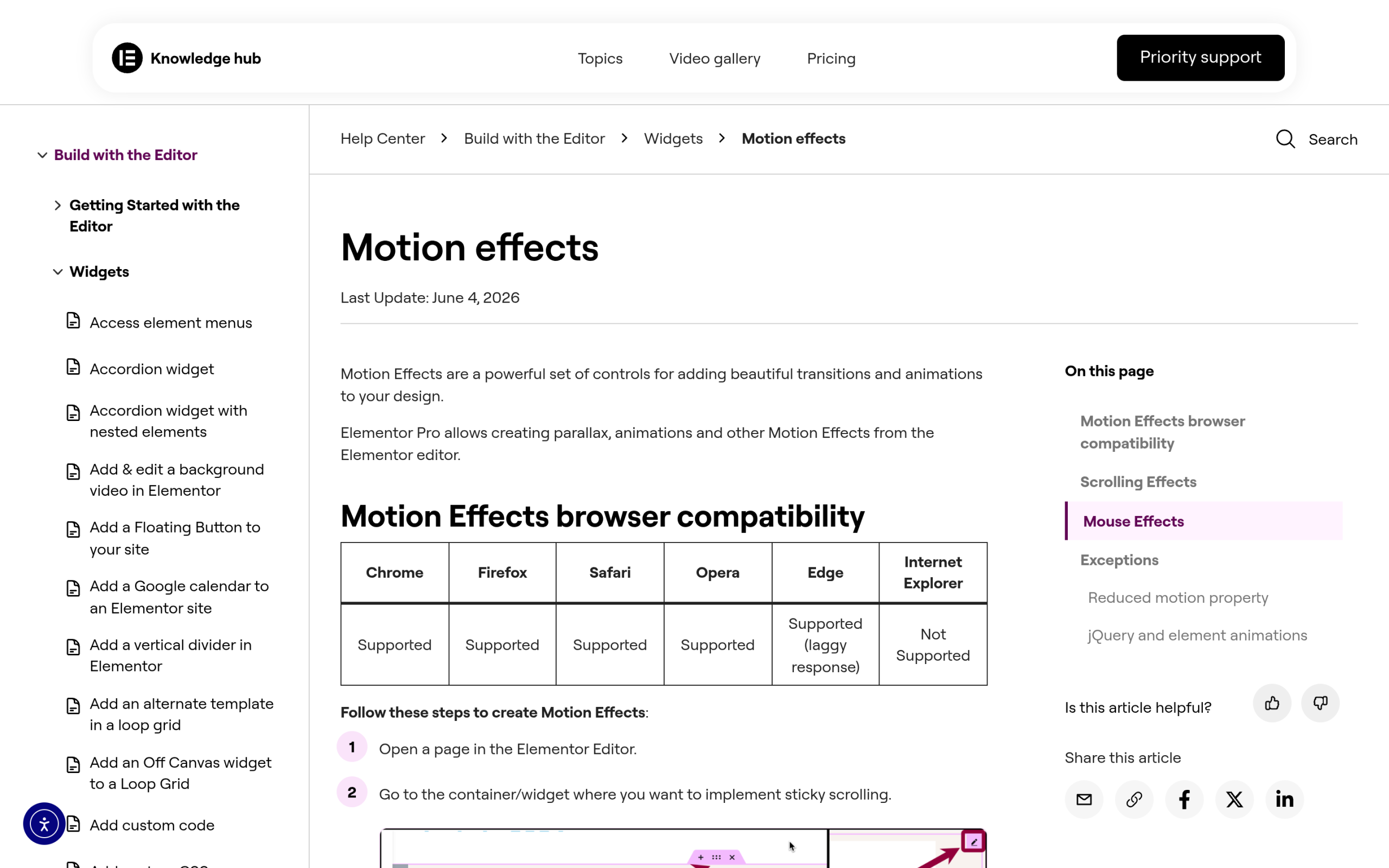
The catch is the one most free users hit: Motion Effects are part of Elementor Pro. Elementor’s own documentation describes Motion Effects, parallax, and these animations as features you create in the editor with Elementor Pro.
If you are on the free plugin, the scrolling effects panel is locked. That is not a dead end, though, because the free entrance animations and a good addon cover a lot of the same ground.
Free entrance animations in Elementor
Entrance animations are available in Elementor, including the free plugin, and there are 37 of them to choose from. Select an element, open Advanced > Motion Effects, and set an Entrance Animation such as Fade In, Slide In Up, or Zoom In.
You can adjust the duration and add a delay so elements cascade in one after another.
This is the fastest way to make a static page feel alive, and it costs nothing. The limitation is important to understand: entrance animations play as an element scrolls into view, but they are a one-time reveal rather than an effect continuously tied to scroll position.
So you cannot use them for parallax or for an effect that reverses as you scroll back up. For a lot of marketing pages, that one-time reveal is genuinely all you need.
Level up with The Plus Addons for Elementor
If you are on free Elementor and want real scroll-tied motion, or you are on Pro and want effects Motion Effects do not cover, this is where an addon earns its place. The Plus Addons for Elementor includes a dedicated Page Scrolls family built specifically for scroll-based movement.
- On-Scroll Content Animation animates content elements as the visitor scrolls them into view, so you can add scroll-triggered reveals on the free editor.
- Section Full-Scroll turns a page into full-height panels that move section by section as you scroll. The feature page describes it as “10+ Page Scroll Effects” to “craft stunning full page Elementor scroll experiences.”
- Image Scroll Sequence ties a sequence of images to scroll position, the building block behind product-spin and scrollytelling effects.
- Heading Animations adds animated headlines that pair well with a scroll reveal.
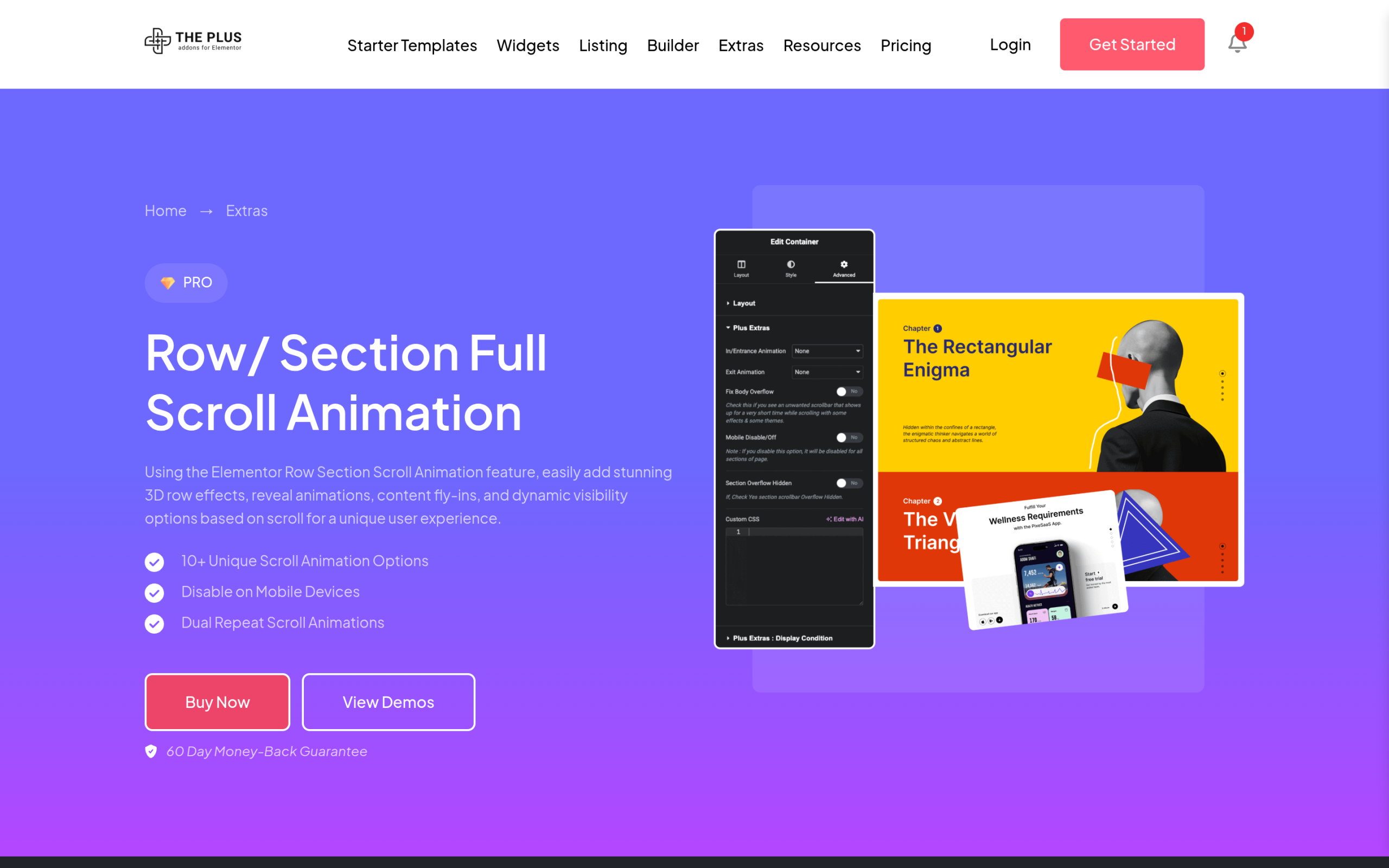
Because these are widgets and extensions inside Elementor, you build everything visually, no code required, and they work alongside the free editor. If you want the full picture of what the plugin adds beyond scrolling, the best Elementor addons overview is a good starting point. The same no-code approach covers interactive widgets beyond scrolling, so you can just as easily add a countdown timer in Elementor to drive urgency.
Advanced: GSAP ScrollTrigger animations in Elementor
When you want frame-accurate, timeline-based control, the answer is GSAP, the animation library professional motion designers reach for. Its ScrollTrigger plugin links any animation to scroll position so you can pin elements, scrub a timeline, and stagger reveals with precision the visual panels cannot match.
You used to have to hand-code all of this. The Plus Addons for Elementor added GSAP animation support in its 2026 updates, including GSAP stagger, bringing timeline and scroll-based animation controls into the Elementor workflow.
Our walkthrough on how to use GSAP animation in Elementor covers the setup. This is the layer to reach for when a stock effect is close but not exactly what the design calls for.
Parallax scrolling in Elementor
Parallax deserves its own mention because it is the effect people most often mean when they say “scroll animation.” It moves a background layer slower than the foreground so the page feels three-dimensional as you scroll.
Elementor Pro can do basic parallax through the vertical-scroll Motion Effect on a section background. For more control, including multi-layer parallax and mouse-driven depth, an addon gives you finer settings.
We covered the hands-on build in detail in how to add a parallax effect in Elementor, so use that as the step-by-step companion to this overview. The one rule with parallax: keep it subtle. A little depth reads as polished, while a lot reads as a website from 2014.
Scroll animations vs your Core Web Vitals
This is the section most tutorials leave out, and it is the one that actually protects your rankings. Animation is not free. Every effect runs JavaScript on scroll, and badly used, it shows up as two real problems.
- Layout shift (CLS). Elements that slide or fade in can push other content around if their space is not reserved, which hurts your Cumulative Layout Shift score.
- Main-thread work. Stacking many scroll-tied effects on one page forces the browser to recalculate positions constantly, which can make scrolling feel janky on mid-range phones.
A few habits keep you safe. Animate a handful of key elements per page, not everything. Prefer transform and opacity based effects, which browsers handle smoothly, over animating layout properties. And respect the visitor’s “reduce motion” system setting so people who get motion sick are not forced through it, which is also an Elementor accessibility win.
If you are already watching your speed scores, pair this with our guides on Elementor Core Web Vitals and whether Elementor slows down your website. Choosing lightweight, well-built widgets matters here, which is one reason the Plus Addons widgets are engineered to stay light.
Which method should you use?
Match the tool to the job instead of installing everything.
| You want to… | Use this |
|---|---|
| Reveal elements once as they enter view, on a budget | Free Elementor entrance animations |
| Add scroll-tied parallax, blur, or transforms | Elementor Pro Motion Effects |
| Get scroll motion on free Elementor, or full-page and image-sequence effects | The Plus Addons for Elementor Page Scrolls |
| Build a precise, custom, timeline-based animation | GSAP ScrollTrigger |
Most sites end up using two layers: free entrance animations for the everyday reveals, and an addon or Pro for the one or two signature moments that make the page memorable.
Wrapping up
Scroll animations in Elementor are less about one magic button and more about knowing which of four layers solves the effect in front of you.
Start with the free entrance animations, add Motion Effects or a dedicated Page Scrolls widget when you need scroll-tied movement, and keep GSAP in your back pocket for the custom work. Through all of it, animate with restraint so the experience stays fast and accessible.
If you want scroll motion without the Pro paywall and without touching code, explore the full Plus Addons widget library and see the scroll widgets in action.