Do you want to add a click to tweet box in Elementor? These boxes allow users to easily tweet a specific message or quote from your website with just one click. This not only increases the chances of the content being shared on Twitter but also makes it more interactive for the readers.
With the Blockquote widget from The Plus Addons for Elementor, you can easily add a click-to-tweet box in Elementor.
To check the complete feature overview documentation of The Plus Addons for Elementor Blockquote widget, click here.
Requirement – This widget is a part of The Plus Addons for Elementor, make sure it’s installed & activated to enjoy all its powers.
To do this, add the Blockquote widget to the page and follow the steps –
1. Select the appropriate style and add content.
2. Then click on the Tweet group control under the Layout tab.
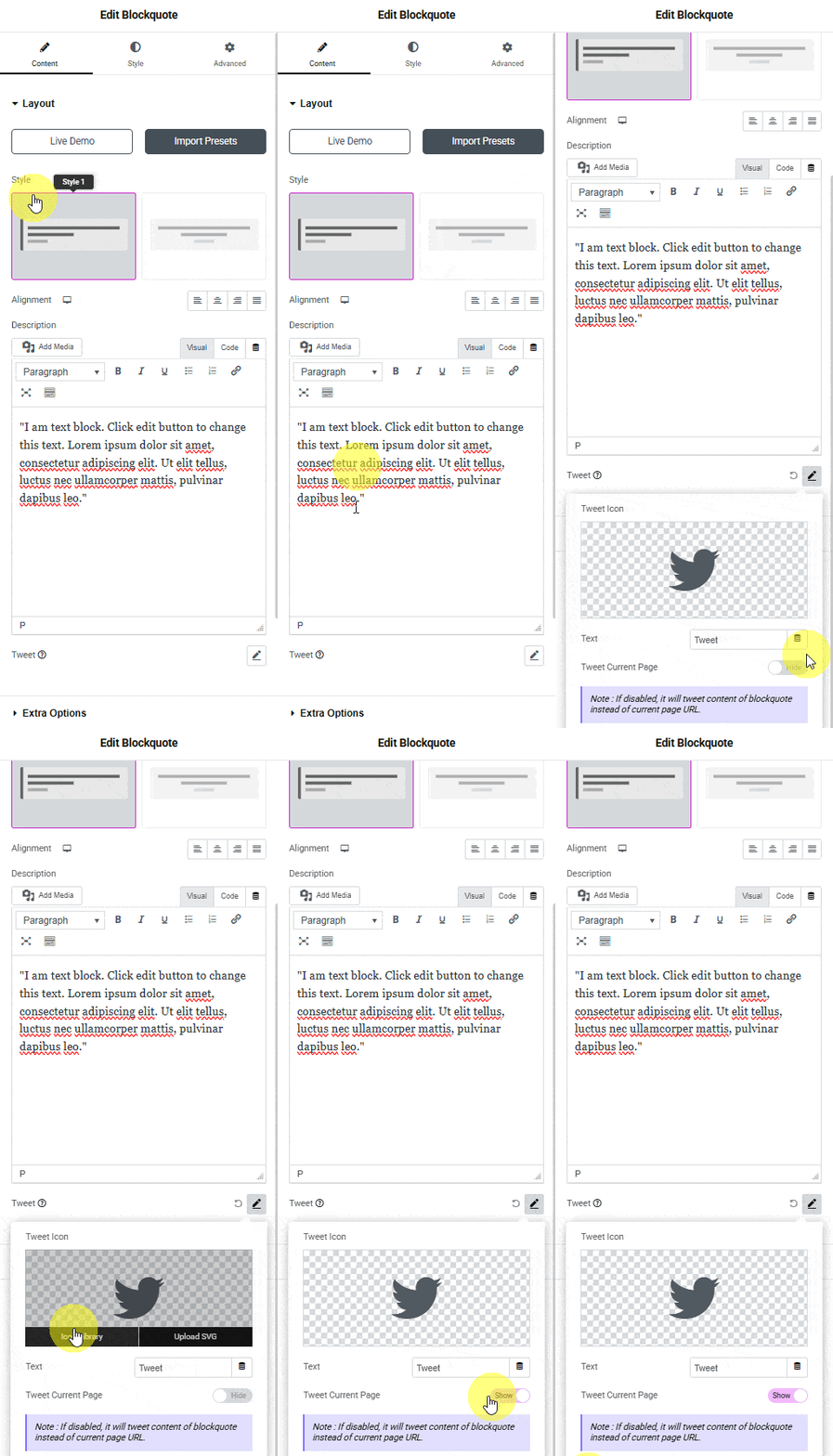
From the Tweet Icon section, you can add an icon or SVG to the tweet button
Then in the Text field, you can add the button text.
By default, it will tweet the blockquote content, but by enabling the Tweet Current Page toggle, you can tweet the current page as well.
Now you’ll see a tweet button in the blockquote, which allows users to easily tweet the content.