

































Do you want to create a date picker filter for your custom post type based on a custom field? A date picker filter allows users to select a specific date or date range and filter custom post content accordingly. This is useful for websites that feature custom posts, such as events, services etc.
With the WP Search Filters widget from The Plus Addons for Elementor, you can easily create a date picker filter for custom post types based on custom fields.
To check the complete feature overview documentation of The Plus Addons for Elementor WP Search Filters widget, click here.
Requirement – This widget is a part of The Plus Addons for Elementor, make sure its installed & activated to enjoy all its powers.
To do this, make sure you have created at least one custom post type, you can use the free Advanced Custom Fields (ACF) to create a custom post type.
For instance, we have created a custom post type called Books.
Create Custom Fields
First, you have to create some custom fields for your custom post types and assign values to them.
You can use ACF, PODs, Metabox and Toolset plugins for creating custom fields, for instance, we’ll use the free Advanced Custom Fields (ACF) to create the custom fields.
Once you have the installed plugin follow the steps –
1. To do this from the Dashboard, go to ACF > Field Groups and click on Add New button.
2. Add a name to the field group.
3. Then add a date picker field and add a name.
4. Once done, from the Settings section, set the location to your custom post types i.e. Book under Rules.
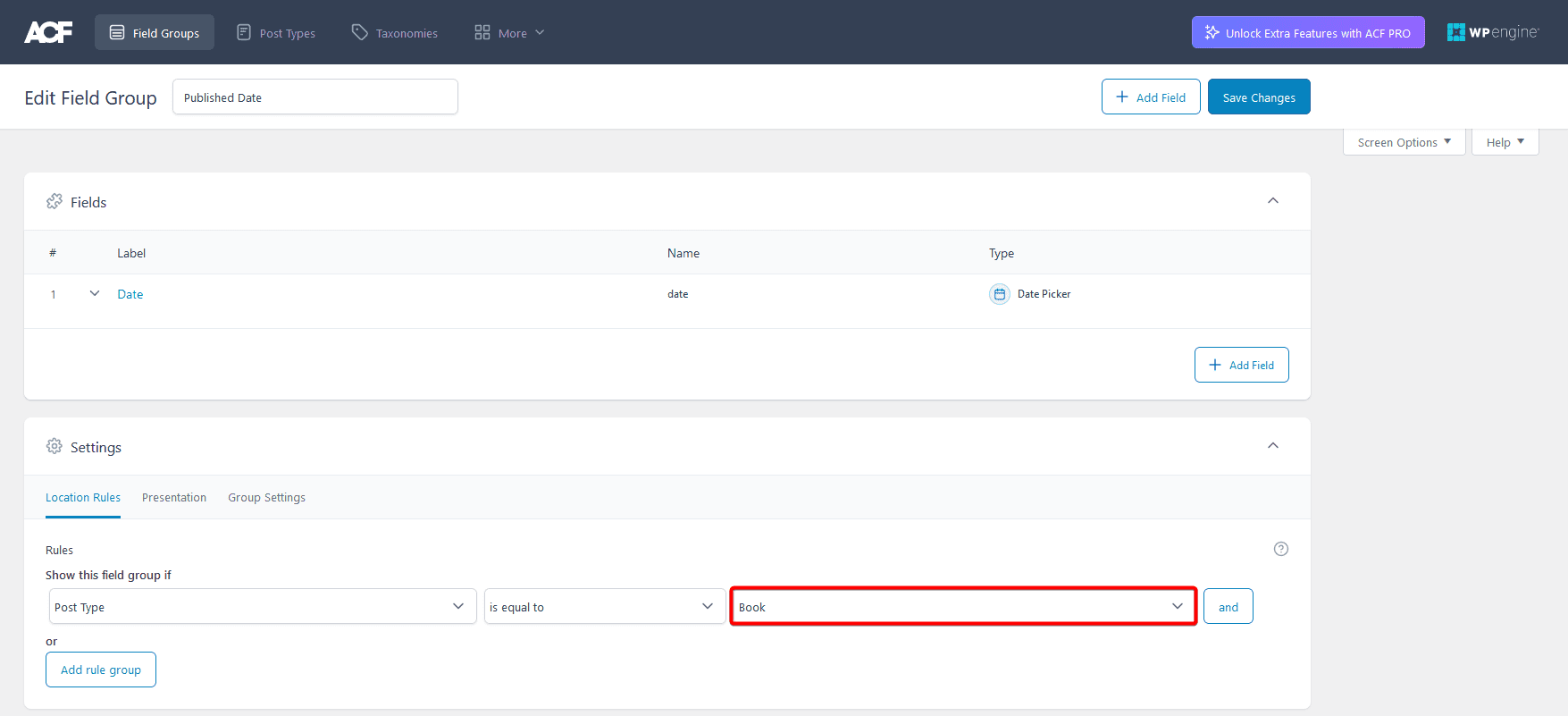
5. Once done, click on the Save Changes button.
6. Then you have to add value in the custom fields on some custom posts.
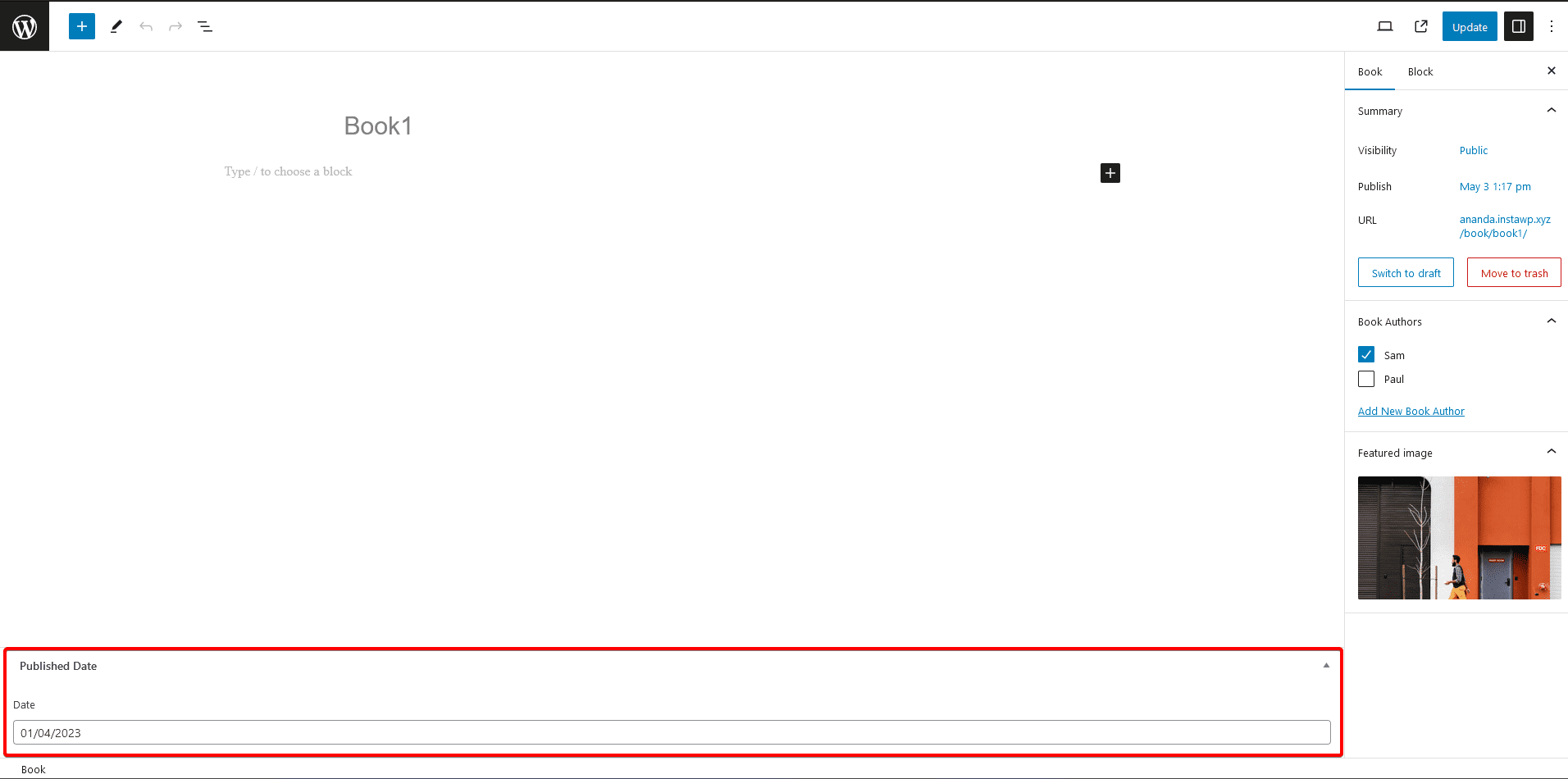
Use the WP Search Filters Widget
You have to use the WP Search Filters widget with the Dynamic Listing widget.
Note: Make sure you’ve enabled both WP Search Filters and Dynamic Listing widgets from The Plus Settings.
Place the widgets in your desired location on the page or template, then follow the steps –
1. In the Dynamic Listing widget, select Search List from the Post Listing Types dropdown.
2. Then select your custom post type from the Post Type dropdown.
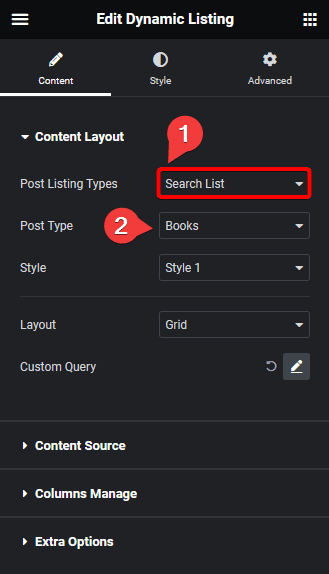
3. After that, select the appropriate style and layout.
4. In the WP Search Filters widget, open the Category item under the Filter Area.
5. From the Filter Type dropdown, select WP Filter.
6. Then, from the Select Source dropdown, select Date Picker.
7. From the Select Type dropdown, select ACF connection.
Note: Since we have used ACF to create the custom fields, we have selected ACF connection. So if you have created the custom fields with other plugins like PODs, Metabox or Toolset select the option accordingly.
8. In the Connection Key field, you have to add the custom field name.
To find the field name in ACF, edit the field group there you will find the field name.
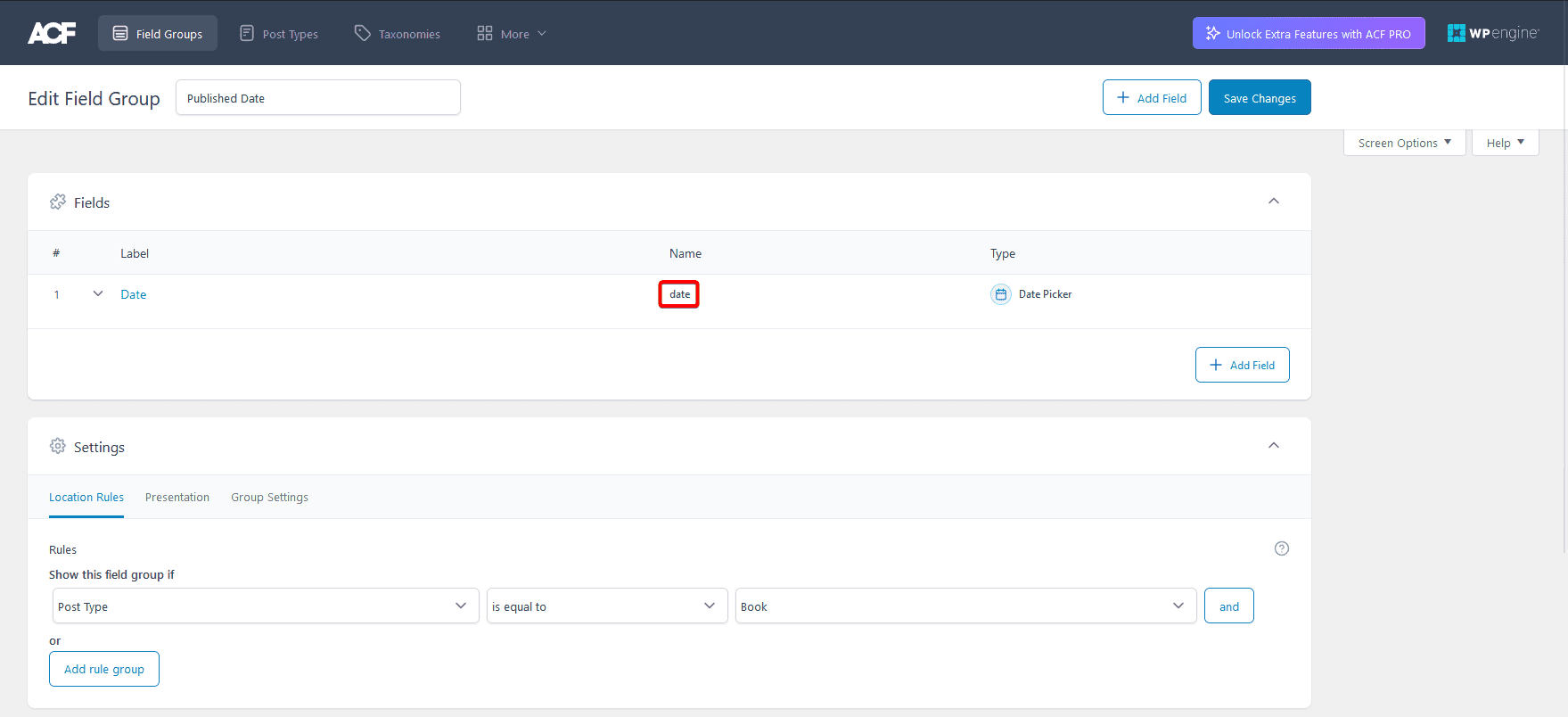
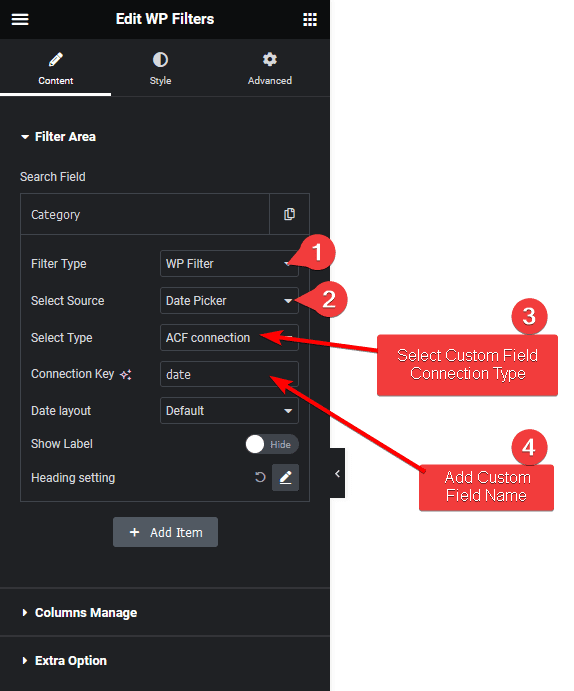
From the Date layout dropdown, you can select the date picker layout. Here, you’ll find two options –
Default – This will create a default data picker layout.
Custom – With this option, you can customize the date picker layout. Under the Custom Filters, you’ll find different customization options.
From here, you can manage the date option, date range option, button texts, date of the week, month name, default selected date range, custom date range, custom year range etc.
Now you’ll see a date picker that you can use to filter custom posts by date.
Also, read How to Create Search Filter for Custom Posts in Elementor.
