A volunteer admin posted on r/Wordpress recently about a site he had just taken over: an old install on PHP 7.4, 1,912 posts, nearly 50,000 images, and 55 plugins with 29 active, including three different form plugins doing the same job. His question was the one every maintainer eventually asks out loud, where do I even start. If you run an Elementor site that has quietly filled up with plugins, revisions, and unused assets, this is the cleanup playbook I wish that thread had in one place.
Bloat is rarely one dramatic thing. It is the slow accumulation of stuff you stopped using and never removed, and most of it is fixable in an afternoon without breaking your build. Here is how to audit an Elementor site, cut what you do not need, and keep it lean.
What Bloat Actually Looks Like on an Elementor Site
It is almost never a single culprit. It is inactive plugins left installed, two or three plugins doing the same job, orphaned database rows from plugins you deleted months ago, years of post revisions and expired transients, an unoptimized media library, and Elementor loading CSS and JavaScript for widgets a given page never uses. Each piece is small. Stacked together, they slow the editor, drag down the front end, and make every backup heavier than it needs to be.
Start With an Audit, Not the Delete Key
Back up the full site and database before you touch anything, and do the work on a staging copy if you can. Then inventory every plugin: which are active, which are dormant, what each one actually does, and whether something else already does it. The advice that thread settled on is the right order of operations, and it is worth following literally: back up, restore to a staging server, delete the plugins that are not activated, update what remains one at a time so you can catch a break, then hunt down duplicates. The point is to change one thing at a time so that when something wobbles, you know exactly what caused it.
Cut Unused and Duplicate Plugins
Deactivate first, click around the site, and only delete once you are sure nothing depends on it. Then resolve the duplicates: two form builders, two caching plugins, two slider tools, pick one and remove the rest. The catch most people miss is that deleting a plugin often leaves its database tables and options behind, so the file count drops but the database stays heavy. That is the next job.
Clear the Database Junk
Once the plugin list is trimmed, clean what they left behind. The usual suspects are stored post revisions, expired transients, orphaned post meta and options from removed plugins, and spam or trashed comments. After clearing those, optimize the database tables so the freed space is actually reclaimed. Pay special attention to autoloaded options, because anything set to autoload is read on every single page request, and a bloated autoload table is a quiet, sitewide tax. Use a reputable cleanup plugin for this and take a fresh backup first, since database edits are the one place a mistake actually hurts.
Trim What Elementor Itself Loads
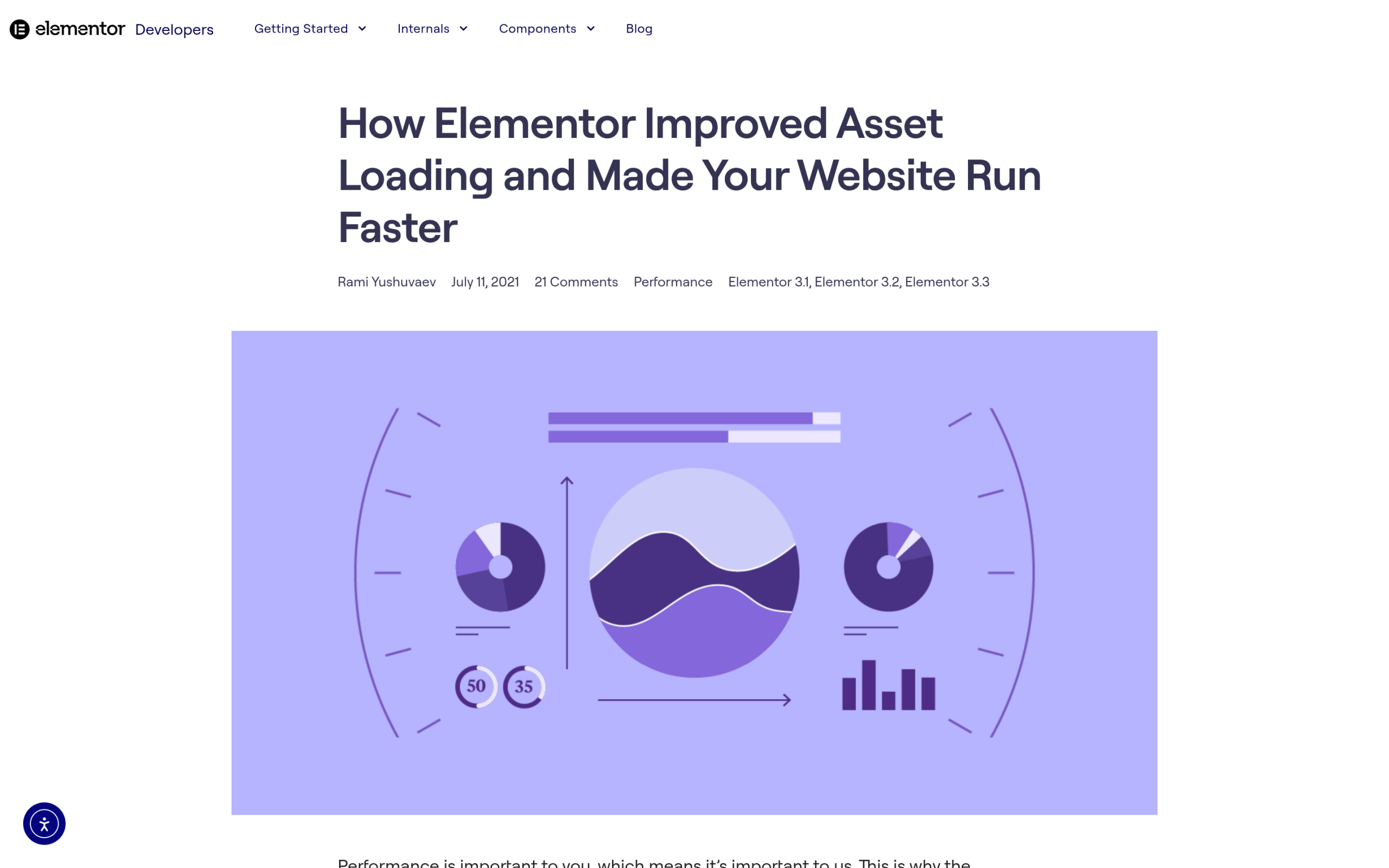
Elementor ships its own answer to asset bloat under Elementor then Settings then Experiments. Turn on Improved Asset Loading. Elementor describes it as applying “new techniques to how Elementor loads CSS, JS, and Font files” by “removing unused CSS, reducing duplicate code, applying dynamic assets loading,” so a page only loads the assets for the widgets it actually contains instead of everything Elementor offers. That means the widgets you never use stop weighing every page down automatically, without you hand-disabling anything. It is the highest-leverage Elementor-specific cleanup most sites leave switched off.
Audit the Media Library
The 50,000-image library from that Reddit post is extreme, but the pattern is common: every upload spawns several resized copies, and almost nobody prunes them. Find images that are not attached to any content, compress what remains, and clear out duplicates and oversized originals. A lighter media library means faster backups, less storage, and fewer thumbnails for the server to juggle.
Keep It Lean Going Forward
A cleanup is a moment; staying lean is a habit. The most reliable way to avoid the next pile-up is to run fewer, better plugins, which often means replacing a drawer full of single-purpose addons with one well-maintained toolkit. The Plus Addons for Elementor brings 120+ widgets and extensions under a single plugin, and it includes a widget manager so you can switch off the ones you do not use, which means you maintain one optimized addon instead of five overlapping ones. Pair that with Improved Asset Loading and a quarterly database pass, and the site that took an afternoon to rescue stays fast on its own.

None of this is glamorous, but it is the difference between a site that ages well and one that gets slower every year. Audit, cut, clean, and then keep it that way.