Say you finish a page in Elementor. It looks perfect in the editor and perfect in your own browser. Then a visitor opens it and sees a wall of plain text: no layout, no spacing, no colors, just raw content stacked down the page.
A refresh usually snaps it back to normal, which makes the whole thing feel random and almost impossible to reproduce on demand.
Here is the reassuring part. This is almost always a CSS delivery problem, not a broken design. Your styles still exist. They are just not reaching the visitor at the moment the page paints.
In 2026 two causes sit behind most of these reports: Elementor’s cached CSS files going missing or returning a 404, and a newer one, WordPress 6.8’s Speculative Loading feature showing a page before its styles have settled.
This guide walks through both, covers a few other suspects, and gives you a quick way to tell which one is actually yours.
What an “unstyled” Elementor page actually is
Elementor does not write every style inline into your page. For performance it generates a separate CSS file for each page and for your global settings, then loads those files through a normal stylesheet link in the page head.
That is efficient, but it adds a dependency: the browser has to fetch and apply those files for the page to look designed. If the file is missing, blocked, or the page is shown before the styles apply, the browser falls back to raw HTML.
So when a page loads unstyled, the question is never “where did my design go.” It is “why did the CSS not arrive on time.” Every fix below answers that one question from a different angle.

Cause 1: Elementor’s cached CSS files are missing or returning a 404
Elementor stores its generated stylesheets in /wp-content/uploads/elementor/css/ as files like post-1234.css and global.css.
When those files get wiped by a migration, a backup restore, an over-eager cleanup plugin, or a regenerate that failed halfway, the page still links to them, but the link now returns a 404. The browser has nothing to apply, so it renders the bare HTML.
The same thing happens when the uploads folder loses write permission and Elementor cannot create the file in the first place.
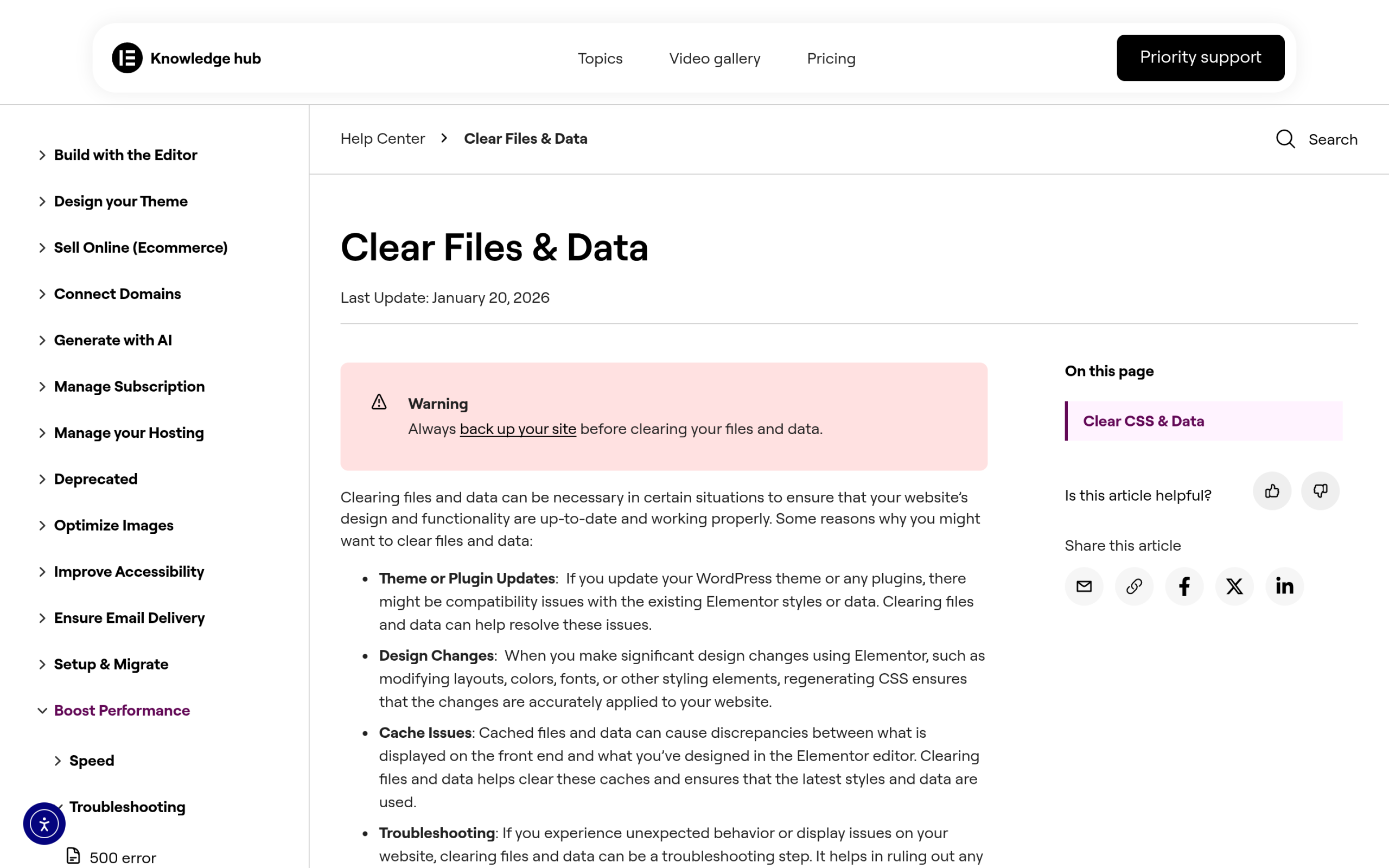
The fix is to force Elementor to rebuild those files. In your dashboard go to Elementor > Tools and use Clear Files & Data (labeled Regenerate CSS & Data on some versions). That deletes the cached CSS and recreates it from your current settings.
While you are there, confirm that /wp-content/uploads/ and /wp-content/uploads/elementor/css/ are writable with standard permissions and that the server is not out of disk space, because a read-only folder is the most common reason a regenerate appears to do nothing.
If regenerating empties the folder but does not rebuild it, open Elementor > Settings > Performance and switch the CSS Print Method from External File to Internal File.
Internal File prints the CSS directly into the page head instead of a separate file, which sidesteps the missing-file problem entirely while you diagnose the cause. Our full walkthrough on how to clear and rebuild Elementor’s cache covers the exact clicks if you want screenshots.
Cause 2: WordPress 6.8 Speculative Loading is showing the page too early
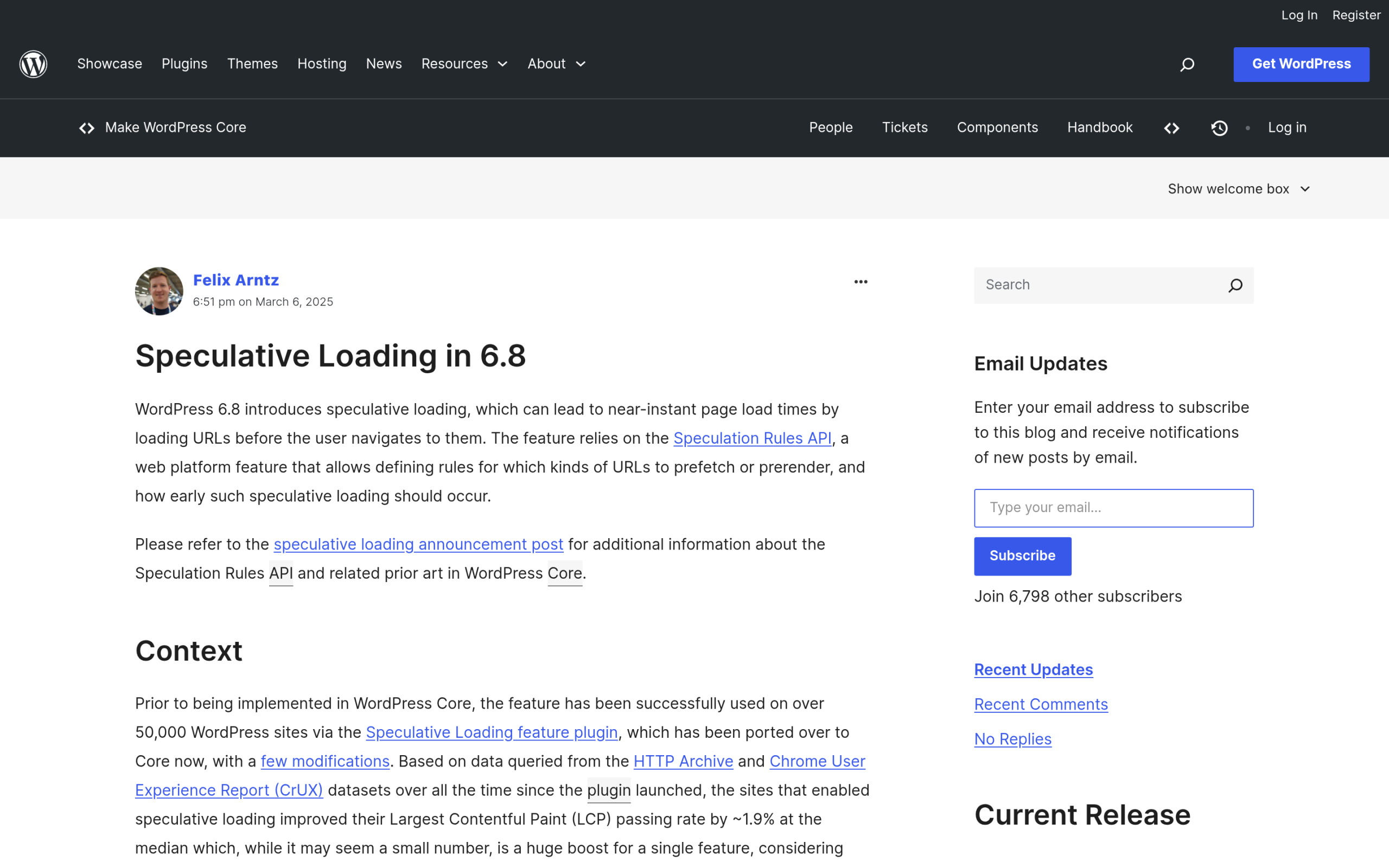
This is the cause that started showing up in 2026, and it is the one people struggle to pin down because it is not an Elementor bug at all. WordPress 6.8 added Speculative Loading built on the browser Speculation Rules API.
Out of the box it ships in prefetch mode with conservative eagerness, which only downloads the next document when a visitor starts clicking a link. That mode is safe and does not touch styling.
The trouble starts when speculative loading runs in prerender mode, which some performance plugins and configurations turn on.
In prerender, the browser fully builds the next page in the background, including running its front-end JavaScript, and then swaps that prerendered document into the visible tab the instant the visitor navigates.
If that swap happens before Elementor’s front-end scripts finish applying widget styling, or before the external stylesheet is applied, the visitor lands on the raw, unstyled version.
It looks random because it only fires on the prerendered navigation, and a manual refresh rebuilds the page normally. This lines up with a reported r/elementor case where pages broke only with speculative loading active.
You have three levels of fix, from gentle to blunt. The safest is to leave speculative loading on the default prefetch mode and simply not force prerender. If a specific template misbehaves, exclude its path:
add_filter(
    'wp_speculation_rules_href_exclude_paths',
    function ( $paths ) {
        $paths[] = '/my-landing-page/*';
        return $paths;
    }
);
If you would rather turn the feature off completely across the site, return null from the configuration filter:
add_filter( 'wp_speculation_rules_configuration', '__return_null' );Or keep the speed benefit while removing the risky part by pinning it to prefetch instead of prerender:
add_filter(
    'wp_speculation_rules_configuration',
    function ( $config ) {
        return array(
            'mode'      => 'prefetch',
            'eagerness' => 'conservative',
        );
    }
);
Drop any of these into your child theme’s functions.php or a code snippets plugin. If you are not comfortable editing code, our guide on adding custom code in Elementor shows the safe way to do it without touching core files.
Cause 3: Page cache or a CDN is serving a stale or half-built copy
Full-page caches such as WP Rocket, LiteSpeed, or Cloudflare can capture a page during the brief window before Elementor finished generating its CSS files, then serve that unstyled snapshot to everyone until you purge it.
A related version happens after you regenerate: the cached HTML still points at an old CSS filename that no longer exists, so the link 404s. Layer prerendering on top and a cached-but-unstyled copy can get shown instantly.
After any Elementor regenerate, purge the full page cache and the CDN cache so the fresh HTML and the fresh CSS filenames line up.
If your optimizer combines or renames CSS, exclude Elementor’s CSS directory from that process, and when you replace an asset by hand use a versioned filename so caches treat it as new.
Picking a cache plugin that plays nicely with Elementor removes most of this class of problem, and our roundup of the best cache plugins for Elementor is a good starting point.
Cause 4: CSS print method and aggressive optimizers
Optimizer features that defer, delay, or lazy-load CSS and JavaScript, common in Perfmatters, LiteSpeed, and Autoptimize, can hold Elementor’s stylesheet back until after the first paint.
The result is a flash of unstyled content: the page appears as raw text for a split second, then corrects itself once the delayed CSS applies. It is less severe than a full 404, but visitors and Core Web Vitals both notice it.
Exclude Elementor’s CSS and JS handles from any “delay JavaScript” or “defer CSS” option, test the External versus Internal print method to see which paints cleaner on your setup, and turn off delay-JS on templates that need styling immediately, such as the homepage.
If the flash correlates with layout shift, our guide on Elementor Core Web Vitals covers how to stop the jump properly.
A 60-second diagnostic: which cause is yours?
- Open the broken page in a private window and view source. Find the Elementor stylesheet link that points at
/uploads/elementor/css/post-XXXX.cssand open that URL directly. A 404 or an empty file means you are on Cause 1. - Does it break only when you arrive from another page, and fix on a hard refresh? That points at Cause 2, speculative prerendering.
- Does it break only for logged-out visitors, or stay broken until you purge cache? That is Cause 3, a stale cache or CDN copy.
- Does it flash unstyled for a moment and then correct itself? That is Cause 4, deferred or delayed CSS.
How to keep it from happening again
Most unstyled-page reports trace back to too many moving parts fighting over the same CSS.
Keep Elementor, WordPress core, and your optimizer updated together, and always test a few key templates right after a core update, because a change like WordPress 6.8’s speculative loading is exactly the kind of shift that introduces a new race condition.
Keeping your widget layer lightweight helps too: the fewer extra scripts and stylesheets a page carries, the less there is to arrive late. We build The Plus Addons for Elementor with that in mind, loading the CSS and JavaScript a widget actually needs rather than everything on every page.
Suggested reading
- Fix Elementor V4 styling and CSS not loading, if your problem started specifically after the V4 or Atomic upgrade.
- How to clear the Elementor cache, the full step-by-step for rebuilding files.
- Best cache plugins for Elementor, so caching helps instead of hurts.
- Elementor Core Web Vitals, to stop the layout shift that often rides along with a style flash.
- Does Elementor slow down your website?, an honest look at performance and what to trim.