Are you looking to add advanced GSAP animation to your Elementor website? GSAP is a powerful animation library that helps you create smooth, fast, and eye-catching animations that go beyond basic effects. With GSAP, you can control how elements move, fade, scale, or react to scrolling and user actions.
With the GSAP Scroll Interaction feature from The Plus Addons for Elementor, you can easily add GSAP animation to any element on your website.
Required Setup
- Elementor FREE Plugin installed & activated.
- You need to have The Plus Addons for Elementor plugin installed and activated.
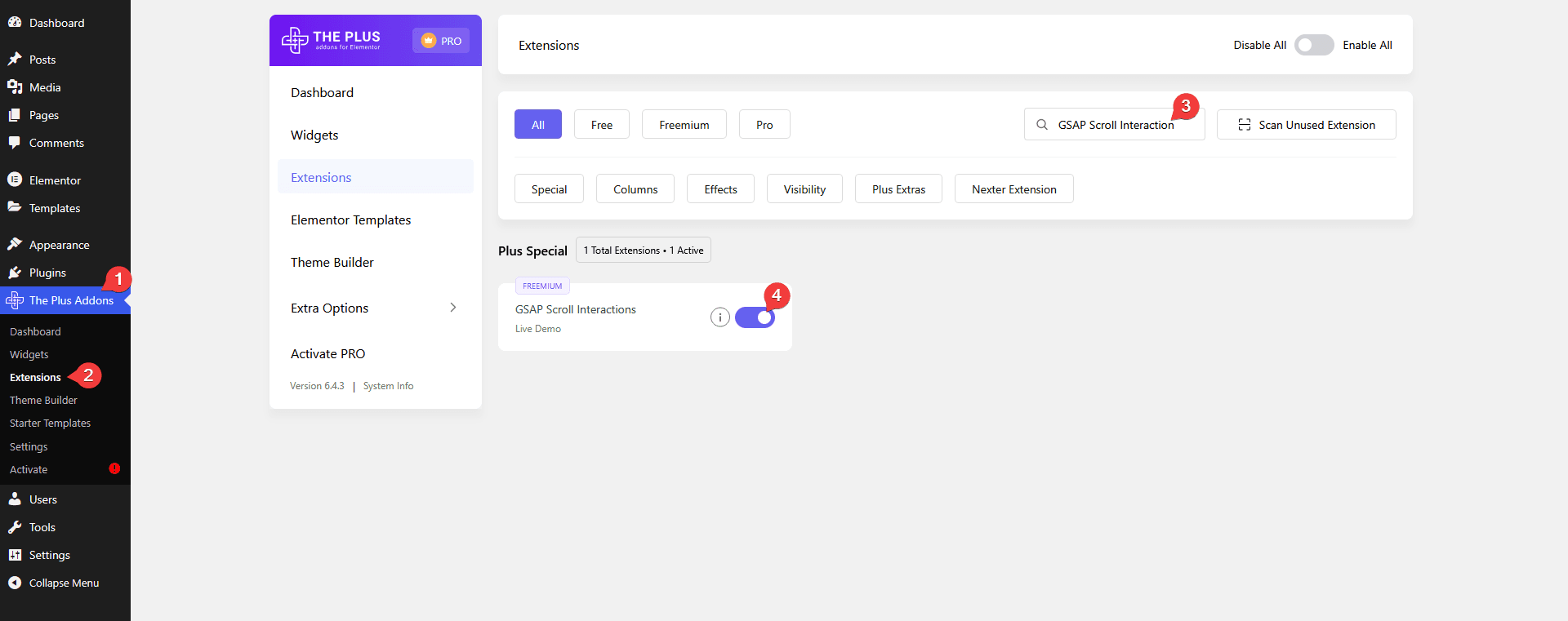
- Make sure the GSAP Scroll Interactions extension is activated, to verify this visit The Plus Addons → Extensions → and search for GSAP Scroll Interactions and activate.
- This is a Freemium feature to unlock the extra features; you need the PRO version of The Plus Addons for Elementor
How to Activate the GSAP Scroll Interaction Extension?
Go to
- The Plus Addons → Extensions
- Search the extension name and turn on the toggle.
Key Features
- Global – You can add a global GSAP animation.
- Basic – You can add a basic GSAP animation on page load or page scroll.
- Advanced – You can add advanced GSAP scroll-based animations.
How to Use GSAP Animation?
To use the GSAP animation, add any widget to the page or post where you want to add the animation and follow the steps.
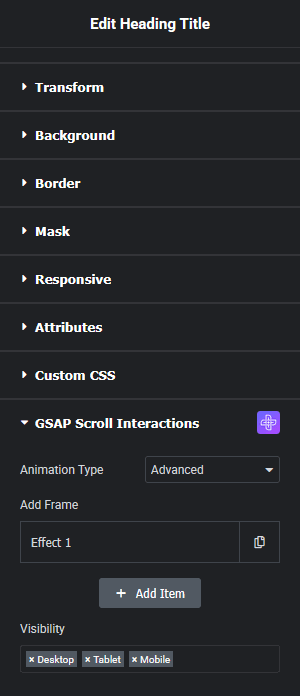
1. Go to the Advanced > GSAP Scroll Interaction tab.
2. From the Animation Type dropdown, you have to select the animation type.
Here you’ll find the options –
- Global – With this option, you can add a global GSAP animation.
- Basic – With this option, you can add basic GSAP animation on page load or page scroll.
- Advanced – With this option, you can add advanced GSAP scrolling animations.
Based on your selected animation type, you’ll see different settings.
You need to customize the settings according to your requirements to create the animation.
Let’s see each option.
Use Global Animation
To add a global animation to any widget, you have to create the global animation first.
To add a global animation to a widget, select Global from the Animation Type dropdown.
Then, from the Global Animation dropdown, select your animation.
Use Basic Animation
To add a basic animation to a widget, select Basic from the Animation Type dropdown.
Then, from the Trigger dropdown, you have to set the trigger.
Here you’ll find two options –
- On Load – To trigger the animation on page load.
- On Scroll – To trigger the animation on page scroll.
Select the option as per your requirement.
From the Animation Controls section, you can set the animation delay, duration and offset.
Then, from the Motion Settings section, you can set the animation style, effect and direction.
By enabling the Stagger Effect toggle, you can add a delay between sequences.
Then, by enabling the Repeat toggle, you can repeat the animation.
Based on your settings, you’ll see the animation.
Use Advanced Animation
To add an advanced animation to a widget, select Advanced from the Animation Type dropdown.
From the Add Frame section, you have to use the repeater items to create the animation.
By default, you’ll find one repeater item; open it.
In the Item Name field, you can add the repeater item name.
Then, from the Scroll Options section, you have to set the scrolling settings.
This is the most important setting; based on this, your animation will work.
Let’s understand the options –
- Trigger – Set when the animation starts.
- Duration – Set the animation duration.
- Offset – Set the space from the top when the animation starts.
- Dynamic Height – Enable this toggle to fix any height-related issue in all devices.
Motion
After that, from the Motion toggle, you can add different motion-based scrolling animations.
- Vertical – You can set the starting and ending vertical position.
- Horizontal – You can set the starting and ending horizontal position.
- Rotate – You can set the rotation position and starting and ending rotation for X, Y and Z axis separately.
- Scale – You can set the starting and ending scale values for the X, Y and Z axis separately.
- Skew – You can set the starting and ending skew value for the X and Y axis separately.
Motion Scrolling Animation Demo
Appearance
Then, from the Appearance toggle, you can add different appearance-based scrolling animations.
- Opacity – You can set the starting and ending opacity value.
- Padding – You can set the starting and ending padding value.
- Color – You can set the starting and ending font color.
- Font Size – You can set the starting and ending font size.
- Letter Spacing – You can set the starting and ending letter spacing value.
- Text Shadow – You can set the starting and ending text shadow value.
- Box Shadow – You can set the starting and ending box shadow value.
- Border Radius – You can set the starting and ending border radius value.
- Background Color – You can set the starting and ending background color.
Appearance Scrolling Animation Demo
Visual Effect
From the Visual Effects toggle, you can add different visual-based scrolling animations.
- Blur – You can set the starting and ending blur value.
- Grayscale – You can set the starting and ending grayscale value.
- Brightness – You can set the starting and ending brightness value.
Visual Effect Scrolling Animation Demo
Advanced
By enabling the Advanced toggle, you can add some advanced scrolling animation.
Play Video on Scroll
From the Play Video section, you can play a video as you scroll. This will work with the Video Player widget from The Plus Addons for Elementor only.
Add the Video Player widget from The Plus Addons for Elementor to the page.
Then select Self Hosted from the source and add the video.
Note: This will work with self-hosted videos only.
Then go to the Advanced > GSAP Scroll Interaction tab.
Select Advanced from the Animation Type dropdown and open the repeater item.
Then enable the Advanced toggle and open the Play Video settings.
Copy the CSS class name without the dot from the Video Selector (CSS) field. You can also change the class name.
Then go to the Layout tab and add the class name in the CSS Classes field to make the connection.
Now, as you scroll, the video will play frame by frame.
Draw SVG on Scroll
From the Draw SVG section, you can draw an SVG on scroll. This feature will work with the Draw SVG widget from The Plus Addons for Elementor only.
Add the Draw SVG widget from The Plus Addons for Elementor to the page.
Select the container containing the Draw SVG widget.
Then go to the Advanced > GSAP Scroll Interaction tab.
Select Advanced from the Animation Type dropdown.
After setting the Scrolling Options, enable the Advanced toggle and open the Draw SVG settings.
Copy the CSS class name without the dot from the SVG Selector (CSS) field. You can also change the class name.
Then select the Draw SVG widget, and enable the Connect GSAP Interaction toggle.
After that, go to the Advanced > Layout tab.
Then add the class name in the CSS Classes field to make the connection.
Now, you’ll see SVG will draw as you scroll.
Parallax Effect on Scroll
From the Parallax Effect section, you can add a parallax effect on scroll.
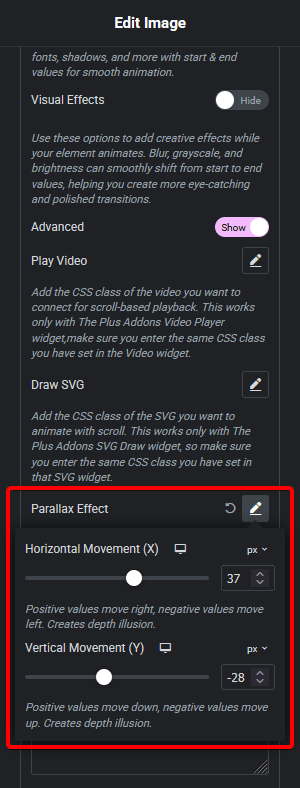
- Horizontal Movement (X) – You can move the element in the horizontal axis. Positive value will move the element to the right and a negative value will move it to the left.
- Vertical Movement (Y) – You can move the element in the vertical axis. Positive value will move the element down and a negative value will move it up.
Advanced Options
From the Advanced Options section, you can repeat the animation, add easing effects etc. to an existing animation.
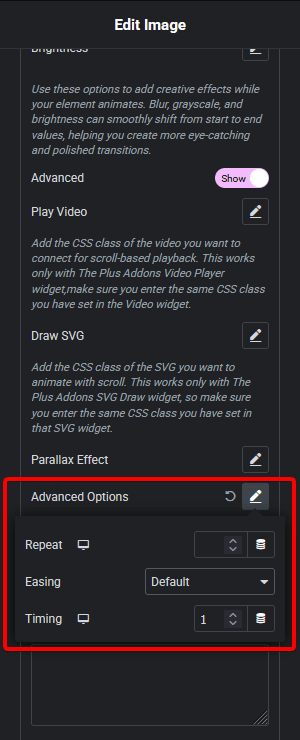
- Repeat – You can set the number of times the animation will repeat as you scroll.
- Easing – You can set an easing effect for the animation.
- Timing – You can set the animation duration.
Note: This will work on the animation created using the previous options mentioned above.
Sticky
By enabling the Sticky toggle, you can make the element sticky as you scroll.
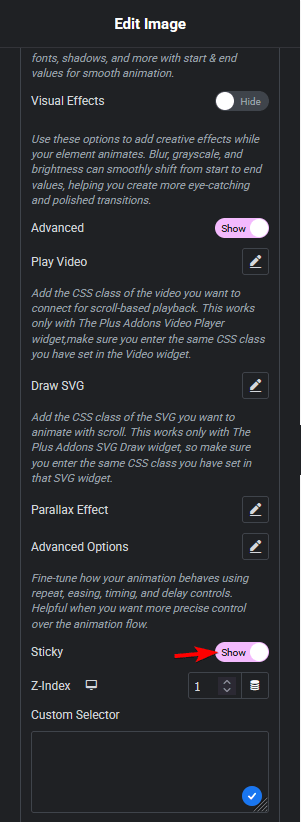
From the Z-Index field, you can set a z-index value to overlap other elements.
Custom Selector
From the Custom Selector section, you can target a specific element using its CSS class, ID, or selector name to apply the animation.
Note: This will work on the animation created using the previous options mentioned above.
For instance, we are using the Heading Title widget from The Plus Addons for Elementor and have applied the letter spacing and color change animation on scroll.
Now we want this animation to be applied to the h3 tag of the Heading Title widget only.
So you have to add h3 in the Custom Selector field.
Now, when you scroll, the animation will be applied to the h3 tag only.
Developer
By enabling the Developer toggle, you can add a custom trigger name in the Trigger Name field.
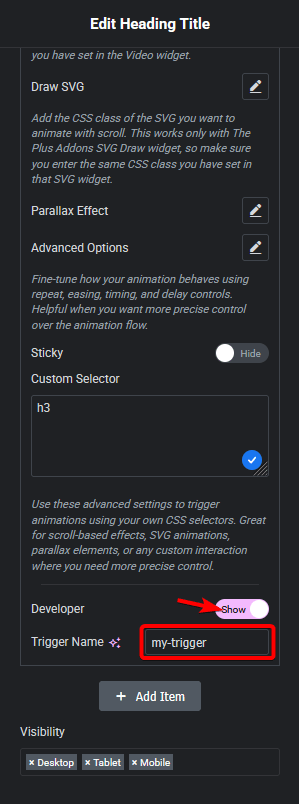
You’ll now see the trigger and scroll points on the screen. Based on these, you can fine-tune your animation.
These triggers help you create more precise and accurate animations.
Note: You can apply all the animations like Motion, Appearance, Visual Effect and Advanced together on one element.
You can click on the + Add Item button to add more repeater items to create more complex animations.
From the Visibility field, you can choose which responsive devices the animation will run on.