


































Are you looking to create GSAP animation globally on your Elementor website? By saving animations globally, you can create them once and reuse them across multiple sections and pages. This helps you maintain consistency, save time, and apply advanced animations without repeating the same setup.
With the GSAP global animation feature from The Plus Addons for Elementor, you can easily create GSAP animations globally and use them multiple times on different widgets.
Required Setup
- Elementor FREE Plugin installed & activated.
- You need to have The Plus Addons for Elementor plugin installed and activated.
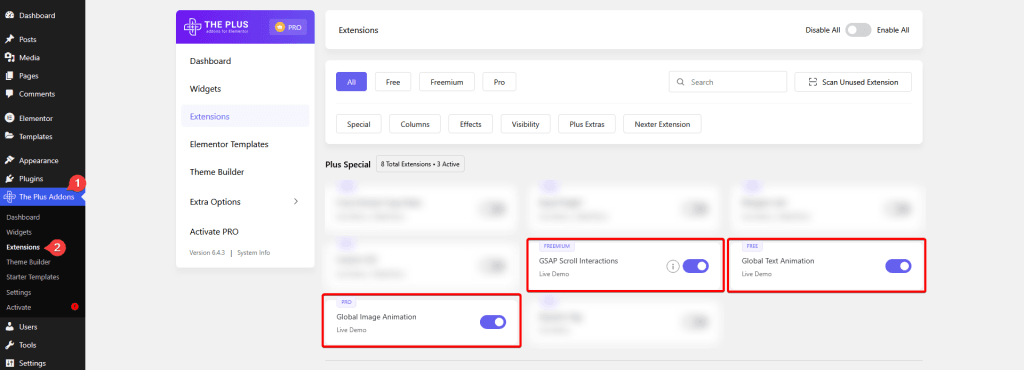
- Make sure the GSAP Scroll Interaction (freemium), Global Text Animation (free) and Global Image Animation (pro) are activated.
- To unlock the extra features, you need the PRO version of The Plus Addons for Elementor.
How to Activate Global Animation Extensions?
Go to
- The Plus Addons → Extensions
- Turn on the GSAP Scroll Interaction, Global Text Animation (for text animation) and Global Image Animation (for image animation).
Key Features
- Global Scroll Interaction – You can create a global animation on page scroll or load and reuse on any widget.
- Global Text Animations – You can create a global animation for text.
- Global Image Animations – You can create a global animation for an image.
Create Global Animation
Open the Elementor editor, then from the top, click on the Elementor logo > Site Settings.
From here, you can create global animations. Based on the activated extensions, you’ll see the options.
Global Scroll Interaction – You can create a global animation on page scroll or load.
Global Text Animations – You can create a global animation for text.
Global Image Animations – You can create a global animation for an image.
Global Scroll Interaction
With this option, you can create a global animation that can be applied to any widget.
To set a global scroll animation, follow the steps.
Click on the Global Scroll Interaction tab.
Then click on the + Add Scroll Interaction button.
You’ll see a repeater item; open it.
In the Animation Name field, you can add the animation name.
Note: Keep the name unique; you have to identify the animation by name while applying it later.
Then, from the Trigger dropdown, you have to set the trigger.
Here you’ll find two options –
- On Load – To trigger the animation on page load.
- On Scroll – To trigger the animation on page scroll.
Select the option as per your requirement.
From the Delay section, you can add a delay to the animation.
Then you can set the animation duration from the Duration field.
After that, from the Offset field, you can set the space from the top when the animation starts.
From the Animation Style dropdown, you can set an animation style.
You can add an animation effect from the Animation Effect dropdown.
After that, you can set the animation direction from the Animation Direction section.
By enabling the Stagger Effect toggle, you can add a delay between sequences.
Then, by enabling the Repeat toggle, you can repeat the animation.
You can click the + Add Scroll Interaction button to create more global scroll animations.
Once done, click on the Save Changes button to save the animation.
Use Global Scroll Interaction Animation
Now, to use the global scroll interaction animation, open the page or post in Elementor editor.
Note: If you are using it on an element on the same page, save the page and reload it.
1. Add the widget on which you want to add the animation. For instance, the Image widget here.
2. Go to the Advanced > GSAP Scroll Interaction tab.
3. Select Global from the Animation Type dropdown.
4. Then, from the Global Animation dropdown, select your animation.
Note: If you don’t see your animation name in the dropdown, reload the page.
Now your global animation will be applied to your selected element.
Global Text Animations
With this option, you can create a global text animation that can be applied to the Heading and Text Block widgets from The Plus Addons for Elementor.
To set a global text animation, follow the steps.
Click on the Global Text Animations tab.
Then click on the + Add Global Animations button.
You’ll see a repeater item; open it.
In the Animation Name field, you can add the animation name.
Note: Keep the name unique; you have to identify the animation by name while applying it later.
From the Animation Type dropdown, you have to select the animation type. Here you’ll find four options –
- Normal – With this option, you can create custom text animation.
- Explode / Scatter – With this option, you can create an explode or scatter text animation effect.
- Scramble Text – With this option, you can create a scramble text animation effect.
- Typing Effect – With this option, you can create a text typing animation effect.
You’ll see different settings for each option. Select the option as per your requirements.
Let’s see the settings for the Normal option.
You can manually set the position, skew, scale, rotation and transform origin.
You can split the text by characters or words from the Split Type dropdown.
Then, from the Animation Trigger dropdown, you can set the trigger on page load, scroll or on hover.
From the Duration section, you can set the animation duration.
Then you can set a delay from the Delay field.
By enabling the Stagger toggle, you can add a delay between sequences.
You can add an animation effect from the Animation Effect dropdown.
Then, by enabling the Repeat toggle, you can repeat the animation.
You can click the + Add Global Animation button to create more global text animations.
Once done, click on the Save Changes button to save the animation.
Use Global Text Animations
Now, to use the global text animation, open the page or post in Elementor editor.
Note: If you are using it on an element on the same page, save the page and reload it.
1. Add the Heading or Text Block widget on which you want to add the animation.
For instance, we’ll use the Text Block widget here.
2. Go to the Text Animation tab, and enable the Enable Animation toggle.
3. Select Global from the Animation Type dropdown.
4. Then, from the Global Animation dropdown, select your animation.
Note: If you don’t see your animation name in the dropdown, reload the page.
Now your global text animation will be applied to your selected text element.
Global Image Animations
With this option, you can create a global image animation that can be applied to the Creative Image and Cascading Image widgets of The Plus Addons for Elementor.
To set a global image animation, follow the steps.
Click on the Global Image Animations tab.
Then click on the + Add Global Animations button.
You’ll see a repeater item; open it.
In the Animation Name field, you can add the animation name.
Note: Keep the name unique; you have to identify the animation by name while applying it later.
From the Animation Trigger dropdown, you can set the trigger on page load, scroll or on hover.
From the Duration section, you can set the animation duration.
Then you can set a delay from the Delay field.
You can manually set the offset, skew, scale, rotation and opacity.
Then, from the Transform Origin dropdown, you can set the transform origin.
After that, from the Clip Path dropdown, you can add a mask to the image.
Then, you can add an animation effect from the Animation Effect dropdown.
You can click the + Add Global Animation button to create more global image animations.
Once done, click on the Save Changes button to save the animation.
Use Global Image Animations
Now, to use the global image animation, open the page or post in Elementor editor.
Note: If you are using it on an element on the same page, save the page and reload it.
1. Add the Creative Image or Cascading Image widget on which you want to add the animation.
For instance, we’ll use the Creative Image widget here.
2. Go to the Image Animation tab, and enable the Enable Animation toggle.
3. Select Global from the Animation Type dropdown.
4. Then, from the Global Animation dropdown, select your animation.
Note: If you don’t see your animation name in the dropdown, reload the page.
Now your global image animation will be applied to your selected image element.

