


































Do you want to show content dynamically in Elementor? Adding dynamic content to your Elementor website helps you create a more engaging and personalized experience for your visitors. Instead of showing the same content to everyone, you can display information that changes based on user data or page details.
With the Dynamic Tag extension from The Plus Addons for Elementor, you can easily show different dynamic content like user data, custom field data etc. to make dynamic Elementor websites.
Required Setup
- Elementor FREE Plugin installed & activated.
- You need to have The Plus Addons for Elementor plugin installed and activated.
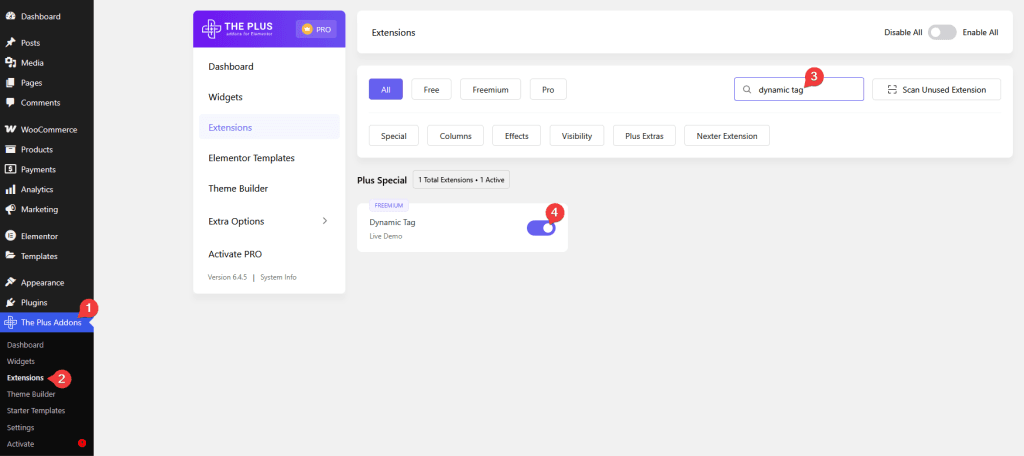
- Make sure the Dynamic Tag extension is activated, to verify this visit The Plus Addons → Extensions → and search for Dynamic Tag and activate.
- This is a Freemium feature to unlock the extra features; you need the PRO version of The Plus Addons for Elementor.
How to Activate the Dynamic Tag Extension?
Go to
- The Plus Addons → Extensions
- Search the extension name and turn on the toggle.
Key Features
- Post data – You can easily show different post-related data, such as post title, slug etc on a single post template.
- Site data – You can easily show different site-related data, such as site title, URL etc.
- User data (pro) – You can easily show different user-related data, such as user info, meta, URL etc.
- Archive data (pro) – You can easily show different archive data, such as archive title, URL etc on an archive template.
- WooCommerce data (pro) – You can easily show different WooCommerce-related data, such as product title, price etc.
- Custom field data (pro) – You can easily show custom field data created with different plugins like ACF and SCF.
- Custom Loop Skin (pro) – You can easily use the dynamic tags in your custom loop skin with Product Listing and Dynamic Listing widgets.
Add Dynamic Content in Elementor
To add dynamic content, add any widget to the page.
Dynamic Content
For instance, let’s add the Elementor Heading widget.
Click on the cylindrical icon at the end of the Title field.
Note: You’ll find this option at different places for different widgets, but wherever you see the cylindrical icon, you can add dynamic content.
Then, from the Dynamic Field dropdown, you have to choose the data you want to add. Here you’ll find different options.
Note: The options will vary based on field type (content, image, URL etc.) and plugins installed (WooCommerce, custom field plugins etc.)
Plus – Post: To show different post-related data on a single post template.
- Post ID – To show the Id of the current post.
- Post Title – To show the title of the current post.
- Post Excerpt – To show the post excerpt of the current post.
- Post Content – To show the post content of the current post.
- Post Category – To show the post category of the current post.
- Post Tags – To show the post tag of the current post.
- Post Author Name – To show the author name of the current post.
- Post Slug – To show the post slug of the current post.
- Post Date – To show the current post publish date based on the timezone set in WordPress.
- Post Time – To show the current post publish time or modified time based on GMT(Greenwich Mean Time).
- Post Terms – To show the taxonomy of the current post.
- Post Status – To show the post publish status of the current post.
- Post Type – To show the post type of the current post.
- Post Featured Image Data – To show featured image data (Id, alt text, title, caption or description) of the current post.
- Post URL – To show the current post URL.
Plus – Site: To show site-related data.
- Site Title – To show the site title.
- Site Tagline – To show the site tagline.
- Current Date Time – To show the current date and time.
Plus – User (pro): To show logged-in user-related data.
- User Info – To show the information (id, name, email, website, display name, nickname, first name, last name, description or role) of the current user
- User Meta – To show the meta of the current user.
Plus – Archive (pro): To show archive-related data on an archive template.
- Archive Title – To show the title of the current archive.
- Archive Meta – To show the archive info based on the meta key.
- Archive Description – To show the description of the current archive.
If you are using the WooCommerce plugin, you’ll see different WooCommerce-related options.
Plus – WooCommerce (pro): To show different WooCommerce-related data on a single product template.
- Product ID – To show the id of the current product.
- Product Title – To show the title of the current product.
- Product Price – To show the price (regular or sale price) of the current product.
- Product Category – To show the category of the current product.
- Product Description – To show the description of the current product.
- Product Short Description – To show the short description of the current product.
- Product SKU – To show the SKU of the current product.
- Product Slug – To show the slug of the current product.
- Product Tags – To show the tag of the current product.
- Product Type – To show the type of the current product.
- Product Sale – To show the sale status of the current product.
- Product Rating – To show the rating of the current product.
- Product Shipping – To show the shipping info of the current product.
- Product Attribute – To show the attribute of the current product.
- Product Purchase Note – To show the purchase note of the current product.
- Product Stock Status – To show the stock status of the current product.
- Product Stock Quantity – To show the stock quantity of the current product.
If you are using custom field plugins like ACF or SCF. You’ll see relevant options.
Custom field (pro) – To show custom field data created with different custom field plugins like ACF and SCF. The section name will vary based on the installed plugin and the custom field group name. The option names will vary based on the custom field names.
Select the option as per your requirements.
Then, from the Advanced tab, you can add a prefix, postfix and fallback text to the data.
Note: For some options, you’ll find some additional settings.
Add Dynamic URL
Similarly, in the Link field, you can add dynamic links by clicking the cylindrical icon.
Here, you’ll find different link-related options –
Plus – Post: To add post-related URL.
- Post URL – To add the post URL of the current post.
- Post Term URL – To add the taxonomy (category, tag etc.) URL of the current post.
- Post Author URL – To add the author URL of the current post.
Plus – Site: To add site-related URL.
- Site Url – To add the site URL.
Plus – User (pro): To add a logged-in user-related URL.
- User URL – To add the URL of the current user.
- User Login/Logout URL – To add the login/logout URL of the current user.
Plus – Archive (pro): To add an archive-related URL.
- Archive URL – To add the URL of the current archive.
Plus – WooCommerce (pro): To add different WooCommerce-related URL.
- Product URL – To add the URL of the current product.
- Product Category URL – To add the category URL of the current product.
- Product Tag URL – To add the tag URL of the current product.
- Product Add to Cart URL – To add the add to cart URL of the current product with quantity.
- Product Checkout URL – To add the checkout URL.
- Back to Shop URL – To add the shop URL.
If you are using custom field plugins like ACF or SCF. You’ll see relevant options.
Custom field (pro) – To add a custom field URL created with different custom field plugins like ACF and SCF. The section name will vary based on the installed plugin and the custom field group name. The option names will vary based on the custom field names.
For some fields, you can add a fallback URL from the Advanced tab.
Note: For some options, you’ll find some additional settings.
Add Dynamic Image
You can also add a dynamic image to an image field of a widget.
For instance, let’s add the Elementor Image widget.
Click on the cylindrical icon at the end of the Image field.
Here, you’ll find different image-related options –
Plus – Post: To add a post-related image.
- Post Featured Image – To add the featured image of the current post.
- Post Author Avatar – To add the author image of the current post.
Plus – Site: To add a site-related image.
- Site Logo – To add the site logo.
- Site Icon – To add the site icon.
Plus – User (pro): To add a logged-in user-related image.
- User Avatar – To add the avatar of the current user.
Plus – WooCommerce (pro): To add a WooCommerce-related image.
- Product Featured Image – To add the featured image of the current product.
If you are using custom field plugins like ACF or SCF. You’ll see relevant options.
Custom field (pro) – To add a custom field image created with different custom field plugins like ACF and SCF. The section name will vary based on the installed plugin and the custom field group name. The option names will vary based on the custom field names.
From the Settings tab, you can add a fallback image as well.
This is how easily you can add different types of dynamic content in Elementor.

