


































Adding a continuous animation to an Elementor widget can help you to highlight an element. These animations not only add a visually appealing touch to a website but also help engage and retain visitors’ attention.
You can easily add a continuous animation to any widgets in Elementor.
Required Setup
- Elementor FREE Plugin installed & activated.
- You need to have The Plus Addons for Elementor plugin installed and activated.
- This is a Premium feature, and you need the PRO version of The Plus Addons for Elementor.
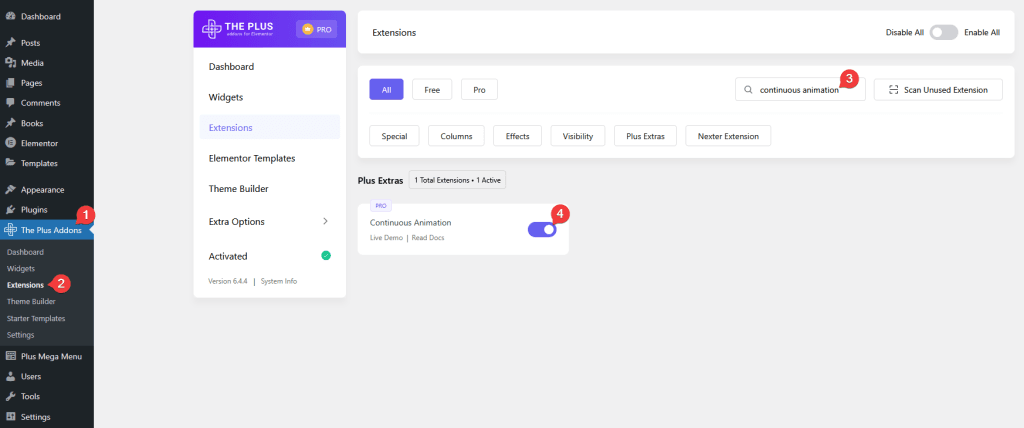
- Make sure the Continuous Animation extension is activated, to verify this visit The Plus Addons → Extensions → and search for Continuous Animation and activate.
Learn via Video Tutorial:

How to Activate the Continuous Animation Extension?
Go to
- The Plus Addons → Extensions
- Search the extension name and turn on the toggle.
Key Features
- Add continuous animation – You can easily add continuous animation to any widget.
Did you know? you can make a website look more appealing by adding a tilt 3D parallax effect to widgets.
How to Add Continuous Animation Effect to a Widget in Elementor?
Add a widget and follow the steps –
1. Go to Advanced > Continuous Animation.
2. Turn on the Continuous Animation toggle.
3. From the Animation Effect dropdown, you have to select an animation effect.
From the Hover Animation toggle, you can play the animation on hover.
Then, from the Duration Time field, you can set the animation duration.
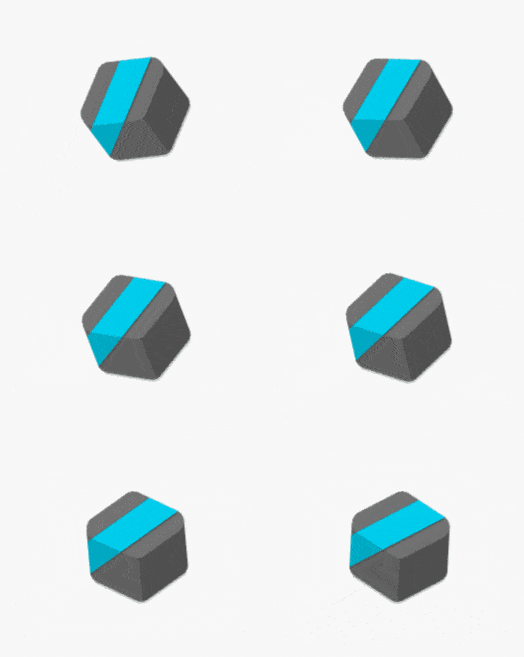
As per your settings, you’ll see a continuous animation effect on the widget content.
Also read, how to add Elementor preloader & page transitions.

