






-
FREEMIUM
Data Table for Elementor
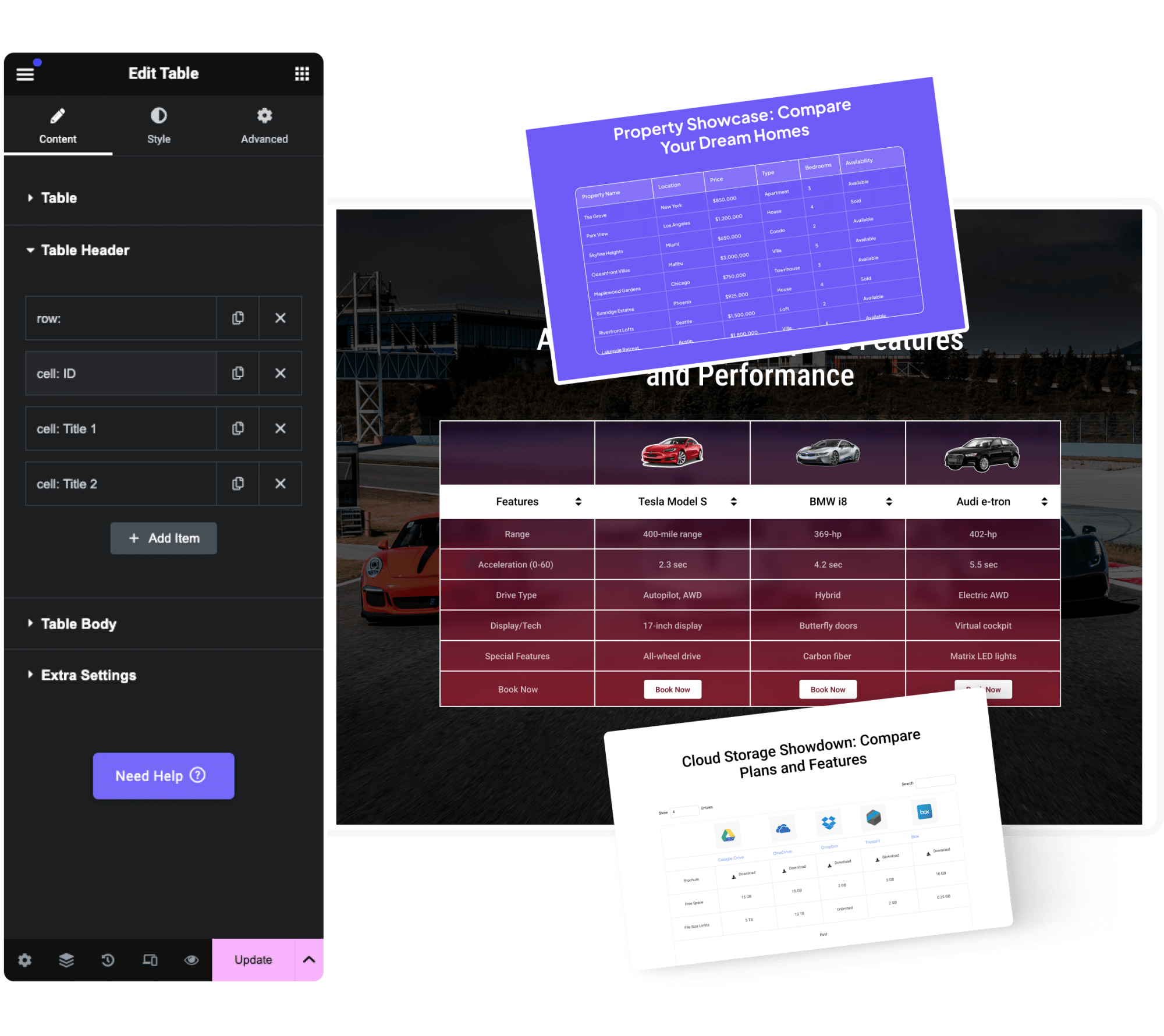
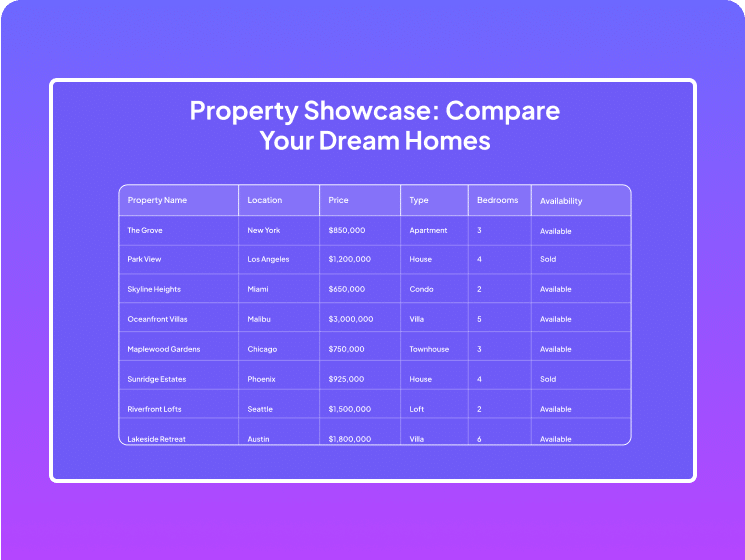
Easily create fully responsive tables without coding using Elementor Data Table widget. Customize headers and body, and import data from CSV or Google Sheets for a seamless, professional look.
- Source Table from CSV File/ Google Sheet
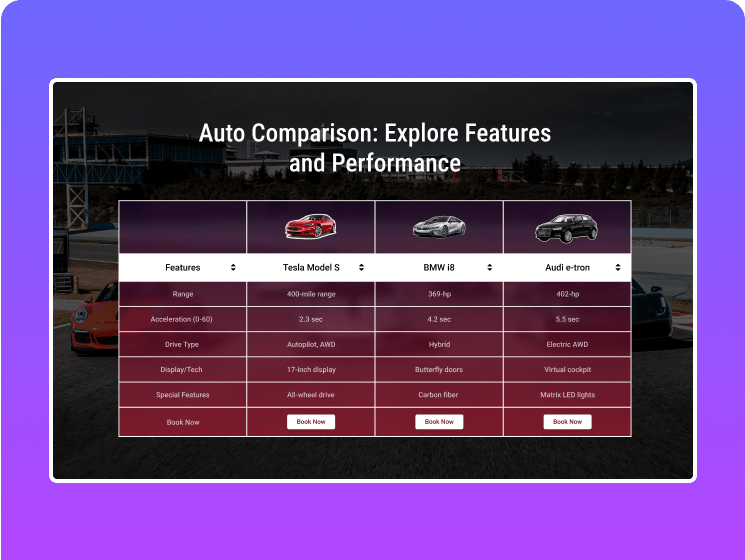
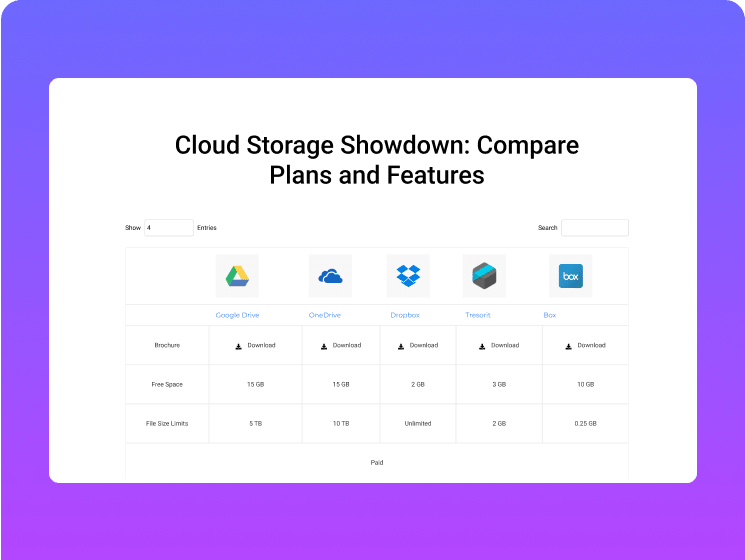
- Add Icon, Image & Button in Cell
- Mobile Responsive & Swiper
Get 120+ Elementor Widgets & 1000+ Templates Today
- 30 Day Money-Back Guarantee
200+ Upgraded to The Plus Addons for Elementor Pro in Just 7 Days
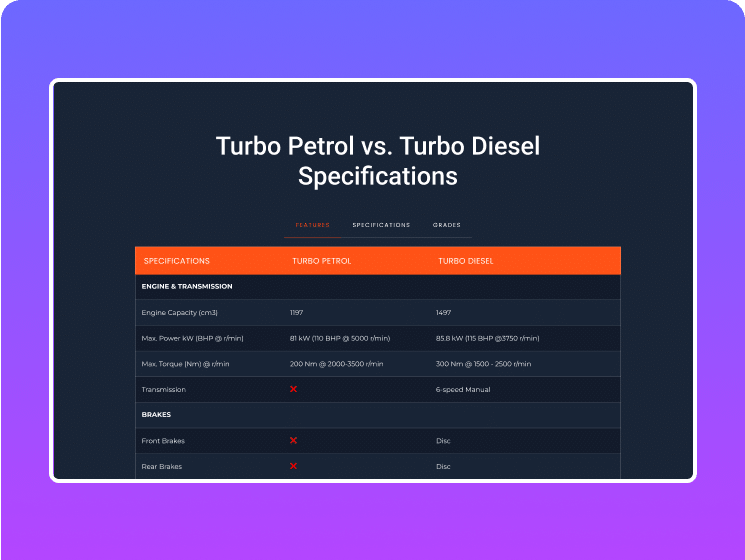
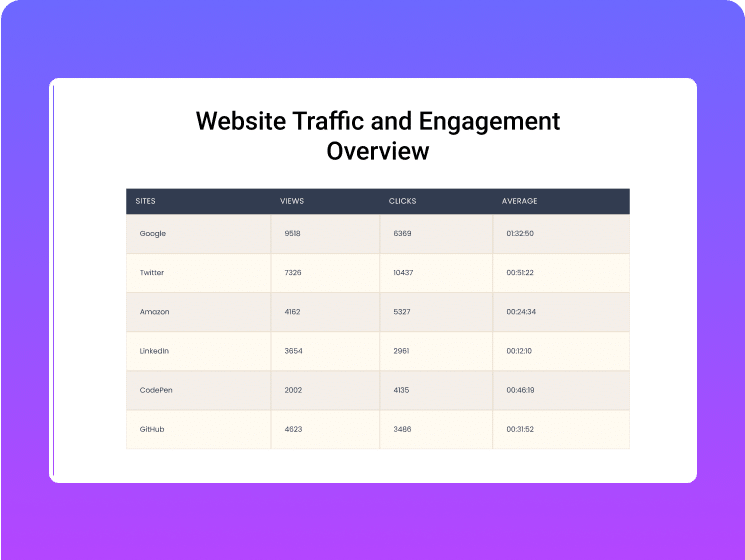
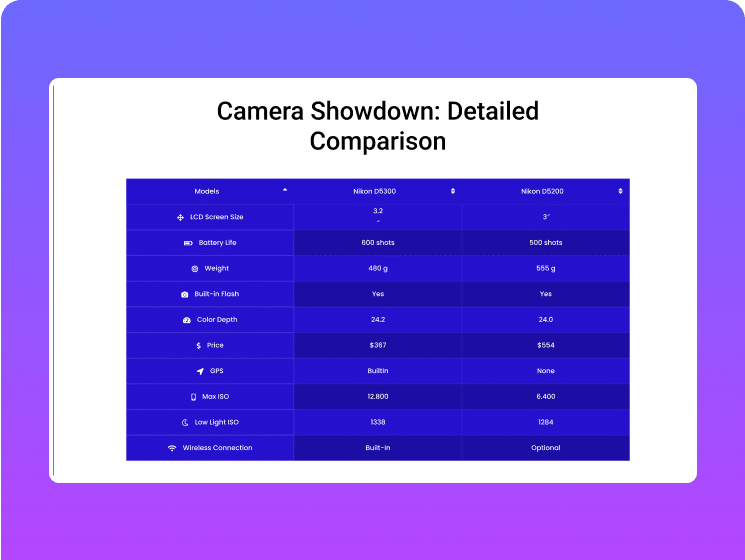
Key Features of Elementor Data Table

Create Custom Table, CSV
File or Google Sheet
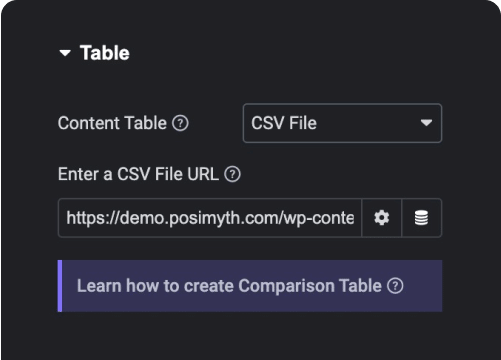
Upload
CSV File

Connect Google
Sheets
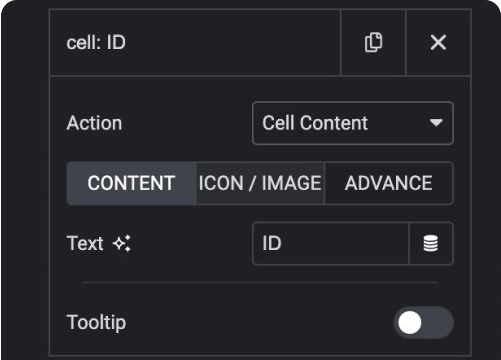
Add Text in
Table Cell
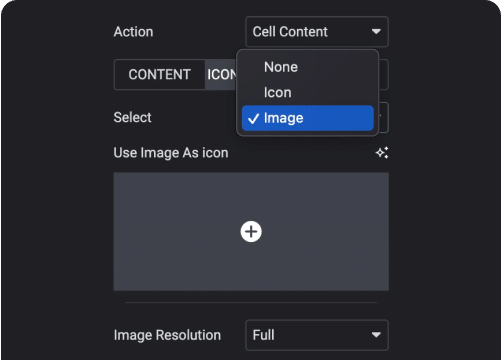
Add Icon, Image
in Cell
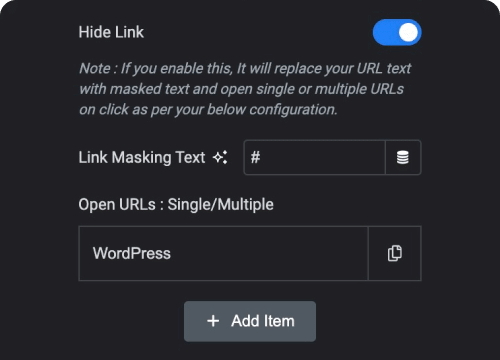
Custom Cell
Colors
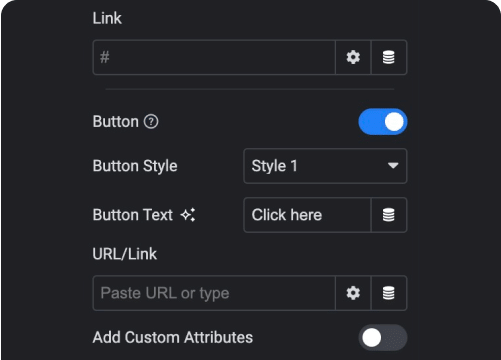
Add Button with
Link to Cell
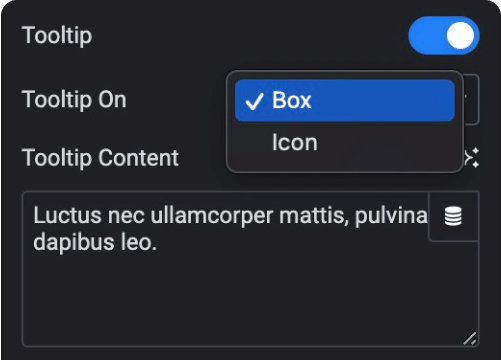
Add Tooltip
to Cell
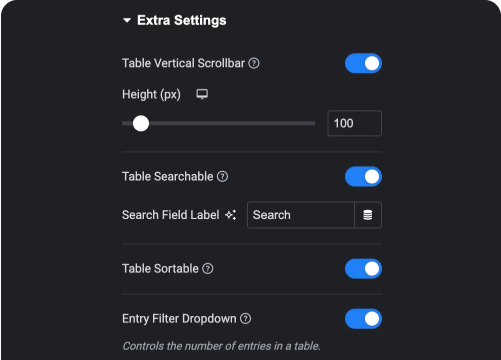
Add Filter, Search &
Sorting to Table
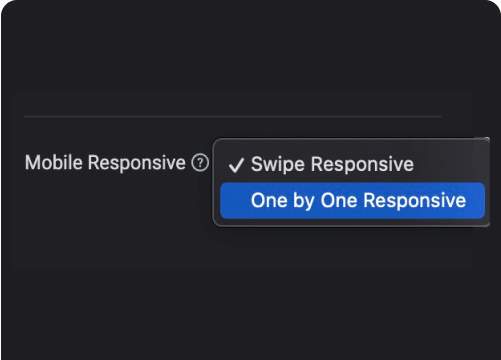
Mobile Responsive
Modes
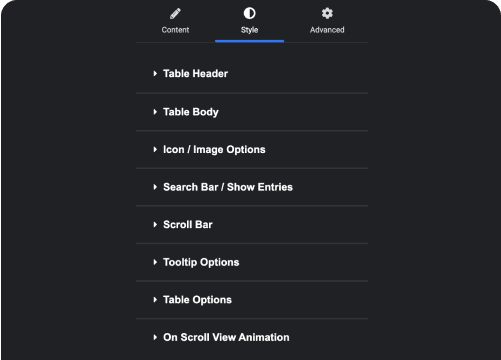
Customize
Everything
Watch How it Works

Subscribe for more Such Elementor Video Tutorials
Build Faster with Elementor Recipes
Build This Widget From a Recipe
Copy a recipe and your AI assistant builds it in Elementor.
Looking for a different widget?
Browse the Recipe Library
Read How it Works
Related Widgets










★★★★★ Rated 5 out of 5
Totally recommended. I’m using it in all my developments, it became a must have to me.
And when it comes to support, they act rapidly to give you a solution.
~cuevasmiriam
Frequently Asked Questions
Does The Plus Addons for Elementor work with Elementor Pro?
Yes. We have 100% compatibility with Elementor Pro as well FREE version. We work closely with Elementor team for smooth compatibility with the latest updates.
Do note, It’s not important to have Elementor PRO to enjoy all our features
Can I upgrade my plan to a higher one later?
Absolutely, you can upgrade your plan by just paying the difference of the amounts. Visit Store Dashboard → Purchase History → View License → View Upgrade and select the plan you wish to upgrade.
What happens if I don't renew and license expires?
You will receive an email prior to the expiry date for license renewal. If you miss that, then your license won’t be active, after which you won’t receive any updates and premium support at helpdesk. Be rest assured, your site will remain intact with all its widgets.
Though, we recommend updating to the latest one, as we actively release new versions for better compatibility with PHP, Elementor, security updates & exciting features
On limited sites plan, would I use that on my local host or on a staging environment?
Yes, you can use license on local-host and staging sites unlimited times, regardless of limited website plan. Staging sites will be considered only if they:
- localhost
- 10.0.0.0/8
- 172.16.0.0/12
- 192.168.0.0/16
- yourdomain.dev
- yourdomain.local
- dev.yourdomain.TLDs
- staging.yourdomain.TLDs
With so many features, will my website slow down?
Not at all, we know the importance of website speed in the fast-moving world. The Plus Addons for Elementor was built keeping speed & performance in mind. Everything has been kept modular, i.e., you only enable the widgets you’re using and rest will be disabled as if they never existed on your site.
To make this process easier, we added the 1st unused widget scanner, which will automatically disable the widget not used on your site. We also have widget scanner for Elementor FREE & Pro widgets. Watch Live Demo
Will my license renew automatically?
Yes, set it and forget it. You will receive a notification via mail before the renewal date with the amount that will be charged for renewal. After which it will be automatically dedicated on the desired date.
You will never pay the full price, you receive a 20% OFF on continuous yearly renewals. You can also opt for our Lifetime plans, if you wish to pay only once, where you enjoy lifetime updates and support without any interference.
Can I transfer or change domain in a license?
Yes, you can easily transfer a license from 1 domain to other in an active plan directly from our store. Simply click deactivate on 1st domain and activate the key on your new domain. You will only receive updates on the domain where the license is activated.
What Payment Methods are supported?
We accept all major Credit Cards, PayPal (Not in India), and direct Debit Card (in select countries). Currently, do not support AMEX cards. All the transactions are made securely via Stripe & PayPal, we do not store any credit card details with us.
We also support transactions in multiple currencies which you can opt during checkout, listed below:
- US Dollars ($)
- Indian Rupee (₹)
- Euros (€)
- Pound Sterling (£)
I need help with the plugin, How to get support?
Your satisfaction is our core belief, when building plugins for you. We feel it should be easier for you to reach us without any complex to-dos. So that you can focus on whats important. We provide multiple channels for support.
- WordPress.org Support Forum (For Free Users)
- Helpdesk (For Premium Users)
- Detailed Documentation (For Instant Answers)
- Facebook Community (Everyone)
- Live Chat (Pre-Sale)
- Mention us, anywhere in Social Media, we will get back to you soon 😉
Does The Plus Addons for Elementor work with popular Themes like NexterWP, Hello, Astra, Ocean WP, Kadence, Blocksy etc?
Yes, we ran multiple tests with various themes on multiple server environments to make sure you enjoy a smoother website building experience with The Plus Addons for Elementor. Still, if you encounter any issues, just reach us via support we will get this sorted as soon as possible.
Can I cancel my plugin subscriptions any time?
First of all, we are sorry that we weren’t able to stand to your expectations, before cancellation, please do share what went wrong so that we can improve this plugin for future. You can cancel your yearly subscriptions directly from our Store Dashboard → Manage Subscriptions → Click on Cancel.
Your site will remain intact with and no widgets will be deleted, but you won’t receive our new exciting features and updates. Moreover, we respect your privacy and data, you may opt for our Data Deletion Policy after cancellation, where we delete your data collected during our interactions completely from our servers.
What are POSIMYTH Bundle products?
POSIMYTH brings you a range of quality plugins to take care of your complete website building needs. From blank canvas Nexter theme, to prebuild website templates in Wdesignkit. Each product helps you level up your WordPress experience.
Is Nexter Theme compulsory to use with The Plus Addons for Elementor?
No, it’s not at all compulsory to use Nexter Theme . The Plus Addons for Elementor, works with most of the themes.
But Nexter is a great alternative to the above, as Nexter is our version of WordPress Reimagined. We some of the most unbelievable features & extensions to core WordPress. Check complete feature list.
Can I White Label the plugin?
Yes (PRO User only), you can completely white label both the PRO and FREE plugin names, logos, descriptions everything. This can be beneficial if you manage a multiple website for your clients, where you can personalize the plugin under your company name.
NOTE: We do not allow re-selling of the plugin.
Do you offer Free trial?
Unfortunately, we don’t have a free trial, but you can test our FREE features of the plugin from the WordPress.org. For the PRO version, you’re backed under our highest 30-days money-back guarantee, where you get the complete money back if you’re not satisfied with the plugin features.
Will this work without Elementor or other page builder?
This works, only with Elementor, therefore installing Elementor Page Builder is important to use this addon. We do have a different addon for Gutenberg (Default WordPress Block Editor), Nexter Blocks for Gutenberg, visit website.
How to Join Affiliate program to promote The Plus Addons for Elementor & earn money?
Thank you for your interest, we will be delighted to have you with us. You can join our Affiliate Program from here. You can earn up to $440+/per sale, moreover we have exciting rewards like AirPods, iPad & MacBook etc at multiple levels.
I still have more questions
No worries, please reach us via live chat on our website (bottom-right) or email us on [email protected], we will get you typically under 24 working hours.
Will the Agency Plan have all the new products from POSIMYTH?
We plan to include as many products as we can in the Agency bundle, but it depends on the type of products we create. Most WordPress Plugins or Themes will be part of it, but products that are based in the cloud or SAAS might not be included in the Plan or could be added in a different way.
Is AI page building included in my plan?
Yes. Free includes 80 abilities, Pro includes the full 163. And more abilities will be added soon.
Do I need a separate subscription for MCP Abilities?
No. It is included with your existing The Plus Addons for Elementor license at no extra cost.
Which AI tools work with this?
Any MCP-compatible assistant, including Claude, Cursor, VS Code, Windsurf, and Cline.