






One product’s offer ends on Friday and another’s ends next month. Typing a date into every product’s Countdown widget is work you will forget to redo.
WooCommerce Single Connect flips it round: the date lives on the product, and one Countdown widget in your product layout reads whichever product is being viewed.
For the full settings tour of the Countdown widget, see Countdown Widget: Settings Overview.
Requirement – This widget is a part of The Plus Addons for Elementor, make sure it’s installed & activated to enjoy all its powers.
Before You Start
- Edition: the Countdown widget itself is in the free plugin, but this page uses a Pro setting (see the next line).
- Pro feature: WooCommerce Single Connect is part of The Plus Addons for Elementor Pro. In the free plugin the control is either missing or replaced by an upgrade notice.
- Prerequisite: Elementor (free) installed and active.
- Widget to enable: go to The Plus Addons > Widgets, search for Countdown and turn its toggle on.
- Prerequisite: WooCommerce installed and active, with at least one product.
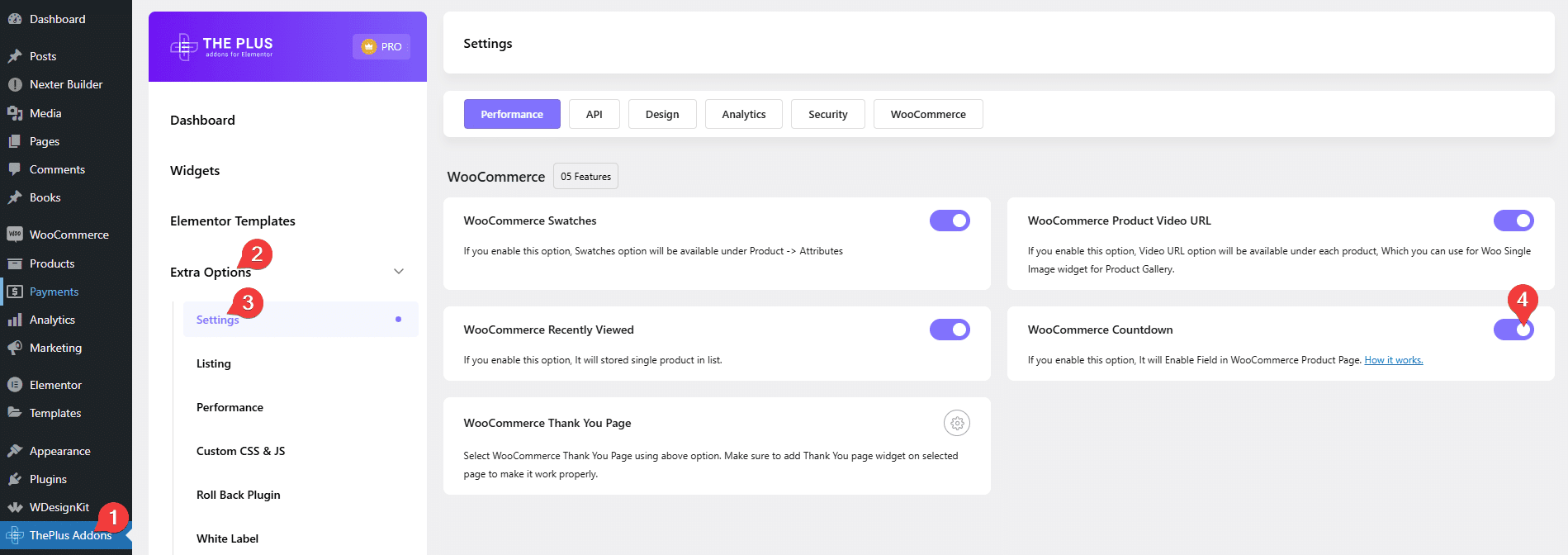
- Extension to enable first: go to The Plus Addons > Extensions, find WooCommerce Countdown and switch it on. This is under Extensions, not under Widgets, and without it the feature does nothing at all.
Steps
- Switch on WooCommerce Countdown under The Plus Addons > Extensions.
- Open a product in the WordPress editor. A box titled WooCommerce Countdown now appears on that screen.
- Under Normal Countdown :, fill in the Date field with the day the offer ends, and update the product.
- Open your product layout in Elementor and drag in the Countdown widget.
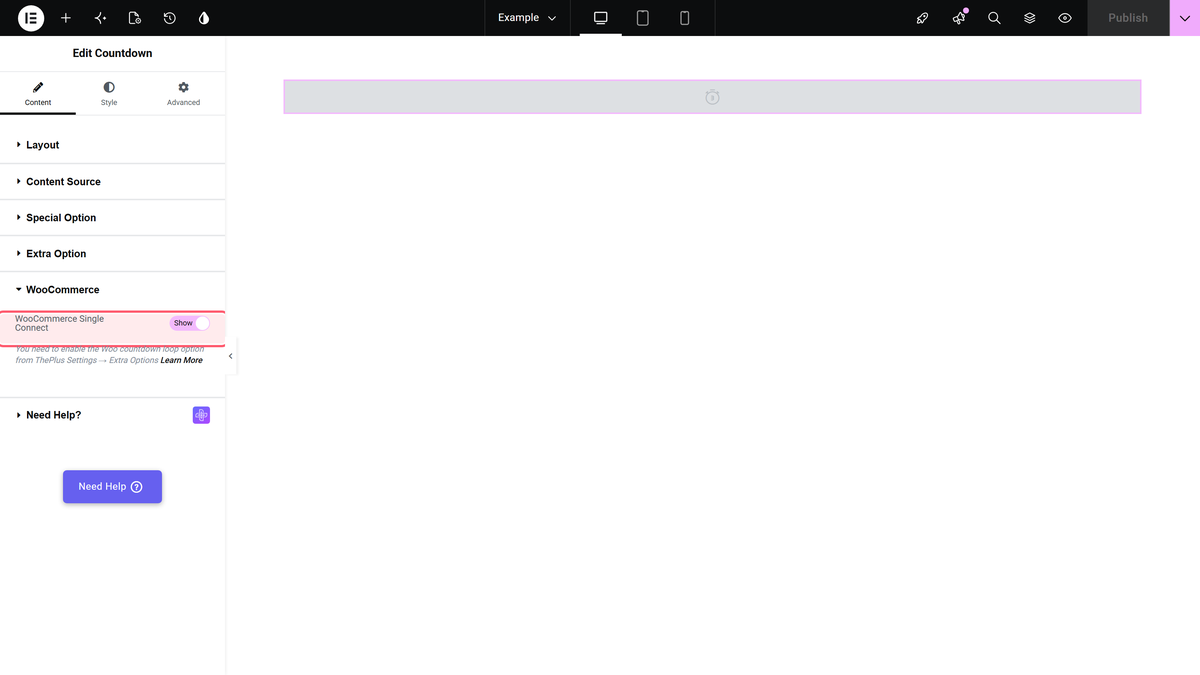
- In Content > WooCommerce, turn WooCommerce Single Connect on. The Launch Date control disappears, because the date now comes from the product.
- Publish, then view a product that has a date set.
And this is the box the extension adds to each product:
Settings
| Where | Setting | What it does |
|---|---|---|
| The Plus Addons > Extensions | WooCommerce Countdown | Adds the WooCommerce Countdown box to the product edit screen and makes WooCommerce Single Connect work. Off by default. |
| Product edit screen | Normal Countdown : Date | The date this product’s countdown ends. |
| Product edit screen | Scarcity Countdown (Evergreen) : Minutes | How long each visitor’s evergreen timer runs for this product. |
| Product edit screen | Fake Numbers Counter : Initial Number, Final Number, Number Range, Change Interval (In Seconds) | Per-product values for the fake stock counter. |
| Countdown widget | WooCommerce Single Connect | Read the values from the product being viewed instead of from the widget. Off by default. |
How It Behaves
- With the extension on and a date set, the widget rendered a normal ticking countdown to that date — measured: 03 DAYS 17 HOURS 15 MINUTES 38 SECONDS for a date four days out.
- The Launch Date field is hidden while WooCommerce Single Connect is on, so there is no chance of two dates disagreeing.
- One widget serves every product. Each product supplies its own date.

The same settings seen on the product layout side:
Limitations
- A product with no date renders nothing at all. This was measured: with WooCommerce Single Connect on and no date on the product, the countdown element is simply absent from the page — no placeholder, no message, no warning in the editor. If your layout has a gap where a timer should be, that is the reason. Fill in the date on every product that uses the layout, or accept that the timer is only there for some of them.
- The extension toggle is easy to miss. WooCommerce Countdown lives under Extensions, not Widgets, and without it both the product box and the widget switch do nothing.
- The product field is a date, not a date and time. The product box takes a day, so the deadline is that day’s start.
- With Style 1 nothing happens at the moment the clock hits zero. This was watched on published pages: with Style 1 the timer reaches 00 00 00 00 and stays there for as long as the visitor leaves the page open — the message, the template, the page redirect and the class swap all wait for the next page load. With Style 2 and Style 3 the same settings do act the instant the timer runs out. Since Style 1 is the default, assume the change happens on reload unless you have deliberately chosen another style, and never write copy promising visitors that the page will change in front of them.
- Style 2 and Style 3 read the deadline in the visitor’s timezone; Style 1 reads it in your site’s. This was isolated with a controlled test. One Launch Date, nothing else changed: from a browser five and a half hours ahead of the site, Style 1 showed 02 DAYS 01 HOURS 56 MINUTES left while Style 2 and Style 3 showed 1 Day 20 Hours 25 Minutes — short by exactly that offset. Repeating it with the browser set to the site’s own timezone made all three agree. So on a live site a Style 2 or Style 3 sale ends at a different real-world moment for every visitor, and for visitors far enough ahead of your site it can be over before it starts. If the exact end time matters, use Style 1.
- Turn Elementor’s element cache off for this widget. Elementor’s Element Cache is on by default and stores rendered markup for a day, which can serve a stale deadline. Set Advanced > Layout > Cache Settings to Inactive on the Countdown widget, or disable it site-wide under Elementor > Settings > Performance.
Troubleshooting
There is no WooCommerce Countdown box on my product screen
The extension is off. The Plus Addons > Extensions, WooCommerce Countdown, switch it on and reload the product screen.
The countdown is missing on some products
Those products have no date in the WooCommerce Countdown box. The widget renders nothing rather than showing an empty timer.
The widget still uses the date I typed in Elementor
WooCommerce Single Connect is off. Turn it on in Content > WooCommerce; the Launch Date field will disappear, which is how you know it took effect.
Not verified
So you know exactly what has and has not been checked:
- A real WooCommerce single-product template. The date-reading behaviour was verified on a published page carrying the same product field, because building a product template needs a theme builder that is not part of this widget. What the widget does with the stored date is what was measured.
- The Scarcity and Fake Numbers fields on the product screen. Only the Normal Countdown : Date field was exercised.
- Variable products and products whose date has already passed.
