


































Are you looking to display your WooCommerce products in a visually appealing masonry grid layout on your Elementor-powered website? Masonry grid layout is a popular and effective way to showcase products on an online store. It helps to organize products in a dynamic and visually captivating format.
With the Product Listing widget from The Plus Addons for Elementor, you can easily create a masonry grid layout to show products.
To check the complete feature overview documentation of The Plus Addons for Elementor Product Listing widget, click here.
Requirement – This widget is a part of The Plus Addons for Elementor, make sure its installed & activated to enjoy all its powers.
To do this, make sure you’ve added some products to your WooCommerce store, then follow the steps –
1. Add the Product Listing widget to the page.
2. After selecting the appropriate listing type from the Product Listing Types dropdown and style, select Masonry from the Layout section.

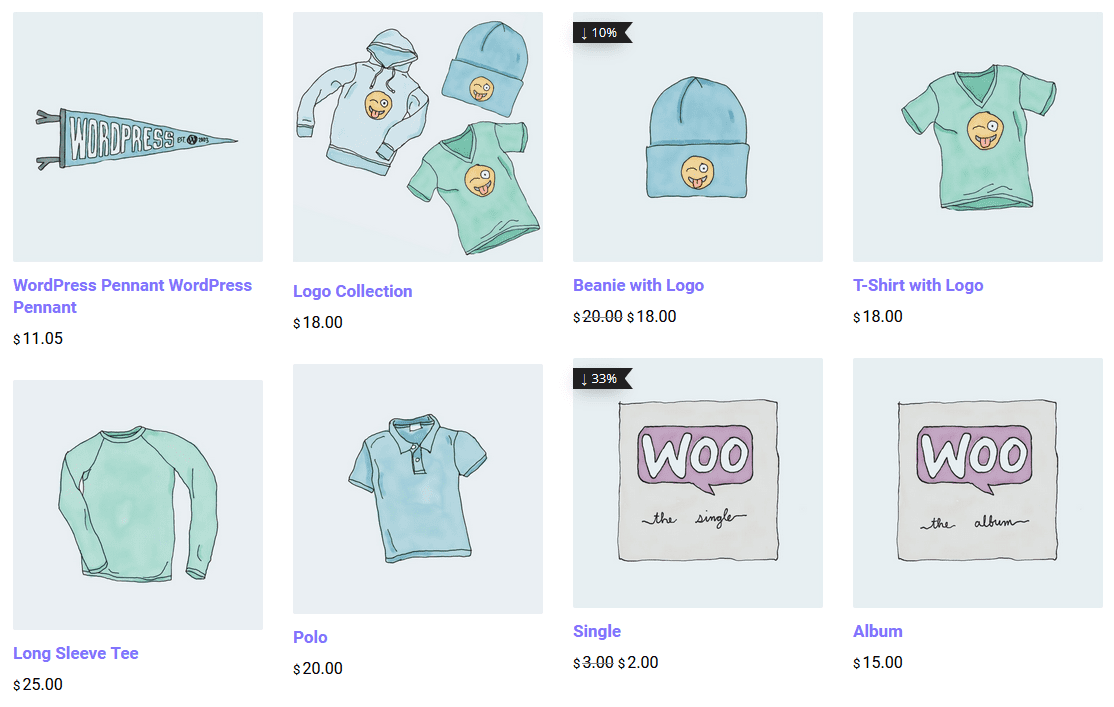
Now your products will show in a beautiful masonry layout. You can manage the masonry columns from the Columns Manage tab.
You can fine-tune the layout with other settings and style options.
Also, check How to Show WooCommerce Products in Grid Layout in Elementor.

