When updating a premium plugin in WordPress, especially paid ones like The Plus Addons for Elementor Pro, you may encounter the error message “Invalid License, Update Failed: Download failed. Unauthorized.”
It usually indicates a problem with your license key. Here is a step-by-step guide to resolve it.
How to Fix the “Invalid License Key” Error
If you are trying to activate your license key and encounter the “Invalid License Key” error, follow the steps below to troubleshoot and resolve the issue:
1. Ensure You’re Using the Latest Plugin Version
Before proceeding, confirm that you are running the latest version of The Plus Addons for Elementor Pro.
To check and update your version:
- Visit The Plus Addons Changelog to verify the latest available version.
- If your plugin is outdated and you are unable to update it due to the license error, you may need to manually update the plugin.
2. Check and Re-Activate Your License Key
Sometimes the error may occur due to a domain mismatch or old license records.
To resolve this:
- Go to your The Plus Addons Store Dashboard.
- Locate your license key under the relevant product.
- Click on the “Manage Site” button (above the license key).
- Deactivate the domain currently using the license (if listed).
- Return to your WordPress site and re-enter the license key to activate it again.
3. Check Your Server-Side Firewall and Security Rules
Sometimes, the license validation or update request from your WordPress site can be blocked by your server’s firewall or security system. If the server firewall is blocking outgoing connections to the licensing updater server, you might see the error when trying to activate the license key. For a related access issue, see Fixing “Unauthorized Access” or Missing Content Error for Specific Widgets.
To fix this:
- Ask your hosting provider or server admin to ensure that outgoing connections (especially to the licensing server) are allowed and not blocked by firewalls, mod_security rules, or other server-side security tools.
If you are still encountering the error after following the steps above, it could be due to one of the following common reasons:
Reasons
1. There could be a domain mismatch, meaning the website from which you are trying to update the plugin is not connected with the plugin license. This can happen if you first install the plugin on a test site and then move it to the real site using the same license. Even though it might say the license is “Activated,” it is actually deactivated in this situation.
2. Your plugin license could have expired. If your license has expired and you try to update it, you will see this message.
3. You might have entered the wrong license key for the plugin, which will prevent the plugin from updating.
4. Your plugin license might be inactive. If your license key is not active and you try to update the plugin, it will not work.
5. If your WordPress uses an old version of OpenSSL or cURL, the plugin might not update properly because it cannot securely communicate with its server.
Solution
Deactivate and Re-activate License
Deactivate and reactivate the plugin license from your WordPress website. This will fix the domain mismatch issue.
For The Plus Addons for Elementor plugin, follow the steps.
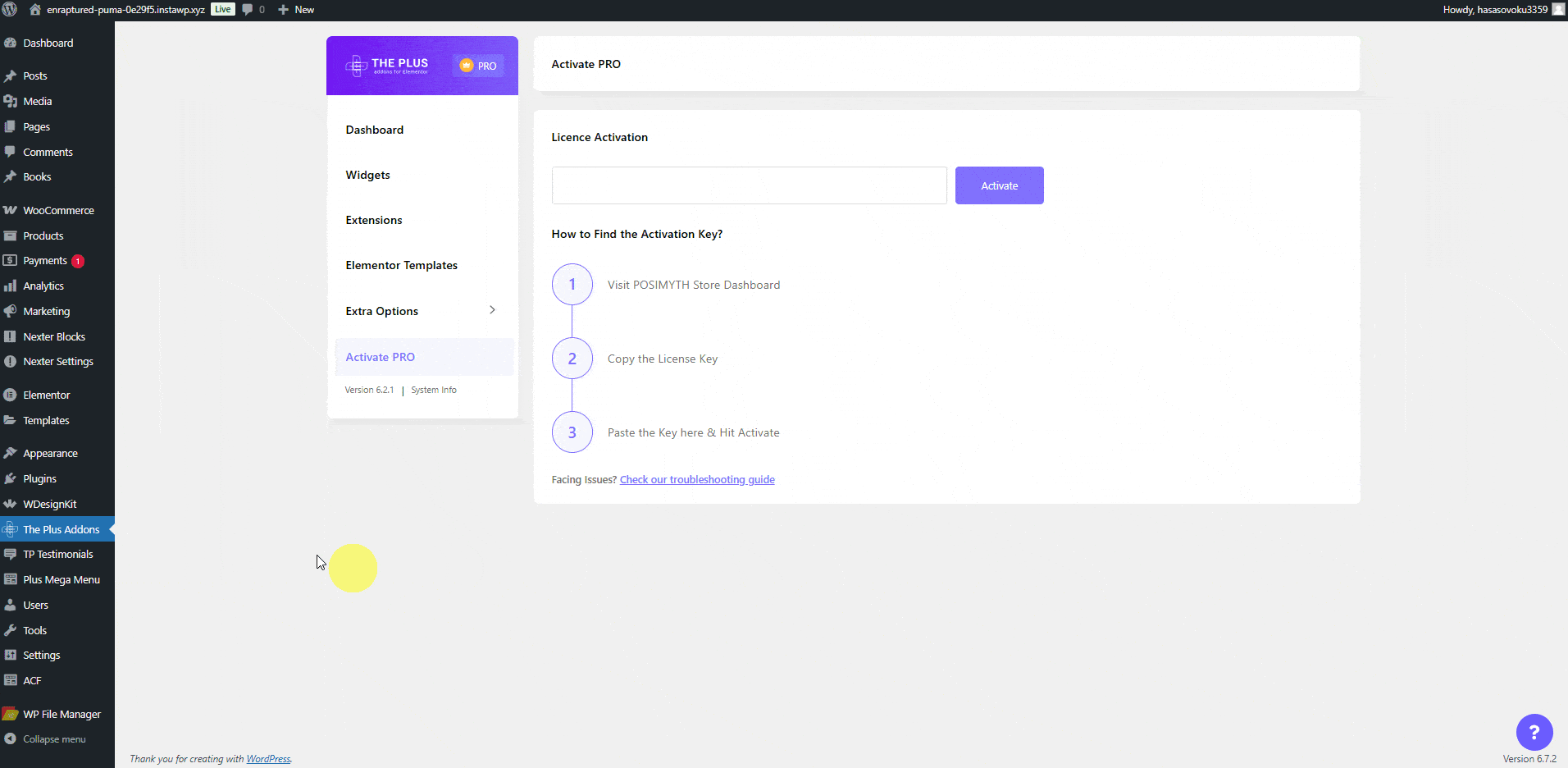
- From the Dashboard, go to The Plus Addons for Elementor > Activate Pro.
- Click on the Deactivate button in the License Activation section.
- Then paste the license key again and click on the Activate button.
If you are having any issues while activating the license, see How to Install & Activate The Plus Addons for Elementor PRO? for common license activation troubleshooting steps.
Manually Update
You can manually update the plugin. Follow the steps below.
- Download the latest version of the plugin from the plugin website.
- After that, deactivate and delete the existing plugin. Deleting the plugin will not delete your data from the database.
- Then upload and activate the plugin.
For The Plus Addons for Elementor plugin, follow the steps.
1. Visit The Plus Addons Store and log in to your account. This is the same login you used on the checkout page.
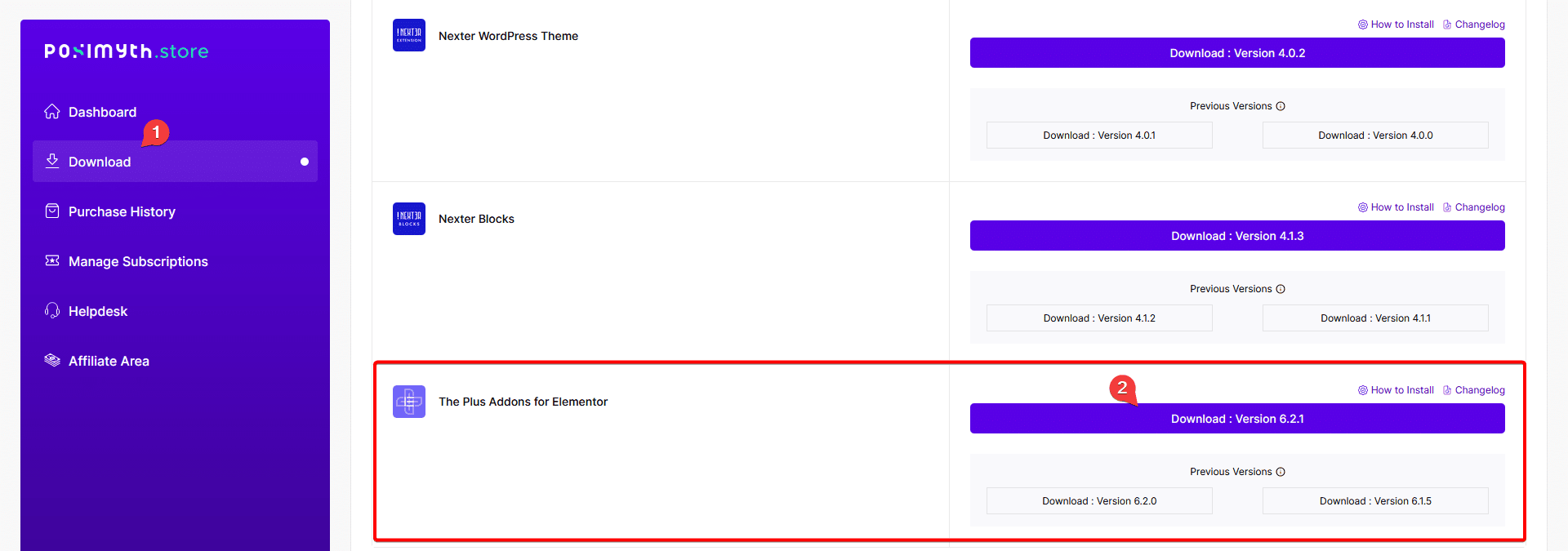
2. Click on the Dashboard link.
3. From the Dashboard, go to Download. You will see a list of plugins based on your purchase. Find The Plus Addons for Elementor and click on the Download button with the latest version. The plugin will be downloaded to your system’s download folder.
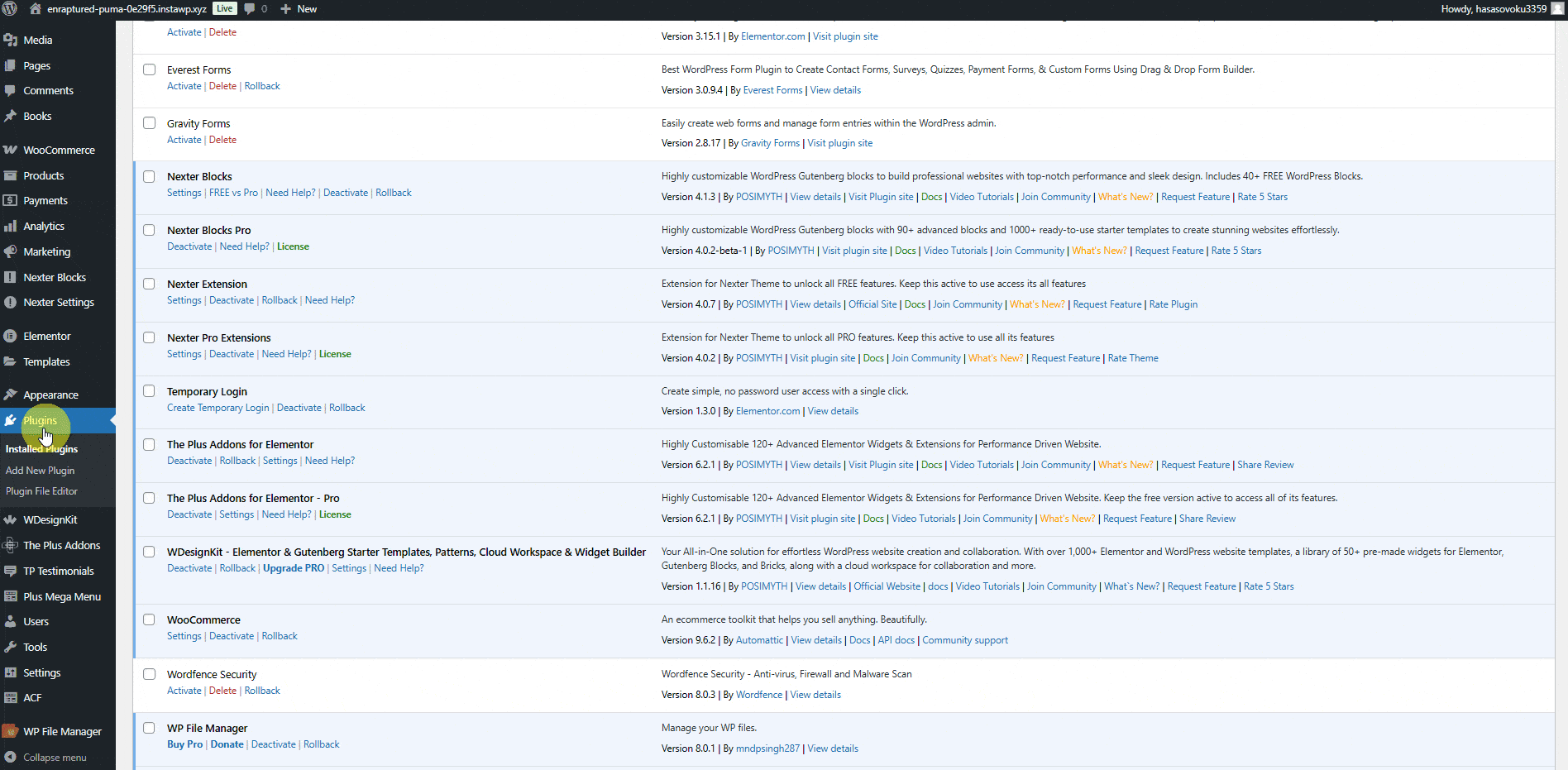
4. Then, from the WordPress Dashboard, go to Plugins, deactivate and delete the existing version of The Plus Addons for Elementor Pro plugin. Do not worry. Deleting the plugin will not delete your data.
5. Click on Add New Plugin > Upload Plugin. Then click Choose File and upload your plugin, then click Install Now.
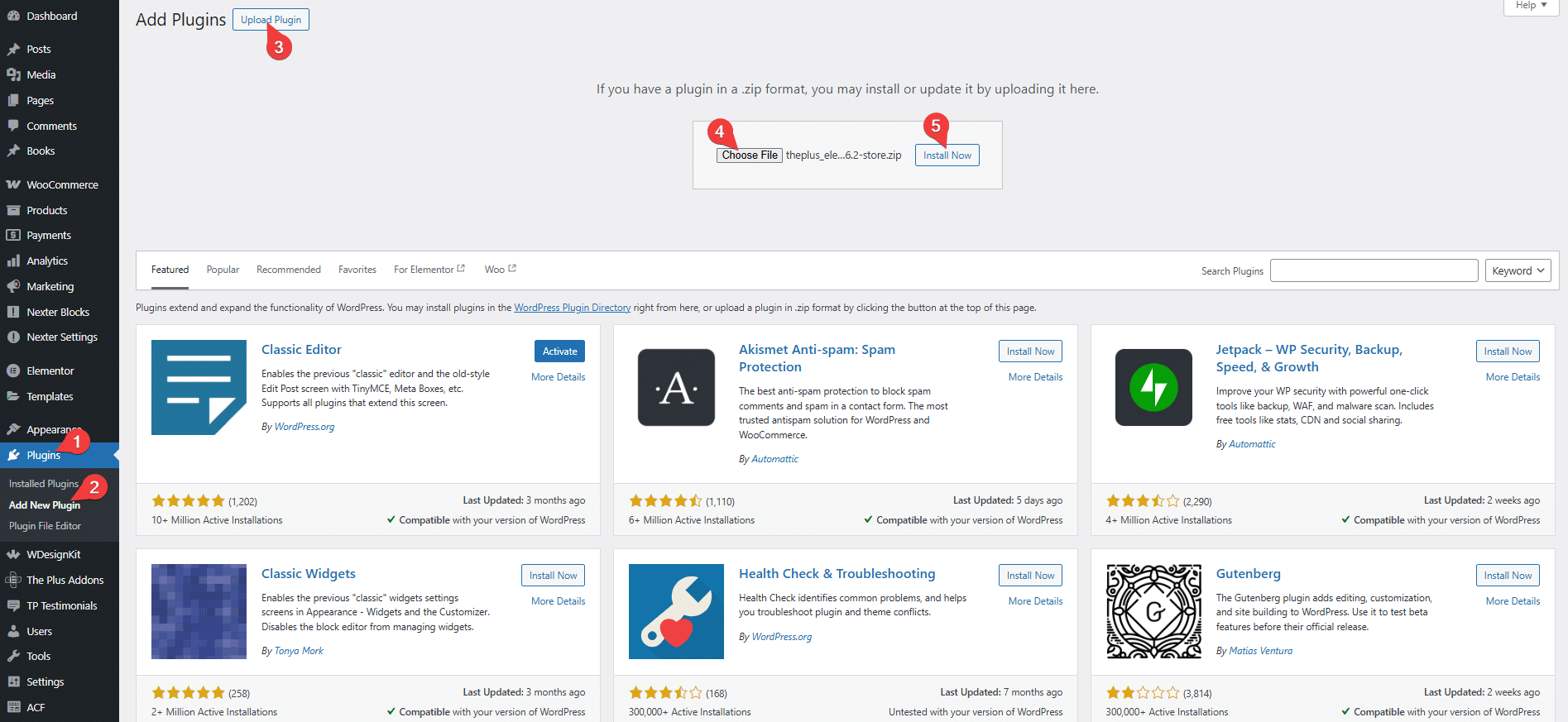
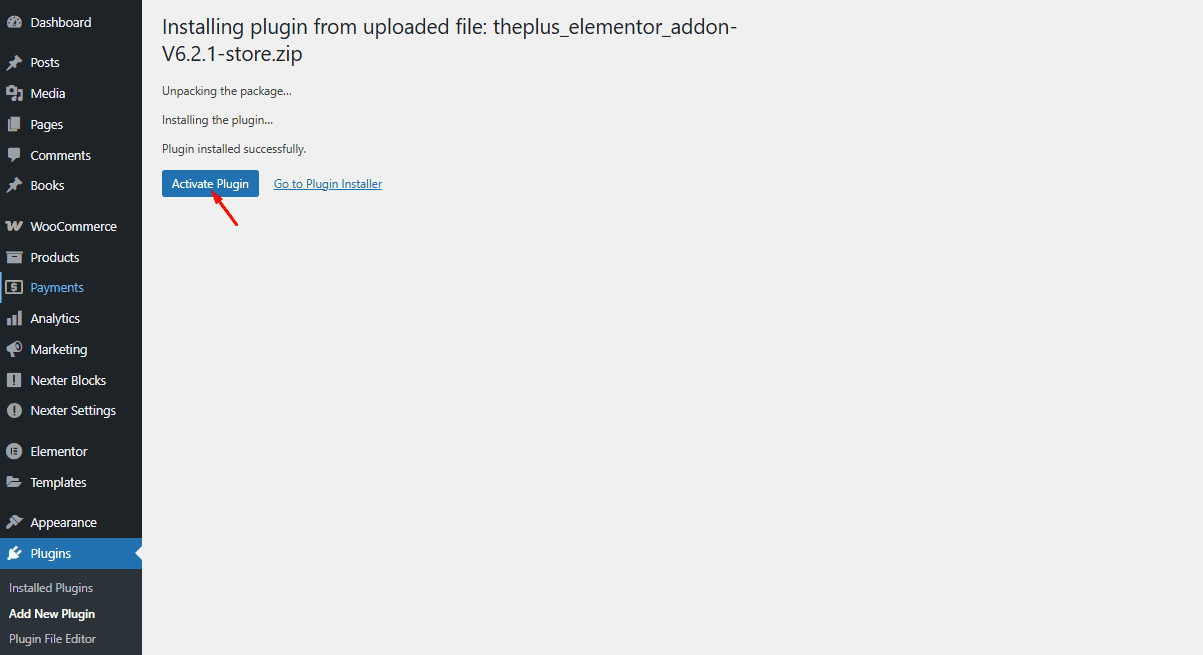
6. Once the plugin is installed, on the next page, click on Activate Plugin.