
FREE
Elementor Widget
WooCommerce Visibility Conditional Rules for Elementor
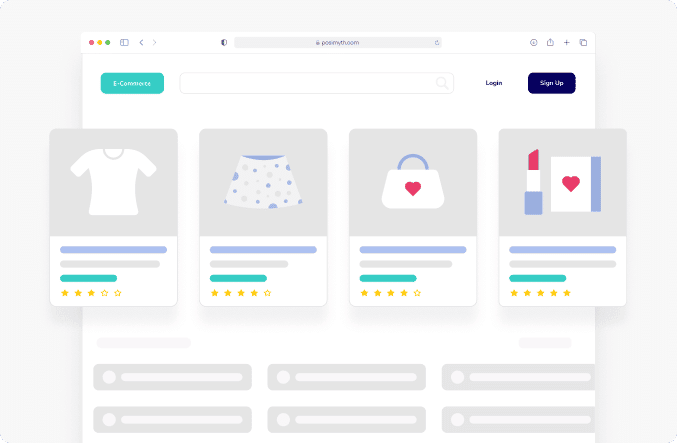
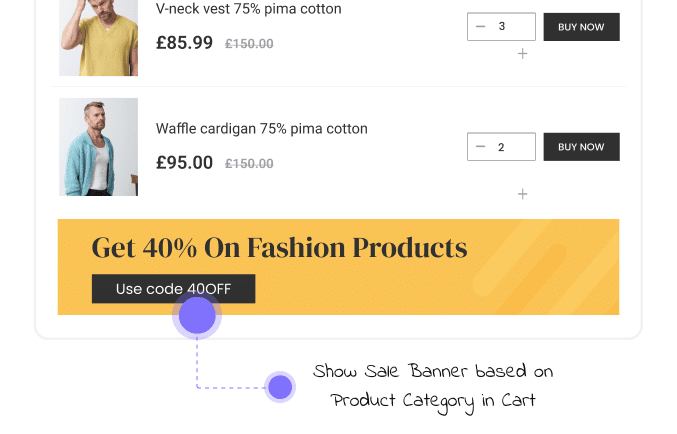
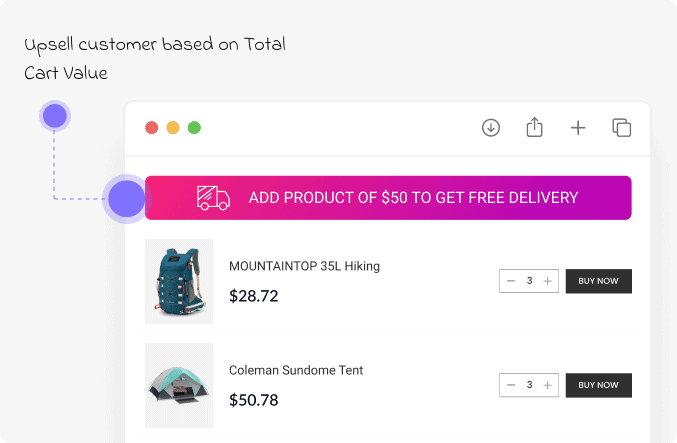
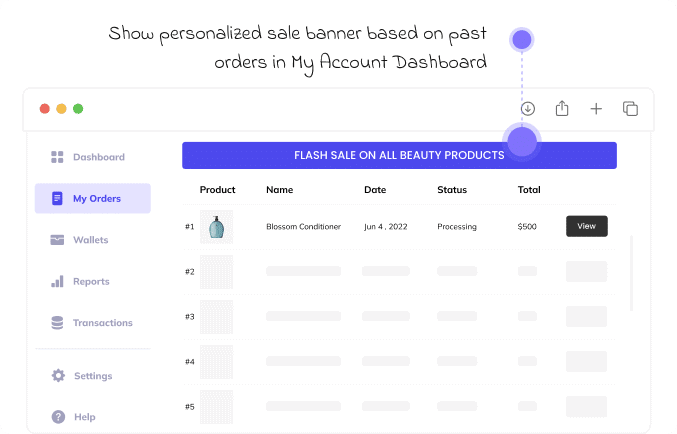
Make your WooCommerce Store a sale generating machine. Increase your checkout rates by showing personalized content.
- Responsive Layouts
- CSS Flexbox module
- Clean Coded


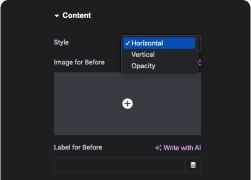
Horizontal, Vertical &
Opacity Mode
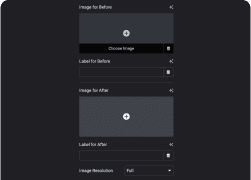
Upload Before & After
Image with Label

Customize
Everything

More Extras Like This



Frequently Asked Questions
Everything people ask before installing an Elementor addon: what's free, what needs Pro, how AI builds pages and whether it slows your site.

"The Plus Add-ons is by far the most extensive and impressive addon for Elementor. It's the only one we use for every site by default. Support is extremely responsive and helpful."

madebyproxy
@madebyproxy
Just WordPress and the free Elementor plugin. Install The Plus Addons from WordPress.org, switch on the widgets you want and start building. No Elementor Pro, no account and no API key.
Yes. The Free version on WordPress.org has 50+ widgets and extensions, a blog builder and AI abilities for its widgets. Pro adds the WooCommerce, popup, header and mega menu builders, with a 30-day money-back guarantee. Compare both on the Free vs Pro page.
Yes. The Plus Addons works with free Elementor. Widgets, templates and the blog builder are free, and its own header, footer, popup and WooCommerce builders (Pro) replace what you'd buy Elementor Pro for.
Yes. MCP is a standard that lets AI assistants use tools on your site. The Plus Addons adds one such AI ability per widget, so Claude or another MCP-compatible assistant can build and edit real Elementor widgets. No API key is needed.
Elementor's own MCP covers Elementor's core building blocks. The Plus Addons adds abilities for its own widgets, so an assistant can also build accordions, mega menus, WooCommerce pages and other Plus widgets with their real settings.
Yes. The Free version includes the AI abilities for every free widget, plus page and layout abilities, with no API key and no separate subscription. Pro adds one ability per Pro widget. Your AI assistant's own plan still applies, if it has one.
By design, no. Addons slow sites when every widget loads on every page. The Plus Addons loads CSS and JS only for the widgets each page uses, lazy loading defers listing images until they scroll into view, and a free scanner switches off widgets you never use.
Yes. It works with Nexter, Hello Elementor, Blocksy, Kadence, Astra, OceanWP, GeneratePress, Neve and most well-coded themes, and runs alongside other Elementor addons. Switch off any widget you don't need to keep things lean.
Yes. Starter covers 1 site, Professional 5 sites and Studio unlimited sites, and Pro's white-label option lets you rebrand the plugin for clients. The Agency Bundle adds the other POSIMYTH products. See the Pricing page for details.
Yes. Free gets updates and support through WordPress.org, and Pro includes premium support from POSIMYTH.