The fastest way to hide a page title in Elementor is the built-in Hide Title toggle in the page Settings panel. It takes one click, needs no code, and works in the free version. That single switch solves it for most people, so if you are in a hurry, jump to Method 1 below.
The reason this comes up so often is that the default page title rarely fits a custom design. On a landing page it competes with your hero. On a full-width layout it sits awkwardly above the canvas.
And when you have already built a headline inside Elementor, that automatic title on top is just a duplicate. The fix is to hide it, not delete it, and there are four reliable ways to do that depending on your theme and how the rest of the page is built.
Hide the page title, do not delete it
A page title is the text WordPress pulls from the title field you fill in when you create a page. It does more than label the page on screen. It feeds the browser tab, it usually shapes the URL slug, and it is a signal search engines read when they index the page.
That is exactly why deleting the title is the wrong move. Clearing the title field can disturb the permalink and removes a signal that search engines expect to find, even when no visitor ever sees it.
Hiding is different: the title stays safely in your WordPress database doing its backend job, it just stops rendering on the page. Keep the title, hide the display.
When hiding the page title makes sense
A few situations where dropping the visible title genuinely improves the page:
- Custom Elementor layouts: the theme prints the title outside the Elementor canvas, where it clashes with a full-width design.
- Landing pages: when the page exists to drive one action, a title above the fold is noise.
- Minimal designs: a lot of clean layouts simply read better without a title breaking the top section.
- A different on-page headline: WordPress builds the URL from the page title, so hiding that title and using an Elementor heading widget lets the slug and the visible headline say different things.
Is the WordPress Admin Bar cluttering your Elementor editor? Here is how to hide the WordPress Admin Bar and clean up your workspace.
How to hide the page title in Elementor: 4 methods
Method 1: The built-in Hide Title toggle (recommended)
This is the one to reach for first. Elementor ships a native Hide Title control that needs no CSS and no extra plugin, and it is in the free version.
Open Pages in your WordPress dashboard and find the page you want to change.
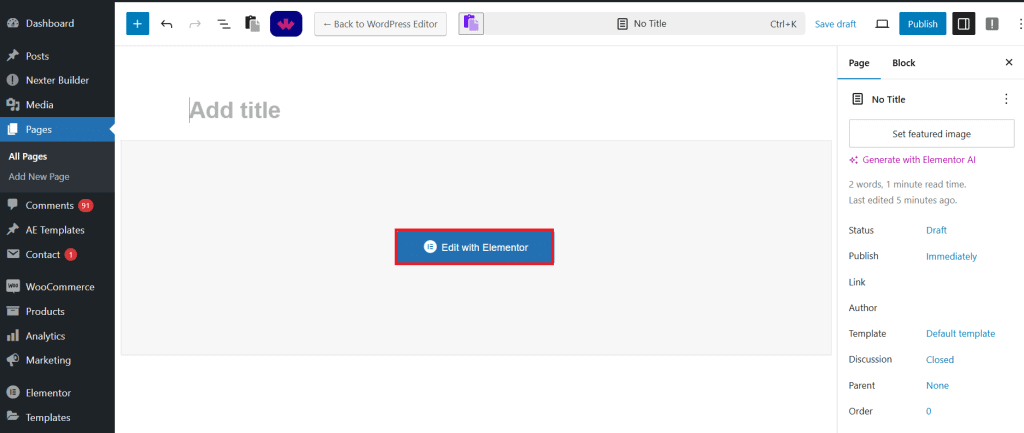
Click Edit with Elementor, then open the Settings icon (the gear) at the bottom of the left panel.

Switch the Hide Title toggle on and click Update. The title vanishes from the front end immediately while staying intact in the backend, so your SEO data and breadcrumbs are untouched.
It is non-destructive, reversible in a single click, and needs zero technical knowledge, which is why it is the right answer for almost every case.
Want finer control over content visibility? Here is how to show and hide text in WordPress.
Method 2: Switch the page layout to Elementor Full Width
Use this when you want to take over the whole page, not just remove the title. Setting the layout to Elementor Full Width drops the theme’s title area and its surrounding structure in one move.
Open the page, click Edit with Elementor, and open the Settings gear at the bottom of the left panel.
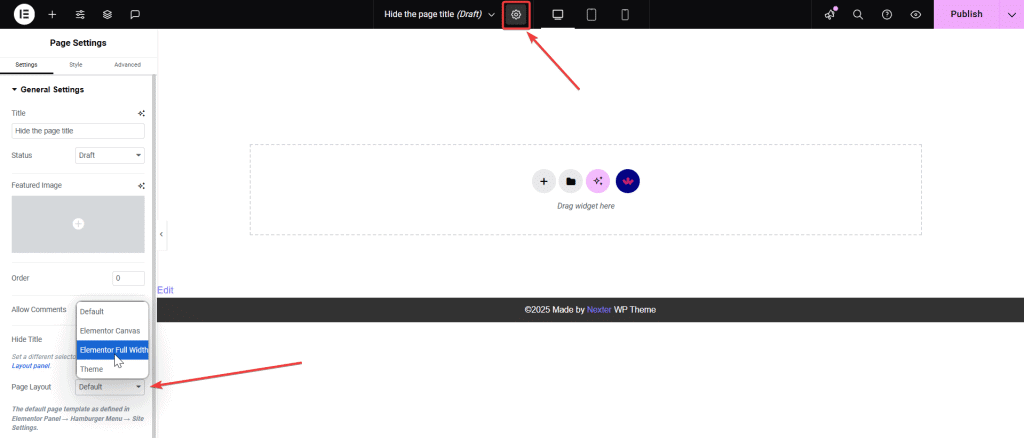
Set Page Layout to Elementor Full Width and click Update. The theme template that printed the title no longer loads, so the title goes with it. The trade-off is reach: this layout also removes the sidebar and often the theme header and footer. If you plan to rebuild that header and footer with Elementor Pro’s Theme Builder, it is worth understanding what happens when Elementor Pro expires so those templates do not stop working unexpectedly.
If you only need the title gone, Method 1 is more surgical.
Want sections that appear or disappear on interaction? See how to show or hide Elementor sections on click.
Method 3: Remove the title in the WordPress block editor (use with care)
If a page is built in Gutenberg rather than Elementor, you can clear the title in the block editor. It works, but it is the one method that actually deletes rather than hides, so treat it as a last resort.
Open the page from your dashboard in the default editor.

Clear the title field and click Update.
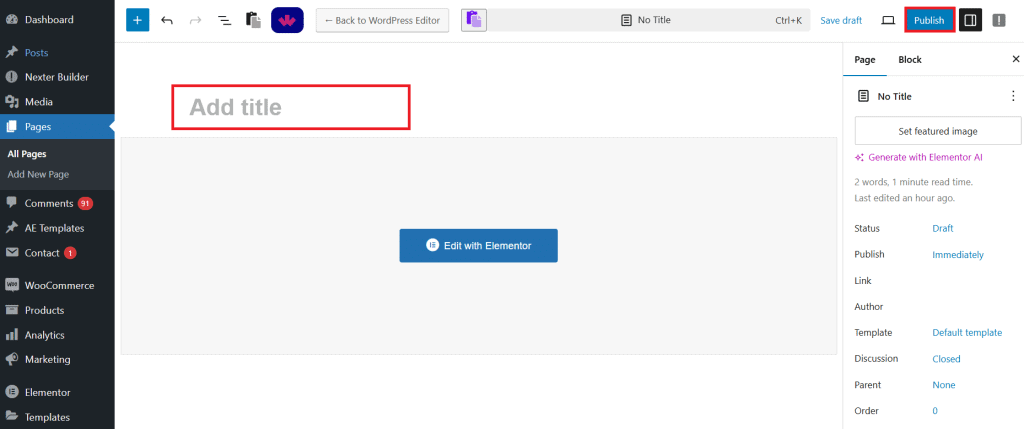
The catch is real: this strips the title from the database, which can affect SEO metadata, break the permalink, and leave a blank entry in breadcrumbs. Only use it when the page genuinely has no need for a stored title.
For everything else, Method 1 or Method 2 is safer because the title survives.
Deciding between editors? Read our Elementor vs Gutenberg comparison.
Method 4: Target the theme’s title class with CSS
Some themes print the title through their own template using a class Elementor does not control, so the Hide Title toggle appears to do nothing. The fix is to point Elementor (or your CSS) at that exact class.
Open the page and click Edit with Elementor.
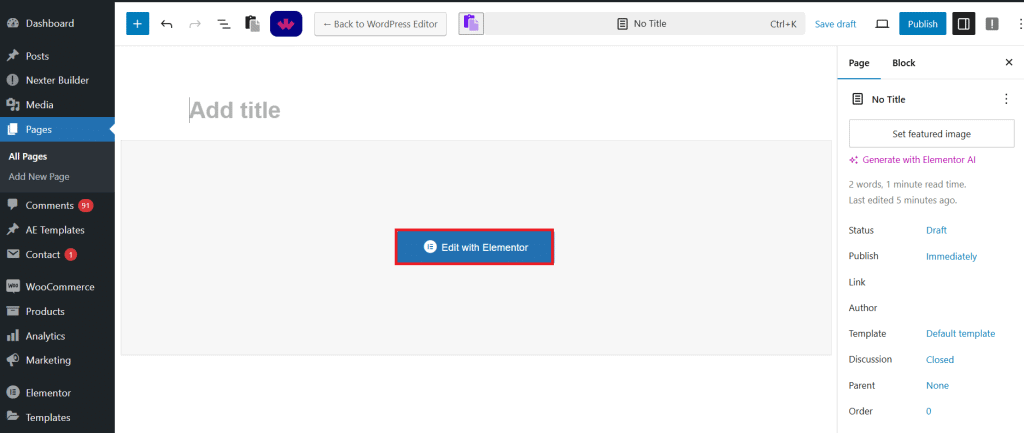
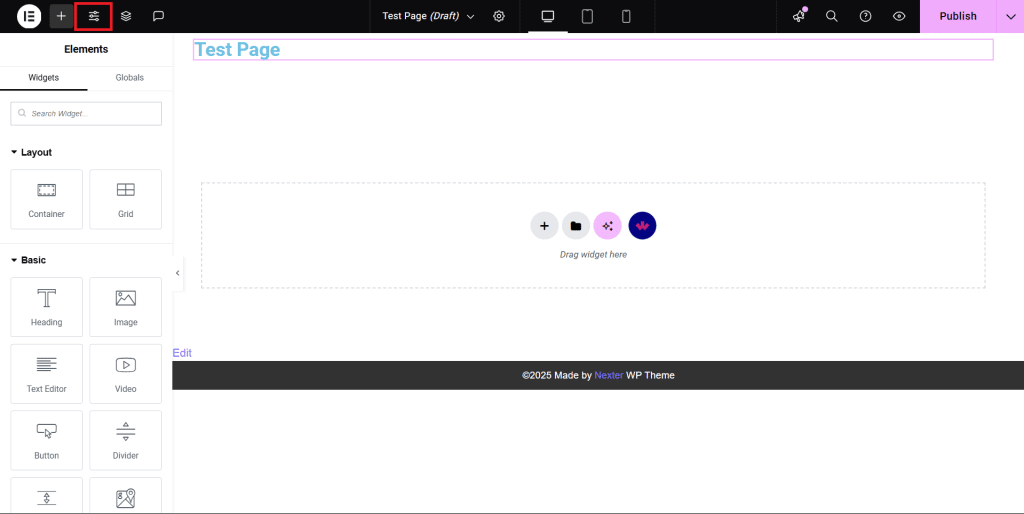
Open Site Settings from the top-left of the panel.
Go to Layout, find the Page Title Selector field, and enter your theme’s title class, for example .entry-title.
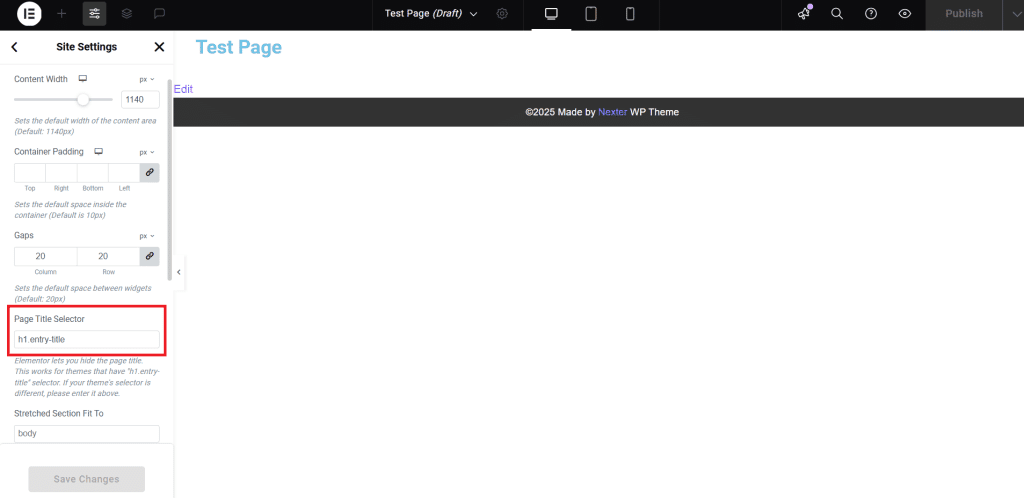
Once that selector matches your theme, the Hide Title toggle works correctly on every page where you enable it.
Prefer to do it in CSS directly? To hide the title across the whole site, go to Appearance > Customize > Additional CSS and add:
.entry-title {
    display: none;
}
Swap .entry-title for your theme’s class if it differs. To hide it on a single page only, scope it with the page ID:
.page-id-123 .entry-title {
    display: none;
}
You will find the page ID in the URL while editing the page, as the number after post=.
People also read: learn how to password protect a page in WordPress.
Does hiding the page title hurt SEO?
No, as long as you hide it rather than delete it. The visible page title and the SEO title tag are two different things.
Hiding the on-page title with the Elementor toggle or CSS only changes what visitors see; it does not touch the <title> tag and meta that search engines and AI engines read, which your SEO plugin controls separately.
The only approach that can cause SEO trouble is Method 3, deleting the title field outright, because that removes the stored title the rest of WordPress relies on.
Stick with the toggle, the layout switch, or CSS and your rankings, breadcrumbs, and permalink stay exactly as they were.
Which method should you use?
A quick guide to picking the right approach:
| Situation | Recommended method |
|---|---|
| Quick hide on a single page, no code | Method 1: Elementor Hide Title toggle |
| Full-width landing page design | Method 2: Elementor Full Width layout |
| Gutenberg page, no Elementor | Method 3: Block editor (deletes the title) |
| Theme overrides Elementor’s toggle | Method 4: CSS + Page Title Selector |
Method 1 handles the large majority of cases and is the most scalable, since you hide the title per page without touching global CSS, so pages where you still want a title are unaffected. Only move to Method 4 if your theme ignores the toggle.
Wrapping up
Hiding the page title is a small change that makes Elementor pages look far more intentional.
The built-in Hide Title toggle solves it in seconds for most sites, and when a stubborn theme overrides it, pointing Elementor’s Page Title Selector or a line of CSS at the right class gives you reliable control.
The one rule to remember: hide the title, do not delete it. Left in the database, it keeps doing its quiet work for your SEO, navigation, and breadcrumbs while staying invisible to visitors.
For more design control in Elementor, The Plus Addons for Elementor adds 120+ widgets for custom layouts, interactive elements, and more, all without code.