A 403 Forbidden error on WordPress means the server understood your request but refused to allow access. The cause is usually incorrect file permissions, a corrupted .htaccess file, a conflicting plugin, or a CDN firewall rule blocking the request before it reaches your site.
This guide covers 8 fixes, ordered from quickest to most involved. Work through them in sequence. Most take under 5 minutes to try.
All file permission values, dashboard paths, and shell commands in this guide were last verified in May 2026 on WordPress 6.9.
What Is a 403 Forbidden Error?
The 403 Forbidden error is an HTTP status code that means the server understood your request but refuses to fulfill it. Unlike a 404 error where the resource is missing, the server knows the page or file exists but will not allow access. As defined in RFC 9110, the current HTTP standard, a 403 response means the server “understood the request but refuses to authorize it.”
On WordPress, this restriction almost always traces back to a server-side configuration: file permissions, a rule in .htaccess, a conflicting plugin, or a CDN firewall. In rare cases, a stale browser cache is the cause. Identifying which one applies to your site is the key to resolving it.
What Causes a 403 Forbidden Error in WordPress?
| Cause | Type | How to Identify | Fix |
|---|---|---|---|
| Incorrect file permissions | Server | FTP shows values other than 755 (dirs) / 644 (files) | Method 2 |
| Corrupted .htaccess file | Server | Error disappears after renaming .htaccess | Method 3 |
| Plugin conflict | WordPress | Error disappears after renaming the plugins folder | Method 4 |
| CDN or Cloudflare firewall rule | CDN | Error page shows Cloudflare branding or a Ray ID code | Method 5 |
| Malware injection | Server | Security scanner flags modified or unfamiliar files | Method 6 |
| Stale browser cache | Browser | Error appears in one browser only, not others | Method 7 |
| Server-level WAF or IP block | Server | Accessing via VPN or a different network resolves it | Method 8 |
Getting 400 bad request error on your website? Here are 6 proven ways to Fix 400 Bad Request Error in Elementor.
How to Fix 403 Forbidden Error in WordPress [8 Methods]
Before you begin: Back up your website before attempting any server-side fix. A backup lets you restore your site if anything goes wrong during troubleshooting. Most hosts offer one-click backups from the hosting control panel.
1. Refresh the Page and Check the URL
The first step is to refresh the page and check the URL for errors. This resolves 403 errors caused by temporary server glitches or typographical mistakes in the web address, and it takes under 10 seconds.
- Press F5 (Windows) or Cmd+R (Mac) to reload the page.
- Check the URL in the address bar for typos. If you typed the address manually, verify every character.
- If you followed a link from an email or another website, navigate directly to the homepage first, then to the intended page.
If the error returns after a fresh reload, the cause is not a temporary glitch. Move to Method 2.
2. Fix File Permissions
Incorrect file permissions are one of the most common server-side causes of 403 errors on WordPress. Every file and directory on your server has permissions that control who can read, write, or run them. When these are set incorrectly, or when directories are set to 777 on a shared host that blocks world-writable access, the server returns a 403.
WordPress.org recommends these permission values for all WordPress installations:
- Directories: 755
- Files: 644
- wp-config.php: 400 or 440 (WordPress hardening guide recommendation; 600 also widely used)
Permissions are expressed as three-digit numbers. Each digit represents the owner, group, and public user respectively. Each digit is the sum of read (4) + write (2) + execute (1). So 755 gives the owner full access (7=4+2+1), while group and public can read and run files but not modify them (5=4+0+1).
How to Fix Permissions via FTP
Step 1: Connect via FTP or File Manager
Use an FTP client such as FileZilla (free, available on Windows and Mac) or open the File Manager in your hosting control panel to access your site’s files.
Step 2: Navigate to the Root Directory
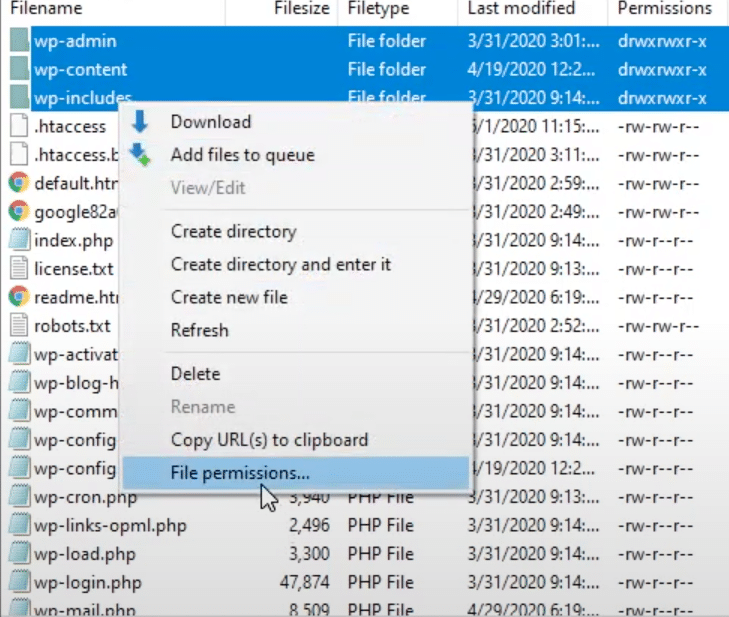
Locate your WordPress root directory, the folder containing wp-admin, wp-content, and wp-includes.
Recommended Read: How to Find Root Directory of WordPress Website
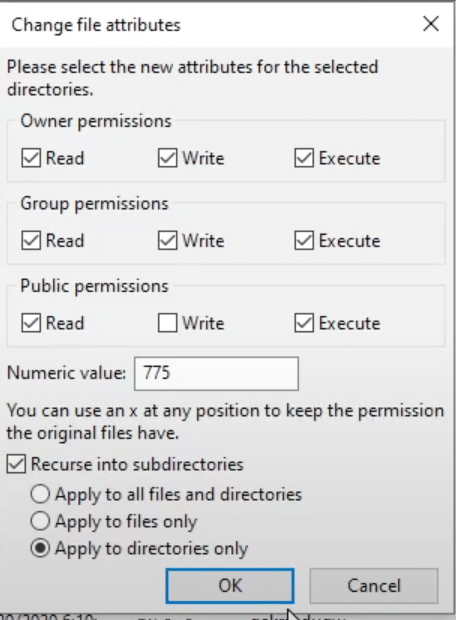
Step 3: Set Directory Permissions to 755
Right-click on wp-admin, wp-content, and wp-includes. Select File Permissions or a similar option.
Set the numeric value to 755. Check the option to apply recursively to all subdirectories.
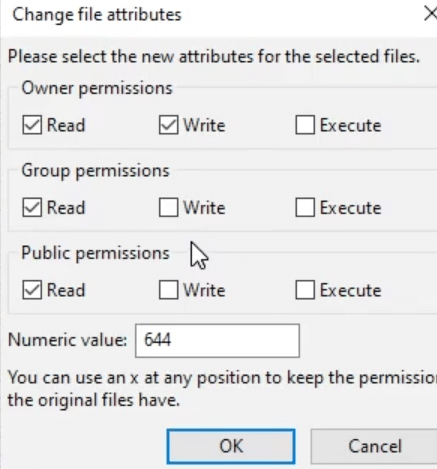
Step 4: Set File Permissions to 644
Repeat the process for files inside those folders. Set the numeric value to 644 and apply recursively to files only, not directories. For wp-config.php in the root directory, set it to 600.
Step 5: Verify the Fix
Visit your website. If the 403 error is resolved, incorrect file permissions were the cause.
How to Fix Permissions via SSH
If your hosting account includes SSH access, connect to your server and run these three commands from your WordPress root directory to reset all permissions at once:
find . -type d -exec chmod 755 {} ;
find . -type f -exec chmod 644 {} ;
chmod 600 wp-config.php
In our experience reviewing permission-related support cases, directories set to 777 are the most frequently reported server-side cause of 403 errors on shared hosting. Many shared hosts actively block world-writable directories as a security policy, which returns a 403 immediately.
Facing a “Web server is returning an unknown error” issue? Here’s how to fix 520 Error while trying to edit with Elementor.
3. Reset the .htaccess File
The .htaccess file is a configuration file used by Apache-based web servers to manage URL routing, access rules, and security directives. A corrupted line or an incorrect directive in this file can block access to your entire WordPress site or to specific directories.
Step 1: Download a Backup of Your .htaccess File
Before making any changes, download the current .htaccess file via FTP or File Manager. Keep it as a reference so you can compare it with the regenerated version later.
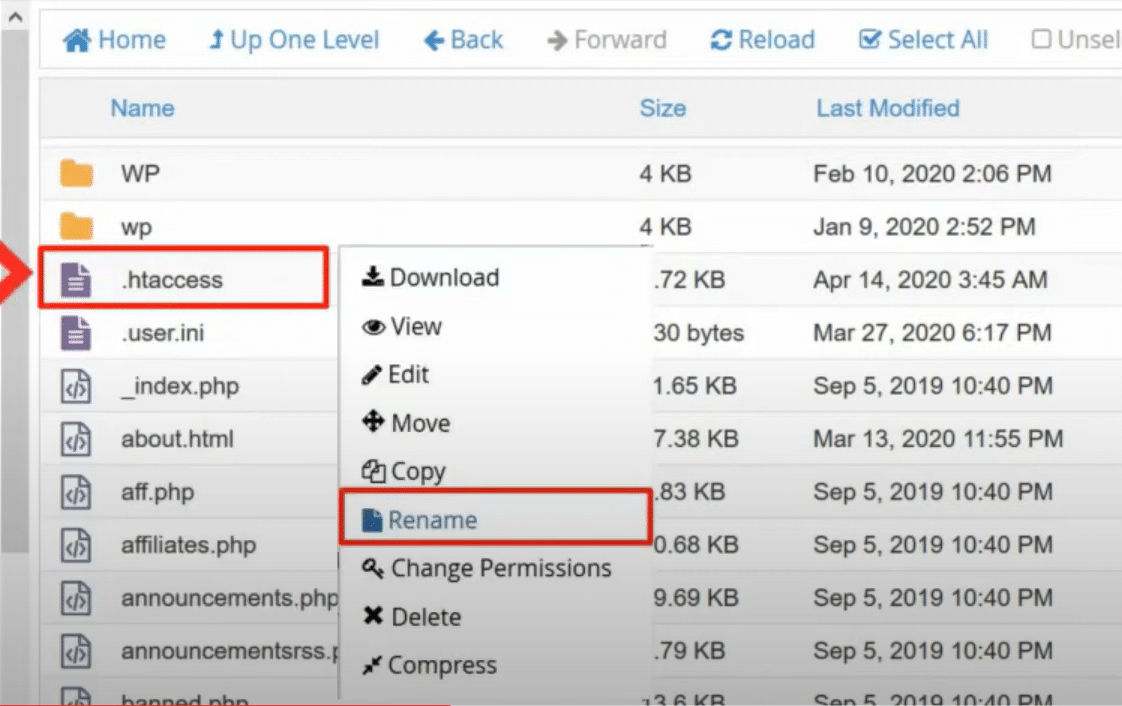
Step 2: Rename the .htaccess File
Locate .htaccess in your WordPress root directory. Rename it to .htaccess_old. This disables it without permanently deleting it.
Step 3: Check Your Website
Visit your website. If the 403 error is gone, the .htaccess file contained the problematic directive and was the cause.
Step 4: Regenerate a Clean .htaccess File
Go to Settings > Permalinks in your WordPress dashboard and click Save Changes without modifying anything. WordPress automatically generates a fresh .htaccess file with the correct default settings.
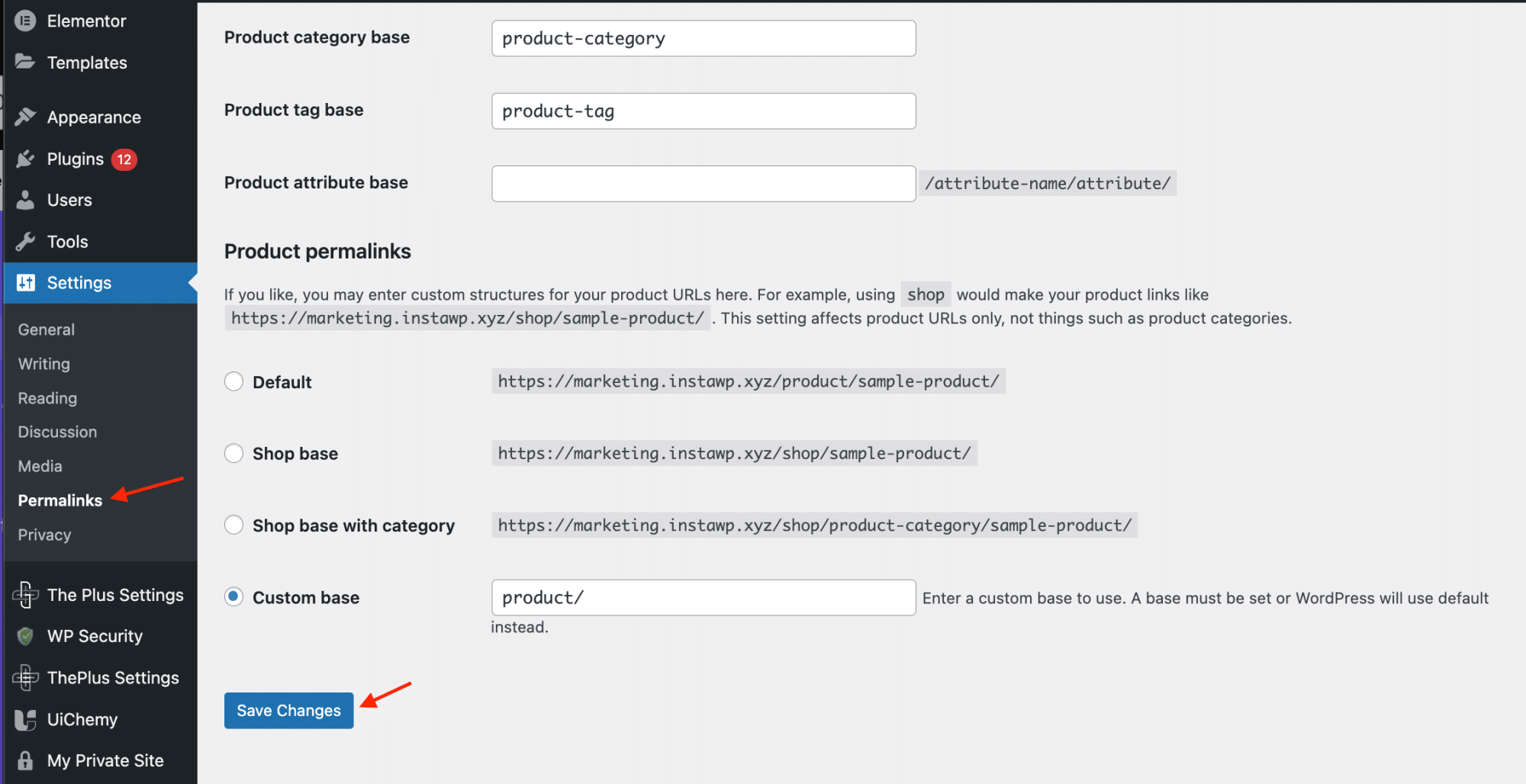
Compare your backup .htaccess with the freshly generated default. Identify and remove any custom lines that are not part of the standard WordPress .htaccess template. Consult the WordPress Codex for reference on what the default file should contain.
4. Deactivate WordPress Plugins
Security plugins and firewall plugins are the most common plugin-related cause of 403 errors. They can block legitimate requests when their firewall rules are too strict. Deactivating all plugins at once lets you confirm whether a plugin is the source of the error.
Step 1: Access Your Site Files via FTP
If you cannot access your WordPress dashboard, connect via FTP or File Manager and navigate to the /wp-content/ folder.
Step 2: Navigate to the Plugins Directory
Find the plugins folder inside /wp-content/.
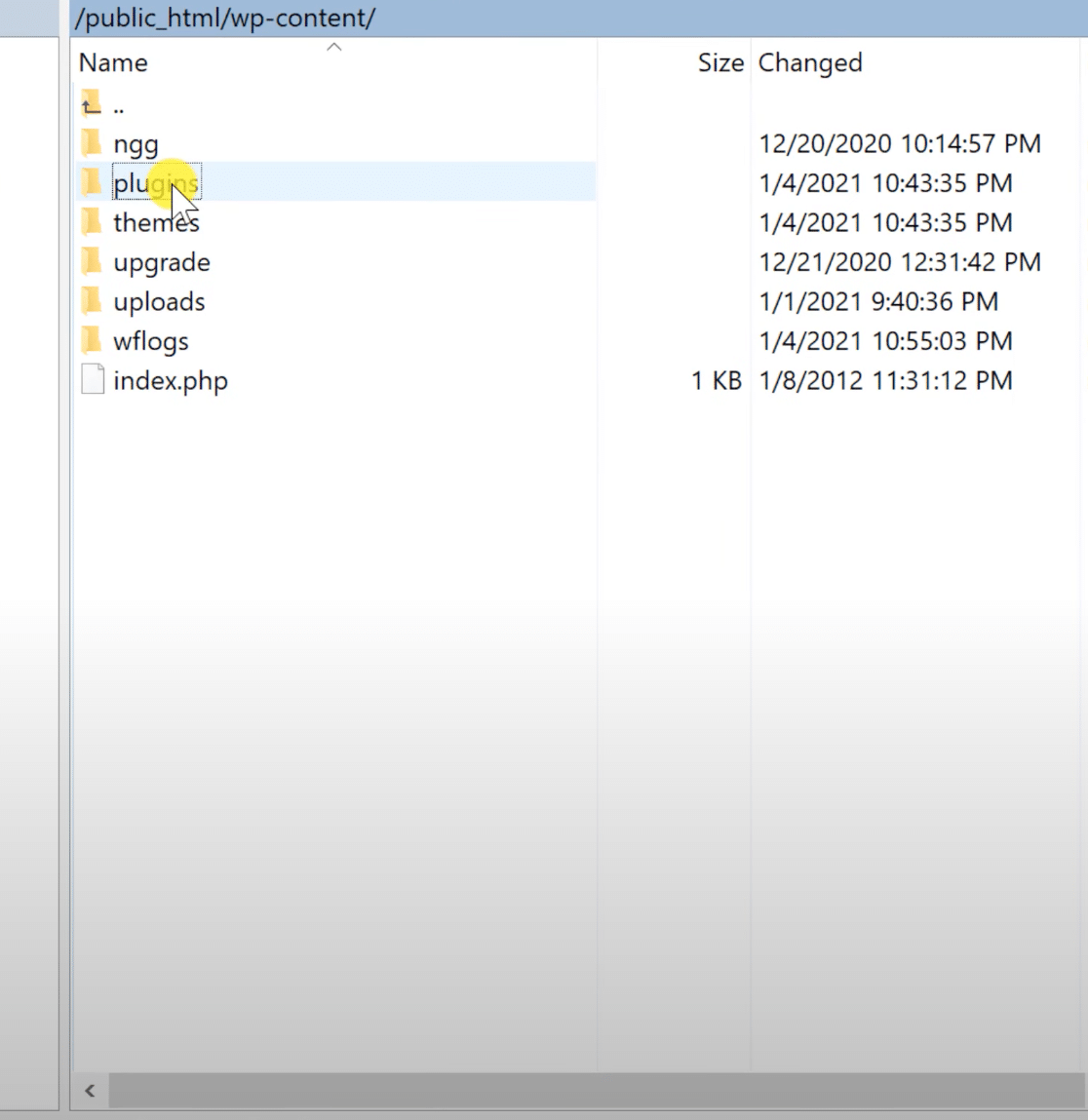
Step 3: Rename the Plugins Folder
Rename the plugins folder to plugins_disabled. WordPress cannot locate any plugins and deactivates all of them simultaneously.
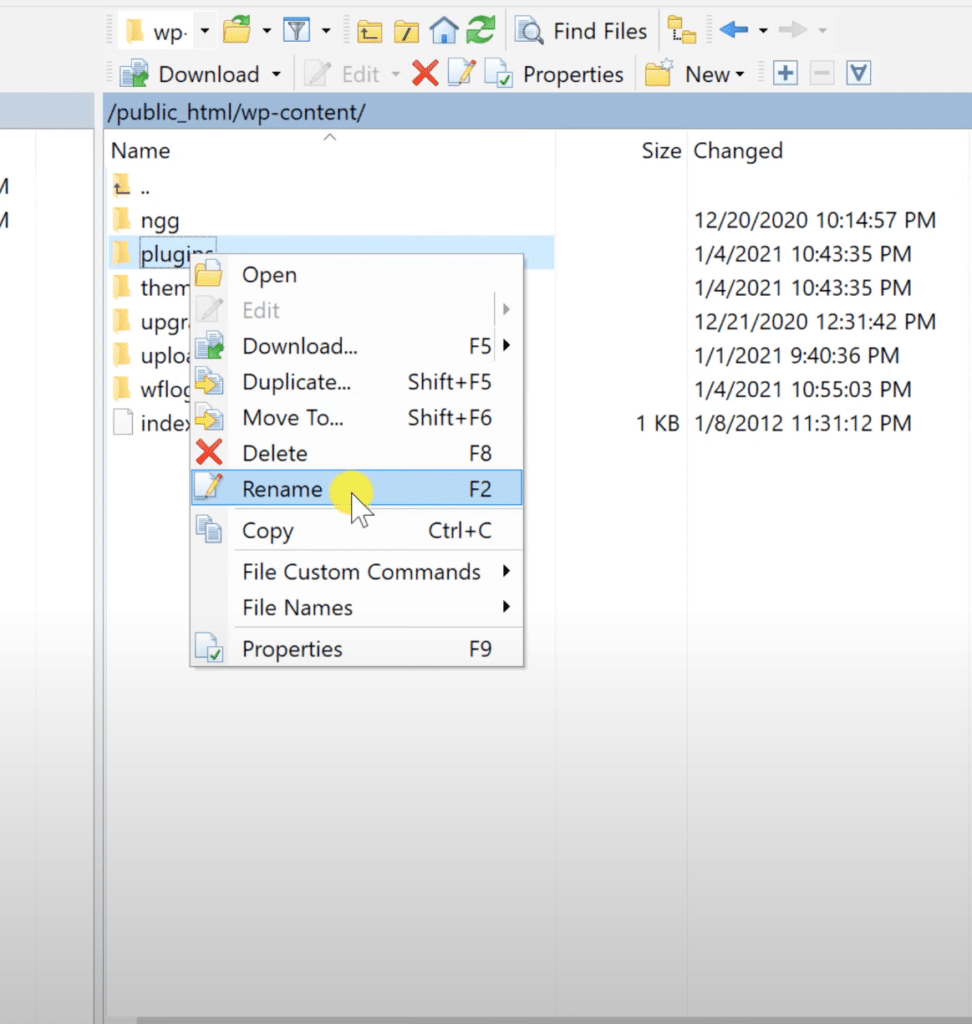
Step 4: Check Your Website
Visit your website. If the 403 error disappears, a plugin was causing it.
Step 5: Identify the Problematic Plugin
Rename the folder back to plugins. Log into your WordPress dashboard and reactivate plugins one at a time, checking your site after each one. The plugin that triggers the 403 error when reactivated is the culprit. Update it to the latest version. Many 403-related plugin bugs are patched in subsequent updates.
Encountering the frustrating “Update Failed” or “Publishing Failed” error messages? Here’s how you can fix WordPress update and publish failed errors!
5. Check Cloudflare or CDN Settings
If your site runs behind Cloudflare or another CDN, a Web Application Firewall (WAF) rule, hotlink protection setting, or IP block can return a 403 before the request ever reaches your origin server. According to Cloudflare’s documentation, a 403 response from Cloudflare means the request triggered a Cloudflare firewall rule or managed ruleset.
How to identify a Cloudflare 403: Check the browser error page for Cloudflare branding or a “Ray ID” code in the footer. Error 1020 (“Access Denied”) means a WAF firewall rule blocked the request. Errors 1006, 1007, and 1008 indicate that the visitor’s IP address has been banned — a different type of block but equally capable of producing a 403.
- Log into your Cloudflare dashboard and navigate to Security > Events (labeled “Firewall Events” in legacy plans). Search for the blocked URL or IP address to find the specific rule that triggered the 403.
- Click the blocked event entry to see which rule matched and caused the block.
- To confirm Cloudflare is the cause, temporarily set the security level to “Essentially Off” under Security > Settings. If the 403 resolves, Cloudflare was blocking the request.
- Re-enable security and adjust the specific rule: raise the sensitivity threshold, add a bypass for trusted IP addresses, or disable the rule if it is generating false positives for legitimate traffic.
- Check Security > Scrape Shield and verify that hotlink protection is not blocking assets loaded by your own domain.
Other CDN providers such as Sucuri, Fastly, and BunnyCDN have equivalent security event logs. Check your CDN’s firewall events before assuming the issue is on your origin server.
6. Scan for Malware
Malware can modify your .htaccess file, alter file permissions, or inject server-side rules that block access to your site. If the previous methods have not resolved the error, run a full malware scan before contacting your host.
- Install a WordPress security plugin. Wordfence and Solid Security (formerly iThemes Security) are two widely installed options available free on WordPress.org that include malware scanning and file integrity checking.
- Run a full site scan. The scanner will flag modified core files, suspicious code injected into PHP files, and unauthorized directives added to your .htaccess file.
- After removing any malware found, reset your .htaccess file (Method 3) and check your file permissions (Method 2). Malware commonly alters both to maintain access.
- Change all credentials: your WordPress admin password, FTP or SFTP password, and your hosting control panel password. Enable two-factor authentication on your WordPress login.
- Update all plugins, themes, and WordPress core. Outdated software is the most common entry point for malware on WordPress sites.
To reduce your attack surface after cleanup, Nexter Extension v4.6 by POSIMYTH includes a Custom Login URL feature that hides the default /wp-admin login path from automated bots, reducing the volume of malicious login attempts that can trigger server-side security blocks.
7. Clear Browser Cache and Cookies
If all server-side fixes have not resolved the error, the problem may be on your end. A stale browser cache can display an outdated 403 response even after the underlying server-side issue has already been fixed.
Before clearing your cache, open the page in a private or incognito window first. If it loads correctly there, a cached 403 response in your main browser is the cause.
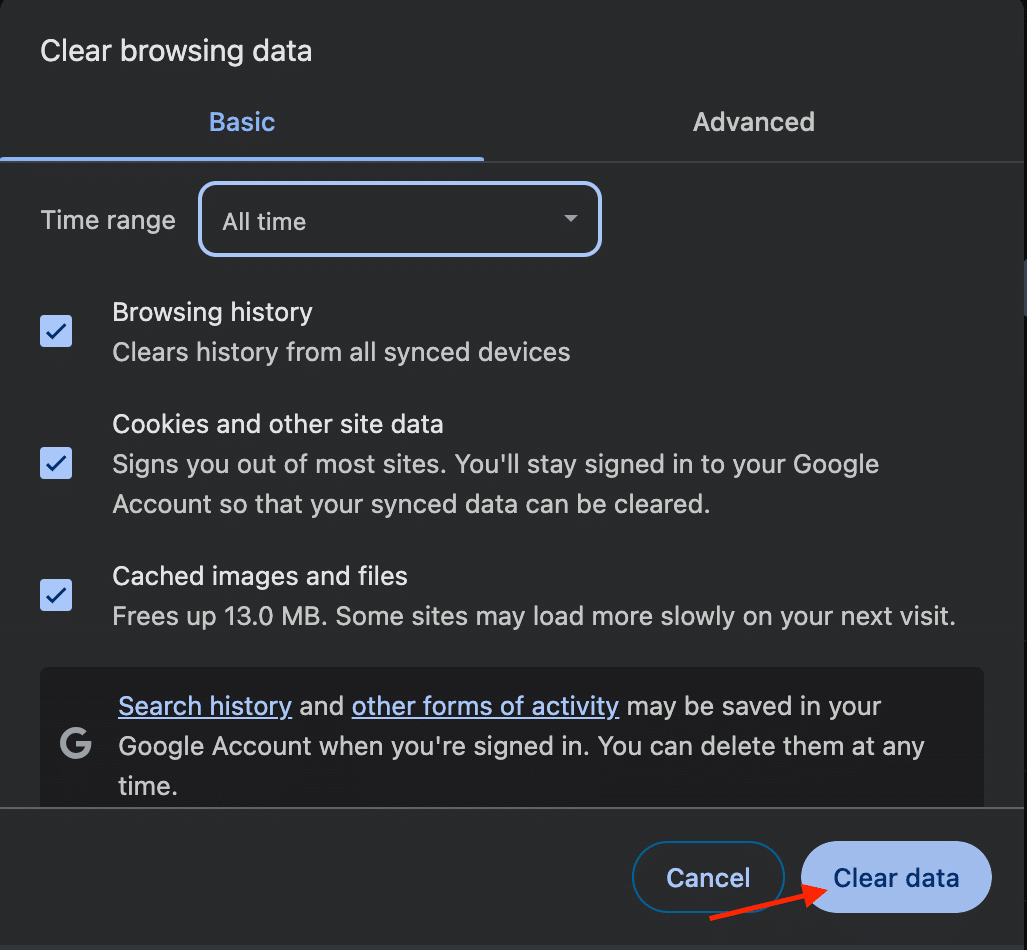
- Open your browser settings. In Chrome, press Ctrl+Shift+Delete on Windows or Cmd+Shift+Delete on Mac.
- Look for “Clear browsing data,” “History,” or “Privacy and Security.”
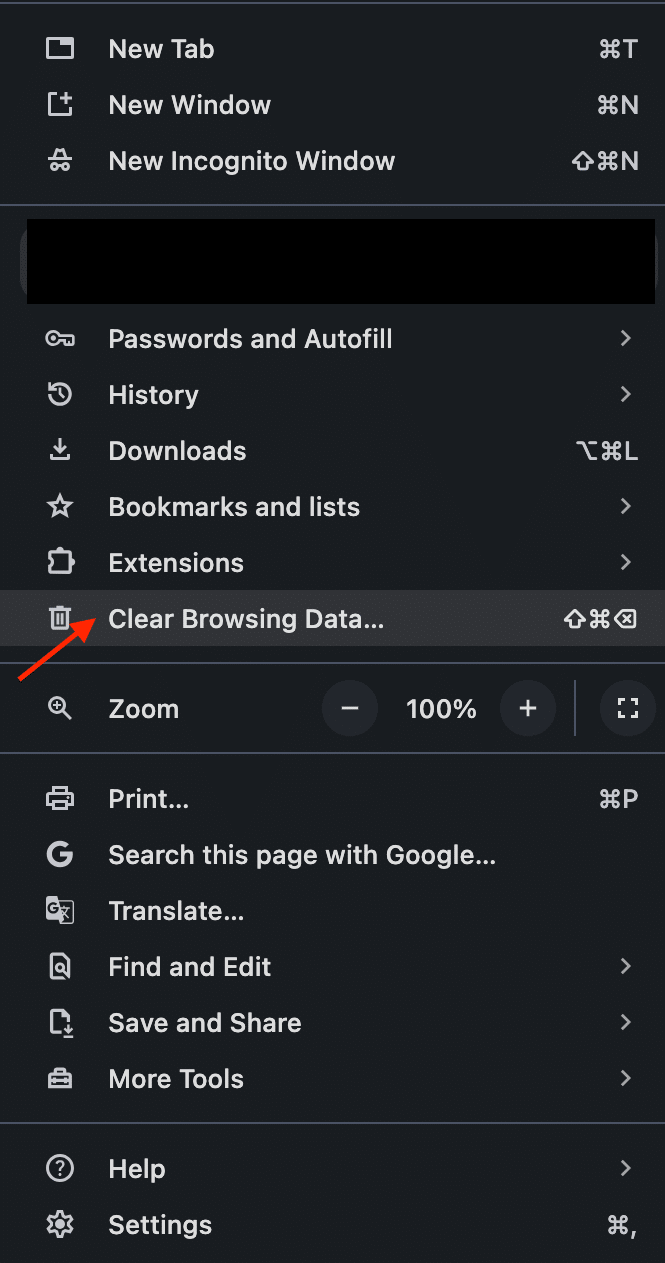
- Select “Cached images and files” and “Cookies and other site data.” Set the time range to “All time.”
- Click “Clear data” and revisit the page.
8. Contact Your Hosting Provider
If none of the above fixes resolve the 403 error, the cause is at the server level, in logs and configurations you cannot access directly. Your hosting provider can inspect server error logs, IP-level firewall rules, and ModSecurity configurations that are not visible through your hosting control panel.
Many shared hosting providers run ModSecurity, a server-level Web Application Firewall that triggers 403 errors when a request matches one of its rules. Your host can whitelist the specific rule that is blocking your site without disabling ModSecurity entirely.
When contacting support, provide:
- The exact URL returning the 403 error
- The date and approximate time the error first appeared
- Any changes made to the site before the error appeared (plugin installs, updates, .htaccess edits)
- Your current IP address (search “what is my IP address” in Google to find it)
Which Fix Should You Try First?
The fastest path to resolving a 403 Forbidden error depends on what triggered it. Use this table to find your starting point instead of working through all 8 methods from scratch.
| Situation | Start With |
|---|---|
| Error appeared right after editing .htaccess | Method 3: Reset .htaccess |
| Error appeared after installing or updating a plugin | Method 4: Deactivate Plugins |
| Error page shows Cloudflare branding or a Ray ID code | Method 5: Check CDN Settings |
| Error appears in one browser only, not others | Method 7: Clear Browser Cache |
| Error appeared after a site migration or server move | Method 2: Fix File Permissions |
| Error on all pages, all browsers, no recent changes | Method 2 first, then Method 3 |
| No identifiable trigger | Work through Methods 1 to 7 in order |
If server-side fixes do not resolve the error after working through all 8 methods, contact your hosting provider with the details listed in Method 8. Server error logs almost always reveal the exact rule or configuration blocking access, something that is not visible from your WordPress dashboard or FTP client.