A dropdown that slides behind a slider or hero image is one of those Elementor bugs that makes an otherwise polished site look broken.
Worse, it is not just cosmetic: if the sub menu renders under your content, visitors literally cannot reach half your navigation. It almost always traces back to the same culprit, and it is usually a two-minute fix.
The cause is a CSS stacking conflict: a z-index value or an overflow setting on a parent container is pushing the dropdown below other elements. Below are three fixes, ordered from the one that solves most cases to the permanent one that prevents it from ever happening again.
The quick answer: In almost every case the dropdown is losing a CSS stacking contest. Raise the navigation container’s Z-Index to 99 in the Advanced tab. If it is being clipped rather than pushed behind, set the parent container’s Overflow to Default. If neither holds, switch to a mega menu that renders inside an Elementor layout.
Why the Elementor dropdown hides behind content
Browsers decide which element sits on top of which using three things: z-index values, overflow settings, and CSS positioning.
When one of those is misconfigured on a container that wraps your menu, or a theme or plugin stylesheet quietly overrides it, the dropdown ends up rendering underneath the page instead of over it.
Nail down which of the three is to blame and the fix follows immediately.
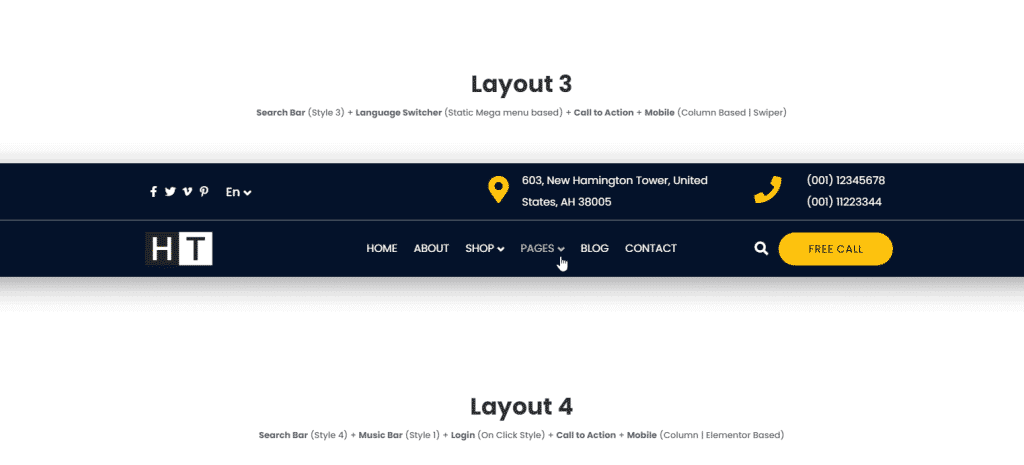
Here is the quick diagnostic. Match the symptom you see to the cause, then jump to the matching fix below.
| Cause | Type | How to spot it | Fix |
|---|---|---|---|
| Z-index conflict | CSS stacking | Dropdown slides under a section, slider, or sticky header | Fix 1: Raise the z-index |
| Overflow set to Hidden | Container setting | Dropdown is clipped at the container edge | Fix 2: Set overflow to Default |
| Theme or plugin CSS | Style conflict | Issue shows up only with a specific theme or plugin active | Fix 3: Switch to a mega menu |
A quick word on each before the steps. Z-index sets the stacking order; if a slider or hero block outranks your nav container, the dropdown loses and hides behind it.
This is by far the most common cause, and it is fixable in the editor with no code. Overflow set to Hidden is different: instead of being pushed behind, the dropdown gets clipped at the container’s edge because anything spilling past the boundary is cut off.
And a theme or plugin stylesheet can override either property site-wide, which is the one to suspect when the first two fixes do nothing. Temporarily switching to a minimal theme like the Nexter WP Theme is a fast way to confirm a theme conflict.
Planning a richer dropdown anyway? Here are the top Mega Menu builder plugins for Elementor for full control over design and positioning.
How to fix the Elementor dropdown hidden behind content
Go in order. Fix 1 clears it for most people. Fix 2 catches the clipping case. Fix 3 is the permanent route if the first two miss, or if you want full control over how dropdowns look and behave from here on.
Fix 1: Raise the z-index on the navigation container
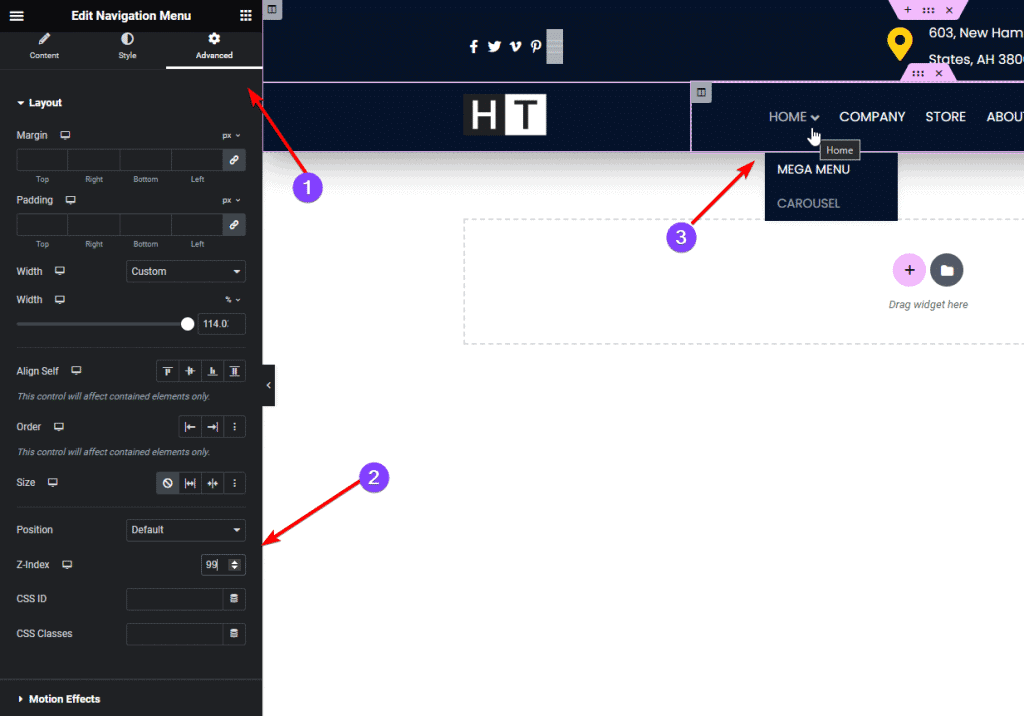
Raising the z-index simply tells the browser to render the navigation container above everything around it. A value of 99 sits above most default stacking, so it clears the dropdown in the large majority of Elementor header setups without knocking other elements out of order.
- Open the page with your header or navigation in the Elementor editor.
- Select the section or container that holds the menu.
- Open the Advanced tab in the left panel.
- In the Z-Index field, enter 99.
- Click Update, refresh, and test the dropdown.
What to expect: hover the parent menu item and the dropdown should now sit above all content. If it still ducks behind one specific element, that element likely has an even higher z-index, lower it.
And if pushing the nav z-index too high flips other elements behind the dropdown, dial those back individually until the stacking order looks right.
Want a designed dropdown instead of a plain one? Follow the guide on how to create a Mega Menu in Elementor.
Fix 2: Set the parent container’s overflow to Default
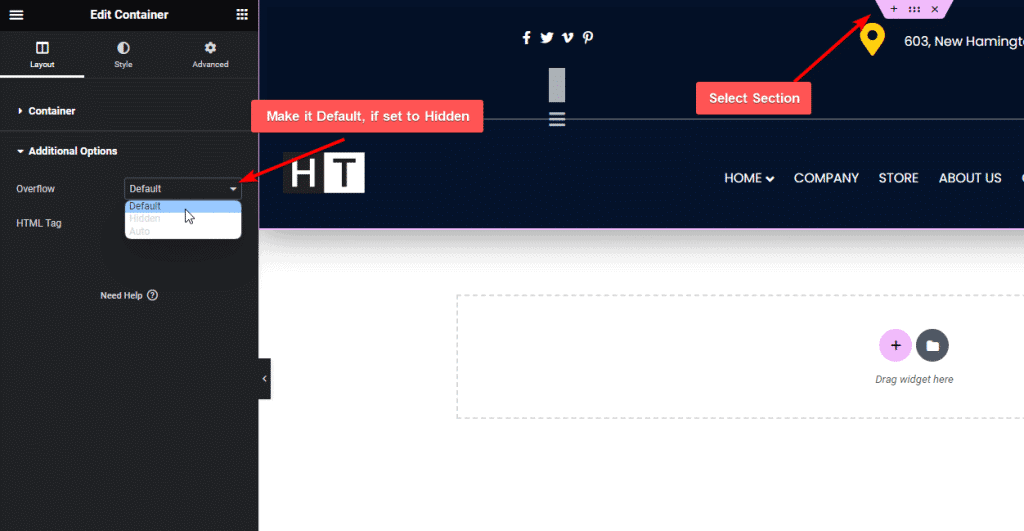
When a container’s overflow is set to Hidden, Elementor crops anything that spills past its edges. A dropdown extends downward past the header, so that is precisely what gets cut.
Switching overflow back to Default lifts the restriction and lets the menu render in full.
- In the editor, select the container or section holding the menu.
- Open the Layout tab.
- Scroll to Additional Options.
- Check the Overflow setting and switch it from Hidden to Default.
- Click Update, refresh, and test.
What to expect: the dropdown now spills past the container and shows fully. If you have nested containers, check every parent in the chain, a single one set to overflow: hidden anywhere up the hierarchy is enough to clip the menu.
Fix 3: Replace the native menu with The Plus Addons Mega Menu (Pro)
When the first two fixes do not hold, or you simply do not want to fight stacking conflicts again, the durable answer is to stop relying on native dropdown CSS altogether.
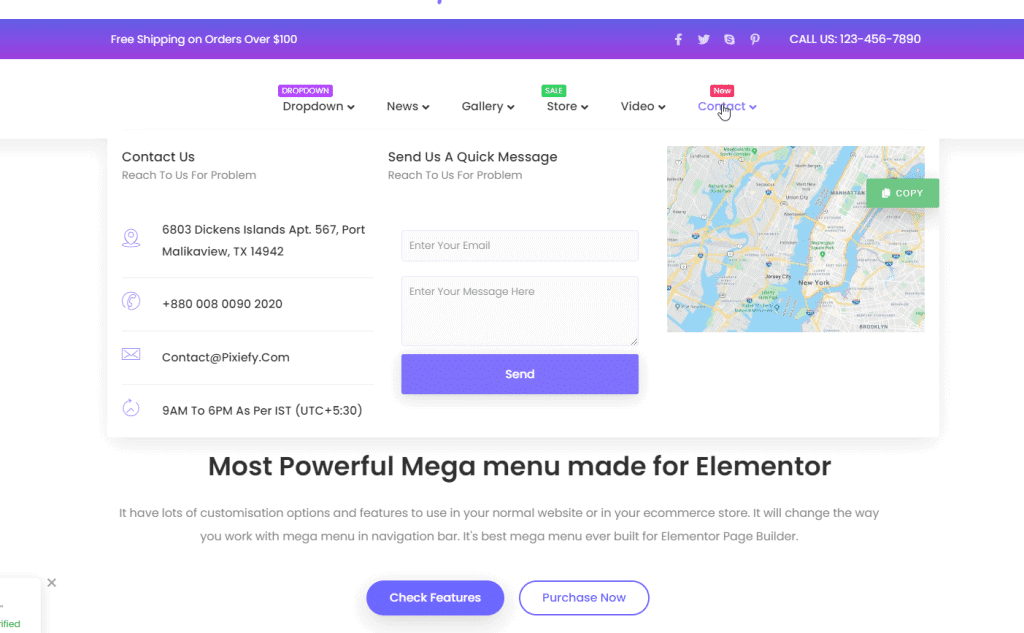
A Mega Menu from The Plus Addons for Elementor (Pro) renders its dropdown inside a fully Elementor-controlled layout, so the z-index and overflow traps that break native menus never enter the picture.
As of The Plus Addons for Elementor 6.4.17, this is the most reliable way to keep dropdowns visible across an entire site.
- Install and activate The Plus Addons for Elementor (Free) plus the Pro version. Compare plans and pricing here.
- In your dashboard, open Plus Mega Menu and click Add New Item.
- Name it, then click Edit with Elementor.
- Design the dropdown inside Elementor, sub-items, columns, images, or links, however you want it.
- Save and return to the dashboard.
- Go to Appearance > Menus, select your menu, and add a Custom Link with
#as the URL. - Click the Plus icon on that item, choose Mega Menu, and select the one you built.
- Save, then check the live site. The dropdown now renders inside an Elementor layout with no stacking conflict.
Here is a video walkthrough:

What to expect: the mega menu opens as a full Elementor layout. Because its position is handled by Elementor’s layout engine rather than native CSS stacking, the hidden-dropdown problem simply does not occur.
Which fix should you use?
Pick based on the symptom, not by trial and error.
- Start with Fix 1 (z-index) if the dropdown disappears behind a section, slider, or sticky header. A value of 99 resolves it for most setups.
- Use Fix 2 (overflow) if the dropdown is clipped at the container edge rather than pushed behind. Check every parent container, not just the closest one.
- Go to Fix 3 (mega menu) when neither works, or when you want a designed dropdown with columns and images. The Mega Menu widget (Pro) sidesteps native stacking entirely.
One caveat: if your navigation comes from a third-party menu plugin rather than Elementor’s native nav widget or The Plus Addons Navigation Menu widget (Free), these steps may not map cleanly, check that plugin’s own z-index and overflow controls instead.
If headers are something you build often, The Plus Addons for Elementor’s Header Builder handles navigation menus, sticky headers, mega menus, and mobile drawers without code.
The Navigation Menu widget is on the Free plan; the Mega Menu and full Header Builder come with Pro. See what is included in each plan.