Getting a YouTube API key is free and takes about 10 minutes. In this guide, you’ll learn the exact steps to generate one in Google Cloud Console, restrict it for security, and connect it to your WordPress site using Elementor.
A YouTube API key is a unique authentication token issued by Google that gives your website authorized read access to YouTube’s Data API v3. It lets your site retrieve videos, playlists, and channel data from YouTube’s database without manually embedding each video.
According to Google’s YouTube Data API documentation, every project gets 10,000 free quota units per day for standard data requests, which is plenty for a typical site.
You can also get an Instagram access token to display your Instagram feed on your site the same way.
All steps in this guide were verified in June 2026 against Google Cloud Console and the YouTube Data API v3 documentation, including the granular quota system that took effect on June 1, 2026. Reviewed on WordPress 7.0 with The Plus Addons for Elementor v6.4.
What Is a YouTube API Key?
A YouTube API key is a unique alphanumeric string issued by Google that authenticates your application’s requests to YouTube’s Data API v3. It identifies your project, applies your quota limits, and grants read access to YouTube’s public data. Without it, YouTube’s servers will reject any programmatic data request from your site.
You use it to read data from YouTube, not to upload or manage content. Common uses on WordPress sites include displaying a channel’s latest videos, embedding a specific playlist, or building a searchable video grid from a keyword.
One clarification that saves headaches later: an API key only works for reading public data, which is all a website video feed needs. Anything tied to a specific user account, such as uploading videos or managing a channel, requires OAuth 2.0 instead.
As Google puts it, “whenever your application requests private user data, it must send an OAuth 2.0 token.”
Why Should You Use the YouTube API on Your Website?
If video content drives your marketing, connecting your YouTube channel to your website keeps visitors engaged and removes the manual work of updating embeds every time you publish a new video.
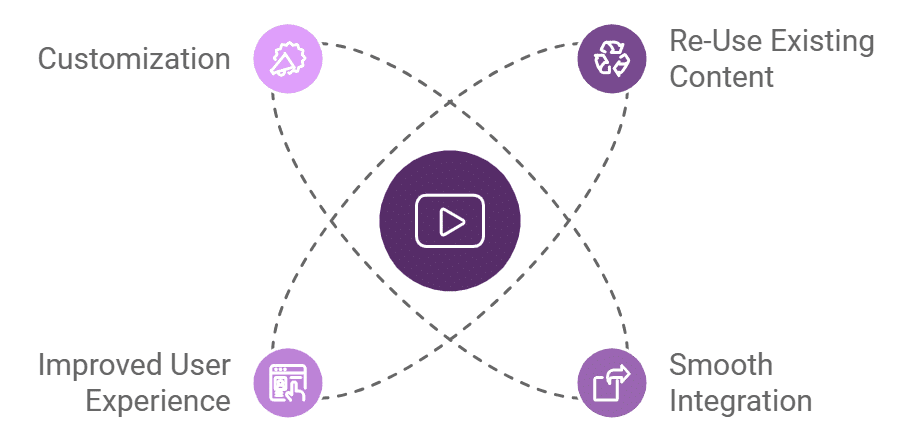
- Re-use existing content: Your published YouTube videos appear on your site automatically. No manual embeds or copy-paste work required on each publish.
- Dynamic updates: Your video feed refreshes with new uploads through the API connection. Publish on YouTube, and your site reflects it without any extra steps.
- Better dwell time: Video content increases time-on-page. Visitors who watch a video engage more deeply with your content.
- Customization: Filter videos by playlist, channel, search query, or specific video IDs. You control exactly what appears on each page.
Looking to display YouTube Shorts on your website? Learn How to Embed YouTube Shorts on WordPress for an engaging user experience.
How to Get a YouTube API Key for Free [Step-by-Step]
Follow these six steps to generate a free YouTube API key in Google Cloud Console. The whole process takes under 10 minutes on a standard internet connection.
Step 1: Sign In to Google Cloud Console
Go to console.cloud.google.com and sign in with your Google account. If you do not have one, create a Google account first. Your API key will be tied to the Google account you use here.
Step 2: Create a New Project
After signing in, look for the project selector in the top navigation bar. Click it, then select New Project from the panel that opens.
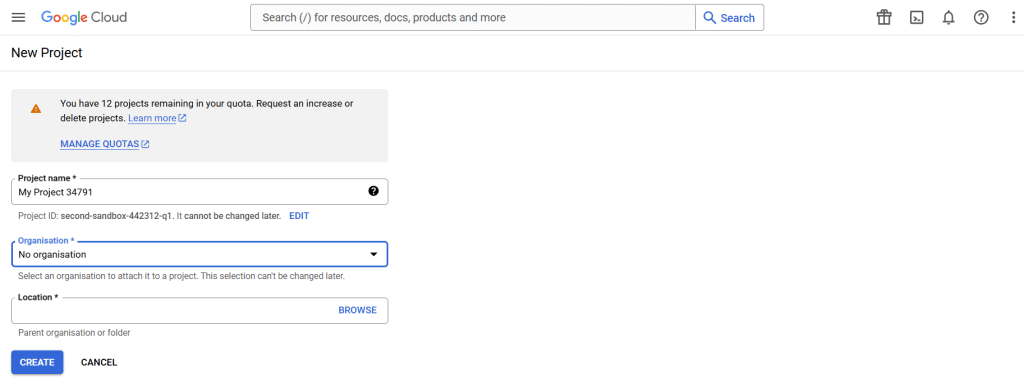
Enter a project name, select an organization if applicable, then click Create. The API key you generate in the next steps will belong to this project. If you manage multiple Google Cloud projects, confirm the correct one is selected in the project selector before continuing.
Step 3: Navigate to the API Library
From your project dashboard, open the left navigation panel and go to APIs & Services > Library. This is where you find and activate individual Google APIs for your project.
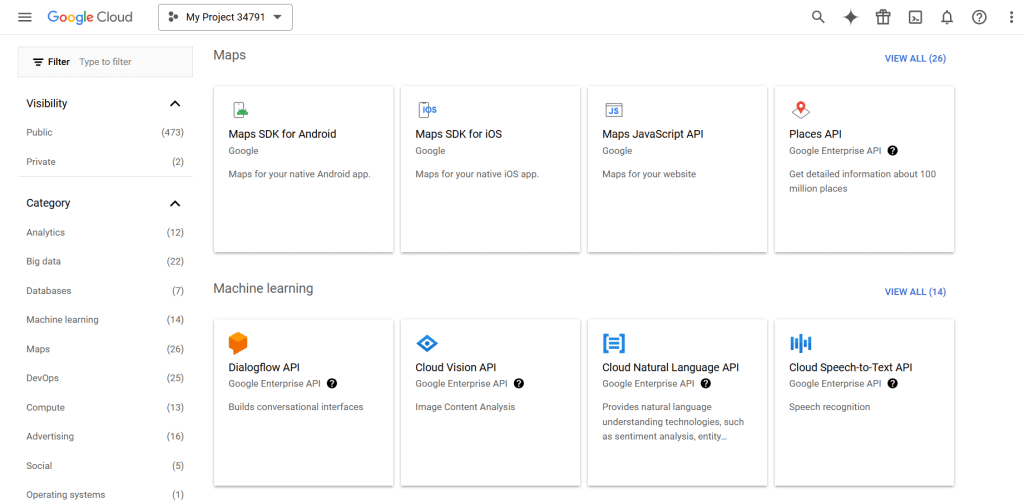
Step 4: Enable YouTube Data API v3
In the API Library, search for YouTube Data API v3 or scroll to the YouTube APIs section and click on it.
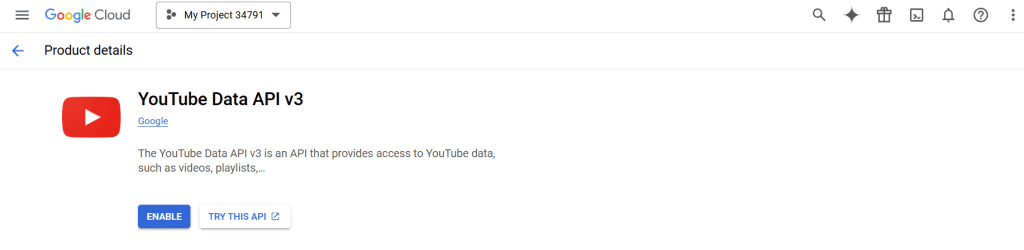
Click Enable on the API detail page. This activates the YouTube Data API for your current project. Without this step, your API key will not have permission to retrieve YouTube data, even after you create it.
Step 5: Create Your API Key Credential
After enabling the API, you will be taken to the YouTube Data API v3 overview page. Click Create Credentials at the top of the page.
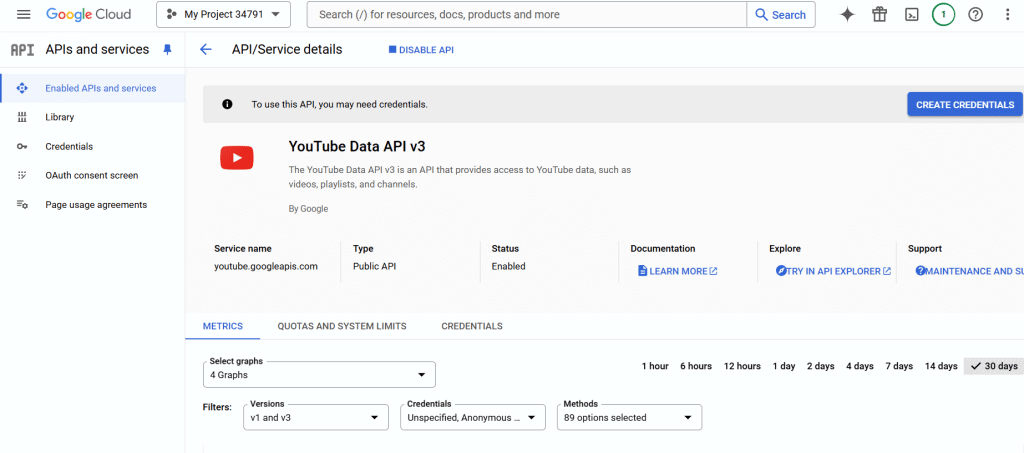
In the credential wizard that appears, select YouTube Data API v3 in the first field, then check Public data to confirm you are accessing YouTube’s public content.

Step 6: Copy and Save Your API Key
Click Next and your API key will generate automatically. It will appear in a popup on screen. Copy the key and store it somewhere secure, such as a password manager or your site’s settings panel.
Do not share this key publicly or add it to any public code repository.
Your key is now active and ready to use, though you should restrict it before adding it to a live site, which is the next step.
How to Restrict Your YouTube API Key (Recommended)
By default, a newly created API key is unrestricted, meaning it can be used from any website, app, or server. If someone else obtains your key, they can make requests that count against your daily quota, potentially leaving your site with no available quota mid-day.
Based on our experience managing API keys across client sites, an unrestricted key is the most common reason for unexpected quota exhaustion on small WordPress sites.
Google is blunt about this in its API credential documentation: “Unrestricted API keys are insecure,” and it recommends setting both application and API restrictions. Here is how to do it:
- Go to APIs & Services > Credentials in Google Cloud Console.
- Click on the name of the API key you just created.
- Under Application restrictions, select Websites and add your domain in the format
yourdomain.com/*. - Under API restrictions, select Restrict key and choose YouTube Data API v3 so the key works with that API only.
- Click Save.
After this, the key will only accept requests from your domain and only work with the YouTube Data API. This takes about two minutes and is worth doing before you add the key to any WordPress plugin or settings page.
YouTube API Quota: What You Get for Free
Enabling the YouTube Data API v3 on a Google Cloud project gives you a free daily quota. Google’s documentation describes the default allocation as “100 search.list calls, 100 videos.insert calls, and 10,000 units per day combined for all other endpoints.”
The quota resets at midnight Pacific Time and is shared across all API keys in the same project.
This model changed on June 1, 2026. Google moved search and uploads onto their own granular quota buckets, so they no longer draw from the main 10,000-unit pool. For a typical WordPress video feed that lists a channel or playlist, you spend from the 10,000-unit pool at roughly 1 unit per list call, which is plenty for normal traffic.
One rule catches people out: Google notes that “every API request, even if invalid, will cost at least one quota point,” and paging through multiple pages of results charges the cost for each page.
| Operation | Quota Cost | Practical Impact |
|---|---|---|
| List videos or playlist items | 1 unit | From the 10,000-unit pool. Ideal for channel and playlist feeds |
| Retrieve channel details | 1 unit | Minimal impact for most sites |
| Search request (search.list) | 1 unit, separate bucket | About 100 calls per day in its own bucket since June 1, 2026, not 100 units from the main pool |
| Video upload (videos.insert) | About 100 units, separate bucket | Reduced from about 1,600 units on December 4, 2025; only relevant if you upload via the API |
Source: YouTube Data API Quota Costs and the API revision history, Google for Developers.
Search-based video feeds draw from the separate search bucket of about 100 calls per day, so a search-driven feed reaches its limit faster than a channel or playlist feed.
If you need more than the default, you cannot simply ask for it. Google requires you to complete a compliance audit showing your project follows the YouTube API Services Terms of Service before it grants extra quota.
How to Use Your YouTube API Key in WordPress
Once you have your API key, you can display your YouTube channel on any Elementor page using the Social Feed Widget (Pro) by The Plus Addons for Elementor by POSIMYTH.
It supports YouTube channels, playlists, handles, search results, and user feeds in Grid, Carousel, and Masonry layouts.
If you want a YouTube-only feed with additional layout controls, the dedicated YouTube Feed Widget (Pro) is also available in The Plus Addons for Elementor.
Here is how to connect your API key using the Social Feed Widget:
- Install and activate The Plus Addons for Elementor on your WordPress site.
- Go to WP Admin > Plus Settings > Widgets, find the Social Feed Widget, and enable it.
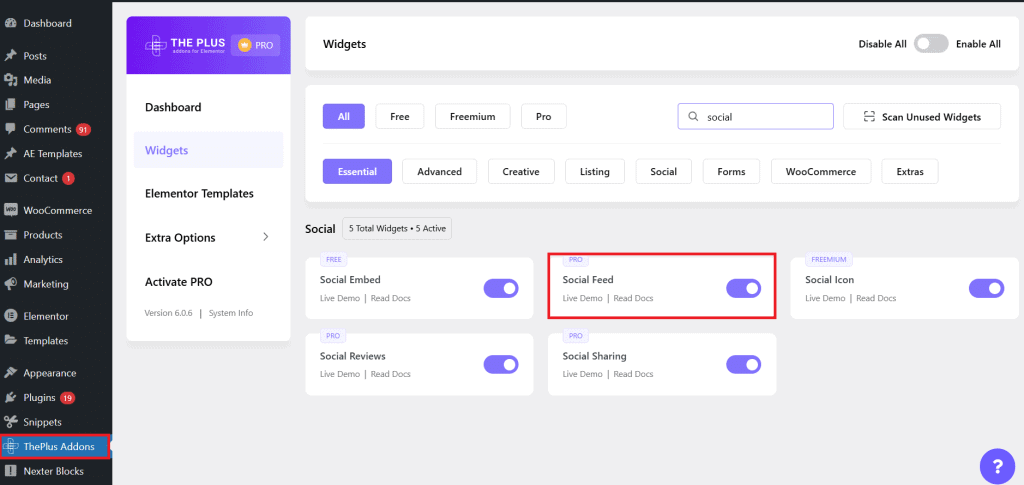
- Open the page or post you want to edit in your WordPress dashboard and launch the Elementor editor.
- Add the Social Feed Widget from the Elementor widget panel to a new section on the page.
- Select your preferred layout style (Grid, Carousel, or Masonry) from the widget options.
- In the left panel, navigate to the Social Feed section and select YouTube as the source from the dropdown menu.
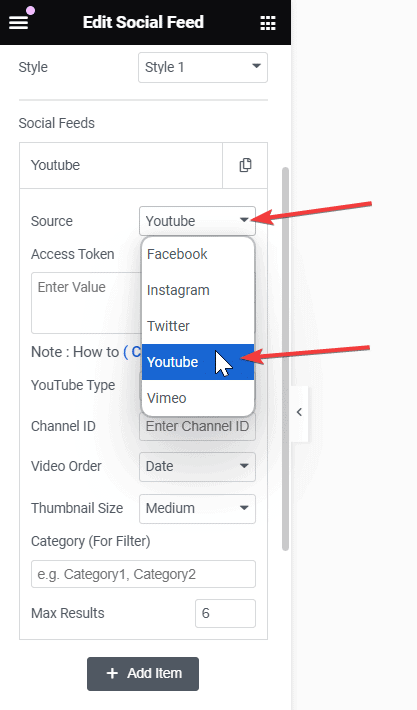
- Paste your YouTube API key into the Access Token field.
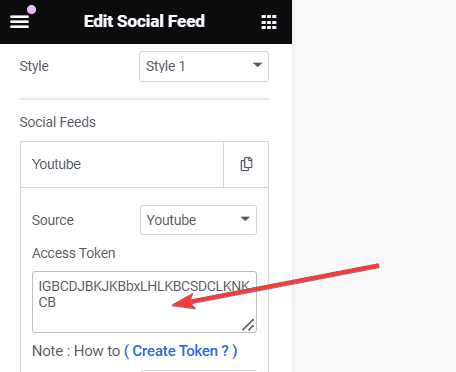
- From the YouTube Type dropdown, choose how to pull videos: User Feed, Handle, Channel, Search, or Playlist.
Your live YouTube feed will now appear on the page. From the widget settings panel you can adjust thumbnail size, video count, category filters, and display style.
After embedding your YouTube feed in Elementor, you can also explore the best YouTube plugins for WordPress for additional integration options.
Play videos directly on your site for a better user experience. Check out the 5 Best Video Player Plugins for WordPress.

Is Getting a YouTube API Key Worth It?
Yes, for any WordPress site that actively publishes YouTube content. The process takes under 10 minutes, costs nothing within the free daily quota, and gives you a live, automatically updating video connection instead of manually embedding each video one at a time.
Best for: Site owners with an active YouTube channel who want their latest videos to appear on their site without coding or manual updates after each upload.
Not needed if: You only want to embed one or two static videos. A standard YouTube iframe embed handles that without any API key.
Once you have the key, the Social Feed Widget from The Plus Addons for Elementor (Pro) gives you the fastest path to a fully styled, customizable YouTube feed in Elementor with no code required.
The Plus Addons also includes 120+ widgets across categories, all in one plugin. See the pricing page to explore what the Pro plan includes.