Elementor ships with a big built-in icon library, so the moment you reach for a custom icon it is usually because that library does not have your brand mark, a niche glyph, or the exact line-weight your design calls for.
The good news is that adding your own icons is straightforward once you know which of the three routes fits you, and the wrong route is where people waste an afternoon.
This guide covers all three: uploading a full icon set with Elementor Pro, doing it with a free plugin if you are on the free version, and adding plus animating individual SVG icons.
Pick by what you have installed and how many icons you need, and if your icons ever stop showing, our note on a Elementor icon library not loading covers the usual fixes.
Elementor’s Built-In Icon Library (and When You Need Custom Icons)
Before adding your own, it helps to know what Elementor already gives you. Every widget with an icon control (Icon, Icon Box, Icon List, buttons, and more) opens the built-in Icon Library, which includes over 1,500 free Font Awesome 5 icons plus Elementor’s own eicons set. Click the icon field, search the library, and insert one in a click, no upload needed.
You only need custom icons when the built-in library does not have your brand mark, a niche glyph, or the exact line weight your design calls for. The rest of this guide shows the three ways to add your own icons to Elementor.
What Are Custom Icons in WordPress?
A custom icon is any icon you bring to your site yourself instead of picking from a plugin or theme’s bundled set. That can be your logo mark, a client’s brand glyph, or a designed icon family that keeps every page visually consistent.
On an Elementor site you add them once and then reuse them in any widget that accepts an icon, the same way you would use a Font Awesome icon.
The Two Types of Custom Icons You Can Use
There are really only two formats to think about. An icon font bundles many icons into a single font file, which is ideal when you want a whole set available across the site and easy to recolor and resize like text.
An SVG is a single vector file, best when you need one specific icon, crisp at any size, or you plan to animate it. Icon fonts are exported as a zip from a generator; SVGs are individual files. Knowing which you need decides which method below is yours.
If you also care about how image formats affect load time, our breakdown of JPG Vs PNG: Which Format Improves Site Speed? is a useful companion, since SVG keeps icons sharp without the weight.
How to Add Custom Icons to Elementor [Step-by-Step]
Use Method 1 if you have Elementor Pro and want a full icon set in the native Icon Library. Use Method 2 if you are on free Elementor. Use the bonus SVG section if you just need one icon, especially an animated one.
Method 1: Upload an Icon Set with Elementor Pro
Custom icon sets are an Elementor Pro feature. As Elementor puts it, “Elementor Pro version 2.6 gives you the power to upload your own custom icon libraries,” and it is “the first platform to integrate not one, but three of the leading icon font generators: Fontello, IcoMoon, and Fontastic.”
All three let you assemble a set from pre-built packs or from your own SVG icons, then download it as a webfont zip.
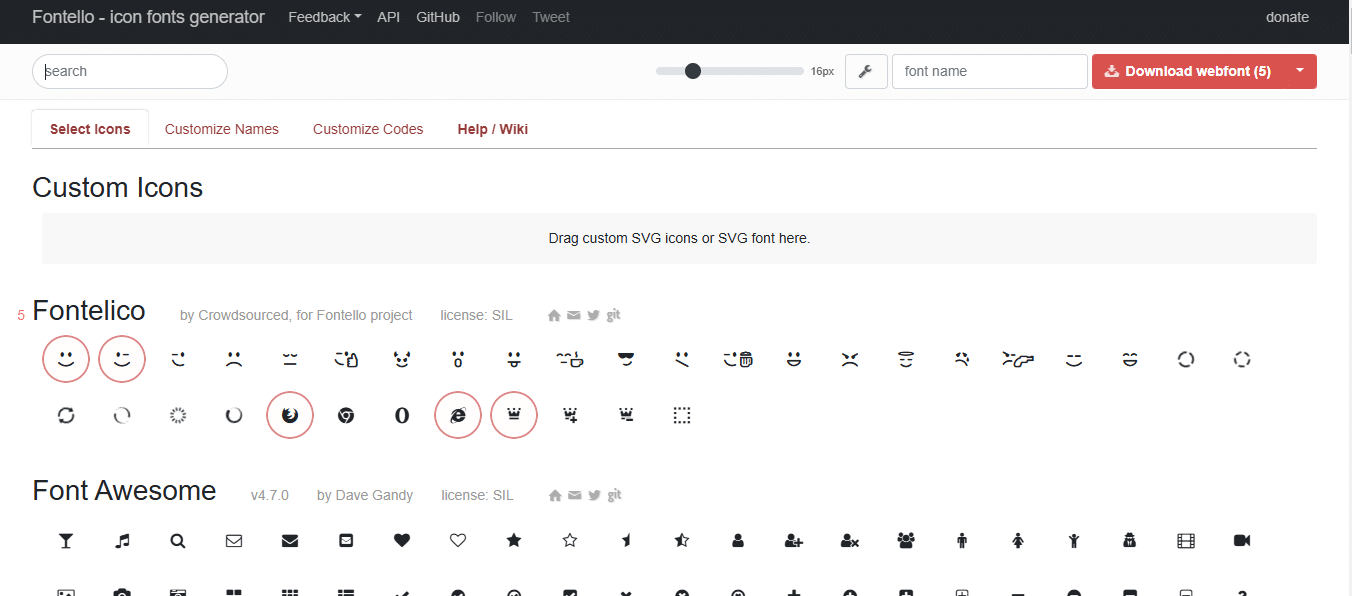
Start at one of those generators, for example Fontello (Visit the website), select the icons you want, and download the webfont package. You will get a single zip file, which is exactly what Elementor expects.

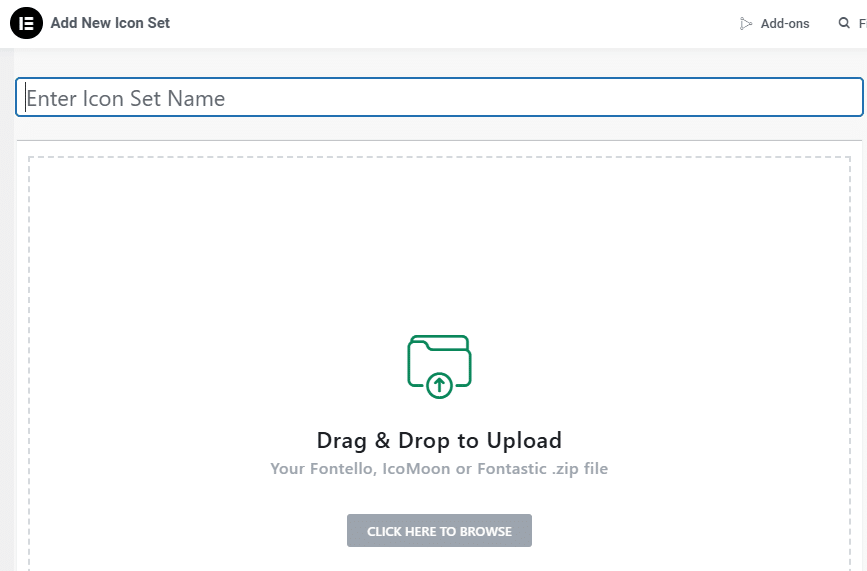
In your dashboard, go to Elementor then Custom Icons and choose Add New Icon Set, then upload the zip. Elementor says the process is “super simple and once it is done, all the icons will be available inside the new Icon Library.”
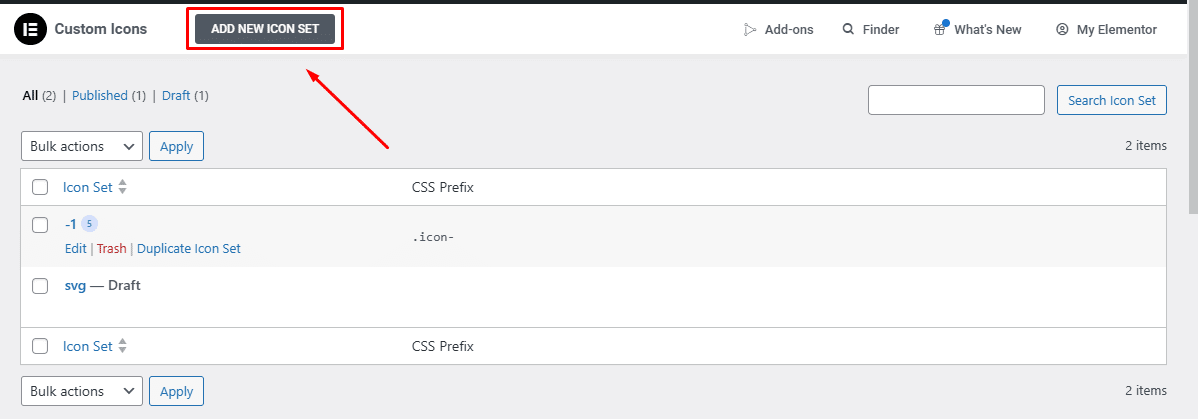
From then on, any widget with an icon control, a Button, an Icon Box, a menu item, shows your set alongside the default libraries, so you can drop your icons in anywhere.
Fonts and icons travel together, so it is worth pairing this with our How to Add Custom Fonts to Elementor [Easy Guide] to keep brand styling consistent. If you do not have Pro yet, the pro version unlocks this along with the rest of the Pro widget set.

Method 2: Add Custom Icons with a Free Plugin
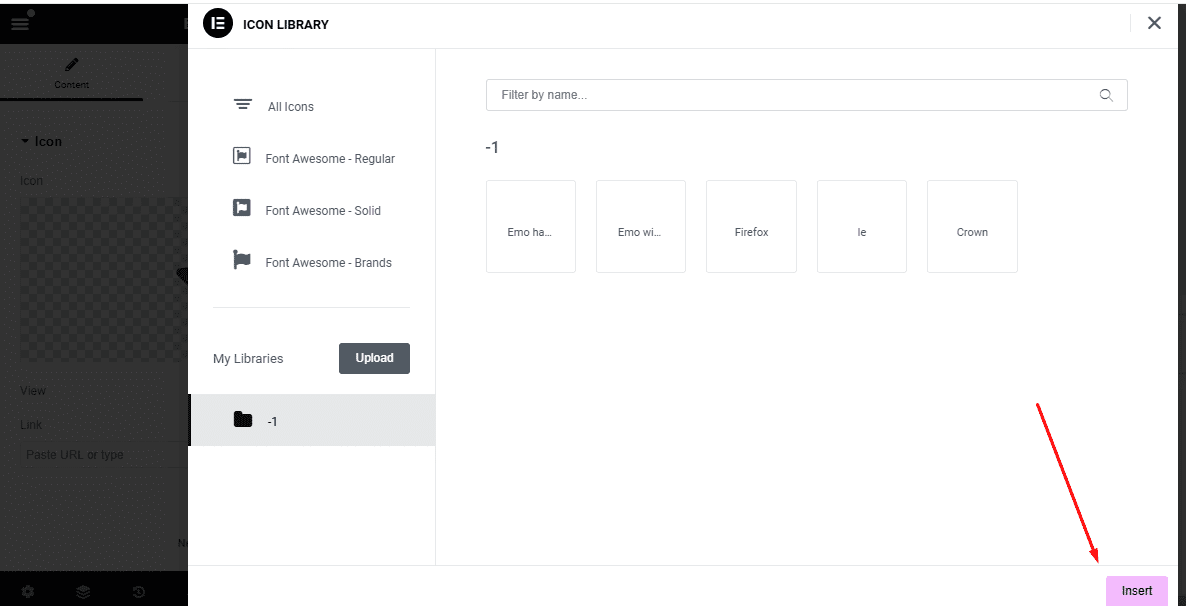
On free Elementor you do not get the Custom Icons uploader, but a free plugin closes the gap. The Custom Icon for Elementor plugin lets you bring a Fontello-style set into the icon picker without Pro. Install it, upload your icon set or SVGs, and the icons appear in the same icon control you already use.
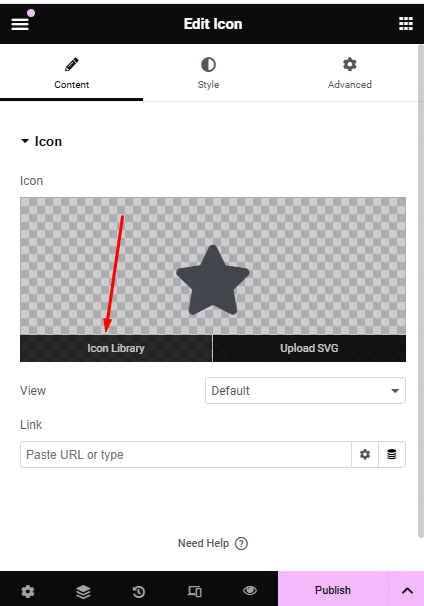
After uploading, you select your icon from the widget’s icon control and insert it like any other. One caveat worth knowing: free plugins vary in how they handle SVG sanitization, so only upload SVGs from sources you trust.
Bonus: How to Add and Animate SVG Icons in Elementor
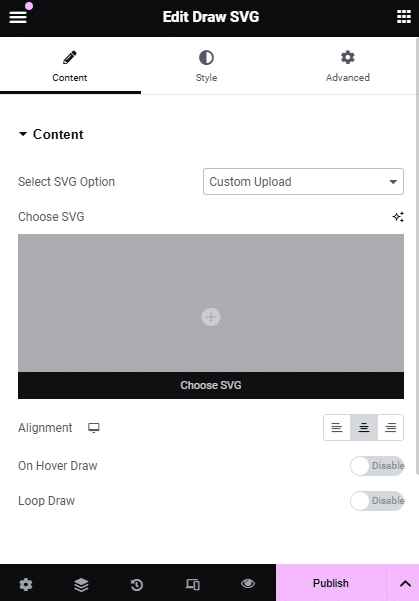
If you only need a single icon and want it to feel alive, an animated SVG is the move. The Animated SVG Draw for Elementor widget from The Plus Addons for Elementor takes an SVG and draws it on screen, line by line, as the visitor scrolls to it.
You can prep the draw effect with a free tool like Vivus Instant and then refine it inside the widget.
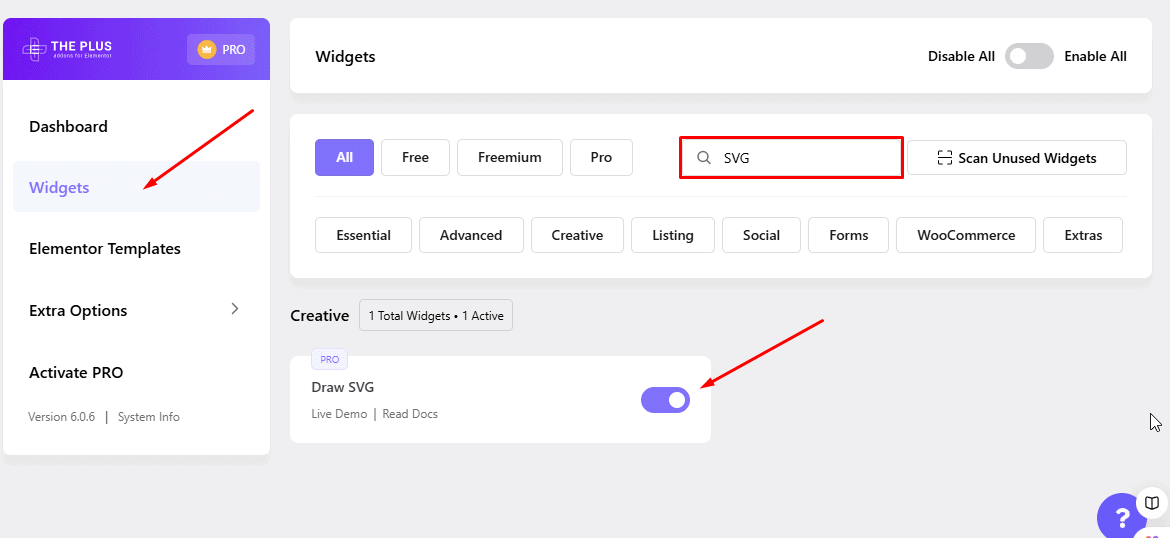
Drop the widget onto your page, paste in your SVG code, and set the draw duration and trigger. It is the kind of detail that makes a hero section or a feature list feel considered rather than templated.
How to Style Custom SVG Icons
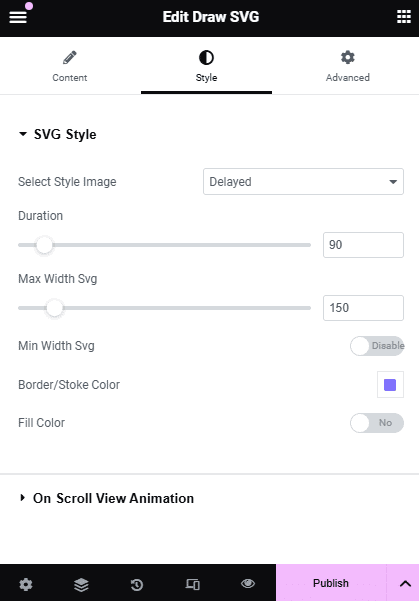
Once your icon is in place, the Style tab handles the look: color, size, hover color, spacing, and alignment, all without touching code. For color specifics with SVGs, which behave differently from icon fonts, follow our guide on How to Change Custom SVG Icons Color in Elementor.
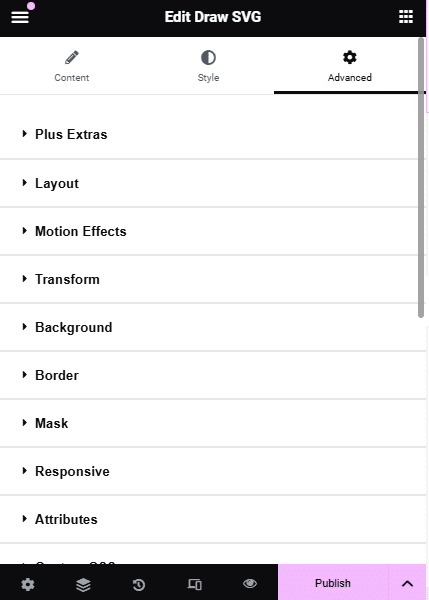
The Advanced tab is where you add spacing, motion, and positioning. Pair it with an effect like our How to Add Parallax Effect in Elementor [Beginners Guide] if you want the icon to move with the page.
Wrapping Up
The method follows the need. For a full branded set on Elementor Pro, upload a webfont zip under Custom Icons. On free Elementor, a free plugin gets you there.
For a single icon, especially one you want animated, an SVG with the Animated SVG Draw widget is the cleaner path. Decide which one you are by how many icons you need and whether you have Pro, and the rest is a five-minute job.
If you enjoy getting the typographic details right, our roundup of the best programming fonts and a look at converting designs with our Figma to WordPress guide are good next reads.