A 400 Bad Request error means your web server rejected the browser’s request because it could not understand it. In Elementor, this typically appears due to a malformed URL, corrupted browser cache, an oversized file upload, or a misconfigured reCAPTCHA integration on your forms.
This article covers 8 verified fixes for the 400 Bad Request server error in WordPress Elementor sites. Each fix targets a specific cause and includes clear steps.
All fixes in this article were last verified in May 2026 on WordPress 6.9 with Elementor 4.0.
What Is a 400 Bad Request Error in Elementor?
A 400 Bad Request error is an HTTP client-side error defined in RFC 9110 by the IETF. It means the server received a request it could not process, typically because the request contained malformed syntax, invalid characters, or data that exceeded server-imposed size limits.
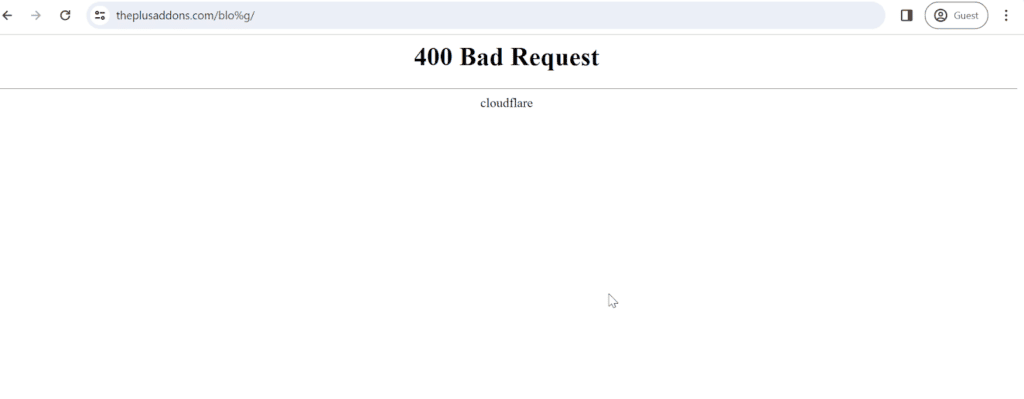
Unlike 5xx server errors, a 400 error originates on the client side. The issue is in how the request was formed, not in the server itself. In an Elementor WordPress site, this most often surfaces in three scenarios: navigating to a URL with invalid characters, uploading a file that exceeds your server’s size limits, or submitting a form where the reCAPTCHA integration is misconfigured.
What Causes the 400 Bad Request Error in Elementor?
Before applying a fix, identify which cause matches your situation. The table below maps each root cause to its type, how you can recognize it, and which fix to try first.
| Cause | Type | How to Identify | Fix to Try |
|---|---|---|---|
| Incorrect or malformed URL | Client-side | Error appears immediately after navigating to a specific URL | Fix 1 |
| Corrupted browser cache or cookies | Client-side | Disappears when opening an incognito window | Fix 2 |
| Stale DNS cache | Client-side | Persists across multiple browsers on the same device | Fix 3 |
| Conflicting browser extension | Client-side | Disappears in incognito mode with extensions disabled | Fix 4 |
| File upload exceeds server limit | Configuration | Error triggers specifically during WordPress media uploads | Fix 5 |
| Corrupted .htaccess file | Server-side | Affects all or most pages on the site at once | Fix 6 |
| Incorrect reCAPTCHA API keys | Configuration | Error only on forms with reCAPTCHA enabled | Fix 7 |
| Plugin or theme conflict | Configuration | Started after installing or updating a plugin or theme | Fix 8 |
How to Fix the 400 Bad Request Error in Elementor
Start with the fix that matches your cause from the table above. If you are unsure, begin with Fix 2 (clear cache and cookies) — it resolves the majority of 400 errors on WordPress sites. If you see the specific message “Cannot connect to the reCAPTCHA server (400)” on an Elementor form, skip directly to Fix 7.
Fix 1: Check and Correct the URL
An invalid character in the URL is one of the most common triggers for a 400 error. Special characters like %, unencoded spaces, and stray symbols cause the server to reject the request entirely.
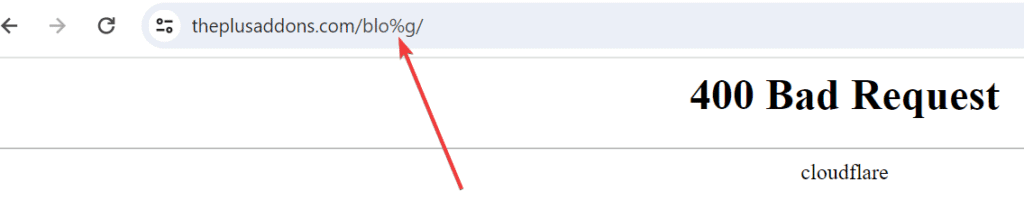
As shown above, a stray % in the URL is enough to trigger a 400 Bad Request response.
- Look at the full URL in your browser’s address bar.
- Check for special characters, particularly
%, unencoded spaces, or stray symbols. - Remove or correct any invalid characters. Spaces in URLs should be encoded as
%20if required. - Press Enter to reload the corrected URL.
If the 400 error clears after correcting the URL, the malformed address was the cause.
Fix 2: Clear Browser Cache and Cookies
Corrupted cached data or invalid cookies can cause your browser to send malformed requests, triggering a 400 response. Clearing them forces a fresh request to the server.
Here is how to do it in Google Chrome:
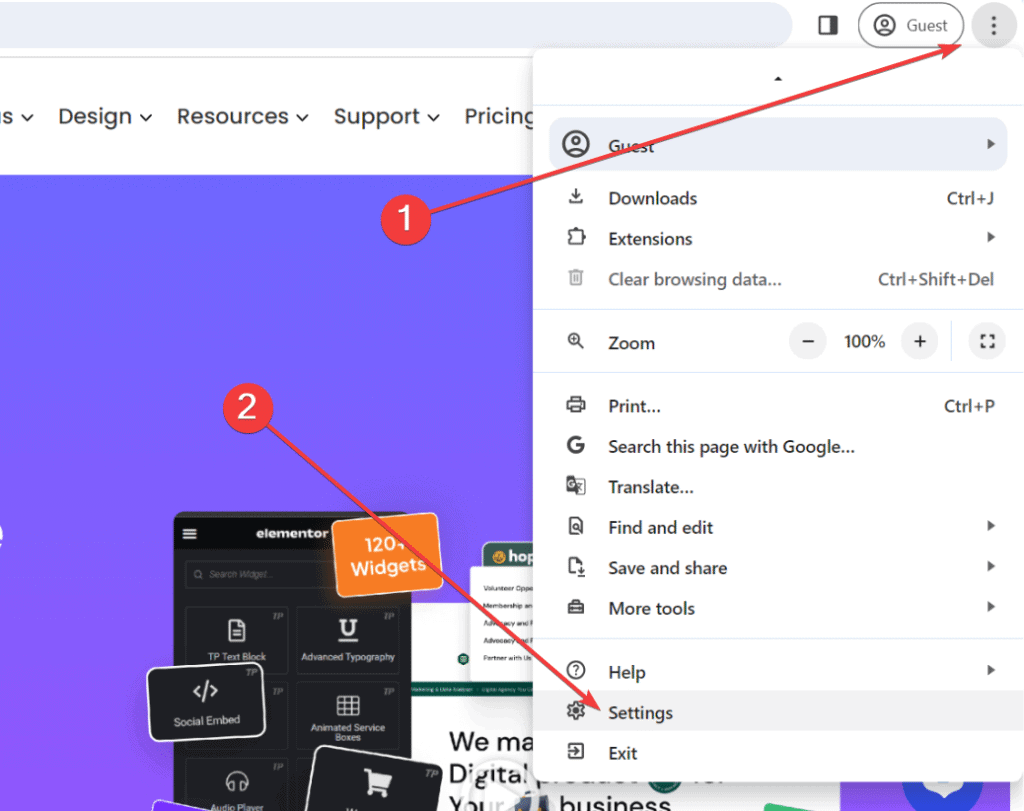
- Click the three-dot menu in the top-right corner of Chrome and select Settings.
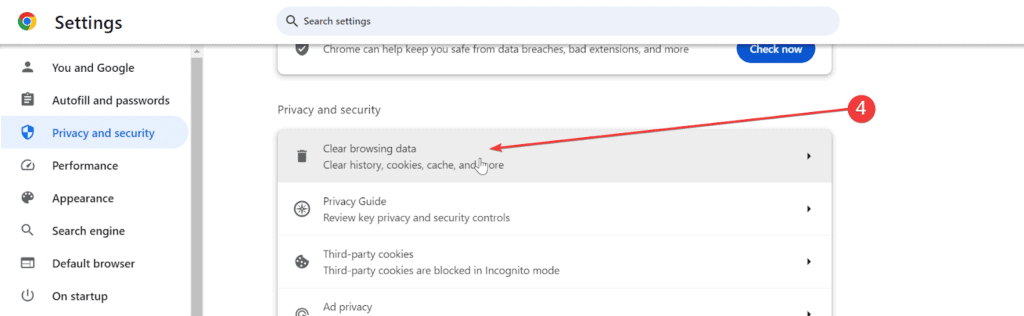
- In the left sidebar, click Privacy and Security.

- Click Clear browsing data.
- Tick Cookies and other site data and Cached images and files. Untick everything else.
- Click Clear data.
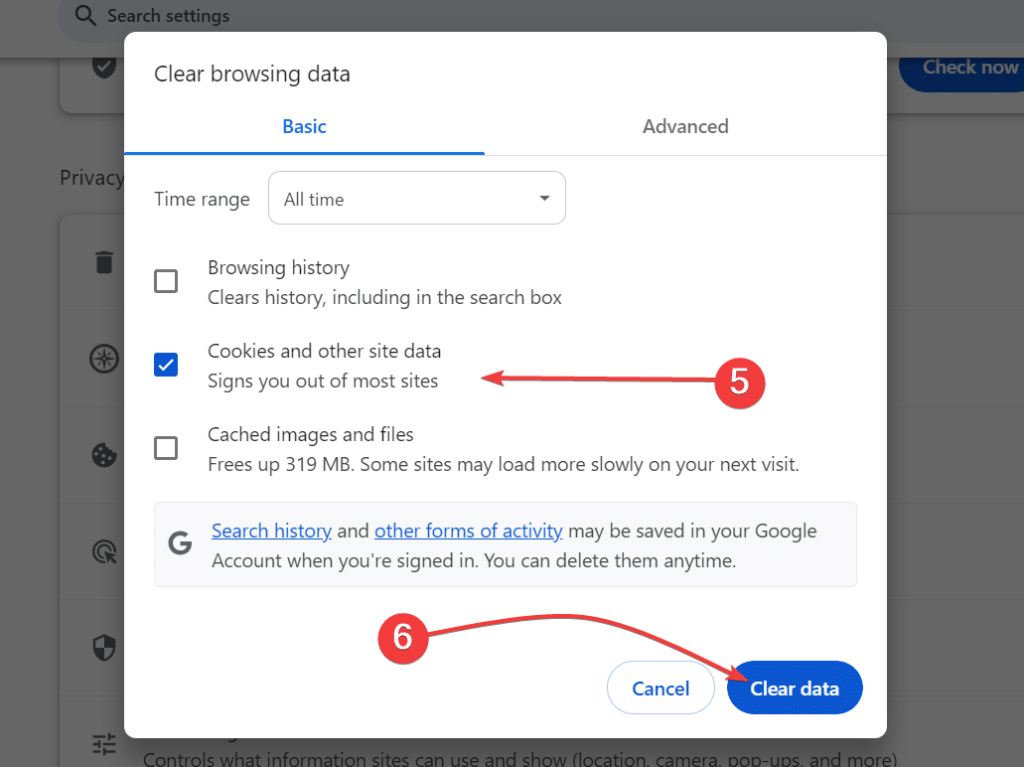
- Reload the page that was showing the 400 error.
You can also force-refresh the page directly using Ctrl + Shift + R on Windows/Linux or Cmd + Shift + R on Mac, which bypasses the cache for that page load.
Getting update errors on your WordPress site? Read the full guide on How to Fix WordPress Update and Publish Failed Errors
Fix 3: Flush the DNS Cache
Your operating system stores a local DNS cache that maps domain names to IP addresses. If this cache becomes outdated or corrupted, requests can fail with a 400 error. Flushing it forces your system to retrieve a fresh DNS record.
On Windows:
- Press Win + R, type
cmd, then press Ctrl + Shift + Enter to open Command Prompt as Administrator. - Run the following command:
ipconfig /flushdns- You will see: “Successfully flushed the DNS Resolver Cache.”
On macOS:
- Open Terminal (Applications > Utilities > Terminal).
- Run the following command and enter your admin password when prompted:
sudo dscacheutil -flushcache; sudo killall -HUP mDNSResponderOn Linux (Ubuntu 20.04+ and most modern systemd-based distros):
- Open a Terminal window and run:
sudo resolvectl flush-cachesOn older systems running Ubuntu 18.04 or systemd below v239, use sudo systemd-resolve --flush-caches instead.
After flushing, reload the page in your browser and test whether the error persists.
Fix 4: Disable Browser Extensions
Some browser extensions intercept or modify outgoing HTTP requests in ways that corrupt them. If the 400 error disappears in an incognito window, a browser extension is the cause.
- Open a new Incognito window (Ctrl + Shift + N on Chrome, or Cmd + Shift + N on Mac). Incognito mode disables extensions by default.
- Navigate to the same URL or perform the same action that triggered the 400 error.
- If the error does not appear in incognito mode, a browser extension is the cause.
- In normal mode, go to chrome://extensions in the address bar.
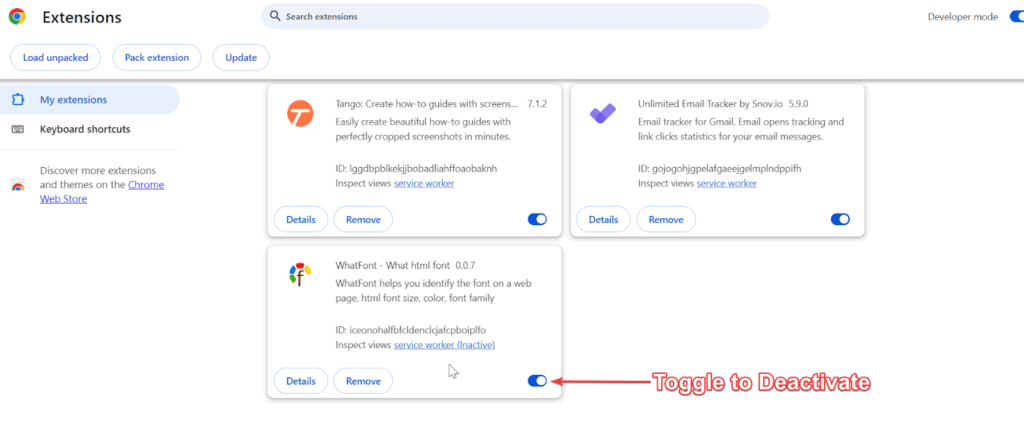
- Toggle all extensions off.
- Reload the page. If the 400 error is gone, re-enable extensions one at a time, testing after each, until the error returns.
- The last extension you enabled is the conflict. Remove it, update it, or contact its developer.
Fix 5: Increase the File Upload Size Limit
When you upload a file larger than your server’s configured limit, the server returns a 400 error. You can check your current upload size limit in WordPress under Media > Add New — it is shown at the bottom of the upload area.
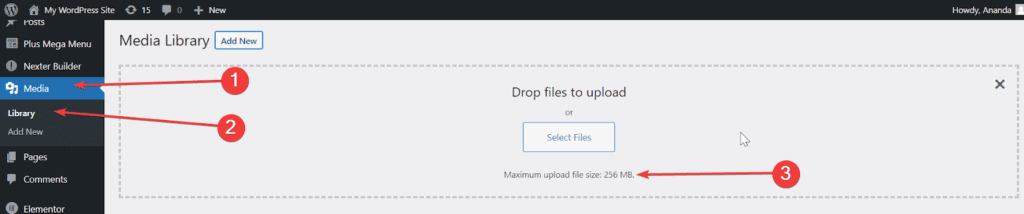
To increase the limit, use the method that matches your hosting setup:
Method A: Edit php.ini (recommended for VPS or dedicated hosting):
- Locate your
php.inifile. Your host can provide the path if you are unsure. - Find and update these two lines (add them if they do not exist):
upload_max_filesize = 64M
post_max_size = 64M- Save the file and restart your web server.
Method B: Edit .htaccess (shared hosting, Apache):
- Open the
.htaccessfile in your WordPress root directory. - Add these two lines:
php_value upload_max_filesize 64M
php_value post_max_size 64M- Save the file and reload your site.
Method C: Nginx server configuration:
- Open your Nginx configuration file (typically
/etc/nginx/nginx.confor the site-specific config in/etc/nginx/sites-available/). - Inside the
server {}block, add:
client_max_body_size 64M;- Save the file, then reload Nginx:
sudo nginx -s reloadIf you are experiencing 400 errors on complex Elementor forms with many input fields, also add max_input_vars = 5000 to your php.ini. This increases the number of input variables the server will accept per request.
Need to increase your site’s PHP memory limit? Here’s exactly How to Increase WordPress PHP Memory Limit (4 Methods)
Fix 6: Reset the .htaccess File
A corrupted .htaccess file can cause WordPress to generate malformed request paths, producing 400 errors across multiple pages. Resetting it through WordPress is the safest approach.
- Go to WP Admin > Settings > Permalinks.
- Without changing any settings, click Save Changes.
- WordPress automatically regenerates a clean
.htaccessfile. - Test the page that was showing the 400 error.
If the error persists, manually replace the file:
- Connect to your server via FTP or your host’s File Manager.
- In your WordPress root directory, rename
.htaccessto.htaccess_backup. - Go back to WP Admin > Settings > Permalinks and click Save Changes again to generate a new
.htaccessfile. - Test your site. If everything works correctly, delete the
.htaccess_backupfile.
Fix 7: Fix the “Cannot Connect to the reCAPTCHA Server (400)” Error in Elementor
This specific 400 error variant appears on Elementor Pro forms when the reCAPTCHA integration is misconfigured. The message “Cannot connect to the reCAPTCHA server (400)” — or the Spanish equivalent “No se puede conectar con el servidor reCAPTCHA (400)” — means Elementor sent an unrecognized or mismatched API key to Google’s reCAPTCHA service.
The three most common causes are: a wrong site key or secret key, a domain mismatch between your WordPress site and what is registered in the Google reCAPTCHA admin console, or a mismatch between the reCAPTCHA version (v2 vs v3) configured in Elementor and the one registered in Google’s console.
- In your WordPress dashboard, go to Elementor > Settings in the left sidebar.
- Click the Integrations tab.
- Scroll to the Google reCAPTCHA section.
- Open the Google reCAPTCHA admin console in a new tab.
- Confirm that the domain listed in the reCAPTCHA admin console matches your site’s domain exactly. A www vs non-www mismatch is enough to cause a 400 error.
- Copy your Site Key and Secret Key from the reCAPTCHA console.
- Paste them into the corresponding fields in Elementor’s Integrations settings. Confirm the reCAPTCHA type (v2 or v3) in Elementor matches what is registered in Google’s console — a type mismatch will also produce the 400 error.
- Click Save Changes.
- Test a form with reCAPTCHA enabled on your site to confirm the error is resolved.
Fix 8: Deactivate Plugins and Themes to Isolate a Conflict
A plugin or theme can interfere with how WordPress handles requests, producing a 400 error. This is particularly likely if the error appeared right after installing or updating a plugin.
- Go to WP Admin > Plugins > Installed Plugins.
- Deactivate all plugins except Elementor and Elementor Pro.
- Reload the page that was triggering the 400 error.
- If the error is gone, a deactivated plugin was causing it. Reactivate plugins one at a time, testing after each, until the error returns.
- The last plugin you reactivated is the conflict. Update it to the latest version, look for a compatibility fix, or contact the plugin’s developer.
If deactivating plugins does not resolve the 400 error, switch to a default WordPress theme (Twenty Twenty-Five) temporarily. If the error disappears, the theme is the cause.

![How to fix 400 bad request error in elementor [2026]](https://theplusaddons.com/wp-content/uploads/2023/05/20-Checklist-for-WordPress-Site-Maintenance-1024x1024.jpg "How to Fix 400 Bad Request Error in Elementor [2026]")
Which Fix Should You Try First for the Elementor 400 Bad Request Error?
The right starting point depends on where and how the error appears. Use this decision table to pick the most targeted fix for your situation:
| Your Situation | Best First Fix |
|---|---|
| Error appeared after typing or editing a URL | Fix 1: Check the URL |
| Error appeared without any obvious change to the site | Fix 2: Clear cache and cookies |
| Error affects all pages across the site | Fix 6: Reset .htaccess |
| You see “Cannot connect to the reCAPTCHA server (400)” | Fix 7: Reconfigure reCAPTCHA in Elementor |
| Error only occurs during file uploads in WP Admin | Fix 5: Increase file upload size limit |
| Error started after installing or updating a plugin | Fix 8: Deactivate plugins one by one |
| Error visible in your browser but not reported by others | Fix 3 or Fix 4: Flush DNS or disable extensions |
Most 400 errors on Elementor sites resolve with Fix 2 (clear cache and cookies) or Fix 7 (reCAPTCHA reconfiguration). If neither works, follow the remaining fixes in the order listed above.
If you are building with Elementor and want better control over your site’s performance and extensions, The Plus Addons for Elementor by POSIMYTH includes 120+ widgets plus a suite of performance and security extensions, including Heartbeat Control, Custom Login URL, and 2-Factor Authentication, free to start. See all plans here.