






A header that sticks to the top of the screen often needs a different logo from the one in the full-size header — a smaller mark, or a version that reads against a solid background.
The Site Logo widget from The Plus Addons for Elementor can swap the logo the moment the header sticks. It does this by following the Navigation Menu widget’s sticky state, so the two widgets have to work together.
To check the complete feature overview documentation of The Plus Addons for Elementor Site Logo widget, click here.
Requirement – This widget is a part of The Plus Addons for Elementor Pro, make sure it’s installed & activated to enjoy all its powers.
Before You Start
- Edition: Pro — Site Logo is a Pro-only widget. It does not exist in the free The Plus Addons for Elementor plugin, so there is no free version of it to fall back on.
- Prerequisite: Elementor (free) installed and active, alongside The Plus Addons for Elementor Pro.
- Widget to enable: Site Logo, under The Plus Addons > Widgets. Search for Site Logo and turn the toggle on.
- Where to put it: a header or footer template, built with the free Nexter Builder or with Elementor Pro’s Theme Builder. The widget renders on an ordinary page too, but a header is where a logo belongs.
- An image in your media library. The widget does not read the logo from Appearance > Customize > Site Identity. If you do not pick an image inside the widget, nothing is shown at all.
- For the sticky logo: the Navigation Menu widget must also be switched on, placed in the same container or section as the Site Logo, pointed at a WordPress menu with Select Menu, and have Sticky Menu turned on in its Extra Options. Without it the sticky logo never appears.
- Two logo images in your media library — the normal one and the one for the sticky header.
Read this before you start. The sticky logo is not self-contained. It only works when a Navigation Menu widget with Sticky Menu turned on sits in the same container or section as the Site Logo. Without it both images are output but the swap never fires, and the editor gives you no warning.

Set up the sticky menu
- Edit your header template with Elementor and place the Site Logo widget and the Navigation Menu widget in the same container or section. This matters: the sticky behaviour is applied to the container that holds the menu, and the logo follows that container.
- Select the Navigation Menu widget, open its Navigation Bar section and pick your menu in Select Menu.
- Open the Extra Options section of the Navigation Menu widget and turn Sticky Menu on. It is off by default.
Set up the sticky logo
- Select the Site Logo widget. In the Content section set Logo to Normal and choose your everyday logo in Image Logo. Set Logo Max Width, which starts at 100 px.
- Open the Extra Options section and turn Sticky Logo on. It only appears while Logo is set to Normal.
- Choose the sticky logo in the Image Logo control that appears underneath — the one inside Extra Options, not the one in Content — and set its Logo Max Width.
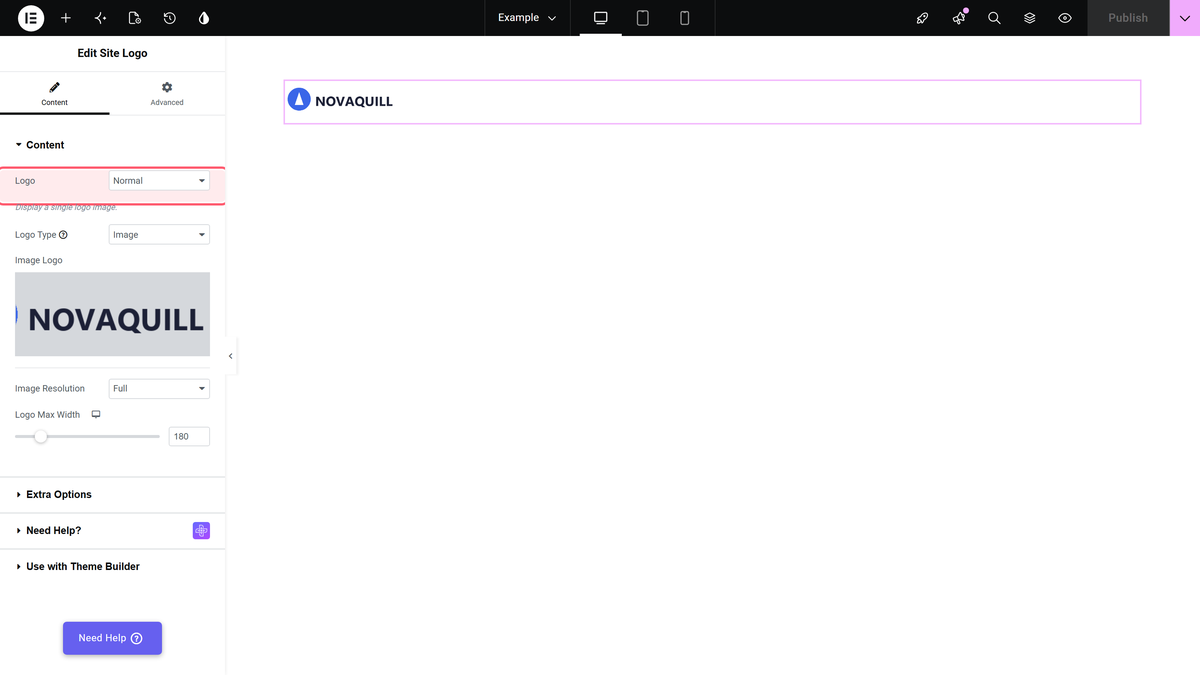
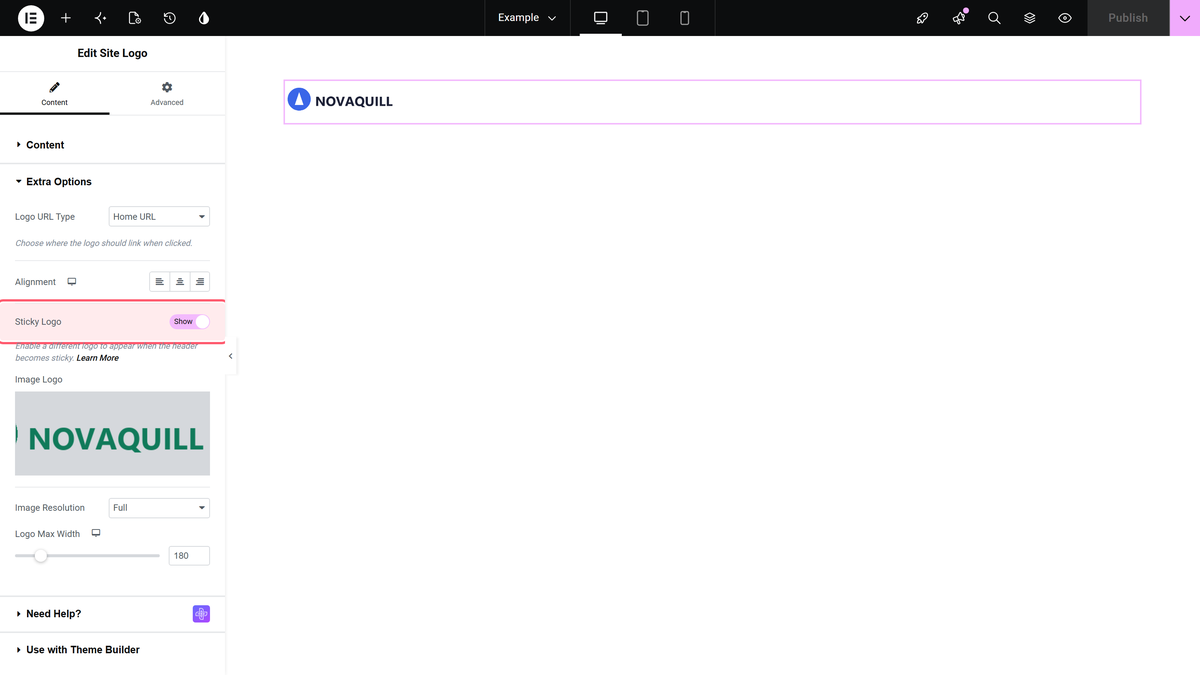
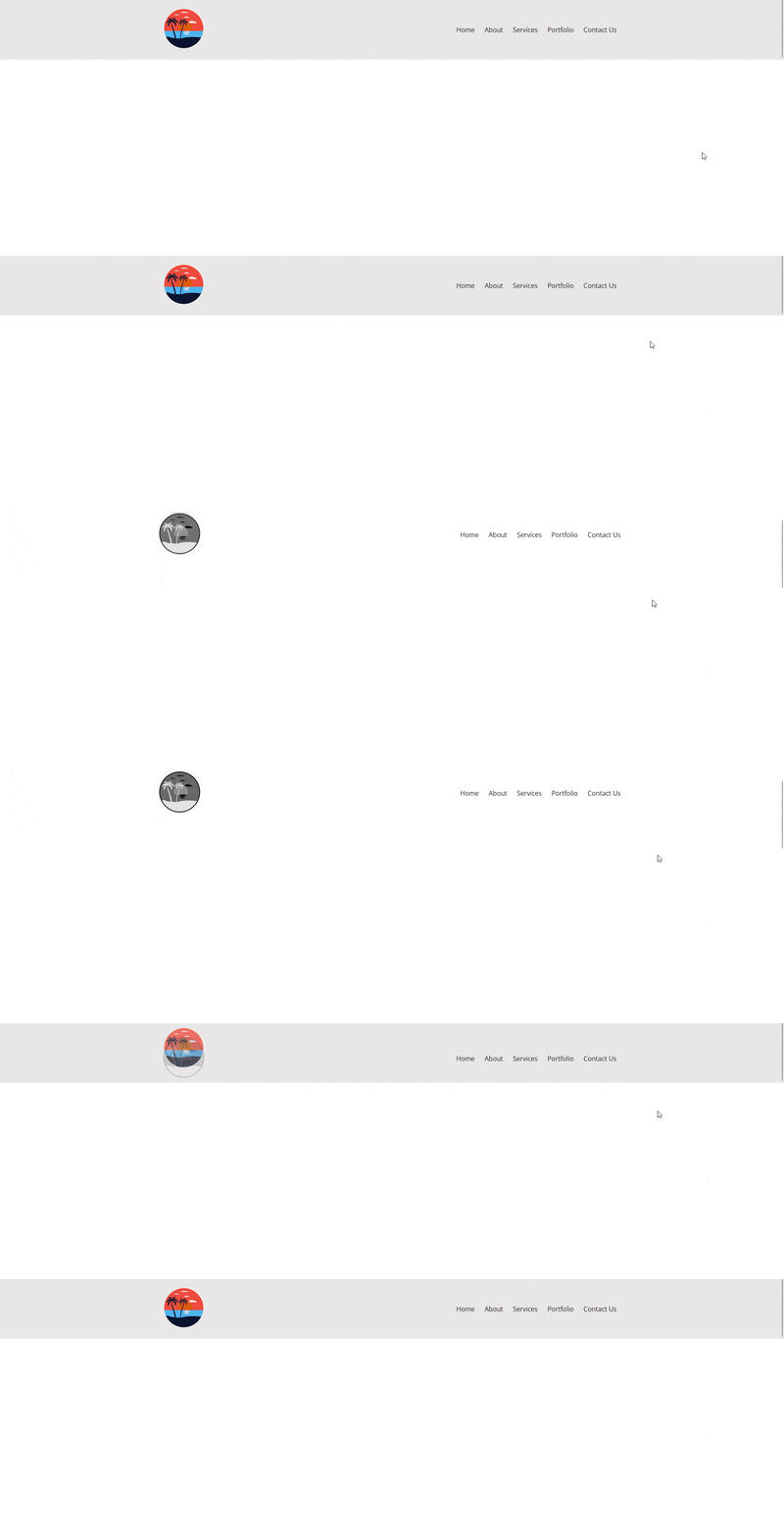
Save and view the page. Scroll down far enough for the header to stick and the sticky logo takes over.

Settings
| Setting | Where | What it does | Default |
|---|---|---|---|
| Select Menu | Navigation Menu → Navigation Bar | Which WordPress menu the navigation shows. | — |
| Sticky Menu | Navigation Menu → Extra Options | Makes the header container stick on scroll. Everything on this page depends on it. | Off |
| Logo | Site Logo → Content | Must be Normal. Sticky Logo is not offered while this is Double. | Normal |
| Image Logo | Site Logo → Content | The everyday logo, shown before the header sticks. | Empty |
| Logo Max Width | Site Logo → Content | Maximum width of the everyday logo, per device. Range 0 to 1000. | 100 px |
| Sticky Logo | Site Logo → Extra Options | Turns the sticky swap on and reveals the two controls below. | Off |
| Image Logo | Site Logo → Extra Options | The logo shown once the header sticks. Same label as the one in Content — this is the one below Sticky Logo. | Empty |
| Only Svg Logo | Site Logo → Extra Options | The sticky logo as an SVG, when Logo Type is SVG. | Empty |
| Logo Max Width | Site Logo → Extra Options | Maximum width of the sticky logo, per device. Range 0 to 1000. | 100 px |
How It Behaves
Measured on the front end, before and after scrolling past the header:
- Both logos are always in the page. Before you scroll, the normal logo is fully visible and the sticky one is fully transparent.
- The swap happens when the header sticks. Once the scroll position passes the header, the container is marked as stuck, the normal logo fades out and the sticky one fades in.
- The trigger is the Navigation Menu, not the Site Logo. The menu’s script marks the container it sits in as sticky, and the Site Logo styling keys off that container. That is why both widgets have to be in the same one.
- The two logos are sized separately. The Logo Max Width in Extra Options only affects the sticky logo, so it can be smaller than the full-size one.
Where the logo image comes from
The logo is only ever the image you pick inside the widget. The Site Logo widget does not read the logo set in Appearance > Customize > Site Identity, and it has no fallback of its own. With Image Logo left empty the widget outputs an empty, zero-width container: no image, no placeholder, no site name, nothing at all. This was checked twice, including on a site that had a logo configured in Site Identity — it still rendered nothing. In a flex header row that empty container is an invisible item you cannot see or click.
Limitations
- Without a sticky Navigation Menu, nothing happens. With Sticky Logo on and a sticky image chosen, but no Navigation Menu with Sticky Menu in the same container, both images are output and the swap never fires however far you scroll. The editor shows no warning, so the setting simply looks broken.
- Same container, not just the same header. Putting the menu in a different container from the logo has the same effect as not having it at all.
- Sticky and hover cannot be combined. Sticky Logo is only offered while Logo is Normal, so the same widget cannot also swap the logo on hover.
- There is no Site Identity fallback. The widget ignores the logo set in Appearance > Customize > Site Identity. Leave Image Logo empty and it renders an empty, zero-width container instead of an image or a placeholder.
- The logo starts small. Logo Max Width defaults to 100 px, which is narrower than most logo files. If your logo looks tiny, this is why; raise it, the slider runs to 1000 px.
- There is no Style tab. The panel has Content, Extra Options, Need Help? and Elementor’s Advanced tab, and nothing else. Any spacing, border or background has to come from the Advanced tab.
- You cannot edit the alt text or the link title. Both are set to your site name automatically, not to the image’s own alt text and not to anything you can type in the widget.
Not verified
So you know exactly what has and has not been checked:
- The header template flow. Everything was measured with the widget in an ordinary page container, which is what the sticky behaviour actually keys off. Building the header in Nexter Builder or Elementor Pro’s Theme Builder was not reproduced.
- A control called "Menu Direction". Earlier versions of this page asked you to set one in the Navigation Bar section. No such control was found in the widget, so it is not mentioned in the steps above. Menu Type and Select Menu do exist.
- The SVG path. Logo Type = SVG and the Only Svg Logo controls were read in the plugin source only. No SVG logo was rendered and tested, so nothing about how SVG behaves is claimed here beyond the control’s own instruction to choose an .svg file from the media library.
- Tablet and mobile. Logo Max Width, Hover Logo Max Width and Alignment are responsive controls, but only the desktop value was measured. No tablet or mobile viewport was tested.
- Image Resolution other than Full. Only the default Full was used.
- The sticky logo together with a hover logo. The panel does not offer the combination, so it was not tested.
- Other ways of making a header sticky. Only The Plus Addons’ Navigation Menu with Sticky Menu was tested. A theme’s own sticky header, or Elementor Pro’s, was not.
Troubleshooting
I scroll and the logo never changes
Almost always the Navigation Menu part. Check that the widget is in the same container as the Site Logo, that a menu is chosen in Select Menu, and that Sticky Menu is on in its Extra Options. Without all three the sticky logo does nothing.
I cannot find the Sticky Logo toggle
It is in the Site Logo widget’s Extra Options section, and it only appears while Logo is set to Normal. Switch away from Double and it comes back.
There are two controls called Image Logo
There are. The one in Content is your everyday logo; the one in Extra Options, below Sticky Logo, is the sticky one. The same is true of Logo Max Width and Only Svg Logo.
The sticky logo is the wrong size
Use the Logo Max Width inside Extra Options. The one in Content only sizes the everyday logo. Both start at 100 px.
