---
title: "How to Use the HTML Content With the Hover Card in Elementor?"
url: https://theplusaddons.com/docs/use-html-content-with-hover-card-in-elementor/
date: 2023-07-04
modified: 2026-04-11
author: "Aditya Sharma"
description: "With the Hover Card widget from The Plus Addons for Elementor, you can easily add HTML content to your layout. Using the WYSIWYG editor, you can customise the content to..."
image: https://theplusaddons.com/wp-content/uploads/2023/07/How-to-Use-the-HTML-Content-With-the-Hover-Card-in-Elementor_-1024x536.jpg
word_count: 198
---
# How to Use the HTML Content With the Hover Card in Elementor?
## Key Takeaways
- The Plus Addons for Elementor Hover Card widget allows users to add HTML content using the WYSIWYG editor.
- Users can customize the Hover Card widget by selecting tags in both the Open and Close tabs.
- The Hover Card widget requires installation and activation of The Plus Addons for Elementor to function.
With the Hover Card widget from The Plus Addons for Elementor, you can easily add HTML content to your layout. Using the WYSIWYG editor, you can customise the content to match your needs.
*To check the complete feature overview documentation of The Plus Addons for Elementor Hover Card widget, [click here](/docs/hover-card-elementor-widget-settings-overview/).*
***Requirement - This widget is a part of The Plus Addons for Elementor, make sure its installed & activated to enjoy all its powers.***
[LIVE WIDGET LINK](https://theplusaddons.com/elementor-widget/advanced-elementor-hover-card/?utm_source=tpae&utm_medium=docs&utm_campaign=text)
To use HTML content in the Hover Card widget, add the widget on the page and click the **+ADD ITEM** button to add an item.
Select the appropriate tag in the **Open** tab.
> *Note: If you don’t want to wrap the content inside another tag you can set the ****Open Tag**** to ****None****.*
If you want, you can add a class name in the **Enter Class** field.
Then select the appropriate tag in the **Close **tab.
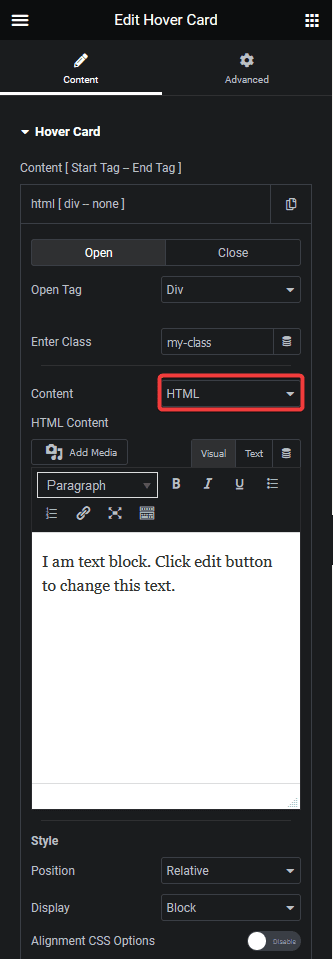
From the **Content** dropdown, select **HTML**, then, in the **HTML Content** field, you can add different types of content, such as text, image, link etc. together using the WYSIWYG editor.
Also, read [How to Use the Image Content With the Hover Card in Elementor](https://theplusaddons.com/docs//use-image-content-with-hover-card-in-elementor/).
## Frequently Asked Questions
**Q: What should I do if the HTML content isn't displaying in the Hover Card?**
A: If the HTML content isn't showing up, check the Open Tag setting. If it's set to 'None', the content may not render correctly. Ensure you've selected an appropriate tag in the Open tab. The Plus Addons for Elementor allows customization through the WYSIWYG editor, so double-check your HTML content for any errors that could prevent it from displaying.
**Q: What is the best practice for setting the Open Tag in the Hover Card?**
A: For optimal results, choose an appropriate Open Tag that suits your layout needs. If you want to keep your content clean without additional wrapping, setting the Open Tag to 'None' is a good option. This decision can impact how your content is structured and displayed, so consider your design goals carefully.
**Q: Can I use the Hover Card widget with other page builders besides Elementor?**
A: No, the Hover Card widget is specifically designed to work with Elementor and is part of The Plus Addons for Elementor. It does not support other page builders like Gutenberg, Beaver Builder, or Divi. Ensure you are using Elementor to take advantage of this widget's features.