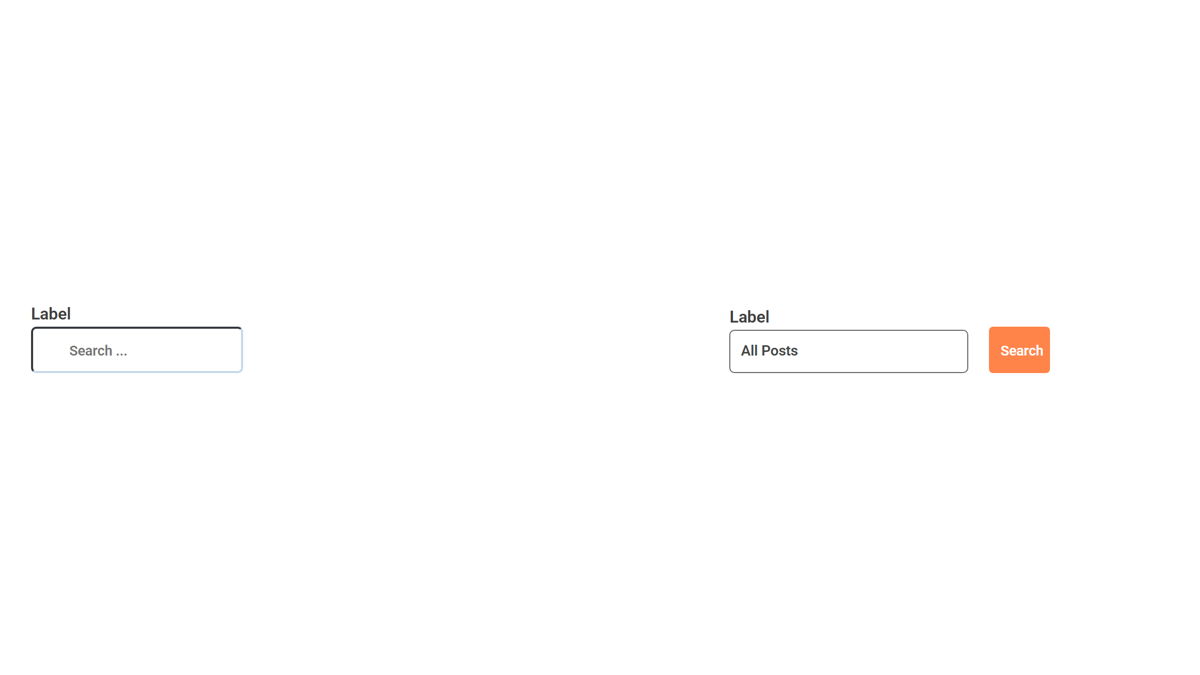
How to Only Search WooCommerce Products in Elementor?

Key Takeaways

  • The Plus Addons for Elementor Search Bar widget limits search results to WooCommerce products only.
  • Users can enable AJAX Search by default in the Search Bar widget settings.
  • The dropdown beside the search bar allows users to see the number of products available.
Table Of Content

Do you want to add a search feature specifically for your WooCommerce products? Having a search feature on your WooCommerce store can improve the user experience by allowing users to search products easily. 

However the default search from WordPress or Elementor searches everything but with the Search Bar widget from The Plus Addons for Elementor, you can easily limit the search to WooCommerce products only. 

To check the complete feature overview documentation of The Plus Addons for Elementor Search Bar widget, click here.

Requirement  – This widget is a part of The Plus Addons for Elementor, make sure its installed & activated to enjoy all its powers.

To do this, make sure you’ve added some products to your WooCommerce store.

Then, add the Search Bar widget on the page or template and follow the steps –

1. Open the item under Search Bar and select Post from the Source dropdown.

2. From the Select Type dropdown, select Products.

Note: Make sure to remove Posts, it will be selected by default.

Search bar product

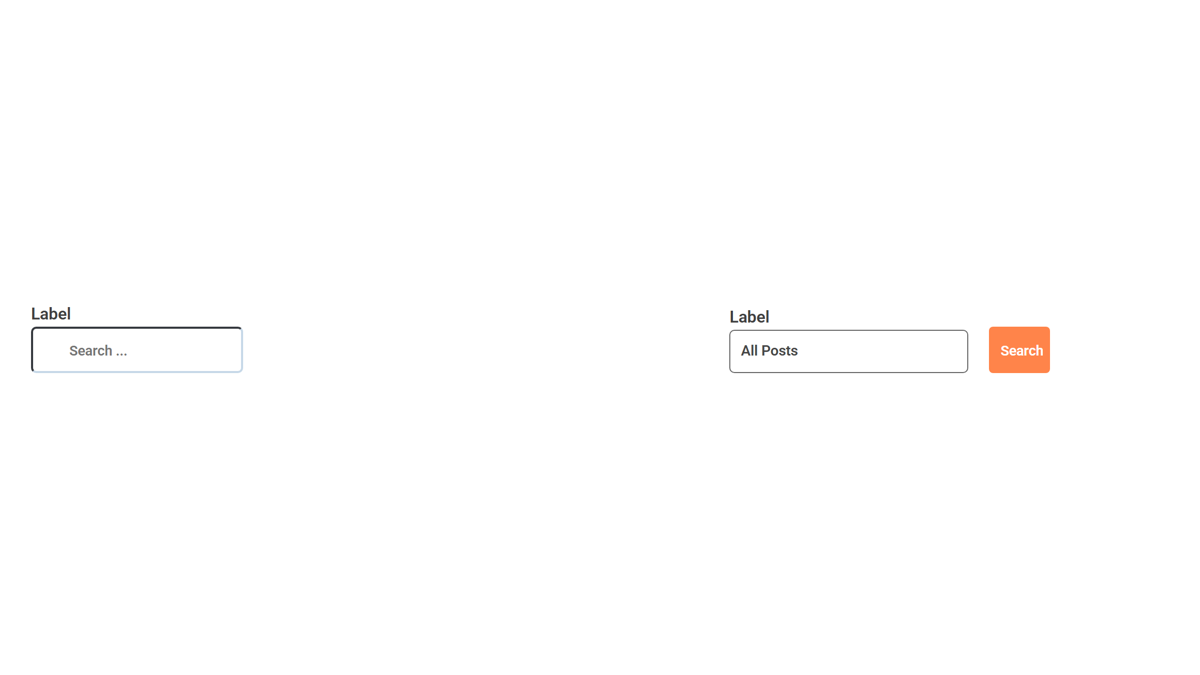
Now, you should be able to see a dropdown beside the search bar.

In the Label field, you can add a label name for the select dropdown.

In the Placeholder field, you can add a placeholder text for the select dropdown. 

From the Show Index toggle, you can show the number of products the item has in numbers.

3. Now go to Extra Option tab and make sure the AJAX Search is enabled.

Search bar ajax search

Note: The AJAX Search will be enabled by default.

Now you can select product from the dropdown to show all the products in the search result or you can directly search for products as well.

Search bar product demo

Also, read How to Search WooCommerce Products by Category in Elementor.

About the Author

Photo of Aditya Sharma CMO of The Plus Addons for Elementor
CMO · The Plus Addons for Elementor · 10 years experience

He has spent years in the WordPress ecosystem building, breaking, and optimizing sites until they actually perform. He works at the intersection of speed, growth, and usability, helping creators ship websites that load fast and convert. An active WordPress community contributor sharing through tools, tutorials, and direct collaboration. Tested practice, not theory.

WordPressElementorn8nAIClaudeAutomationServer
Get Instant Answers to all your questions about The Plus Addons for Elementor, trained on 1000+ Docs and Videos

Related Frequently Asked Questions

What should I do if the Search Bar widget isn't filtering WooCommerce products?

If the Search Bar widget is not filtering WooCommerce products, ensure that you've selected 'Products' from the 'Select Type' dropdown in the widget settings. By default, 'Posts' may be selected, which would prevent the widget from functioning as intended. Removing 'Posts' and enabling AJAX Search can also help improve the search experience.

What is the best practice for setting up the Search Bar widget for WooCommerce products?

A best practice when setting up the Search Bar widget is to ensure that AJAX Search is enabled, which is typically the default setting. This allows for real-time search results as users type, improving the overall user experience. Additionally, consider adding a clear label and placeholder text to guide users on what they can search for.

Does the Search Bar widget support searching for variable products in WooCommerce?

The page does not specify whether the Search Bar widget supports searching for variable products in WooCommerce. However, since it is designed to filter products, it is likely that it can handle variable products as long as they are added to your WooCommerce store.

Last reviewed: April 11, 2026