






Want one word of a heading outlined, another in brand color, and a third with its own effect?
Multiple mode of the Advanced Typography widget from The Plus Addons for Elementor splits the text into items. Each item has its own text, link, effects and style.
To check the complete feature overview documentation of The Plus Addons for Elementor Advanced Typography widget, click here.
Requirement – This widget is a part of The Plus Addons for Elementor, make sure it’s installed & activated to enjoy all its powers.
Before You Start
- Edition: Pro — The Advanced Typography widget needs The Plus Addons for Elementor Pro. In the free plugin it shows in the Elementor panel with a lock icon.
- Widget to enable: Advanced Typography, switched on under The Plus Addons > Widgets.
Steps
- Add the Advanced Typography widget and set Select Option to Multiple.
- In Text Listing you get two items. Type the first part of your text in the first item and the next part in the second. Use + Add Item for more parts. Add a space at the end of an item if the next word should not stick to it.
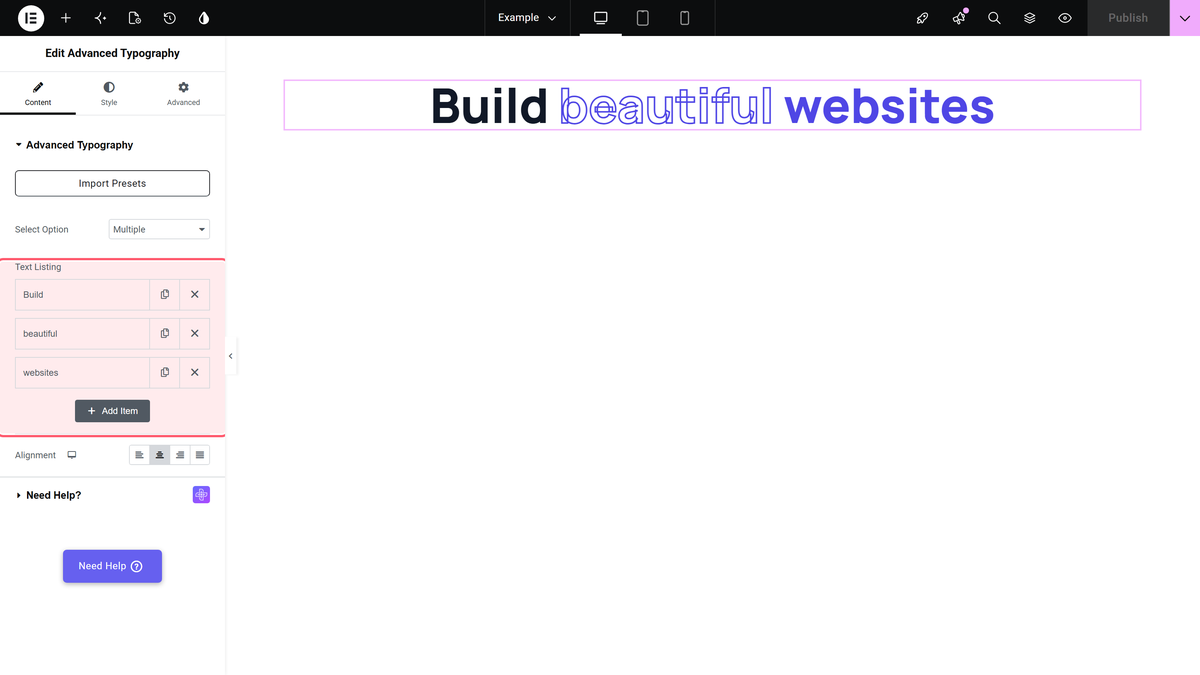
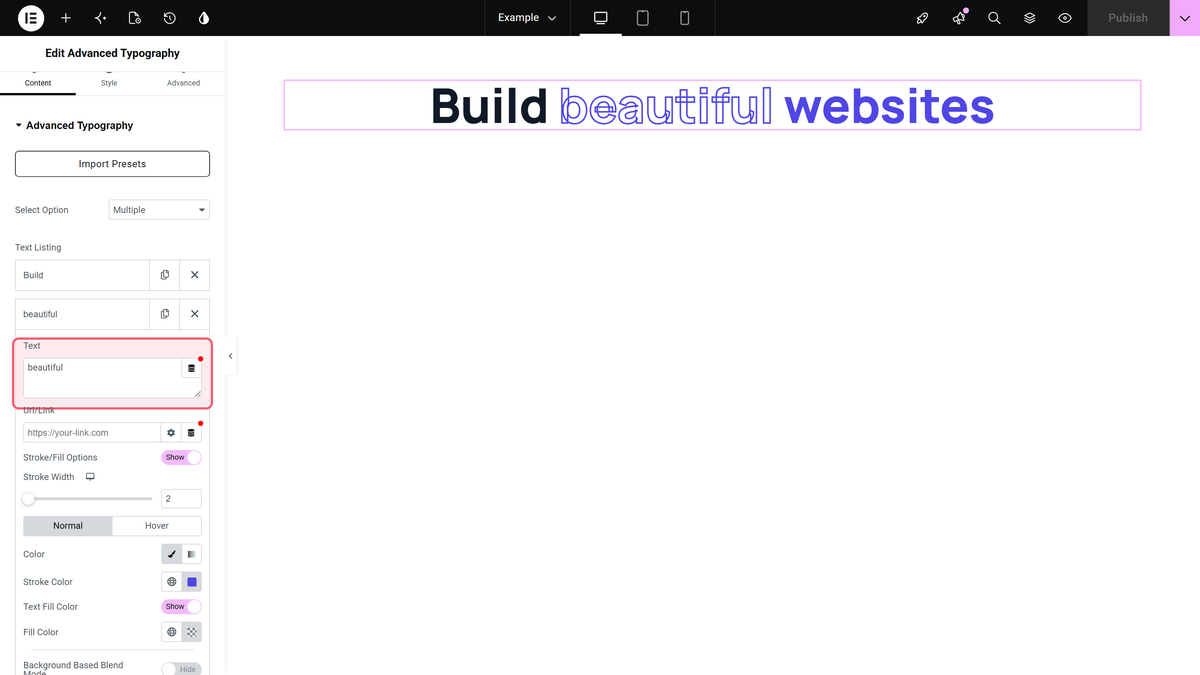
- Open an item. Set its Text and, if needed, a Url/Link.
- Turn on any effect for this item, such as Stroke/Fill Options.
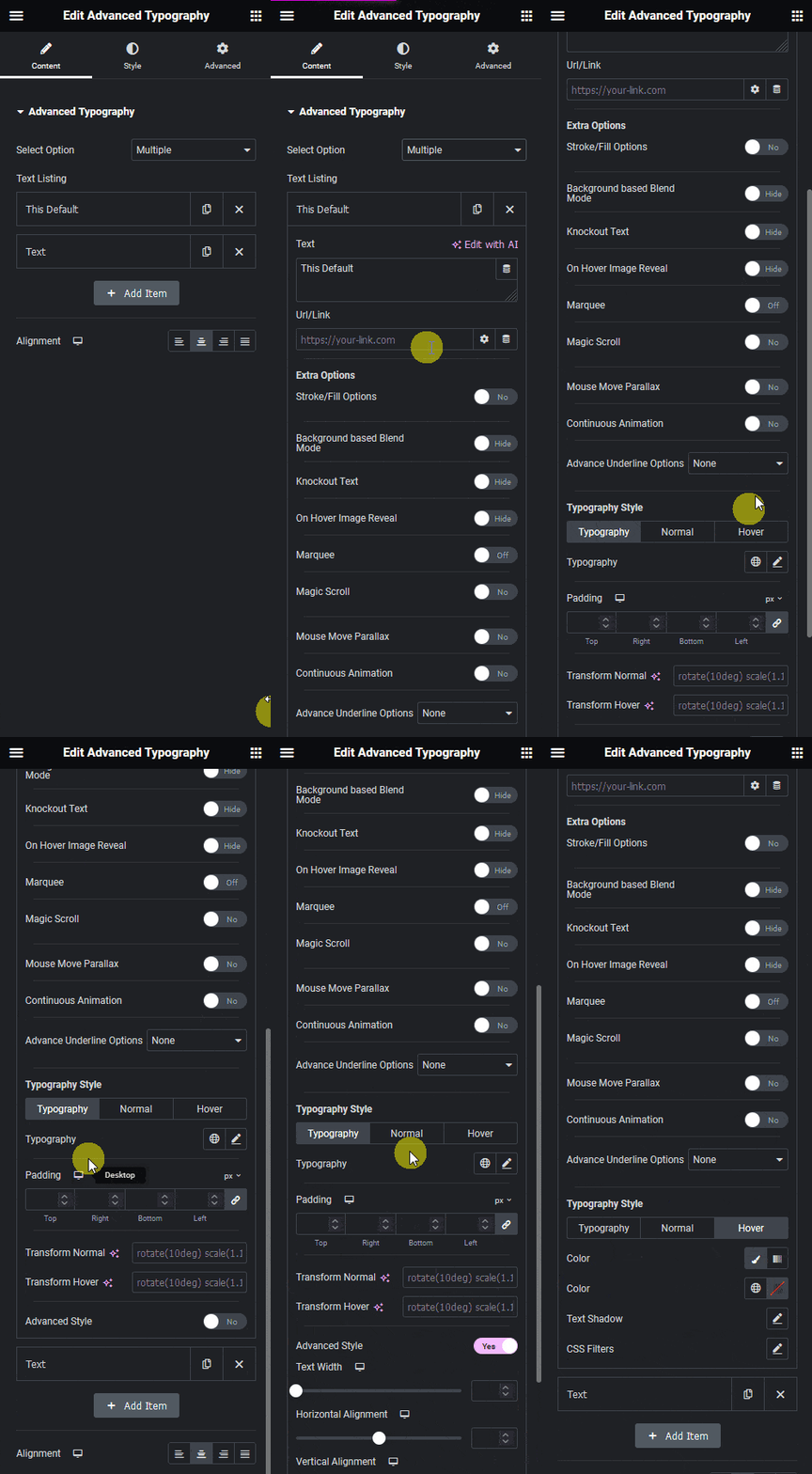
- Style the item on its Typography, Normal and Hover tabs.
- Repeat for the other items, then set the Alignment.
Item Settings
| Setting | What it does |
|---|---|
| Text, Url/Link | The item’s text and an optional link |
| Stroke/Fill Options | Outlined text with Stroke Width and Normal/Hover colors. Text stroke |
| Background Based Blend Mode | Blends the item with the background. Blend mode |
| Knockout Text | Fills the letters with a color or image. Text mask |
| On Hover Image Reveal | Shows an image on hover. Image reveal |
| Marquee | Scrolling text. Marquee |
| Magic Scroll | Moves the item as the page scrolls (Multiple only). Magic Scroll |
| Mouse Move Parallax | Moves the item with the mouse (Multiple only). Parallax |
| Continuous Animation | Pulse, Floating or Tossing, optionally only on hover |
| Advance Underline Options | Classic or Overlay underline. Underline overlay |
| Typography tab | Typography, Padding, Transform Normal, Transform Hover, and Advanced Style (Text Width, Horizontal Alignment, Vertical Alignment) |
| Normal / Hover tabs | Color (Classic or Gradient), Text Shadow, CSS Filters |
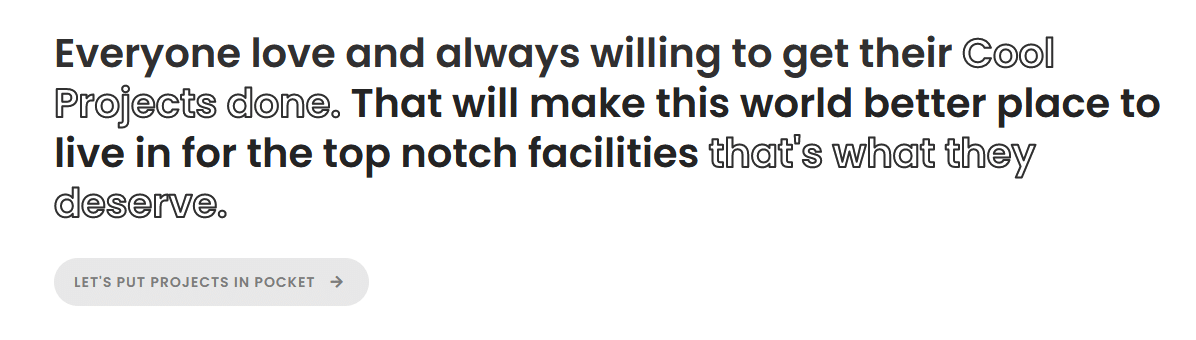
This is how the three items look on the page:

How It Behaves
- The items show in order, one after the other, in the same text.
- Style > Advanced Typography still applies to every item; an item’s own tabs are for that item only.
- Magic Scroll and Mouse Move Parallax are only available in Multiple mode.
Limitations
- Multiple mode has no Tag setting, so the text can’t be made an H1 or H2.
- Text Direction, Circular Text and the Rotating animation are only available in Normal mode.
