---
title: "How to Add Custom CSS Preloader Animations in Elementor?"
url: https://theplusaddons.com/docs/custom-css-preloader-animations-in-elementor/
date: 2023-04-07
modified: 2026-04-11
author: "Aditya Sharma"
description: "Do you want to add Custom CSS Preloader Animation in your Elementor website? With the Preloader widget from The Plus Addons for Elementor you get several preloader animation options, but..."
image: https://theplusaddons.com/wp-content/uploads/2023/04/How-to-Add-Custom-CSS-Preloader-Animations-in-Elementor_-1024x536.jpg
word_count: 297
---
# How to Add Custom CSS Preloader Animations in Elementor?
## Key Takeaways
- The Plus Addons for Elementor offers a Preloader widget that allows users to create custom CSS preloader animations.
- Users can select Custom Code from the Preloader widget's dropdown to add their own CSS preloader code.
- Custom CSS loading animations can be sourced from websites like CSSloaders and Loading.io.
Do you want to add Custom CSS Preloader Animation in your Elementor website? With the Preloader widget from The Plus Addons for Elementor you get several preloader animation options, but you may want to create a custom CSS preloader animation that aligns with your website's theme and branding.
You can easily use custom coded CSS preloader with the Preloader widget from The Plus Addons for Elementor.
*To check the complete feature overview documentation of The Plus Addons for Elementor Preloader widget, [click here](/docs/preloader-elementor-widget-settings-overview/).*
***Requirement - This widget is a part of The Plus Addons for Elementor, make sure it's installed & activated to enjoy all its powers.***
[LIVE WIDGET LINK](https://theplusaddons.com/elementor-widget/preloader-and-page-transition/?utm_source=tpae&utm_medium=docs&utm_campaign=text)
Add the Preloader widget on the page or template, in the **Content** tab, you’ll find an item under **Preloader**.
Open the item and select **Custom Code **from the **Select** dropdown.
In the **Code** field, add your CSS Preloader code.
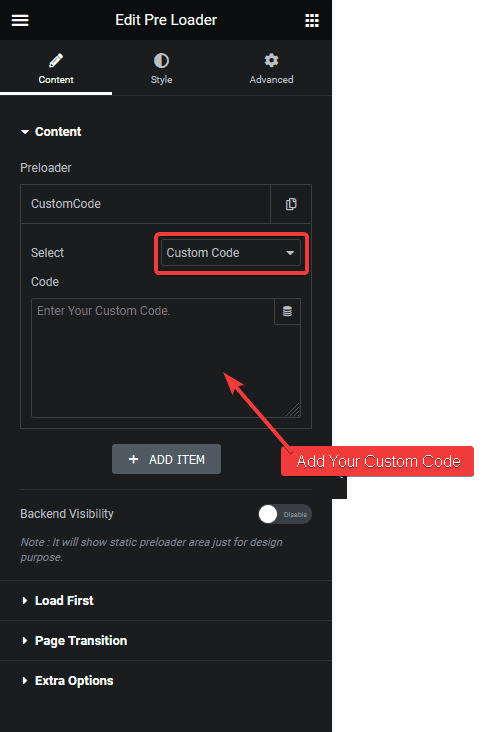
If you know HTML and CSS, you can create your own CSS loading animation, but if you don’t, then you can find many custom CSS loading animations on different websites like [CSSloaders](https://cssloaders.github.io/), [Loading.io](https://loading.io/css/) etc.
For example, we’ll use a CSS loading animation from the [CSSloaders](https://cssloaders.github.io/).
Click on the animation you like and it will show the HTML and CSS code in a popup. Copy the CSS first then in the Preloader widget add tag and paste the CSS in between the tag.
Like this -
``
Then go back to the CSSloders site and copy the HTML and paste it in the Preloader widget.
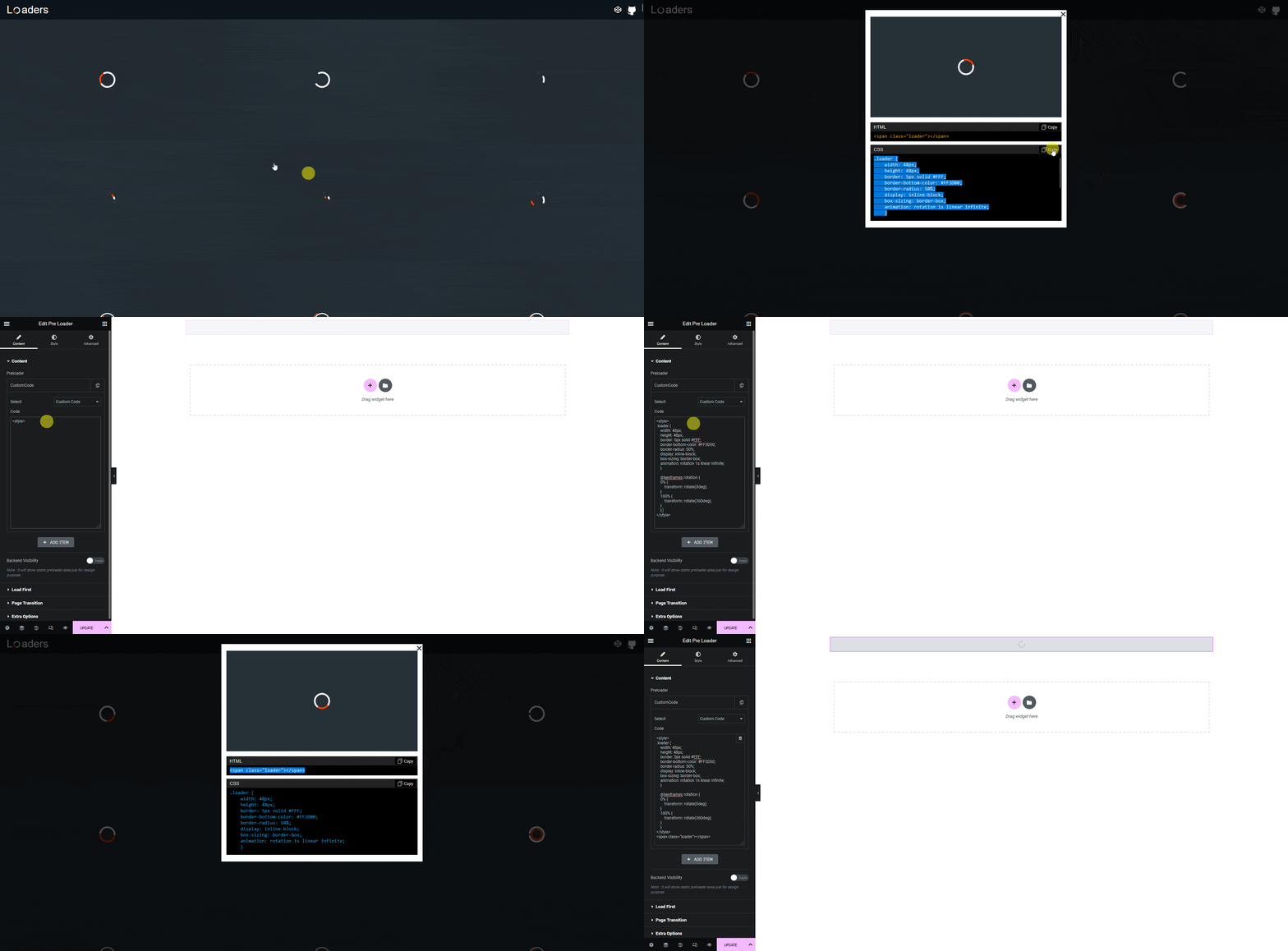
> *Note: You have to change the CSS to adjust the style of the loader.*

That’s it. Now your custom CSS loading animation will show as the preloader.
Also, check [How to Add Shortcode Based Preloader Animation in Elementor](https://theplusaddons.com/docs//shortcode-based-preloader-animation-in-elementor/).
## Frequently Asked Questions
**Q: What should I do if my custom CSS preloader animation isn't displaying?**
A: If your custom CSS preloader animation isn't showing, double-check that you've correctly added the CSS code within the tags in the Preloader widget. Ensure there are no syntax errors in your CSS. Also, verify that the Preloader widget from The Plus Addons for Elementor is installed and activated, as this widget is essential for using custom animations.
**Q: What are the best practices for creating custom CSS preloader animations?**
A: When creating custom CSS preloader animations, aim for simplicity and clarity. Avoid overly complex animations that may confuse users. Use resources like CSSloaders to find inspiration and ensure your animation aligns with your website's branding. Remember to test the animation on different devices to ensure it performs well across platforms.
**Q: Does The Plus Addons for Elementor support third-party CSS animations?**
A: The Plus Addons for Elementor allows you to incorporate third-party CSS animations as long as you can access the CSS code. You can copy animations from sites like CSSloaders and integrate them into the Preloader widget, provided you format the code correctly with tags.
**Q: What happens if I forget to include the tags in my CSS?**
A: If you forget to include the tags in your CSS for the preloader animation, the code won't be recognized as valid CSS, and your animation will not display. Always ensure that your CSS is wrapped in tags when adding it to the Preloader widget to avoid this issue.