How to Create Text Stroke Outline in Elementor?

Key Takeaways

  • Advanced Typography widget from The Plus Addons for Elementor allows users to create stroke outline text.
  • Users can control the text stroke width in the Stroke Width section of the Advanced Typography widget.
  • The widget enables adding a stroke color and fill color for normal and hover states.
Table Of Content

Do you want to create a text stroke outline in Elementor? This simple yet effective design element can make your text stand out, catch the viewer’s attention, and give a professional touch to your website.

With the Advanced Typography widget from The Plus Addons for Elementor, you can easily create a stroke outline text in Elementor.

To check the complete feature overview documentation of The Plus Addons for Elementor Advanced Typography widget, click here.

Requirement  – This widget is a part of The Plus Addons for Elementor, make sure its installed & activated to enjoy all its powers.

To do this, add the Advanced Typography widget to the page and follow the steps –

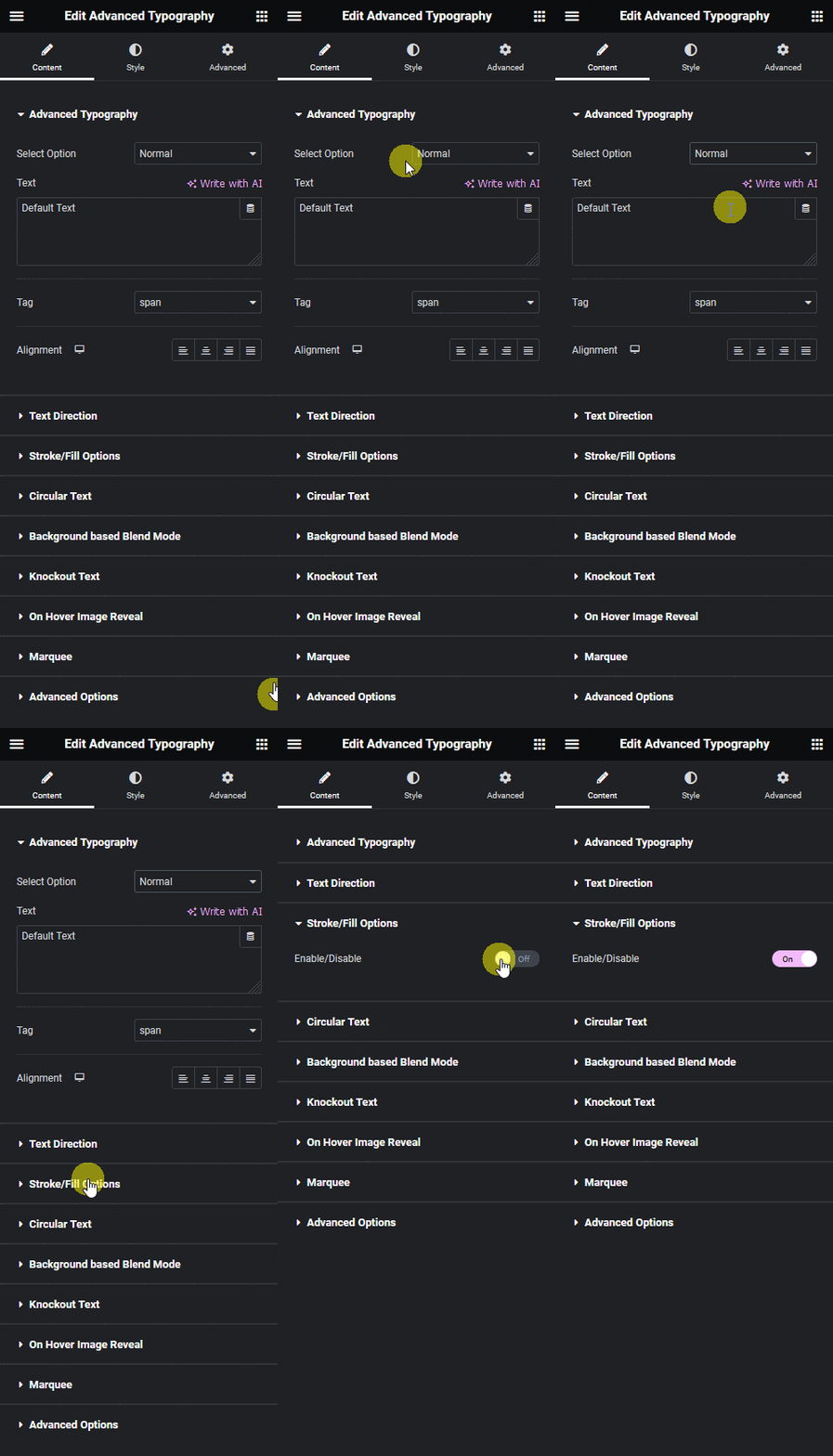
1. In the Advanced Typography tab, select Normal or Multiple from the Select Option dropdown.

Let’s select Normal.

2. Then add the text in the Text field.

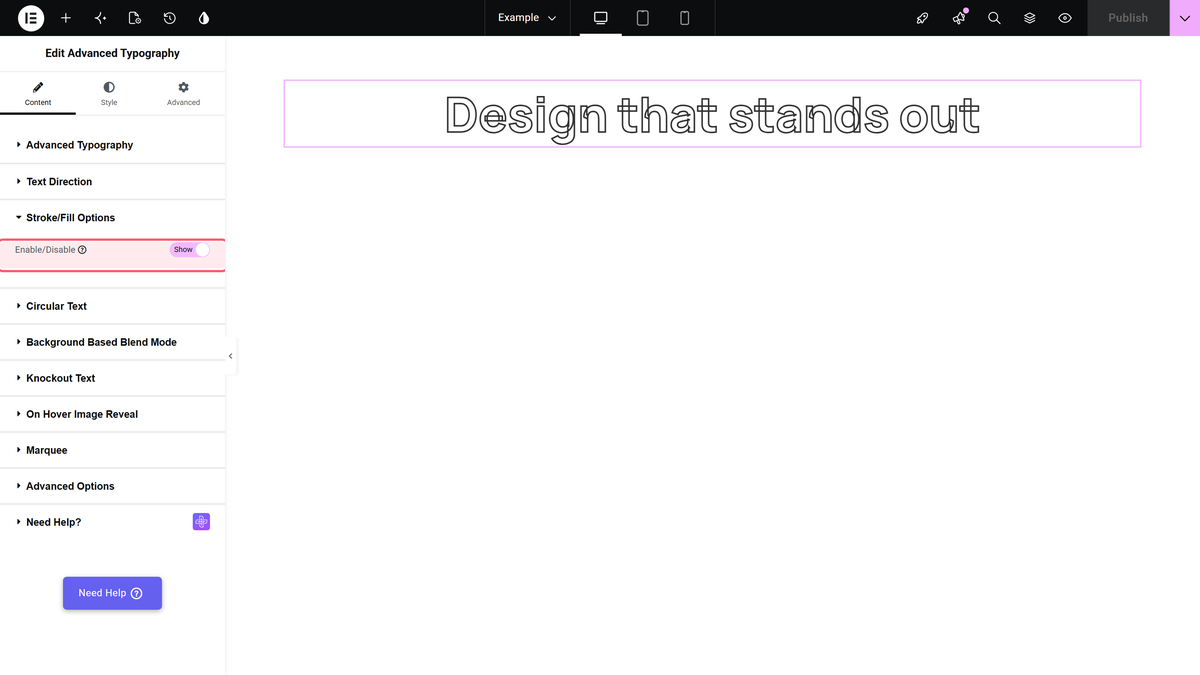
3. After that enable the Enable/Disable toggle from the Stroke/Fill Options tab.

Advanced typography stroke fill option enable how to create text stroke outline in elementor? From the plus addons for elementor

Note: In the Multiple option you’ll find the Stroke/Fill Options in each text repeater item.

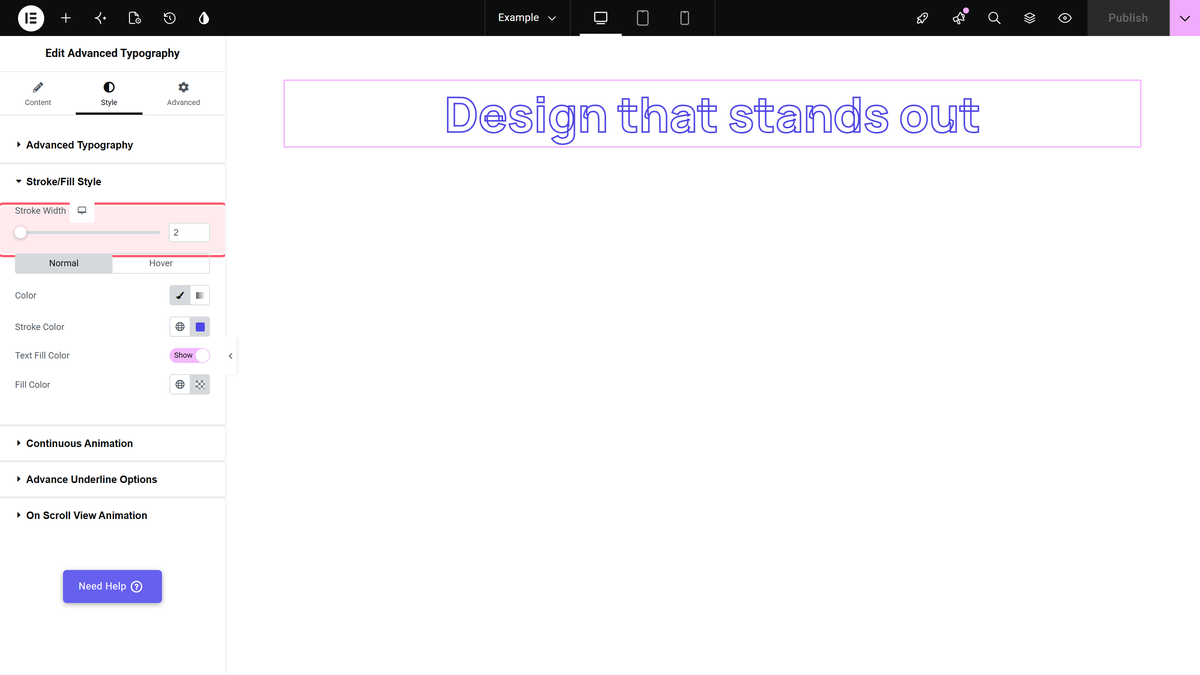
You’ll find more options in the Stroke/Fill style tab, under Style.

Advanced typography stroke fill style how to create text stroke outline in elementor? From the plus addons for elementor

From the Stroke Width section, you can control the text stroke width.

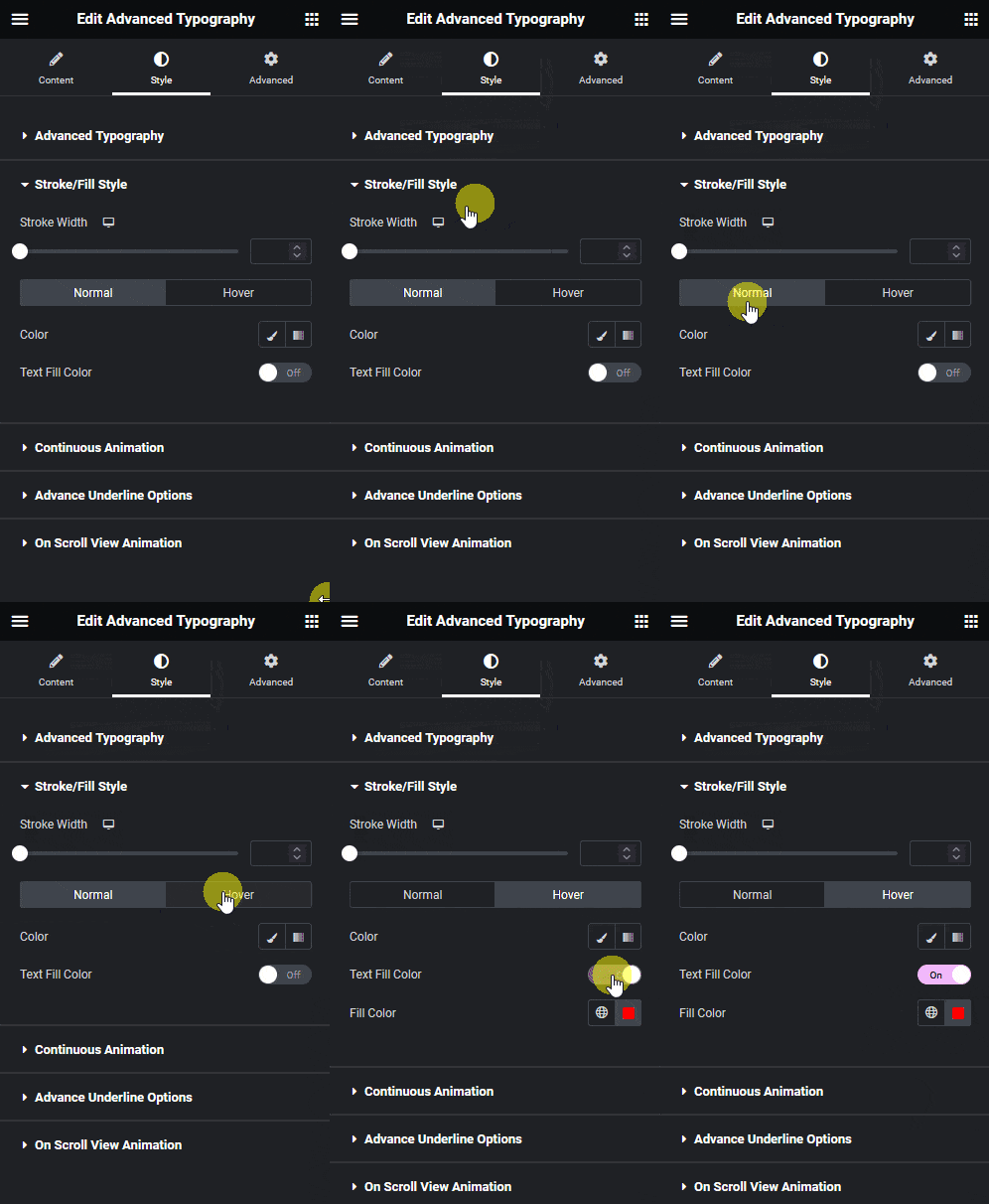
You can add a stroke color and fill color for normal and hover states.

By adding fill color on hover you can create a text outline to fill animation.

This is how easily you can create a stroke outline text in Elementor.

Advanced typography stroke fill option demo how to create text stroke outline in elementor? From the plus addons for elementor

About the Author

Photo of Aditya Sharma CMO of The Plus Addons for Elementor
CMO · The Plus Addons for Elementor · 10 years experience

He has spent years in the WordPress ecosystem building, breaking, and optimizing sites until they actually perform. He works at the intersection of speed, growth, and usability, helping creators ship websites that load fast and convert. An active WordPress community contributor sharing through tools, tutorials, and direct collaboration. Tested practice, not theory.

WordPressElementorn8nAIClaudeAutomationServer
Get Instant Answers to all your questions about The Plus Addons for Elementor, trained on 1000+ Docs and Videos

Related Frequently Asked Questions

What should I do if the text stroke outline isn't appearing?

If the text stroke outline isn't showing, ensure the Advanced Typography widget from The Plus Addons for Elementor is properly installed and activated. After adding the widget, check that you've enabled the stroke option in the Stroke/Fill Options tab. If the toggle is off, the stroke won't display. Additionally, verify that you've set a stroke width and color; without these, the stroke effect won't be visible.

Can I use the Advanced Typography widget for animations?

Yes, the Advanced Typography widget allows you to create text outline animations by adding a fill color on hover. This feature can enhance user engagement by providing a visual cue when users interact with the text. You simply set the hover fill color in the Stroke/Fill style tab to achieve this effect.

What is the best practice for setting stroke width in text?

Setting the stroke width is crucial for achieving the desired visual impact. A wider stroke can make text stand out more, while a narrower stroke might appear more subtle. Experiment with different stroke widths in the Stroke Width section to find the right balance for your design. Remember, too thick of a stroke can make text harder to read, so adjust carefully.

Does the Advanced Typography widget support multiple text elements?

Yes, when using the Multiple option in the Advanced Typography widget, each text repeater item includes its own Stroke/Fill Options. This allows for greater customization across different text elements within the same widget, enabling unique styles for each piece of text.

What happens if I select 'Normal' instead of 'Multiple' for text options?

Selecting 'Normal' means that all text will share the same Stroke/Fill Options, simplifying the setup if you want a uniform appearance. This is ideal for headings or single text elements where consistent styling is desired. In contrast, 'Multiple' allows for individualized styling across different text segments.

Can I create vertical text using the Advanced Typography widget?

Yes, you can create vertical text in Elementor using the Advanced Typography widget. For detailed steps on how to achieve this, refer to the tutorial on How to Add Vertical Text in Elementor?. Vertical text can add a unique touch to your design, especially for sidebars or banners.

Last reviewed: April 9, 2026