How to Create Elementor Custom Loop Carousel Slider?

Key Takeaways

  • Dynamic Listing widget from The Plus Addons for Elementor allows users to display blog posts in a carousel using custom loop skin.
  • Users can combine up to 5 templates together by turning on the Multiple Loops toggle in the Dynamic Listing widget.
  • Carousel layout can be selected from the Layout dropdown in the Dynamic Listing widget settings.
Table Of Content

Do you want to show your post in a carousel using a custom loop skin in Elementor? Carousel sliders are a great way to showcase multiple pieces of content in an interactive and engaging manner.

With the Dynamic Listing widget from The Plus Addons for Elementor, you can easily show your blog posts or custom post types in a carousel using custom loop skin.

To check the complete feature overview documentation of The Plus Addons for Elementor Dynamic Listing widget, click here.

Requirement  – This widget is a part of The Plus Addons for Elementor, make sure its installed & activated to enjoy all its powers.

YouTube video

To do this, follow the steps –

1. First, you have to create a custom loop skin for your blog post.

2. Once done, add the Dynamic Listing widget to the page. 

3. Select the appropriate listing type from the Post Listing Types dropdown (except ACF Repeater) and select Post from the Post Type dropdown. 

4. Then select Custom Skin from the Style dropdown and select your template from the Select a template dropdown.

You can turn on the Multiple Loops toggle to use multiple layout designs together for your listing. You can use up to 5 templates together.

Note: In order to use Multiple Loops, you have to create separate custom templates for each loop template.

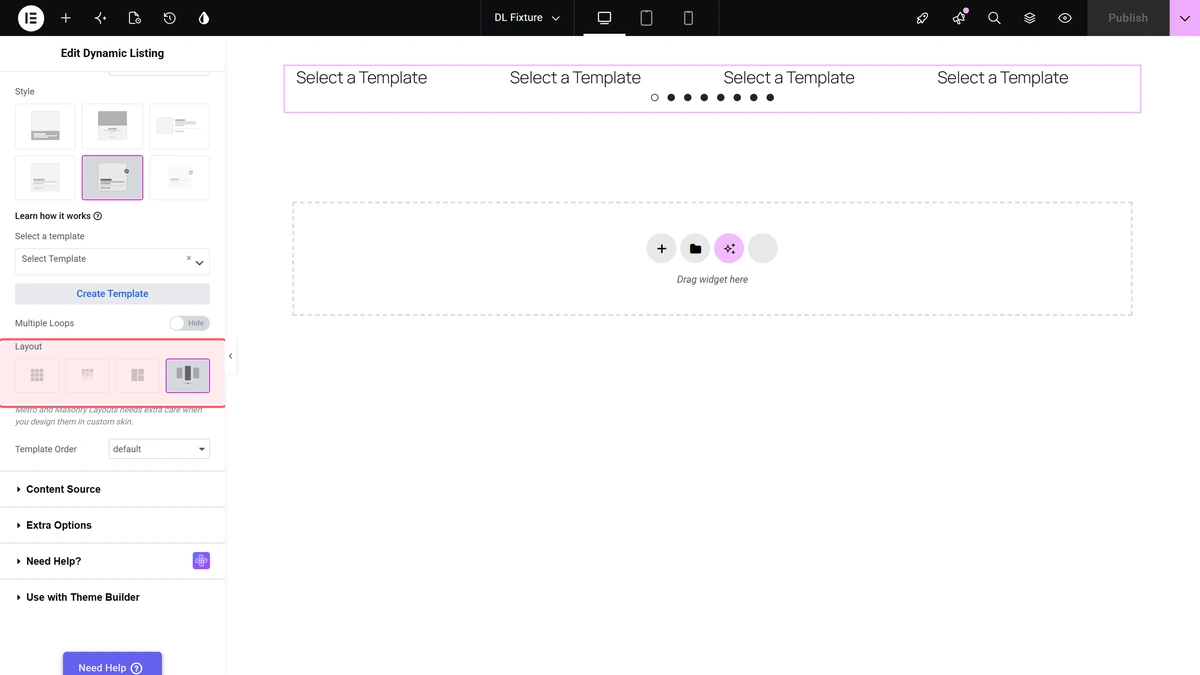
5. Then, you have to select Carousel from the Layout dropdown.

6. If you are using multiple loops, you can arrange the templates in reverse or random order from the Template Order dropdown.

Now your post with custom loop skin will show in a carousel slider. You can manage the carousel from the Style > Carousel Options tab.

Also, read How to Create Elementor Loop with Custom Post Query.

About the Author

Photo of Aditya Sharma CMO of The Plus Addons for Elementor
CMO · The Plus Addons for Elementor · 10 years experience

He has spent years in the WordPress ecosystem building, breaking, and optimizing sites until they actually perform. He works at the intersection of speed, growth, and usability, helping creators ship websites that load fast and convert. An active WordPress community contributor sharing through tools, tutorials, and direct collaboration. Tested practice, not theory.

WordPressElementorn8nAIClaudeAutomationServer
Get Instant Answers to all your questions about The Plus Addons for Elementor, trained on 1000+ Docs and Videos

Related Frequently Asked Questions

What should I do if my custom loop skin isn't displaying in the carousel?

If your custom loop skin isn't showing up, first ensure that you've created the custom loop skin correctly. Check that you've selected the right listing type from the Post Listing Types dropdown and that your custom skin is chosen in the Select a template dropdown. If everything looks correct, verify that the Dynamic Listing widget is installed and activated, as it's required for this feature.

What are the best practices for arranging templates in the carousel?

When using multiple loops in your carousel, it's best to create separate custom templates for each loop template. This allows for greater flexibility in design. You can also arrange the templates in reverse or random order using the Template Order dropdown, which can enhance user engagement by varying the display of content.

Does using multiple loops in the carousel affect performance?

Using multiple loops can impact performance, especially if you are combining several templates. Each additional template increases the load on your page. It's advisable to limit the number of templates to five, as recommended, to maintain a balance between design complexity and performance.

What happens if I forget to turn on the Multiple Loops toggle?

If you forget to enable the Multiple Loops toggle, only the first template you created will be displayed in the carousel. This means you won't be able to showcase different layouts together, limiting the visual variety of your content. Always check this setting if you want to use multiple designs.

Last reviewed: April 11, 2026