






Changing the background as visitors scroll gives each part of a long page its own mood.
The Row Background widget from The Plus Addons for Elementor places a background behind the whole page and switches it to the next colour or image when the next section reaches the screen.
To check the complete feature overview documentation of The Plus Addons for Elementor Row Background widget, click here.
Requirement – This widget is a part of The Plus Addons for Elementor Pro, make sure it’s installed & activated to enjoy all its powers.
Before You Start
- Edition: Pro — the Row Background widget is only available in The Plus Addons for Elementor Pro.
- Widget to enable: Row Background, switched on under The Plus Addons > Widgets.
- Where to put it: drop the widget inside the container (or classic section) that should get the background. It draws nothing of its own; the background fills that container.
- Page: several top-level containers, one for each background change.

Steps
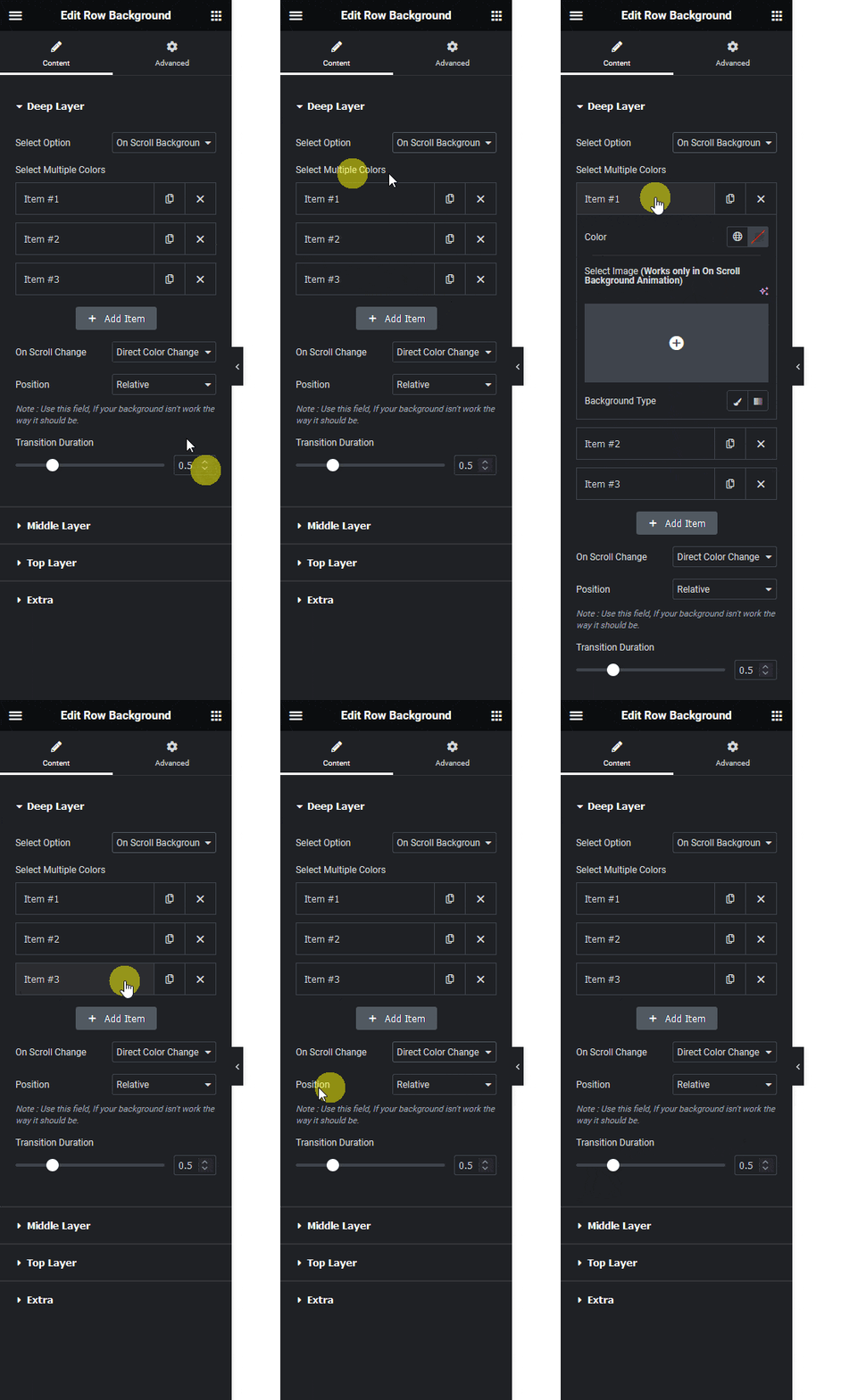
- Add the Row Background widget to the first container of the page and open Content > Deep Layer.
- Set Select Option to On Scroll Background Animation.
- In Select Multiple Colors, give each item a Color or a Select Image. Item 1 is for the first section, item 2 for the second, and so on.
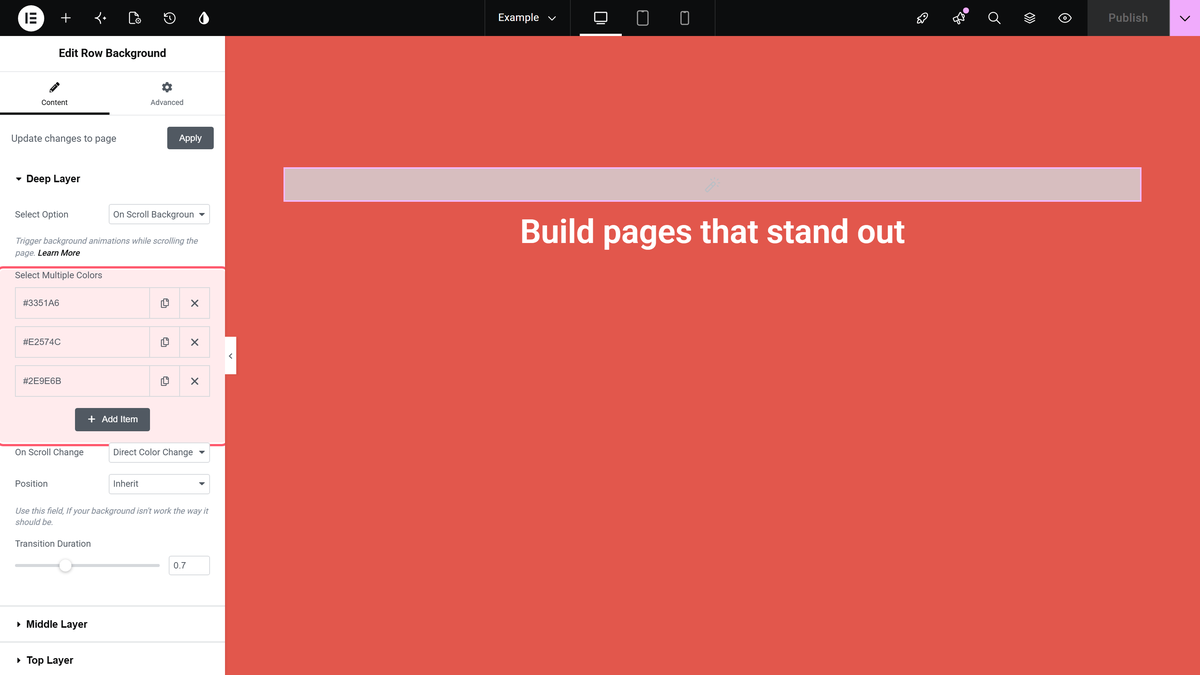
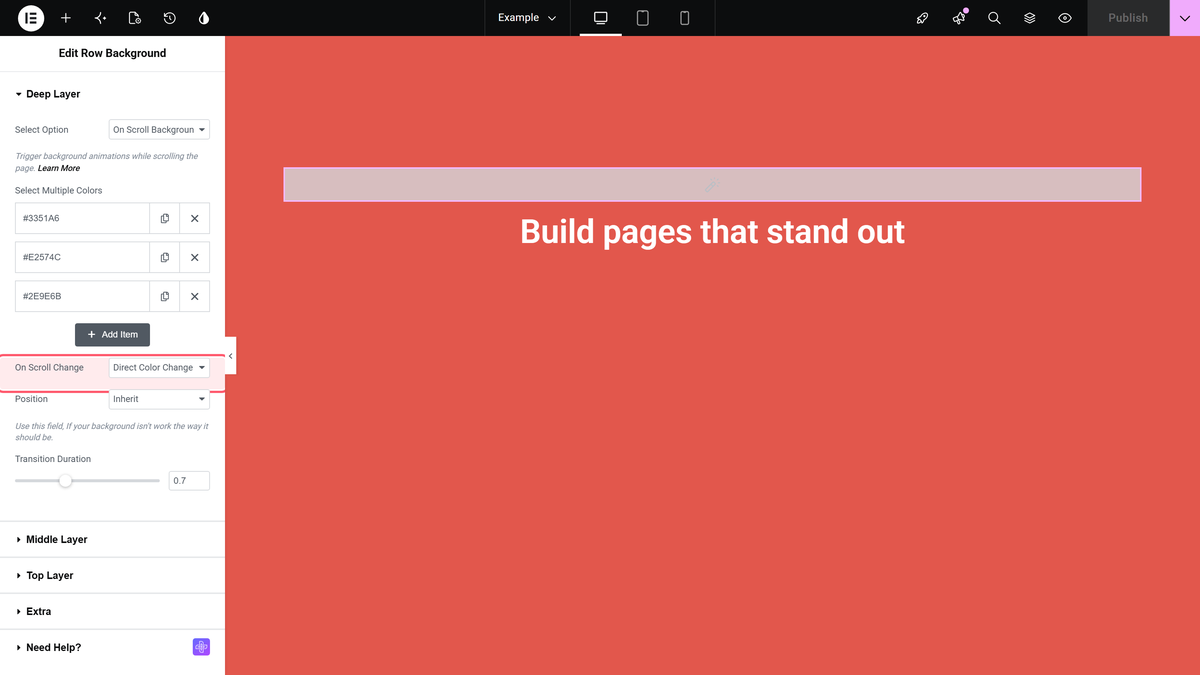
- Keep On Scroll Change on Direct Color Change Effect and set the Transition Duration (default 0.7 seconds).
The recording below shows these steps in the editor, followed by a short demo of the result.
How It Behaves
- The background is fixed behind the whole page, not only the container that holds the widget.
- In our test with three colours and three sections, the background showed colour 1 at the top, changed to colour 2 when the second section came into view and to colour 3 for the third section. Scrolling back up changed it back.
- Image items switch in the same way.
- If the page has more sections than items, the extra sections showed the first item again rather than continuing the list.

Limitations
- Gradient Like Effect did not blend smoothly in our test: the background started black at the top of the page and jumped between colours while scrolling. Use Direct Color Change Effect.
- Gradient Like Effect ignores image items; with only images the background stayed empty.
Troubleshooting
The background does not change
Check that the page has several top-level containers and that the widget uses On Scroll Background Animation with Direct Color Change Effect.
The last sections show the first colour
Add one item per section in Select Multiple Colors.
