To add tabs in Elementor, drag a Tabs widget onto the page, add one item per tab, and choose a horizontal or vertical layout. That takes about two minutes. The part worth reading before you start is which tab settings need a paid plan, because the free and Pro versions of the same widget behave very differently.
This guide uses the Tabs/Tours widget from The Plus Addons for Elementor, which is free and covers the common cases. It also marks every setting that needs The Plus Addons for Elementor Pro, and compares the result with Elementor’s own Tabs widget, so you can pick the right tool before you build.
Elementor’s Own Tabs Widget Vs The Plus Addons Tabs/Tours
Elementor’s Tabs widget documentation, which we checked on 21 October 2026, describes a widget that splits content into horizontal or vertical tabs. The content settings cover the tab items, the position (horizontal or vertical) and the alignment (Start, Center, End or Stretch). The style settings cover borders, background, title and content colours, and typography. The same page notes that a separate Tabs widget with nested elements is available to Pro users once the Nested Elements feature is switched on.
That is a solid base. What the documented settings do not include is autoplay, a link that opens a specific tab, or a connection to a carousel. Elementor ships changes to its widgets often (version 4.3.5 on 13 October 2026 fixed duplicate IDs in the Tabs element, for example), so check the current docs before you rule anything out.
The Tabs/Tours widget in The Plus Addons for Elementor sits on top of Elementor and adds layouts, hover and autoplay behaviour, anchor links, swipeable titles, columns and phone-friendly modes. Here is how the two compare:
| Feature | Elementor Tabs Widget | Tabs/Tours (Free) | Tabs/Tours (Pro) |
|---|---|---|---|
| Horizontal and vertical tabs | Yes | Yes | Yes |
| Elementor template inside a tab | Nested elements (Pro, experiment) | Yes | Yes |
| Accordion on phones | Not in the documented settings | Yes (Force Accordion) | Yes, plus Full Width and One By One |
| Autoplay with play and pause | Not in the documented settings | No | Yes |
| Anchor link to one tab | Not in the documented settings | No | Yes (Unique ID) |
| Open tabs on hover | Not in the documented settings | No | Yes |
| Carousel connection | Not in the documented settings | No | Yes |
How To Add A Tabs Widget In Elementor Step By Step
Before you start, make sure The Plus Addons for Elementor is installed and active, then go to The Plus Addons, then Widgets, search for Tabs/Tours and switch it on. The panel name is Tabs/Tours, not Advanced Tabs.
- Open the page in the Elementor editor and search for Tabs/Tours in the widget panel. Drag it onto the canvas.
- In Content, click Add Item for each tab. Give every item a title and its content.
- Open Layout and click the Horizontal picture (titles in a row) or the Vertical picture (titles in a column).
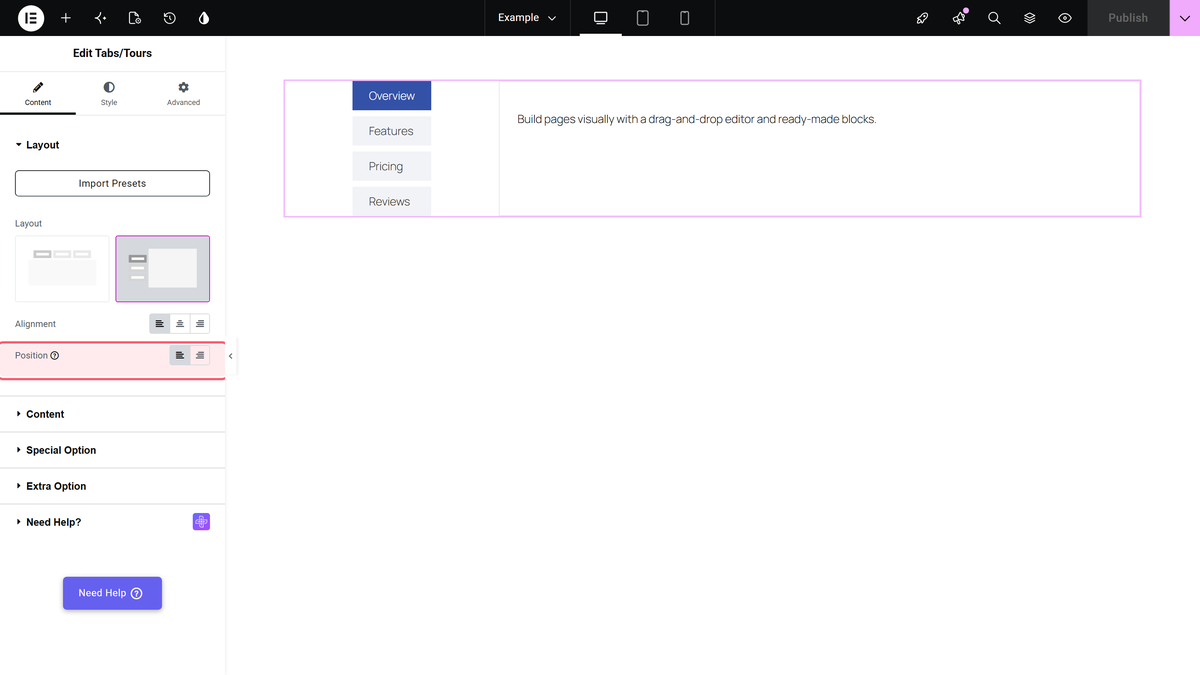
- Choose the Position. Horizontal tabs can sit at the Top or Bottom, vertical tabs on the Left or Right.
- Set the Alignment of the titles to Left, Center or Right.
- Open the Style tab to set the title bar, colours and typography, then publish and check the live page.
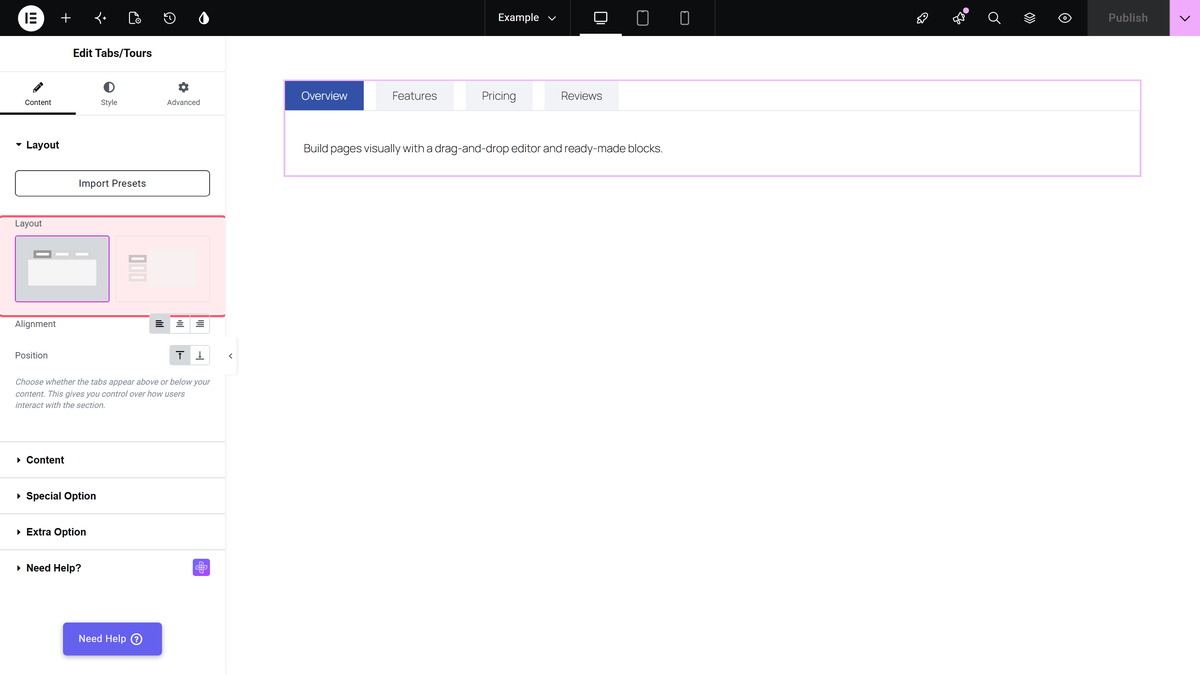
By default the first tab is open when the page loads, only one tab is open at a time, and clicking the open title keeps it open. Those defaults suit most pages, and the Pro settings below change them where you need to.
How To Create Vertical Tabs In Elementor
Vertical tabs put the titles in a column beside the content. They work well when the titles are long, or when the tabs list services, steps or categories that read like a menu. In the free plugin, pick the Vertical picture under Layout, then choose Left or Right under Position. No Pro setting is involved. The vertical tabs guide walks through the same steps with screenshots.
How To Put An Elementor Template Inside A Tab
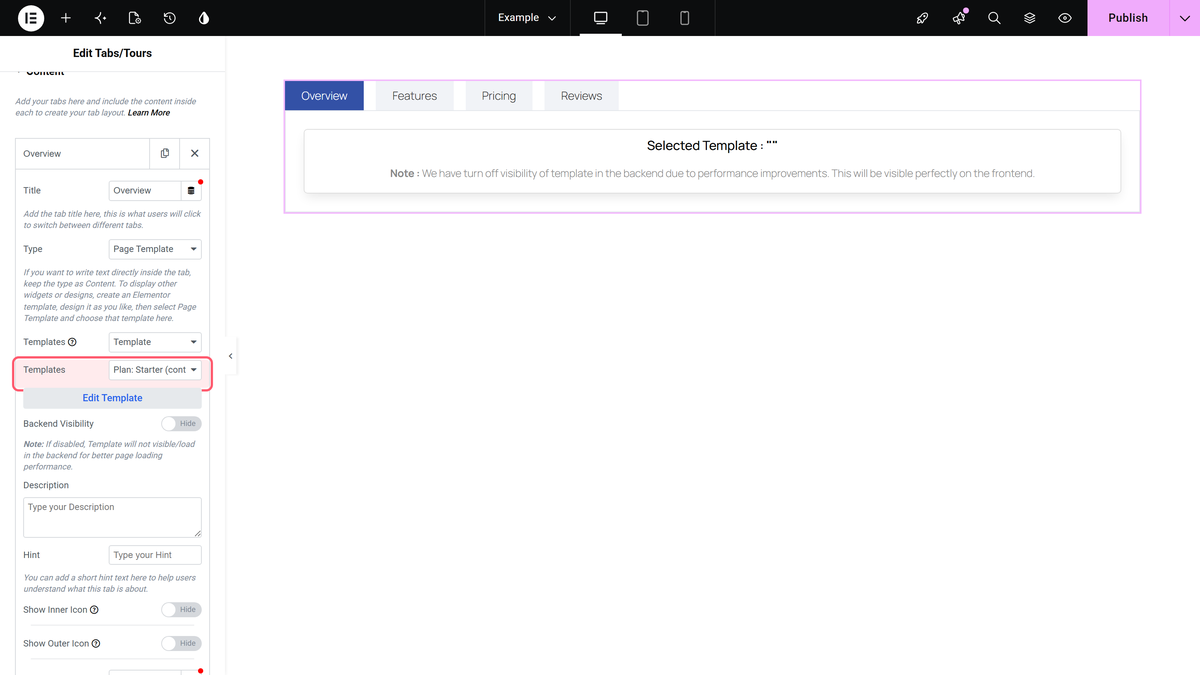
A text editor is enough for a short answer, but a pricing grid, a form or a gallery needs the full Elementor editor. The free widget handles this. Build and publish the content as a saved template under Templates, then open a tab, set Type to Page Template, and choose the template. The step-by-step version is in the template inside tabs guide.
This is the practical route to nested content. If you need a tab that holds a full layout, such as a product grid per category, build that layout once as a template and point the tab at it. It also keeps each tab easy to edit later, because you change one template instead of digging through a long widget panel.
Which Tab Settings Need Pro
The Tabs/Tours widget itself is free. The extra behaviour is in Pro. In the free plugin, some Pro options still appear with a PRO badge, but switching them on only shows an upgrade notice and the page ignores them. Use this table to avoid building a design around a setting you do not have.
| Setting | What It Does | Edition |
|---|---|---|
| Layout, Position, Alignment | Horizontal or vertical tabs, title position and alignment | Free |
| Page Template type | Shows a saved Elementor template in a tab | Free |
| Force Accordion | Turns tabs into an accordion on screens up to 600 px | Free |
| Description and Hint | A line of text under the title and a small label on it | Pro |
| Outer Icon and image icons | Icons before and after the title | Pro |
| Unique ID | Lets a link open a specific tab | Pro |
| On Hover Tab | Opens a tab when the mouse moves over its title | Pro |
| Second Click Closed | Clicking the open title closes it | Pro |
| Autoplay | Opens the next tab every few seconds | Pro |
| Active Tab | Chooses which tab is open on load, or keeps all closed | Pro |
| Swiper Effect | One row of titles that visitors drag or slide | Pro |
| Tab Columns | Titles in one to six equal columns | Pro |
| Carousel Connection ID | Links the tabs to a Carousel Anything widget | Pro |
The full list lives in the Tabs/Tours settings overview. If you are weighing whether the upgrade is worth it, the free vs Pro comparison shows what else comes with it.
How To Make Tabs Switch Automatically With Autoplay
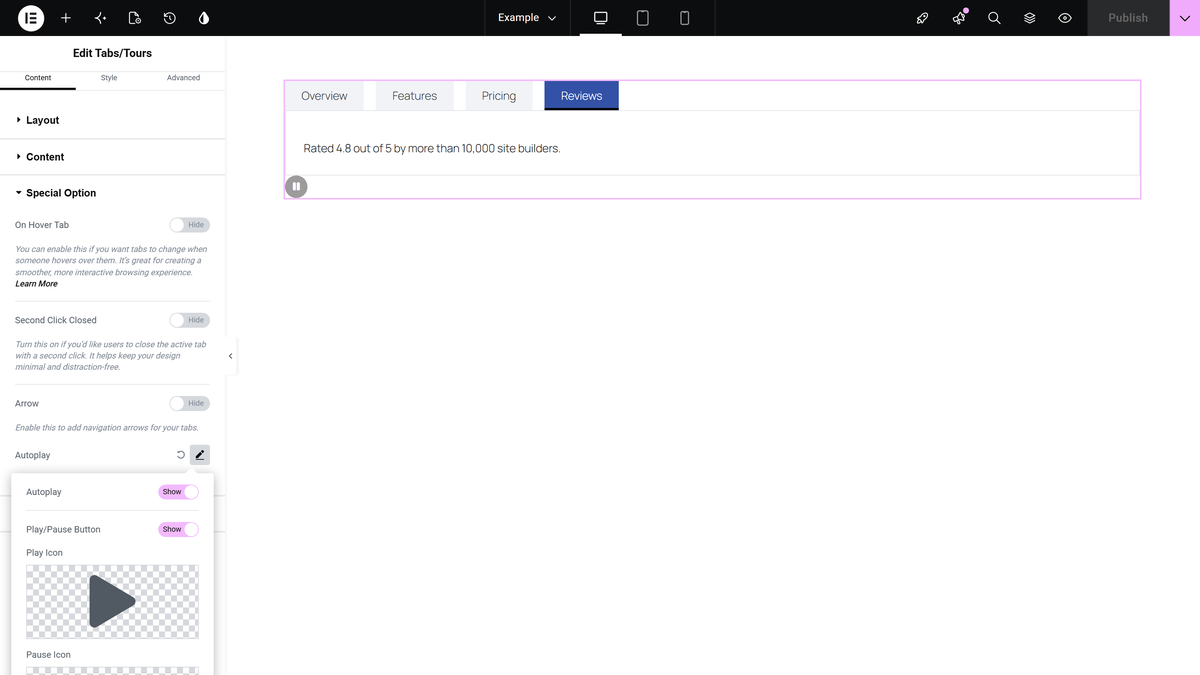
Autoplay suits a feature showcase that a visitor should not have to click through. Add the widget, open Special Option, click the pencil icon next to Autoplay and turn the switch on. Set Duration, which is the number of seconds each tab stays open (1 to 100, default 5). You can also turn on a Play/Pause Button so visitors can stop it. The autoplay guide has the full setting list.
Three behaviours are worth knowing before you publish. Autoplay starts when the tabs scroll into view, not when the page loads. It stops at the last tab and does not loop back to the first. And it does not respect the Active Tab setting: in our test with Active Tab set to 3, the first title stayed highlighted while the third tab’s content showed. Leave Active Tab at 1 when you use autoplay.
How To Link Straight To One Tab With An Anchor
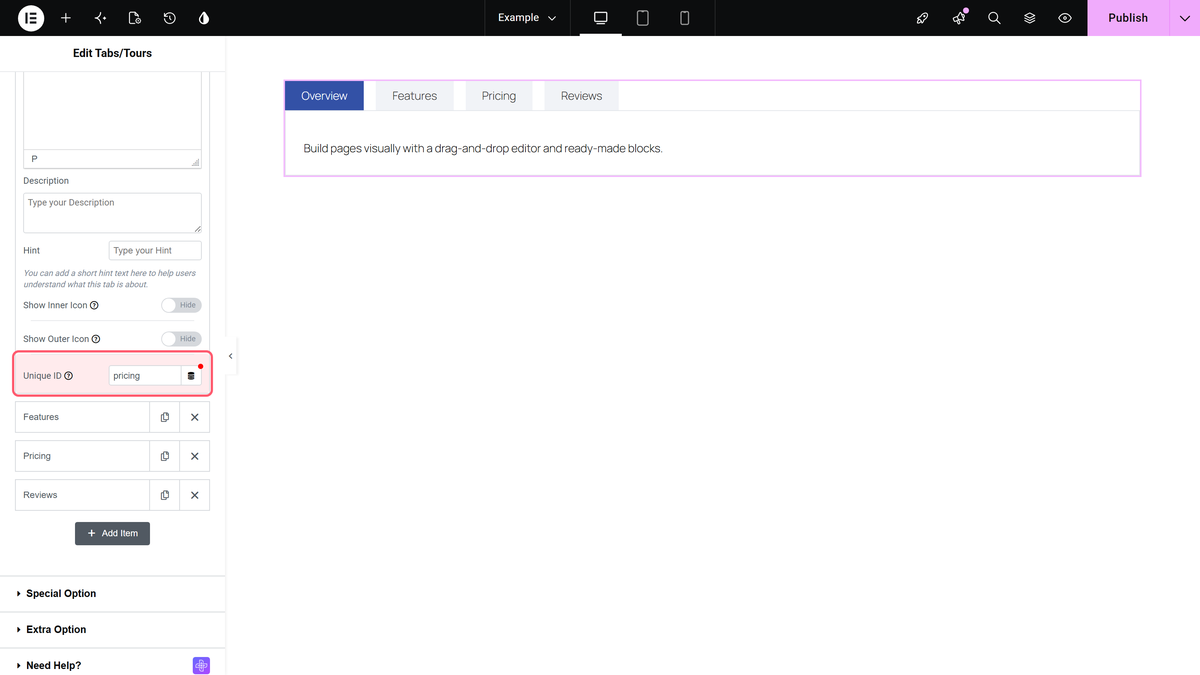
An anchor link lets a URL open the page with one specific tab already open, which is useful for sending someone to a pricing tab or a single FAQ answer from a menu, an email or a social post. Open the tab in Content and type an ID in Unique ID without the hash sign, for example pricing. Then add #pricing to the end of the page address and use that full address in your link. The anchor link guide covers the steps.
There is one limit that catches people out. A link elsewhere on the same page does not switch the tab. In our test, an Elementor Button above the tabs with the link #pricing changed the address, but the first tab stayed open. The ID works when the page loads with it, or from a link inside the same Tabs/Tours widget. Each ID must also be unique on the page, because it becomes the HTML id of the tab title.
How To Connect Tabs To A Carousel
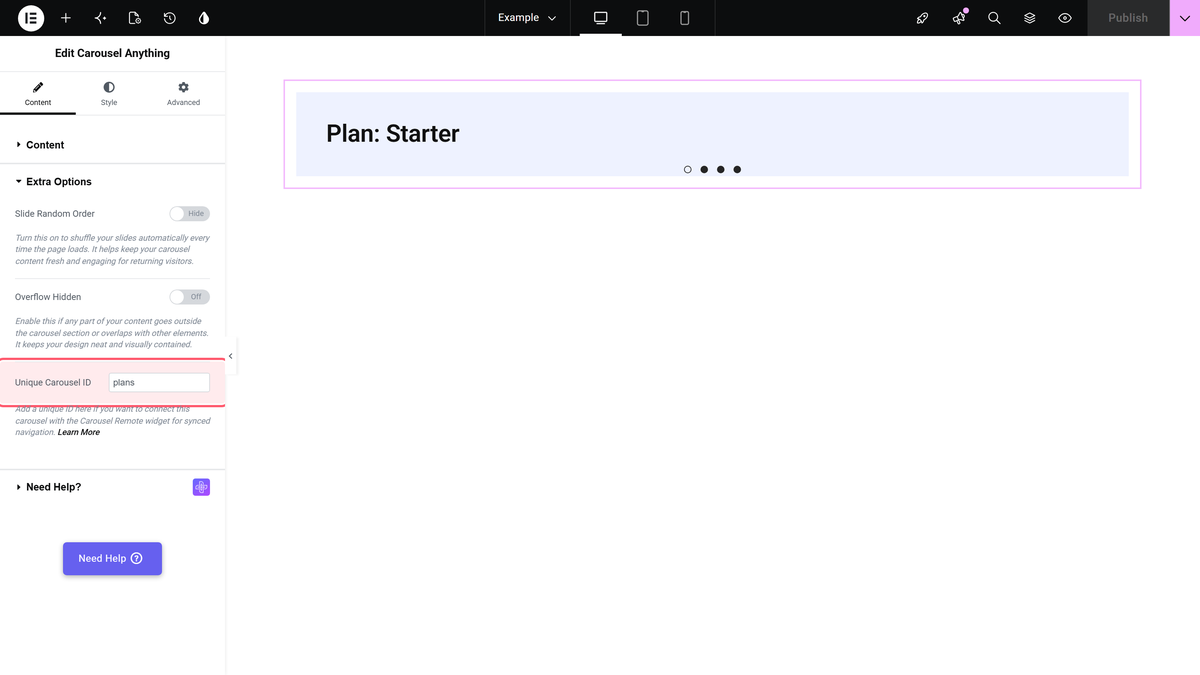
Tabs and a slider often tell one story: a list of plans, steps or products next to a picture of each. With the Carousel Connection ID, clicking a tab moves a Carousel Anything widget to the matching slide. Build the carousel first with one slide per tab, in the same order as the tabs, then give both widgets the same ID. The carousel connection guide shows the full build.
How To Control Which Tab Opens First
The first tab opens by default. If another tab matters more, or you want visitors to see only the titles first, open Extra Option and use Active Tab. Pick a tab number, or pick All Close to keep every tab closed until someone clicks. The same section also has Force All Close and First Tab Active switches for tablet and mobile. See the Active Tab guide for the details.
For hover behaviour, the hover tab guide explains On Hover Tab. One tested pitfall: do not combine it with Second Click Closed. With both on, the open tab closed again as soon as the mouse moved over its title.
How To Make Tabs Work On Phones
A row of five tab titles that sits neatly on a desktop is the layout most likely to wrap or overflow on a phone. The Tab Navigation Responsive setting, under Style then Extra Option, decides what happens on small screens:
| Option | What It Does | Edition |
|---|---|---|
| None | Keeps the normal tabs. Titles wrap onto more lines when they do not fit | Free |
| Force Accordion | Turns the tabs into an accordion on screens up to 600 px wide | Free |
| Full Width | Keeps the titles in one full-width row, for a few short titles only | Pro |
| One By One | Stacks the titles one below the other, full width | Pro |
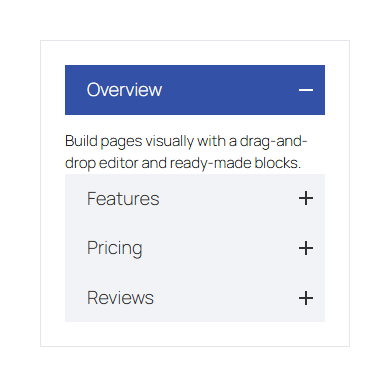
Force Accordion is the safest default for most sites, and it is free. Full Width is only for a few short titles: in the documentation’s test, four titles overflowed a 390 px phone screen. With Force Accordion on, one accordion item is open at a time, and clicking the open item keeps it open.
How To Fit Many Tabs With Swipe, Slide And Columns
Long tab lists are where a basic tabs widget starts to struggle. Two Pro settings in Extra Option solve it in different ways. Swiper Effect keeps many titles in a single row that visitors drag (Swipe) or move with arrows (Slide). It works for horizontal tabs only, and the setting is hidden for vertical tabs. Tab Columns places the titles in one to six equal columns per row, which suits a category list where every title should be visible at once.
Pick based on how the visitor reads. A row that scrolls sideways hides some titles until they interact, so it fits a long, ordered list such as steps or a timeline. Columns show everything, so they fit a short set of parallel categories. Our guides on the swipe or slide effect and tab columns show each setting in the editor.
Where Tabs Work Best On A Real Page
Elementor’s own documentation gives a useful example: a product page that organises its details into Description, Features, Specifications and Reviews. Each tab holds one slice of information, so the visitor reaches what they need without scrolling past everything else. The same pattern fits a few other jobs.
- Product details. Description, specifications, shipping and reviews, each in a tab, with a template per tab for richer content.
- Pricing plans. Monthly and yearly views, or one tab per plan. Our pricing table guide covers the table itself.
- Service categories. One tab per category, with a vertical layout so long titles stay readable.
- Step-by-step guides. One step per tab, with autoplay for a walkthrough that moves on its own.
One design rule holds across all of them: keep tab titles short and parallel. Three or four words per title, written in the same pattern, read faster than a mix of long and short labels, and they are far less likely to wrap on a narrow screen. If a tab needs a longer explanation, put it in the Description field (Pro) rather than the title.
Test the finished page on a real phone, not only the editor’s mobile preview. Check three things: whether the titles fit, whether the open tab is the one you expect, and whether links into the tabs behave. Those three checks catch most of the problems listed in the next sections before a visitor finds them.
Tabs Vs Accordion: Which Should You Use
Tabs suit content that visitors compare or switch between: product details, pricing plans, service categories. An accordion suits a long list where each answer is read once, such as a FAQ. If your content is a FAQ, the FAQ accordion guide is the better fit, and it covers the built-in FAQ schema. For a comparison of dedicated plugins, see the best WordPress tab plugins.
Known Limits And Quick Fixes
- A Pro option only shows an upgrade notice. That option needs The Plus Addons for Elementor Pro. Check the table above.
- A tab icon shows as an empty space. The default icon of a new tab uses an older Font Awesome library that the widget does not load. Pick a Font Awesome 5 icon or turn the icon off.
- The wrong title is highlighted on a phone. With Force Accordion and an Active Tab other than 1, the phone view highlights the first title while another tab’s content is open. Keep Active Tab at 1 if this matters.
- An option you read about is missing. Some options depend on others. Swiper Effect is hidden for vertical tabs, for example.
- Arrow Type In and Out look the same. That is a current limitation, so pick either one.
Which Tabs Setup Should You Build
For a simple tabbed section, such as product details or a short service list, the free Tabs/Tours widget is enough: horizontal or vertical layout, a template per tab, and Force Accordion for phones. Move to Pro when you need autoplay, a link to a specific tab, hover switching, a carousel connection or tab columns. If you only need basic tabs and you already pay for Elementor Pro, the native widget with nested elements may be all you need, so test it against your design first.
Want to see every option running? The Tabs/Tours demo page has live examples of each layout, and the pricing page shows what Pro includes.