Most advice on SVG vs PNG stops at “SVG is smaller and scales, PNG is for photos.” The first half of that is not always true. We ran three real graphics through a browser, saved each one as SVG and as PNG at five sizes, and weighed every file. A simple icon came out more than 60 times lighter as SVG than as a large PNG. Our own logo came out heavier as SVG than as a small PNG.
Both formats are safe to use everywhere. The caniuse dataset puts basic SVG support at 97.03% of global users and PNG alpha transparency at 97.27%, so this is not a compatibility decision. It is a decision about what the image contains, how large it will be shown, and whether you want to style or animate it. This guide covers how each format works, the measured file sizes, when to pick which, and how to use SVG safely in WordPress and Elementor.
The Short Answer
Use SVG for logos, icons, line illustrations and anything that must stay sharp at every size or change colour with CSS. Use PNG for screenshots, detailed artwork and any pixel-based image that needs transparency. For photographs, use neither: JPG, WebP or AVIF will be far smaller.
What Is An SVG File?
SVG stands for Scalable Vector Graphics. An SVG file is not a grid of coloured pixels. It is a text file, written in XML, that describes shapes: draw a line from here to there, fill this circle with purple, curve this path through these points. The browser reads those instructions and draws the image at whatever size the page asks for.
Here is the complete source of the three-line menu icon we used in our test. It is 158 bytes, and it looks the same at 16px as it does at 1,600px.
<svg xmlns="http://www.w3.org/2000/svg" viewBox="0 0 24 24">
  <path d="M3 6h18M3 12h18M3 18h18"
        stroke="#1a1a1a" stroke-width="2" stroke-linecap="round"/>
</svg>
Because SVG is text, it has three side effects worth knowing. You can open it in a code editor and change a colour by hand. Web servers can compress it with gzip or Brotli like any other text file. And, as covered later in this guide, it can carry code, which is why WordPress refuses SVG uploads by default.
What Is A PNG File?
PNG stands for Portable Network Graphics. It is a raster format: the file stores a fixed grid of pixels, each with its own colour and, optionally, its own transparency value. PNG compression is lossless, so every pixel survives exactly as saved, which is why it has long been the default for screenshots, interface graphics and images with hard edges or text.
The catch is that the pixel grid is fixed at export time. A PNG saved at 64 by 64 pixels has exactly 4,096 pixels of information. Show it at 420px and the browser has to invent the missing detail, which it does by smoothing between neighbouring pixels. The result is the soft, blurry edge you have seen on stretched logos. If you are weighing PNG against JPG for pixel images, our guide to JPG vs PNG covers that choice in depth.
SVG Vs PNG At A Glance
| Feature | SVG | PNG |
|---|---|---|
| Type | Vector (shapes described in XML text) | Raster (a fixed grid of pixels) |
| Scaling | Sharp at any size | Blurs when shown larger than its pixel size |
| Transparency | Yes | Yes, with a full alpha channel |
| Photographs | Not suitable | Possible, but files get very large |
| Style with CSS | Yes, when inlined in the page | No, only filters and blend modes |
| Animation | Yes, with CSS or JavaScript | No (APNG exists but is a separate format) |
| Editable as text | Yes | No |
| Server compression | Gzip or Brotli shrink it further | Already compressed, little further gain |
| WordPress upload | Blocked by default | Allowed |
| Browser support | 97.03% (caniuse, basic SVG) | 97.27% (caniuse, PNG alpha) |
We Measured It: SVG Vs PNG File Sizes
To get real numbers instead of rules of thumb, we took three graphics of increasing complexity: the 158-byte menu icon above, the logo that ships inside The Plus Addons for Elementor, and a countdown illustration from the same plugin’s widget style assets. Each was rendered in Chromium at five widths with a transparent background, saved as PNG with lossless optimisation, and weighed. The SVG column shows the raw file and the gzipped size a server would actually send.
| Graphic | SVG raw | SVG gzipped | PNG 64px | PNG 128px | PNG 256px | PNG 512px | PNG 1024px |
|---|---|---|---|---|---|---|---|
| Menu icon | 158 B | 143 B | 227 B | 500 B | 1,775 B | 4,038 B | 9,855 B |
| Logo (wordmark) | 14,762 B | 5,902 B | 1,015 B | 2,083 B | 4,223 B | 8,559 B | 17,880 B |
| Countdown illustration | 12,798 B | 4,559 B | 2,350 B | 5,422 B | 10,375 B | 21,016 B | 44,984 B |
Three things stand out.
Simple icons are where SVG wins outright. The menu icon is smaller as SVG than as even the tiniest PNG, and 62 times smaller than the 1024px PNG. Icons are made of a handful of straight lines and curves, which is exactly what vector instructions describe efficiently.
Detailed vectors can lose at small sizes. The logo has lettering, and every letter is a path with dozens of points. Its gzipped SVG is 5,902 bytes, larger than a 256px PNG at 4,223 bytes. If a logo only ever appears at one small size on standard screens, a PNG can be the lighter file.
The crossover moves once high-density screens are involved. A logo displayed at 256 CSS pixels on a phone with a 2x screen needs a 512px PNG to look crisp, and that file is 8,559 bytes against the SVG’s 5,902. A 3x screen pushes it higher still. The SVG is one file that covers every screen and every size, while the PNG route means exporting and serving a different file for each density.
A note on method: the PNGs were saved losslessly with standard optimisation and no lossy colour reduction, and the SVGs are the files exactly as they ship, with no extra minification. Running either format through a dedicated optimiser would shave more off both sides, but it does not change which format suits which graphic.
Why A PNG Goes Blurry And An SVG Does Not
The difference is easiest to see side by side. Below, the 64px PNG of the countdown illustration is stretched to 420px next to the SVG shown at the same 420px. Both screenshots come from the same browser session used for the measurements above.
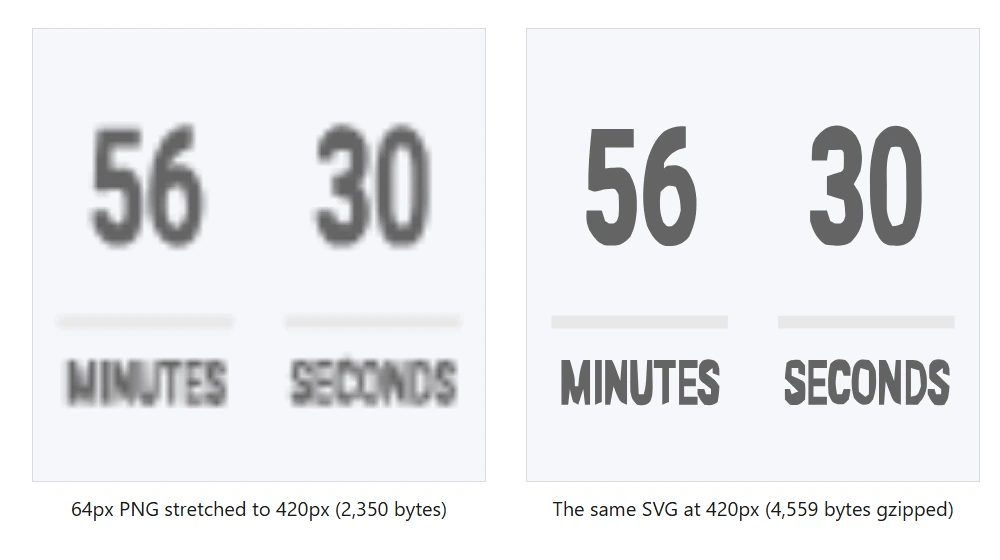
The PNG is not broken. It simply has no more detail to give, so the browser smooths the gaps. The SVG is redrawn from its shapes at the new size, so edges stay clean. The same thing happens, more subtly, whenever a PNG sized for a standard screen is viewed on a high-density phone or laptop display.
If you do use PNG for a graphic that appears on high-density screens, give the browser a choice of sizes with srcset, so each device downloads the smallest file that still looks sharp.
<img src="logo-256.png"
     srcset="logo-256.png 1x, logo-512.png 2x, logo-768.png 3x"
     width="256" height="70"
     alt="Company logo">
Always set width and height on the image, whichever format you choose. They let the browser reserve the right amount of space before the file arrives, which prevents the layout from jumping as images load. Our guide to fixing blurry images in Elementor covers the other common causes of soft images on WordPress sites.
When To Use SVG
- Icons. Menu, search, cart, social and arrow icons are the clearest win, as the test showed.
- Logos shown at more than one size, or on high-density screens, which today means almost every logo.
- Simple illustrations and diagrams built from flat shapes, lines and a limited palette.
- Graphics that change colour on hover, in a dark mode, or to match a brand colour set elsewhere in CSS.
- Anything animated, such as line-drawing effects, morphing shapes or loading spinners.
When To Use PNG
- Screenshots of software, dashboards and settings panels, where exact pixels and sharp text matter.
- Detailed digital artwork with textures, gradients, shadows and brush strokes that would need thousands of vector paths.
- Product cut-outs and other raster images that need transparency, where a JPG would force a solid background.
- Images from people you do not fully trust, such as user uploads, where accepting SVG would add a security risk.
- Small, fixed-size graphics with complex detail, such as a lettered badge shown at one size only.
For photographs, skip both. A photo converted to SVG is either enormous or no longer a photo, and a photo saved as PNG keeps detail the eye cannot see at a large file size. Modern lossy formats do this job far better, and the caniuse dataset puts WebP support at 96.74%. See our comparisons of JPG vs WebP and AVIF vs WebP for picking the right one.
Styling SVG With CSS
How you place an SVG on the page decides what you can do with it. Loaded through an <img> tag or a CSS background, an SVG behaves like any other image: it scales perfectly, but your stylesheet cannot reach inside it. Pasted inline into the HTML, its shapes become part of the page, and CSS can colour, resize and animate them.
The most useful trick for inline icons is currentColor. Set the SVG’s fill or stroke to it, and the icon picks up the text colour of whatever contains it, so one icon file works on light and dark backgrounds and follows hover states automatically.
<a class="icon-link" href="#site-menu">
  <svg viewBox="0 0 24 24" width="24" height="24" aria-hidden="true">
    <path d="M3 6h18M3 12h18M3 18h18" stroke="currentColor"
          stroke-width="2" stroke-linecap="round"/>
  </svg>
  Menu
</a>

/* CSS */
.icon-link       { color: #1a1a1a; }
.icon-link:hover { color: #6d28d9; }  /* the icon changes colour too */
Two accessibility details go with that pattern. A decorative icon next to visible text should carry aria-hidden="true", so screen readers do not announce it twice. An icon that stands alone, such as a button with no text, needs an accessible name instead, either through a visually hidden label or an aria-label on the button. An <img> SVG still needs normal alt text, exactly like a PNG.
SVG And Security: Why WordPress Blocks SVG Uploads
Try to upload an SVG to a fresh WordPress site and the media library will refuse it. This is deliberate. The list of image types WordPress core allows for upload covers jpg, jpeg, gif, png, bmp, tiff, ico, heic, heif, webp and avif, and SVG is not on it. You can confirm this in the core source for wp_get_ext_types() and wp_get_mime_types().
The reason is the same text-based design that makes SVG so flexible. An SVG file can contain script tags, event handler attributes and links to external resources. If a malicious SVG is uploaded and then opened directly in a browser, that code can run under your site’s domain. A PNG is only pixel data, so it carries no such risk.
None of this means SVG is dangerous to use. It means SVG should be uploaded only by trusted people, from trusted sources, through a tool that sanitises the file by stripping anything that is not drawing instructions. The safe routine looks like this:
- Only accept SVG files you or your designer created, or that come from a reputable icon library.
- Open unfamiliar files in a code editor and look for
<script>,onloador otheronattributes before uploading. - Enable SVG upload through a method that sanitises files, rather than a snippet that simply adds the MIME type.
- Keep upload rights limited to administrators and trusted editors.
How To Use SVG In Elementor
Elementor handles the upload side for you. According to Elementor’s own help centre, every widget with an icon control offers an Upload SVG option next to the Icon Library, and Elementor sanitises each uploaded SVG to remove possible malicious code before inserting it into the page as inline code. Because the icon is inlined, the widget’s colour and size controls can style it.
The first time you try it, Elementor shows a security warning and asks you to enable the feature. You can also switch it on ahead of time:
- In WordPress admin, go to Elementor, then Settings.
- Open the Advanced tab.
- Find Enable Unfiltered File Uploads and set it to Enable.
- Scroll down and click Save Changes.
- Back in the editor, open any widget’s icon control and choose Upload SVG.
If an uploaded icon ignores Elementor’s size setting, the SVG usually has a fixed width or height written inside it. Elementor recommends exporting SVGs without inline styling in the first place. When that is not possible, its help article suggests overriding the size in the widget’s Advanced tab:
selector svg {
  width: 100% !important;
  height: 100% !important;
}
For the same reason, export icons with their colours set to currentColor or with no fill at all when you want the widget’s colour control to work. A hard-coded fill inside the file will win over the colour you pick in the panel. Our walkthrough on colouring custom SVG icons in Elementor goes through the fixes step by step, and adding custom icons to Elementor covers building a full icon set.
SVG With The Plus Addons For Elementor
If you build with The Plus Addons for Elementor, two widgets are made for vector graphics. The free Icon widget accepts Font Awesome icons, SVGs and your own icon files, with controls for size, colour and placement, so an uploaded SVG behaves like any built-in icon.
The Pro Draw SVG widget uses the one thing PNG cannot do at all: it animates the strokes of an SVG so the icon appears to draw itself. You can pick from its pre-built SVG icons or use Custom Upload, set the Duration, and switch on On Hover Draw or Loop Draw. Line-based icons work best for this effect, because the animation traces each path’s outline. A filled PNG has no paths to trace, which makes this a good example of choosing SVG for what it enables rather than for file size.
How To Keep Both Formats Light
Design tools tend to export SVGs with extra baggage: editor metadata, hidden layers, comments and coordinates with six decimal places. An SVG optimiser such as SVGO removes that without changing how the image looks. Check that your server sends SVG with gzip or Brotli compression, since the test above showed gzip alone cut the logo from 14,762 bytes to 5,902.
For PNG, export at the largest size the image will actually be displayed, multiplied by the screen density you want to support, and no larger. Then run it through a lossless optimiser. If a PNG is a photograph or a large screenshot with gradients, test it as WebP: the savings are often dramatic, and WordPress has accepted WebP uploads natively for years.
| If the image is… | Use | Why |
|---|---|---|
| An icon | SVG | Smallest file at every size, and styleable |
| A logo | SVG | One file covers every size and screen density |
| A flat illustration | SVG | Sharp, small and animatable |
| A screenshot | PNG or WebP | Exact pixels and crisp text |
| A photo | JPG, WebP or AVIF | Lossy compression keeps files small |
| A user upload | PNG, JPG or WebP | Avoids accepting untrusted SVG code |
Frequently Asked Questions
Is SVG Better Than PNG?
For icons, logos and flat illustrations, yes: SVG stays sharp at every size and is usually smaller. For screenshots and detailed pixel artwork, PNG is the better choice. Neither is right for photos.
Is SVG Always Smaller Than PNG?
No. In our test, a lettered logo was 5,902 bytes as gzipped SVG and 4,223 bytes as a 256px PNG. Simple icons were far smaller as SVG, and the logo only pulled ahead once high-density screens needed larger PNGs.
Does SVG Lose Quality When Resized?
No. The browser redraws an SVG from its shapes at whatever size is needed, so it stays sharp at any size.
Why Can’t I Upload SVG To WordPress?
WordPress core leaves SVG off its list of allowed upload types because SVG files can contain code. Enable uploads only through a method that sanitises files, such as Elementor’s Enable Unfiltered File Uploads setting, and only for trusted users.
Should My Website Logo Be SVG Or PNG?
SVG in most cases. A logo appears in the header, footer and on high-density phone screens, and one SVG covers all of them. Keep a PNG copy for places that do not accept SVG, such as some email clients and social profile images.
Can I Convert A PNG To SVG?
You can trace a PNG into vector paths, but the result is only as clean as the source. Simple, high-contrast graphics trace well. Photos and detailed artwork produce huge, messy files, so redraw important logos as vectors instead.