Among the major AI labs, Google is one of the few that still offers a real free tier on its API. That is part of why the Gemini API is a common first choice for adding AI to a WordPress site.
You can test it without a credit card, then scale to paid only when the project earns it. The catch is the same one that trips people up with every model API: knowing which model to pick, what it actually costs once you are paying, and whether the content you generate will ever get found by AI search.
This guide covers the current Gemini models, the real pricing from Google’s own page, the free-tier trade-off most tutorials skip, three ways to connect it to WordPress, and the step that decides whether any of it pays off.
What the Gemini API is
The Gemini API is Google’s developer access to its Gemini models. It is multimodal, so it handles text, images, audio, and video in one request, and it is available through Google AI Studio.
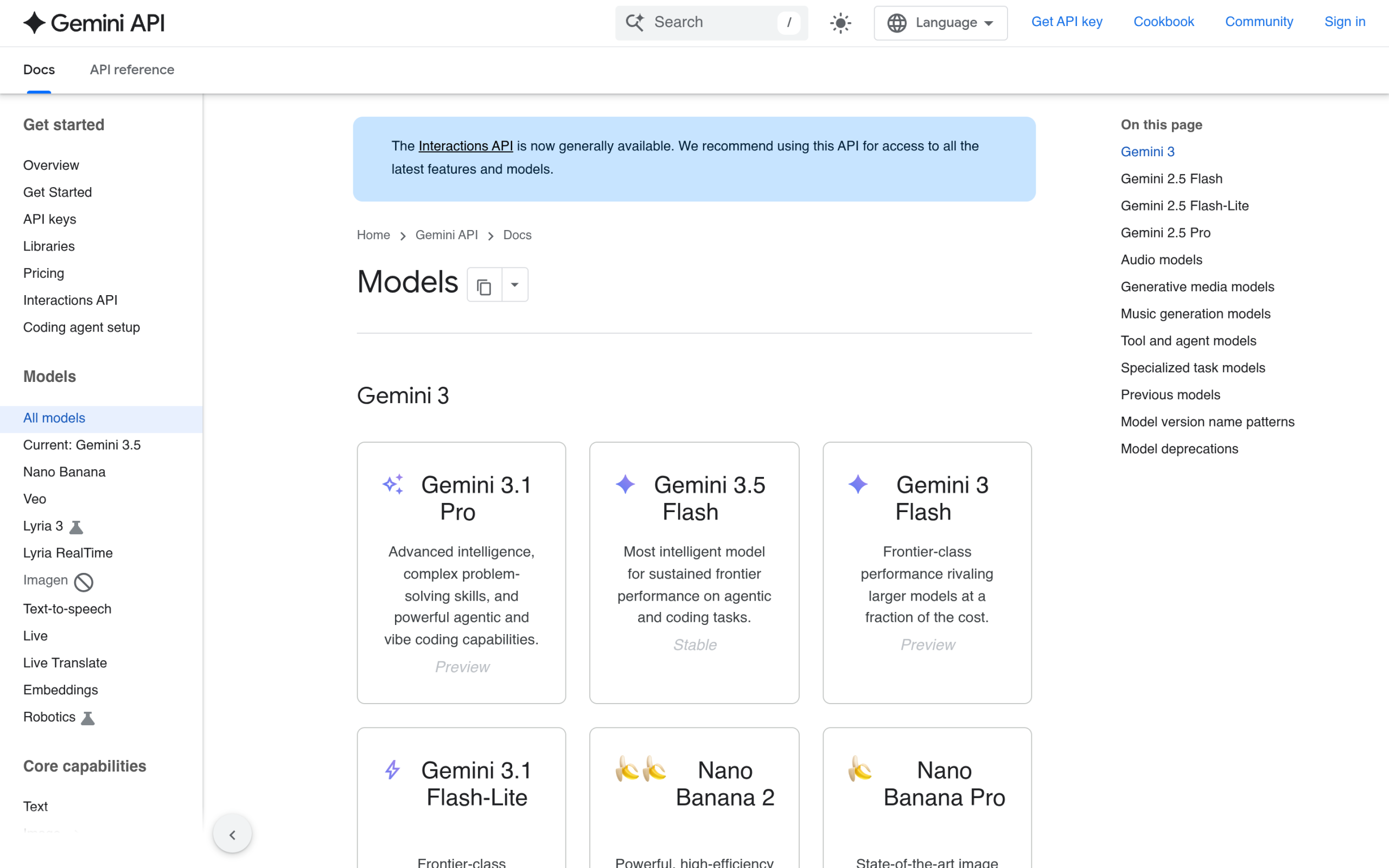
As of mid-2026 the lineup spans two families. The Gemini 2.5 series (gemini-2.5-flash, gemini-2.5-flash-lite, and gemini-2.5-pro) is the stable workhorse range.
The newer Gemini 3 series adds gemini-3.5-flash and gemini-3.1-flash-lite as stable options, with gemini-3.1-pro-preview for frontier work. Google also documents an OpenAI-compatible layer, so tools built for OpenAI can talk to Gemini with a base-URL swap.
Does the Gemini API have a free tier?
Yes, and this is Gemini’s real edge over most rivals. Google AI Studio gives you free input and output tokens on eligible models, with rate limits rather than a hard wall, which is enough to prototype a feature before you spend anything.
There is one trade-off you need to know before you pipe a live site through it. On the free tier, Google’s pricing page states that content is “used to improve our products.”
In plain terms, your free-tier prompts and outputs can be used to train Google’s models. That is fine for testing with throwaway content. It is not fine for client data, unpublished drafts, or anything confidential.
For those, move to the paid tier, where that data-use term does not apply.
Gemini API pricing in 2026
Once you are on the paid tier, here is what the main models cost. Prices are in US dollars per 1 million tokens, for text input, taken from Google’s pricing page:
| Model | Input (per 1M) | Output (per 1M) |
|---|---|---|
| gemini-2.5-flash-lite | $0.10 | $0.40 |
| gemini-3.1-flash-lite | $0.25 | $1.50 |
| gemini-2.5-flash | $0.30 | $2.50 |
| gemini-2.5-pro | $1.25 | $10.00 |

For most WordPress content work, gemini-2.5-flash-lite is the value pick and gemini-2.5-flash is the balanced default. The Pro models are worth their higher price only when a task genuinely needs deeper reasoning.
Note that Gemini 2.5 Pro charges more once a prompt passes 200K tokens, so very long context is not free even when the model supports it.
Which Gemini model should you use?
- Everyday content, summaries, meta descriptions: gemini-2.5-flash-lite. Cheapest, fast, good enough for high-volume tasks.
- Balanced quality and cost: gemini-2.5-flash. The sensible default for most sites.
- Hard reasoning, complex drafts: gemini-2.5-pro or the Gemini 3 flash models, when quality clearly matters more than cost.
- Preview models: useful to experiment with, but do not build a production feature on a preview name. Preview models change, and names get retired.
How to get a Gemini API key
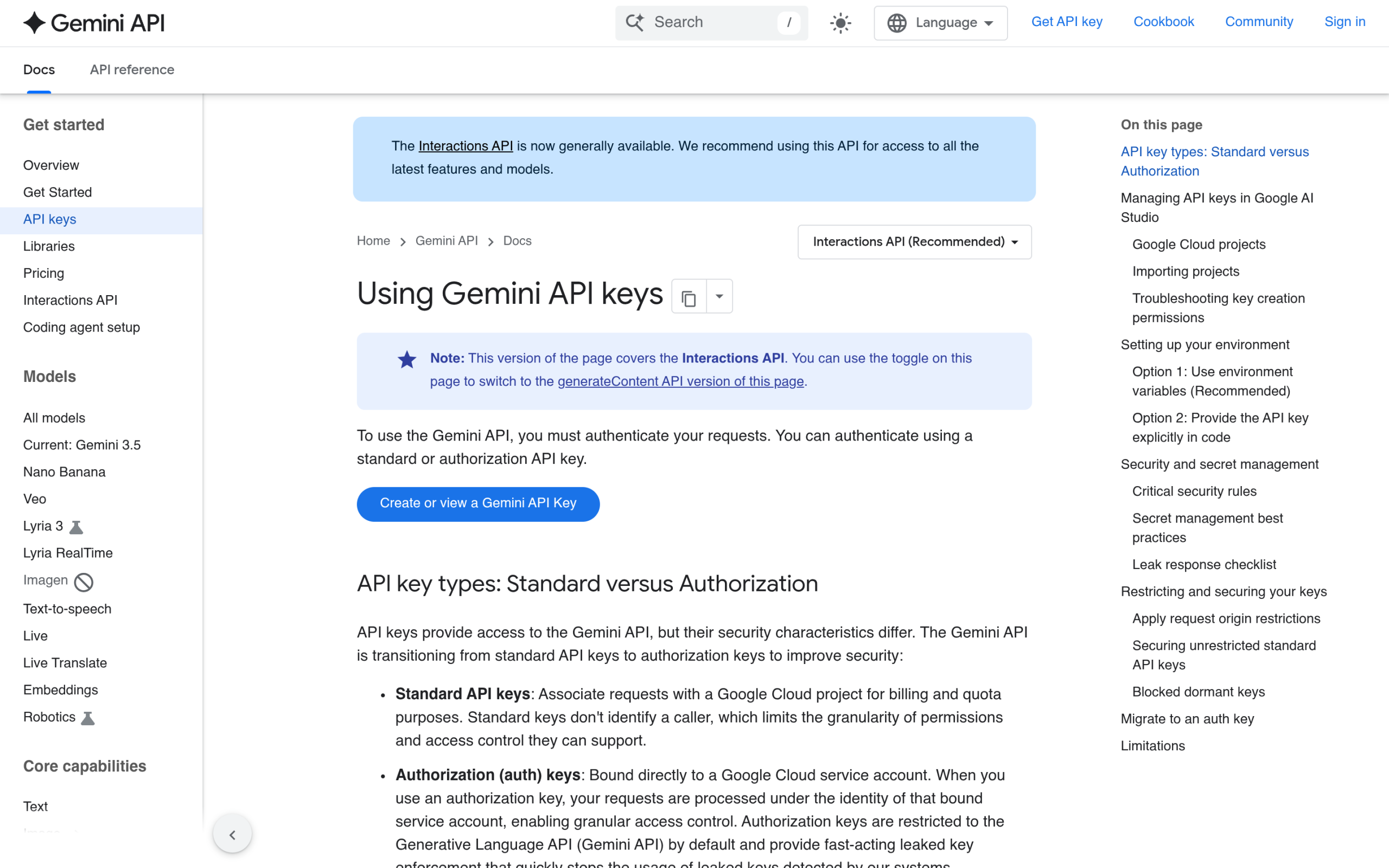
- Sign in to Google AI Studio with a Google account.
- Open the API keys section and create a new key.
- Copy it once and store it somewhere safe.
- Decide free or paid up front. If the site handles any private or client content, enable billing and use the paid tier so your data is not used for training.
- Keep the key server-side only. Never place it in client-side JavaScript or a public theme file.
Three ways to connect Gemini to WordPress
| Method | Best for | Effort | Control |
|---|---|---|---|
| Plugin | Most site owners | Low | Medium |
| No-code automation | Editorial workflows | Medium | Medium |
| Custom code | Developers | High | Full |
1. A plugin with Gemini support
The fastest path. Many AI plugins list Gemini as a provider, and any plugin that accepts a custom OpenAI-compatible endpoint can use it too. You paste your key, pick a model like gemini-2.5-flash, and you are running.
Some SEO tools, including RankReady, support Gemini directly, so one key covers both content and SEO tasks.
2. No-code automation
If you want Gemini behind a workflow instead of a visible chatbot, tools like n8n, Make, and Pabbly Connect can chain it into WordPress.
A typical flow: a trigger fires, Gemini drafts the text, WordPress creates a draft post, and an editor approves it before anything publishes. The model never touches your live site directly, which keeps a human in the loop.
3. Custom server-side code
For full control, call the API from PHP. Gemini’s native endpoint takes the model name in the URL and the key in a header:
$response = wp_remote_post( 'https://generativelanguage.googleapis.com/v1beta/models/gemini-2.5-flash:generateContent', array(
    'headers' => array(
        'x-goog-api-key' => GEMINI_API_KEY,
        'Content-Type'   => 'application/json',
    ),
    'timeout' => 30,
    'body'    => wp_json_encode( array(
        'contents' => array(
            array( 'parts' => array(
                array( 'text' => 'Write a meta description for this post.' ),
            ) ),
        ),
    ) ),
) );
Store the key as a constant in wp-config.php, not in the database in plain text, and always check the response before you use it.
Security and quality cautions
The same rules apply as with any model API, plus one Gemini-specific point. Keep the key server-side. Review every AI draft before it publishes, because Gemini will sometimes be confidently wrong.
And remember the free-tier data-use term: if you are on the free tier, do not send anything you would not want used for training. When in doubt, pay for the tier that keeps your content private.
The step everyone forgets: making Gemini content findable by AI
Cheap, fast generation is only half the job. If ChatGPT, Perplexity, Claude, and Google’s own AI cannot discover and cite your pages, the content you produced with Gemini never turns into traffic.
That discovery layer is separate from whichever model wrote the draft. On the WordPress side, RankReady handles it.
It generates llms.txt and llms-full.txt, serves markdown endpoints and a WebMCP manifest, outputs Article, Speakable, FAQPage, and HowTo schema, and tracks real AI referrals plus crawler activity from ChatGPT, Perplexity, Claude, Gemini, and Copilot. It is free, GPL-licensed, and runs on WordPress 6.0+ with PHP 7.4+.
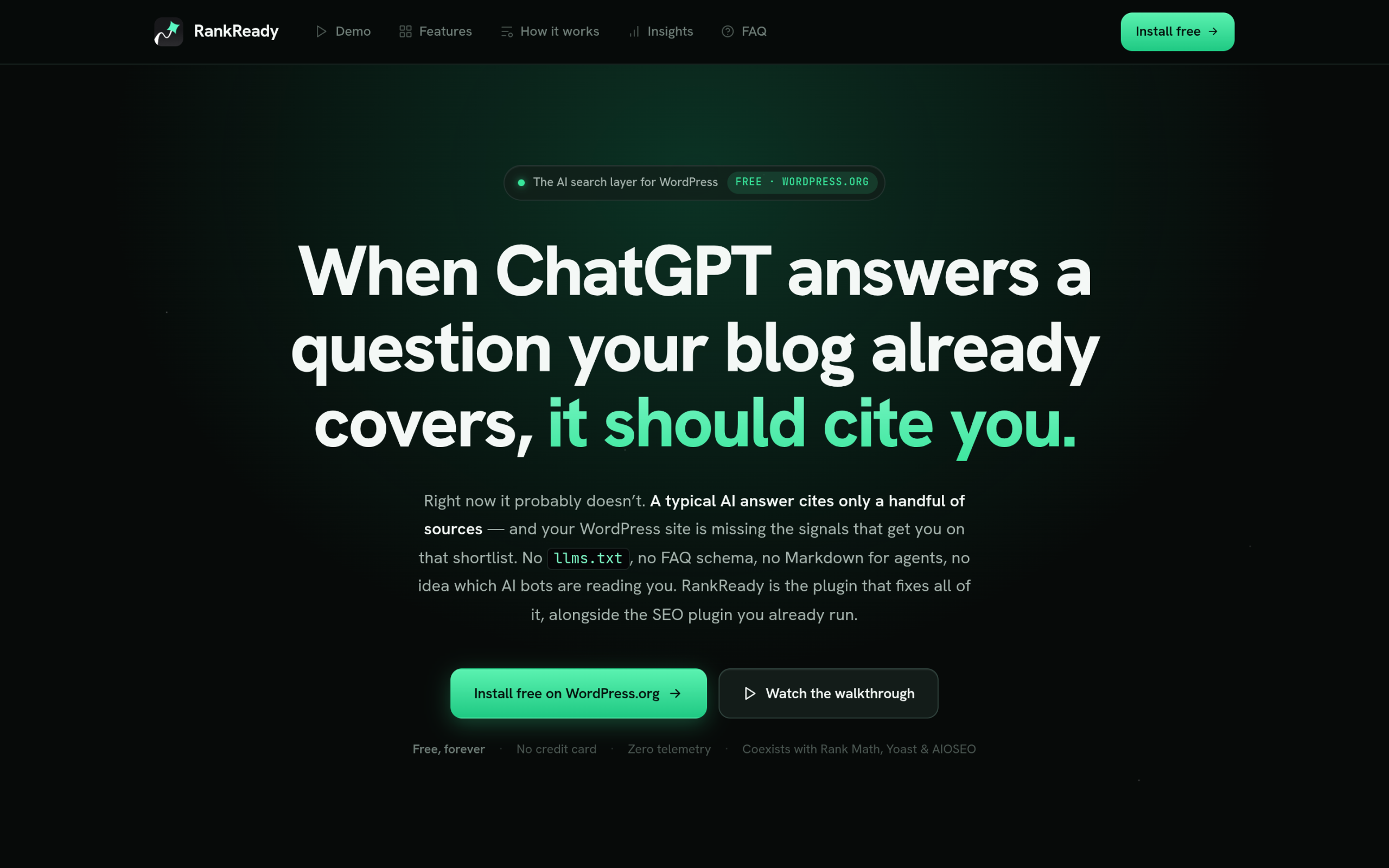
It also lines up neatly with this guide. RankReady supports Gemini as a built-in AI provider, alongside OpenAI, Claude, and DeepSeek, so you can use the same Gemini key to power its AI summaries and FAQ generator while it handles the discovery side.
One honest caveat: RankReady surfaces the signals that make your content easier to find and cite. It does not promise a citation, and no tool truthfully can.
Wrapping up
The Gemini API is the easiest big-lab model to start with, because the free tier lets you test before you pay.
Use gemini-2.5-flash-lite or gemini-2.5-flash for most WordPress work, move private content to the paid tier so it is not used for training, pick the integration method that matches your skills, and avoid building on preview model names.
Then close the loop and make sure the content you generate is actually discoverable by the AI engines people now search with. That last step is what turns cheap drafts into traffic.
Also read: How to use the DeepSeek API in WordPress, the OpenAI API beyond chatbots, and the Claude API for WordPress AI SEO.