Have you upgraded a site to Elementor 4, hit save, and watched the front end load with half the styling missing? You are not imagining it, and you are not alone. Since Atomic became the default for new sites in April 2026, the r/elementor threads have filled up with the same complaint in a dozen forms: the editor looks right, the live page does not. One agency owner working on bare-metal LiteSpeed servers put it bluntly, and a developer building components at scale said the quiet part out loud: “if you use them at scale, CSS doesn’t load at all.”
The frustrating part is that most “Elementor CSS not loading” guides were written for V3. They tell you to regenerate CSS and clear your cache, which is good advice that fixes the common case. But V4 introduced a genuinely new way of generating and printing styles, and it has its own failure modes that the old guides never mention. This post separates the two. We start with the basics that still work, then move into the V4 and Atomic-specific causes that the standard advice will not touch, including a real rendering bug Elementor is still evaluating.
What you’ll learn:
- Why V4 prints CSS differently than V3
- The four cache layers to clear first
- The CSS Print Method toggle that fixes a surprising number of cases
- The Atomic popup bug that drops styling at runtime
- How LiteSpeed and WP Rocket can eat your Atomic CSS
- How to isolate a theme or plugin conflict in two minutes
- An 8-step checklist you can run top to bottom the next time a page renders unstyled
Why Elementor V4 CSS breaks differently than V3
In V3, Elementor generated one CSS file per page or post and printed it in a fairly predictable way. When styling went missing, the cause was almost always stale cache or a minify plugin. Clear the cache, regenerate the files, done.
V4 (Atomic) is class-based and CSS-first. Instead of inline per-element styling, it builds reusable classes and variables, then registers and prints those styles during the page render pass. That is a cleaner architecture, but it adds new points where the chain can break. If styles are registered at one stage of rendering and a piece of content is added at a later stage, that later content can render with no styling attached. This is also why so many people report a “half and half” experience: legacy elements look fine while Atomic elements show up unstyled. As one developer described it on r/elementor, it “feels like building 2 websites, half with atomic elements and half with legacy elements,” and global site settings do not always carry over to the Atomic side.
Keep that mental model in mind: V4 CSS problems are usually either a caching or print-method issue (fixable in minutes) or a render-timing issue (a known limitation you work around). The steps below go in the order you should actually try them. If you want the deeper background on what changed in the editor, our Elementor Atomic editor explainer and our honest V4 production-readiness verdict are good companions to this troubleshooting guide.
First, rule out the basics (this fixes most cases)
Before you blame V4, clear the boring stuff. There are four separate cache layers, and any one of them can serve an old stylesheet:
- Elementor CSS cache. Go to Elementor > Tools > General and click Regenerate CSS & Data. This forces Elementor to rebuild every stylesheet from scratch.
- Your WordPress caching plugin. WP Rocket, LiteSpeed Cache, W3 Total Cache, and similar plugins each keep their own copy of the page. Purge all.
- Server or host cache. Managed hosts (WP Engine, Kinsta, Cloudways) and Cloudflare keep an edge copy. Purge at the host and at the CDN.
- Browser cache. Hard-reload with Ctrl+F5 (Windows) or Shift+Command+R (Mac), or test in a private window.
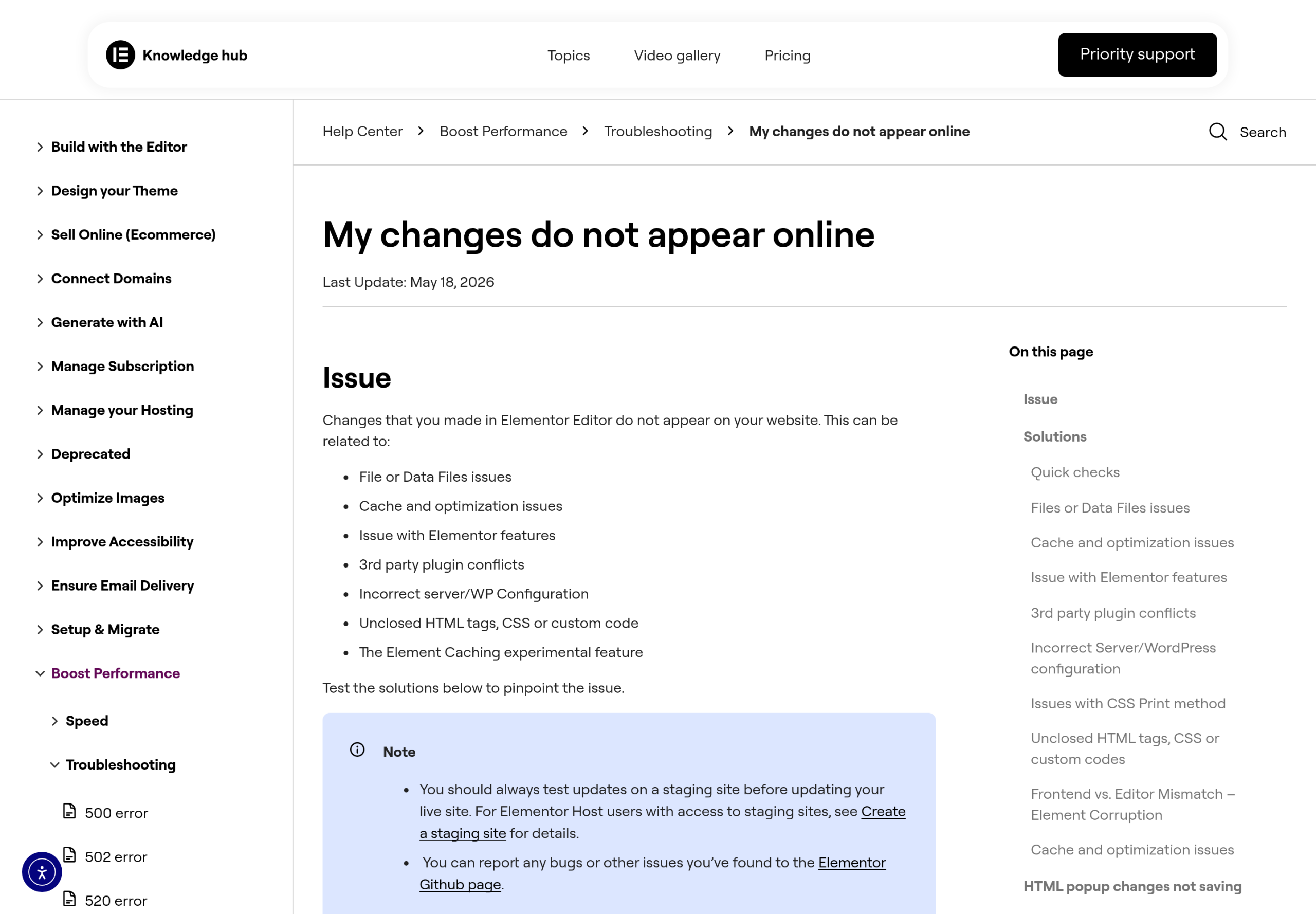
If you are new to this, our step-by-step guide on how to clear the Elementor cache walks through the regenerate process with screenshots. Run that first. Elementor’s own documentation confirms that when your changes do not appear online, regenerating CSS and clearing every cache layer is step one.
The CSS Print Method toggle (the underrated fix)
This one fixes more “CSS not loading” reports than any other single setting, and almost nobody checks it. Go to Elementor > Settings > Performance and look at CSS Print Method. It has two options:
- External File. Elementor writes CSS to physical files in your uploads folder. Fast and cacheable, but if file permissions are wrong, a security plugin blocks writes, or a CDN serves a stale file, the stylesheet silently fails to load.
- Internal Embedding. Elementor prints CSS inline in the page head. Heavier, but it sidesteps file-write and stale-file problems entirely.
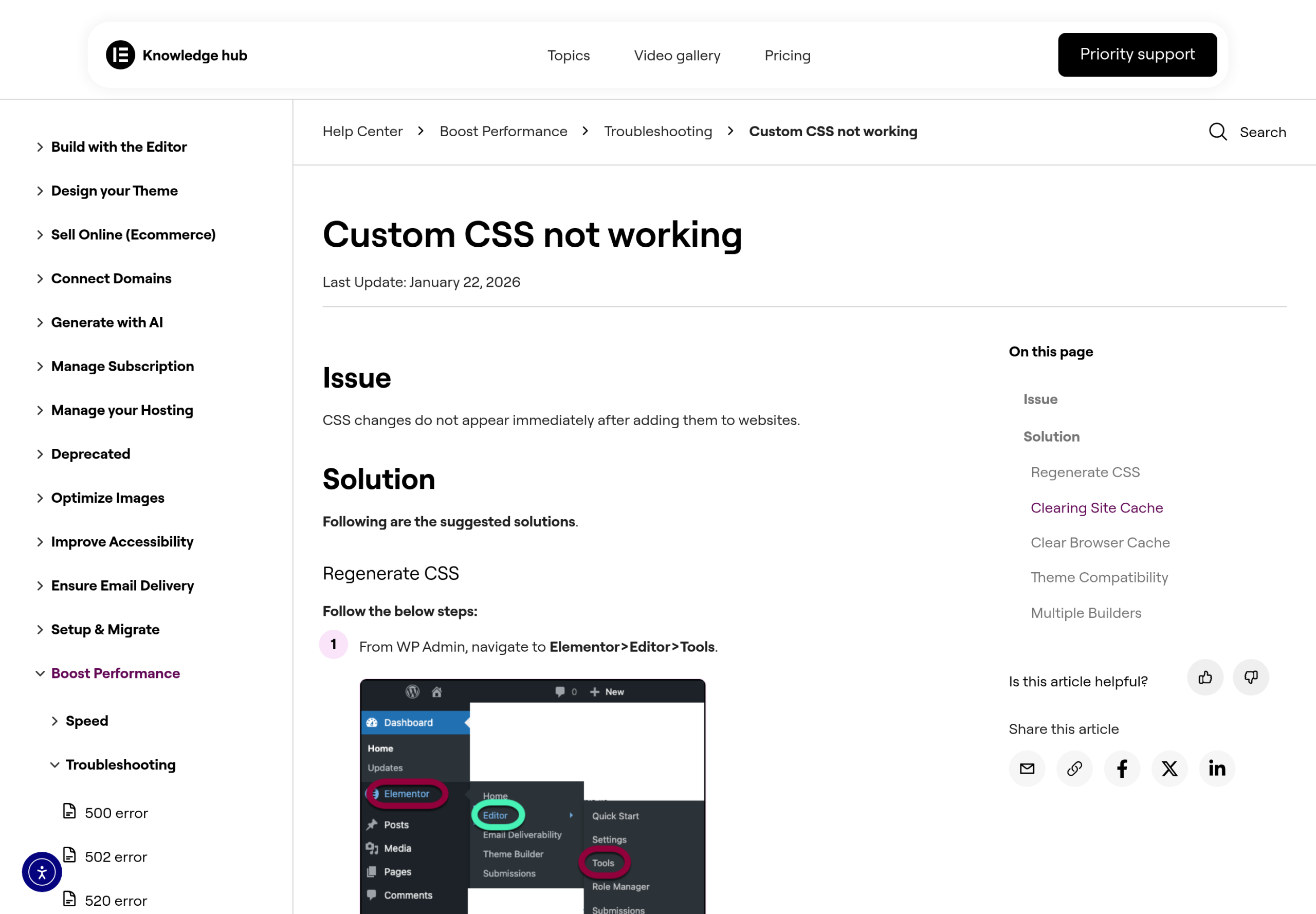
If your styling is missing, flip the setting to the opposite value and reload. If it was on External File, switch to Internal and test. If the page suddenly renders correctly, you have a file-write or CDN problem to chase down, but at least your site is live while you do. Elementor’s “custom CSS not working” documentation lists this toggle as a primary troubleshooting step.
The V4 popup bug almost nobody documents
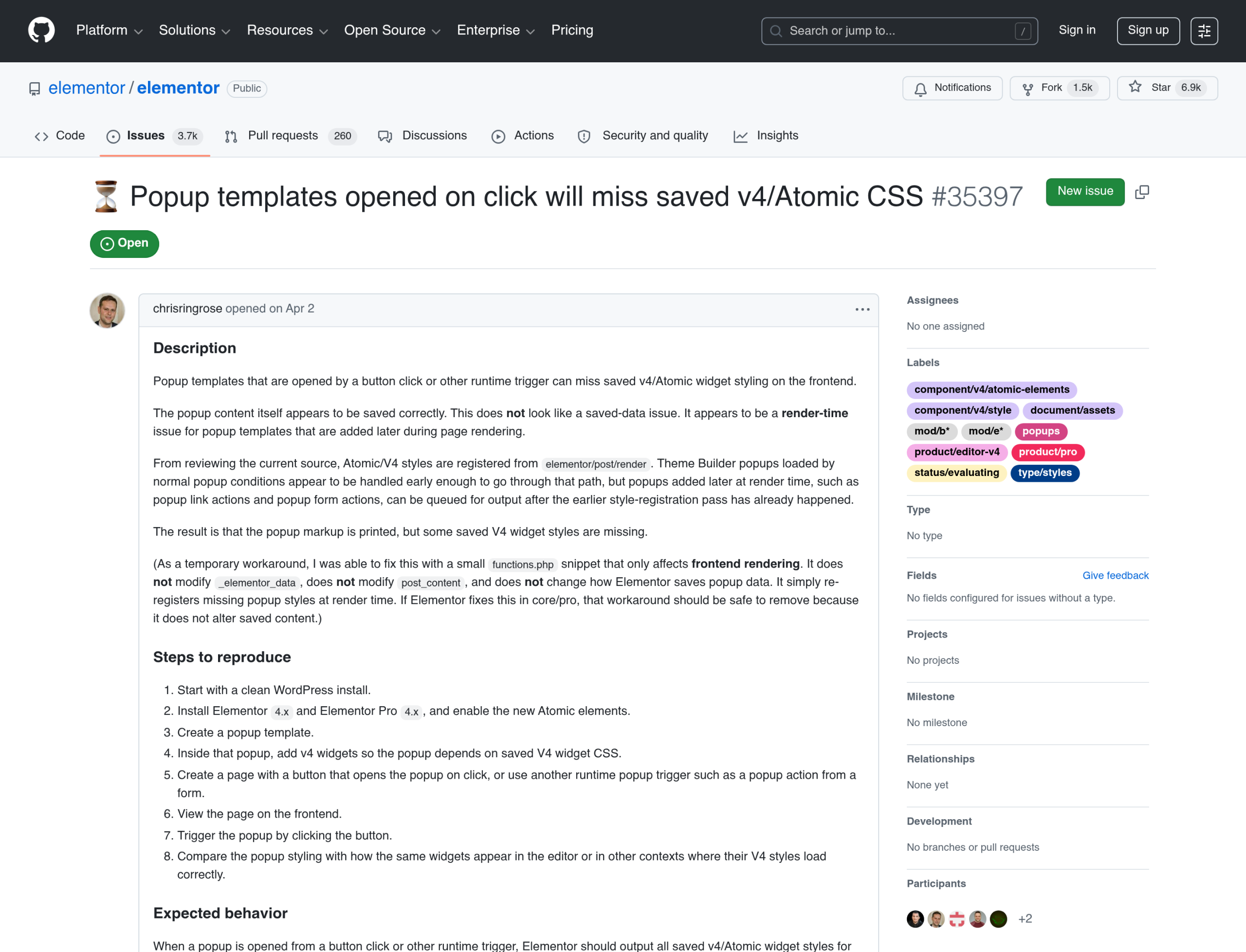
Here is the V4-specific cause the old guides cannot help you with, because it is a genuine rendering bug. If you build a popup template with V4 widgets and open it from a button click or another runtime trigger, the popup can appear with its saved Atomic styling missing, even though the same widgets look perfect in the editor.
The root cause, as reported in the public Elementor issue tracker, is timing. Atomic and V4 styles are registered during the main elementor/post/render pass. But popups triggered later, by a click or a form action, are queued after that style-registration pass has already finished. The markup renders, the CSS does not. The issue is currently marked status/evaluating by the Elementor team and affects Elementor 4.x and Elementor Pro 4.x.
Until that fix ships, the practical workarounds are: build the popup’s critical styling with legacy (V3) widgets so the CSS prints reliably, set the affected popup’s CSS Print Method to internal so the styles travel with the markup, or open the popup in a way that loads on page render rather than purely on click while you test. None of these are elegant, but they keep the popup styled in front of real visitors.
When LiteSpeed, WP Rocket, or Autoptimize eat your Atomic CSS
Optimization plugins combine, minify, and defer CSS to make pages faster. That same processing can break Atomic styling, because V4 splits styles across more files and the combine step can drop or reorder them. This is exactly the pattern behind the LiteSpeed reports on r/elementor. When one user asked why icons rendered as plain squares on the front end but looked fine in the editor, the first reply cut straight to it: “Happens sometimes with Litespeed cache. Are you using that?” Another agency running Elementor Pro on tuned bare-metal LiteSpeed Enterprise servers hit Atomic rendering problems at scale despite throwing serious hardware at the site.
To diagnose it, turn off CSS optimization one feature at a time and reload after each:
- LiteSpeed Cache: disable CSS Minify, CSS Combine, and “Generate UCSS” / “Remove Unused CSS” under Page Optimization. UCSS is the most common Atomic-CSS culprit.
- WP Rocket: turn off “Optimize CSS delivery,” Minify CSS, and Combine CSS files under File Optimization.
- Autoptimize: uncheck “Optimize CSS Code” and “Aggregate CSS-files.”
When the styling comes back, re-enable features one by one until it breaks again. The one that breaks it is your culprit, and most optimization plugins let you exclude specific Elementor CSS handles from minification so you can keep the speed gains everywhere else. If performance is the bigger picture you are chasing, our guide on the WordPress and Elementor stack for 2026 covers how to balance optimization with stability.
Isolate a theme or plugin conflict in two minutes
If cache and print method did not fix it, isolate the environment. A theme can override Elementor CSS, and a poorly behaved plugin can dequeue stylesheets. The fastest test is to switch temporarily to a clean theme like Hello Elementor and reload the page. If the styling returns, your theme is overriding or blocking Elementor’s CSS, and you can chase the specific rules from there.
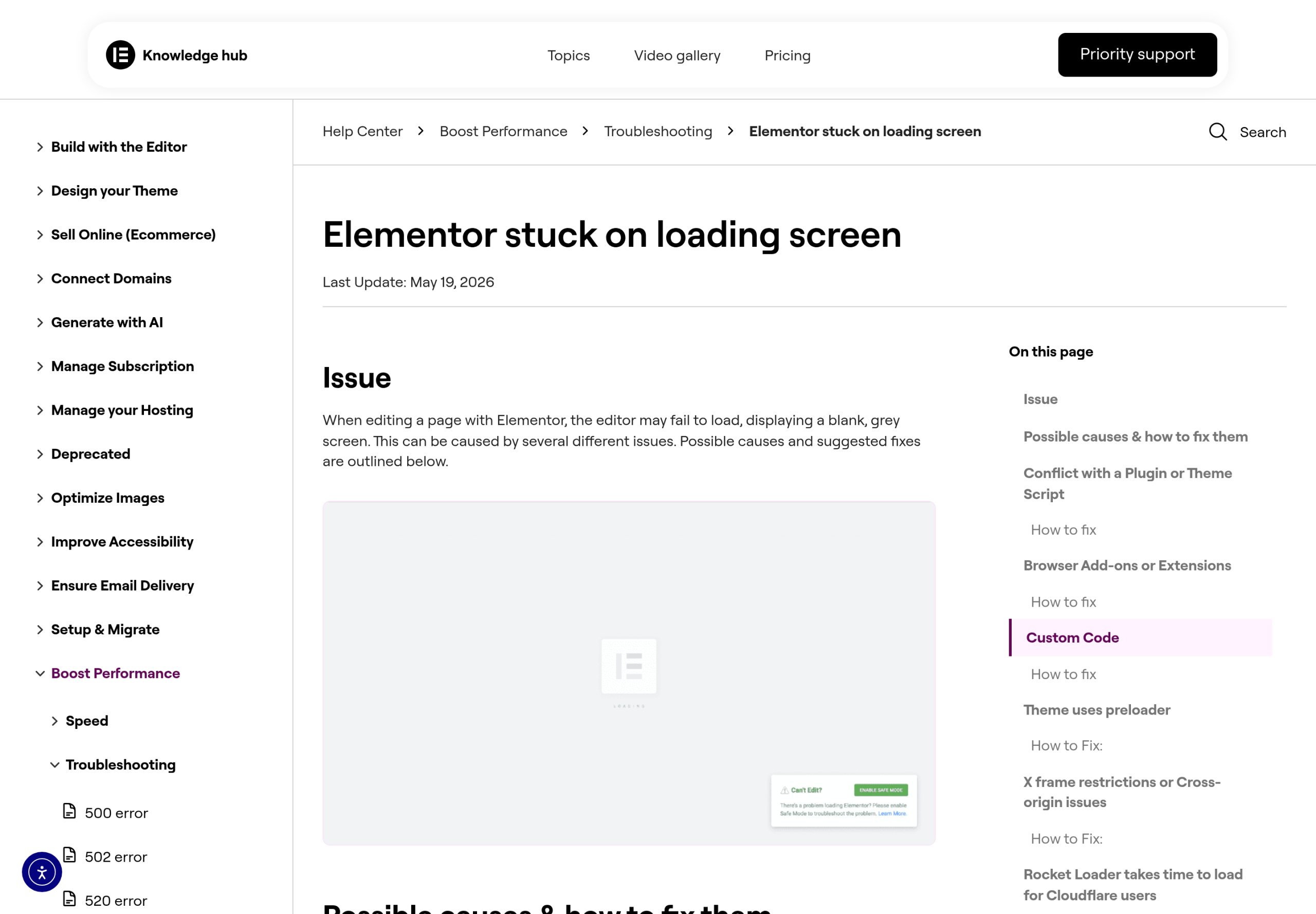
Worth knowing for V4 specifically: because Atomic elements are still maturing, some sites see the editor stall or the front end fail to paint when V4 elements are active. Elementor’s own “stuck on loading screen” documentation suggests temporarily deactivating V4 elements to confirm whether they are the cause. If deactivating V4 restores the page, you have isolated the problem to Atomic, and you can decide which sections to keep on legacy widgets for now.
A more stable layer while V4 settles
Here is the honest read on where things stand. Atomic is a real step forward in architecture, but in mid-2026 it is still settling, and the CSS-loading edge cases above are part of that. Plenty of developers are choosing to keep building critical sections with mature, well-tested widgets while the Atomic side matures, rather than betting a client launch on it.
That is where a stable widget layer earns its keep. The Plus Addons for Elementor gives you 120+ widgets and extensions that render predictably across the V3 to V4 transition, so the accordions, carousels, galleries, and dynamic listings you depend on keep their styling whether a section is built with legacy or Atomic elements. If a popup or a complex section is dropping Atomic CSS, rebuilding that piece with a battle-tested widget is often the fastest path back to a styled, shippable page. For data-driven sections, our walkthrough on dynamic content without Elementor Pro shows the approach.
Your 8-step CSS-not-loading checklist
- Regenerate CSS & Data: Elementor > Tools > General > Regenerate CSS & Data.
- Purge all four cache layers: Elementor, caching plugin, host/CDN, browser.
- Flip the CSS Print Method (Settings > Performance) between External File and Internal Embedding, then reload.
- If a popup is unstyled, suspect issue #35397: set that popup to internal CSS or rebuild its styling with legacy widgets.
- Disable CSS minify, combine, and Remove-Unused-CSS in LiteSpeed / WP Rocket / Autoptimize, then re-enable one by one.
- Switch temporarily to Hello Elementor to rule out a theme override.
- Deactivate V4 elements to confirm whether Atomic is the cause.
- For sections that keep dropping Atomic CSS, rebuild them with a stable widget set and ship a styled page now.
Wrapping up
Most Elementor V4 CSS-not-loading problems fall into two buckets. The first is the classic one the old guides solve: stale cache, a file-write hiccup, or an over-eager optimization plugin. Regenerate, clear the four layers, flip the print method, and disable CSS combining, and you will fix the large majority of cases in a few minutes. The second bucket is the genuinely new V4 territory: render-timing bugs like the popup issue Elementor is still evaluating, and Atomic CSS that optimizers mishandle. For those, the move is to work around the timing and keep your most important sections on widgets you trust until Atomic fully settles.
If you want fewer of these fire drills, building with a dependable widget library helps more than any single setting. See the full list of 120+ widgets and extensions in The Plus Addons for Elementor, or check pricing to get started.