AutoPoly Review: is the AI translation addon for Polylang worth installing on a multilingual WordPress site in 2026? In short, yes if you run a Polylang site and want to skip manual translation. The free version covers Yandex Translate and Chrome built-in AI on up to 500K characters, while Pro adds OpenAI, Gemini, Google Translate, and bulk translation.
AutoPoly is a WordPress plugin built by Cool Plugins that sits on top of Polylang and automates the translation step. Instead of copying each page into a target language and rewriting the content by hand, you pick a language, pick an AI provider, and let AutoPoly clone and translate the post in seconds.
In this review, I walk through the install flow for both the free and Pro versions, the five AI providers AutoPoly supports, the feature differences between tiers, and a final verdict on who should run it (and who can skip it).
Install counts, feature lists, and provider support in this review were last verified in May 2026 on WordPress 6.9.4 with Polylang and the current AutoPoly release.
What is AutoPoly?
AutoPoly is a Polylang companion plugin that automatically translates posts, pages, custom post types, and meta fields using AI-powered translation services. It duplicates the original post into the target language, runs the title, body, image alt text, and ACF/meta fields through your chosen translation provider, and saves the translated version as a normal Polylang post.
According to the AutoPoly listing on WordPress.org, the free version is active on 1,000+ websites as of May 2026. The Pro version is sold by Cool Plugins, the same vendor behind a family of AI translation addons for WPML, TranslatePress, and Loco Translate.
AutoPoly works alongside the free Polylang plugin, so it does not replace Polylang. You install Polylang first, configure your languages, and then activate AutoPoly to layer AI translation on top of that setup.
Why AI Translation Matters for a Polylang Site
Polylang lets you create language variants of every post and page, but by default each translation is a manual job. For a site with 50 posts and 4 target languages, that is 200 translations to type, format, and proofread.
An AI translation layer cuts that workload in three ways:
- Time savings. Translating a 1,500-word post drops from hours of typing to a few seconds of API work.
- Consistent terminology. AI providers like OpenAI and Gemini keep technical terms aligned across all your posts in a given language.
- Editable output. AutoPoly writes a normal Polylang post that you can refine in Gutenberg, Elementor, or Classic Editor instead of locking the translation in a read-only layer.
- SEO indexability. Each language version stays a separate URL with hreflang tags, so search engines can rank them independently.
That last point matters: AI translation only pays back for SEO if the output is editable post-translation. Real-time client-side widgets do not index, so a plugin like AutoPoly that writes server-side posts is the right architecture for organic traffic.
How to Install AutoPoly
I tested both the free and Pro versions on a WordPress 6.9.4 staging site running Polylang and Elementor. Here is the install flow for each.
Installing the Free Version
The free version is in the WordPress.org plugin directory and installs in the same flow as any other free plugin.
- From the WordPress admin, go to Plugins > Add New Plugin and search for AutoPoly.
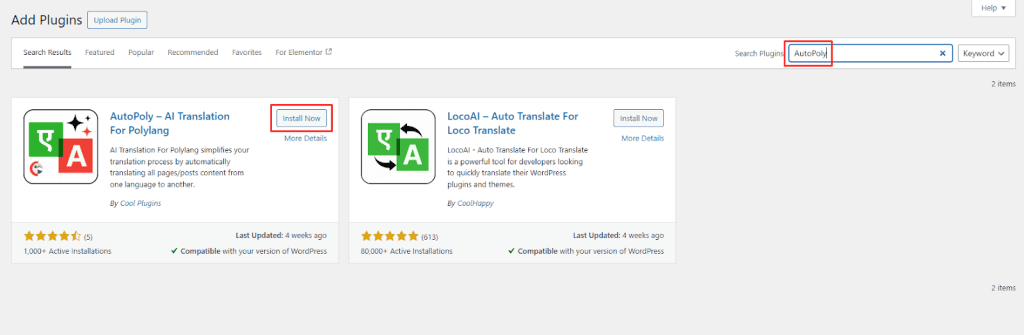
- Click Install Now, then Activate.
- Confirm Polylang is already installed and active before you open the AutoPoly settings.
The free version ships Yandex Translate and Chrome built-in AI out of the box. You do not need an API key for either provider, so you can run your first translation within two minutes of activation.
Installing the Pro Version
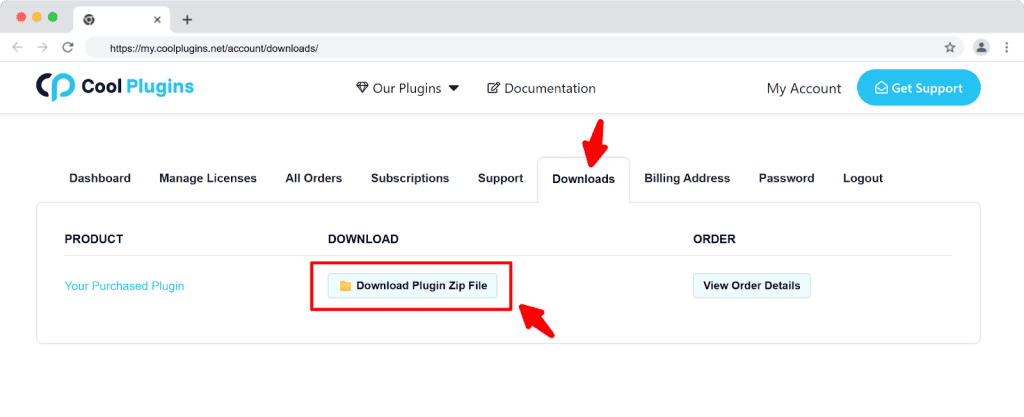
Pro is sold through the Cool Plugins website and shipped as a downloadable .zip file. After purchase, the download link arrives by email and inside your Cool Plugins account.
- Download the AutoPoly Pro .zip from your Cool Plugins account.
- In WordPress, go to Plugins > Add New Plugin > Upload Plugin.
- Choose the .zip, click Install Now, then Activate.
- Enter your AutoPoly Pro license key in the plugin settings to unlock Pro features.
One detail worth knowing: you can deactivate or delete the free version before installing Pro and your existing settings carry over. That is rare for freemium plugins and saved me from reconfiguring providers on a staging site.
AI Translation Providers Supported by AutoPoly
AutoPoly’s biggest strength is that it does not lock you into a single AI provider. You can switch providers per language, per post, or per bulk job. As of May 2026, five providers are supported out of the box.
1. Yandex Translate
A no-key option built on the public Yandex widget. No API setup, no per-character billing. It is the right starting provider when you want to test the AutoPoly workflow end-to-end before paying for a Pro AI service.
2. Google Translate
The widest language coverage of the five providers (100+ languages supported by Google Translate as a service). Available in Pro. Setup needs a Google Cloud Translate API key and a billing-enabled Google Cloud project.
3. Chrome Built-in AI
Uses Chrome’s on-device translation model. No API key, no external service, and translation happens client-side. The trade-off is that it only works inside Chrome and the model is a smaller distillation than full Gemini, so quality on long-form content is uneven.
4. Gemini AI
Google’s frontier AI model. Available in Pro. Setup needs a Gemini API key from Google AI Studio. Output is the most context-aware of the five providers, which matters for marketing copy where word-for-word translation reads stiff.
5. OpenAI
OpenAI models (GPT family) for natural-tone translation. Available in Pro. Setup needs an OpenAI API key with billing enabled. Best fit for blog content where tone and idiom matter more than literal accuracy.
AutoPoly Translation Features in Practice
The provider list is half the story. The other half is how you trigger translations. AutoPoly offers three workflows that map to different content types.
- Inline Translation. Translate a specific block, paragraph, or newly added sentence without touching the rest of the page. Best for updating one section of an already-translated post. Pairs well with Chrome AI for an instant preview.
- Full Editor Support. Compatible with Elementor, Classic Editor, and Gutenberg. You can translate full pages or sections directly inside the editor you already use, which means no admin-screen detours mid-edit.
- Bulk Translation. Select dozens or hundreds of posts, products, or custom post type entries from a list table, pick a target language and AI provider, and AutoPoly queues each one through the API. Pro-only feature and the most useful for e-commerce catalogs.
In testing, the bulk translation flow handled 20 WooCommerce products with descriptions and short descriptions through OpenAI in under three minutes. Inline translation paired with Chrome AI was instant for short paragraph edits, which is the workflow I would recommend for blog editors who only need to fix or update sections.
AutoPoly Free vs Pro: Feature Comparison
The free tier is functional but capped. Pro removes the character cap and adds the high-quality AI providers (Google Translate, OpenAI, Gemini) plus bulk translation and Classic Editor support. Here is the side-by-side breakdown.
| Feature | Free License | Pro License |
| Yandex Translate Widget Support | Yes | Yes |
| Chrome Built-in AI Translation | Yes | Yes |
| API Key Required for Free Providers | No (Yandex Widget & Chrome AI) | No (Yandex Widget & Chrome AI) |
| Gutenberg Block Compatibility | Yes | Yes |
| Elementor Page Translation | Yes | Yes (more advanced) |
| Inline Translation | Yes | Yes (more advanced) |
| Custom Block Translation | Yes | Yes |
| Classic Editor Translation | No | Yes |
| Translation Character Limit | 500K characters total | Unlimited |
| Google Translate Widget Support | No | Yes |
| OpenAI Translation Support | No | Yes |
| Gemini Translation Support | No | Yes |
| Bulk Translation | No | Yes (multiple posts at once) |
| Premium Support | No | Yes (24-48 hr response) |
The 500K character cap on Free is generous for a personal site or a small portfolio (roughly 100 average blog posts). For an e-commerce store with hundreds of product descriptions, the cap is the line where you need to move to Pro.
A Pro plan is also available directly from Cool Plugins for sites that need bulk translation, OpenAI, or Gemini.
People Also Read: Best Elementor Translation Plugins for Multilingual Websites.
AutoPoly Review: Worth It or Not?
AutoPoly is worth installing if you already run Polylang and you want to remove the manual translation step. The free tier alone is usable for small sites under 500K characters, and the Pro tier removes both the cap and the limit on which AI provider you can use.
Install the free version if: you run a personal blog or a single-language site dipping into translation for the first time. You are happy testing with Yandex Translate or Chrome AI. Your total content is under 500K characters across all languages.
Buy Pro if: you run an e-commerce store, a content site over 500K characters, or a multilingual project where translation tone matters (OpenAI or Gemini output). You also need bulk translation for product catalogs or large blog archives.
Skip AutoPoly if: you do not use Polylang. AutoPoly is built specifically for Polylang, so on WPML sites you would want a WPML-specific addon, on TranslatePress sites you would want a TranslatePress AI addon, and on Loco Translate sites a Loco AI addon.
If you are using a different translation plugin, similar AI translation addons exist in the same Cool Plugins family: AI Translation for TranslatePress and LocoAI work on the same architecture.
For Elementor-based sites that need multilingual support without the manual workload, pairing Polylang plus AutoPoly with a deep widget library is a strong stack. You can browse 120+ Elementor widgets from The Plus Addons for Elementor to round out the design side once your translation pipeline is set up.