---
title: "How to Add Custom CSS in Elementor for Free [2026]"
url: https://theplusaddons.com/blog/add-custom-css-in-elementor/
date: 2023-08-22
modified: 2026-07-09
lang: en
author: "Aditya Sharma"
description: "Every Elementor build hits the same wall eventually. You have nudged the spacing, tried every toggle in the panel, and the one thing you actually want to change, a stubborn..."
image: https://theplusaddons.com/wp-content/uploads/2023/08/How-to-Add-Custom-CSS-in-Elementor-for-Free-1024x536.png
word_count: 1563
---
# How to Add Custom CSS in Elementor for Free [2026]
##
- Elementor allows users to add custom CSS for enhanced website design and functionality.
- CSS (Cascading Style Sheets) is a styling language that customizes HTML elements' appearance.
- Elementor PRO enables users to add custom CSS to specific templates and widgets easily.
- The Plus Addons for Elementor offers features to add custom CSS and provides pre-built styles.
- Using the HTML widget in Elementor is a simple method for adding custom CSS without editing theme files.
Every Elementor build hits the same wall eventually. You have nudged the spacing, tried every toggle in the panel, and the one thing you actually want to change, a stubborn border, a gap that only breaks on mobile, a nested element the editor refuses to expose, still will not budge.
That is the moment custom CSS stops being optional and becomes the fastest way to get exactly what you want.
The good news: you do not need to be a developer, and you do not always need a paid plan. This guide walks through four ways to add custom CSS in Elementor, ordered from the simplest free method to the most precise paid one, and tells you plainly which to reach for in each situation.
Two work on Elementor Free, two need a paid plan, and by the end you will know which is yours.
**The quick answer:** On Elementor Free, add CSS with the HTML widget for a single page, or the WordPress Customizer's Additional CSS for site-wide styles.
On a paid plan, use Elementor Pro's per-element Custom CSS field, or The Plus Addons for Elementor to keep CSS, JS, PHP, and HTML together in one panel.
Table Of Contents
## What custom CSS in Elementor actually means
Custom CSS is the styling code you write by hand to control things Elementor's visual panel does not expose.
Think hover states, exact spacing overrides, or targeting an element buried three levels deep inside a widget. Anything the drag-and-drop controls cannot reach, a line or two of CSS usually can.
CSS is the language browsers use to paint every element on the page, and Elementor generates it for you behind the scenes.
It helps to know what is happening under the hood. CSS, short for Cascading Style Sheets, is the language browsers use to render colors, fonts, spacing, and layout.
Every slider and color picker in Elementor is really just writing CSS for you.
Adding custom CSS means skipping the picker and writing the rule yourself, which gives you precision the panel cannot match. People reach for it to [convert Figma to WordPress](https://theplusaddons.com/blog/convert-figma-to-wordpress/) designs pixel for pixel, or to [hide a page title in Elementor](https://theplusaddons.com/blog/how-to-hide-page-title-in-elementor/) with a single line.
### Why bother writing it yourself
- **Precision the panel cannot give you.** Target the exact element, including child elements Elementor never surfaces as controls.
- **You decide the scope.** Apply a rule to one widget, one page, or the whole site, depending on the method you pick below.
- **It stays light.** CSS scoped to where it is actually used does not bloat pages that never call for it.
- **It unlocks effects the panel skips.** Hover animations, responsive tweaks, and edge-case overrides that simply are not in the UI.
*The host underneath your site shapes how fast all that styling renders. Compare the [**Best WordPress Hosting for Elementor**](https://theplusaddons.com/blog/best-wordpress-hosting-for-elementor/) to find the right fit.*
## The 4 ways to add custom CSS in Elementor
Here is the whole map before we go method by method. Two of these cost nothing, two come with a paid plan, and each one fits a different scope. Match the row to your situation and skip straight to it.
| Method | Plan Required | Scope | Best For |
| ------ | ------------- | ----- | -------- |
| HTML Widget | Elementor Free | Page-specific | A quick fix on a single page |
| WordPress Theme Customizer | WordPress core (free) | Site-wide | Global styles on a classic theme |
| Elementor Pro Custom CSS | Elementor Pro | Per widget/section | Precise, isolated element targeting |
| The Plus Addons for Elementor Custom CSS | The Plus Addons for Elementor Pro | Per container/section | Container-level CSS plus JS, PHP, and HTML in one panel |
### 1. The Elementor HTML widget (Free)
If you are on Elementor Free and just need CSS on one page, this is the move. The HTML widget accepts raw markup, including a ``
- Hit **Update** and preview.
The rule applies only on the page holding the widget. Target elements with Elementor's generated classes, such as `.elementor-widget-container`, to hit exactly what you mean.
The one honest caveat: because this CSS lives in page content rather than a stylesheet, it is best for one-off fixes, not styling you plan to reuse across dozens of pages. For that, one of the dedicated fields below is cleaner.
*Reusing the same element in lots of places? Learn [**how to use the Elementor Global Widget**](https://theplusaddons.com/blog/how-to-use-elementor-global-widget/) so one edit updates them all.*
### 2. The WordPress Theme Customizer (Free)
When the CSS needs to apply everywhere, not just one page, WordPress itself has you covered. The Theme Customizer ships with an Additional CSS panel that works on any install, with or without Elementor.
- From the dashboard, go to **Appearance > Customize**.
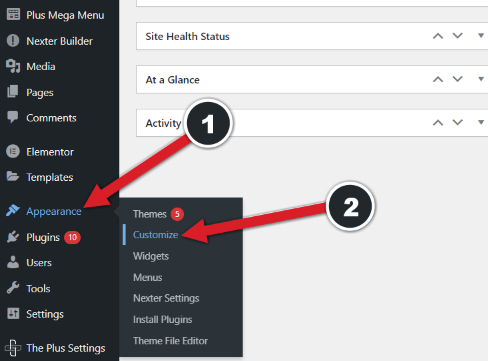The Additional CSS panel lives inside Appearance > Customize on classic themes.
- Click **Additional CSS** in the left panel.
Adding site-wide CSS in the WordPress Customizer, with a live preview as you type.
- Type your CSS in the box. The preview on the right updates live.
- Click **Publish**.
One thing to watch: this is built for classic themes. If you run a block-based, Full Site Editing theme on WordPress 7, the Additional CSS box may not sit where you expect, because FSE themes route global styles through the Site Editor instead.
On a classic Elementor setup, though, it is the simplest path to site-wide rules.
Prefer to manage snippets without touching the Customizer? This short walkthrough shows a free, no-code way to add CSS, JS, PHP, and HTML:
https://youtu.be/e2sczKITUhs?si=ZiblBAp4QlofF3Qq
A free, no-code way to manage CSS, JS, PHP, and HTML snippets in WordPress.
*Need scripts too? Here are [**2 free methods to add custom JavaScript in Elementor**](https://theplusaddons.com/blog/add-custom-javascript-in-elementor/).*
### 3. Elementor Pro's per-element Custom CSS (Pro)
This is the cleanest option if you already pay for [**Elementor Pro**](https://go.posimyth.com/recommends/elementor/). Pro adds a Custom CSS field to the Advanced tab of every widget, section, and container.
The CSS you write there is scoped to that exact element and only loads on pages where the element appears, so it never leaks or bloats the rest of the site.
- Select the widget or section in the Elementor editor.
- Open the **Advanced** tab on the left.
- Expand **Custom CSS**.
Elementor Pro's Custom CSS field lives in the Advanced tab and scopes automatically to the selected element.
- Write your CSS, using `selector` as the placeholder for that element. Elementor swaps it for the element's unique ID at render time, like `selector h2 { font-size: 28px; }`
- Click **Update**.
Because each rule is tied to one element, editing the CSS on a single widget never touches identical widgets elsewhere. That isolation is exactly what you want on a sprawling multi-page project, where a global stylesheet quickly becomes impossible to debug.
*Want to test changes safely first? Follow this [**guide to installing Elementor on localhost**](https://theplusaddons.com/blog/how-to-install-elementor-in-localhost/).*
### 4. The Plus Addons for Elementor Custom CSS (Pro)
[**The Plus Addons for Elementor**](https://theplusaddons.com/) by POSIMYTH Innovations puts a Custom CSS field inside the Plus Extras section of Elementor's Advanced tab, and it does more than CSS.
With 100,000+ active installs and a 4.6 out of 5 rating across 386 reviews on WordPress.org, it is a well-worn option for people who want code control without juggling extra plugins.
- Select the container or section in the editor.
- Open the **Advanced** tab.
- Expand **Plus Extras**.
- Drop your CSS into the **Custom CSS** field.
The Plus Addons for Elementor adds Custom CSS, plus JS, PHP, and HTML, inside the Plus Extras panel.
- Click **Update**.
The reason to use this one over a plain CSS field is everything sitting next to it. The same Plus Extras panel injects custom JS, PHP, and HTML, so you are not installing a separate code-snippets plugin just to add a script.
And the CSS field is one small corner of the plugin: it also brings [120+ widgets](https://theplusaddons.com/elementor-widget/) (Pro) plus 35+ free widgets, 8 builders, and extras like Display Conditions and Glassmorphism.
The full set is on the [Elementor Extras and Extensions](https://theplusaddons.com/elementor-extras/extensions/) page.
Check out the [**Complete List of 120+ Widgets and Extensions**](https://theplusaddons.com/elementor-widgets/) here. Start building your dream website without coding!
##### Do you Manage WordPress Websites?
Download Our FREE E-Book of 20+ Checklist for WordPress Site Maintenance.
Field LabelSend Me the eBook
## Which method should you actually use?
Skip the deliberation. Find your situation in the left column and use the method on the right.
| Your situation | Use this |
| -------------- | -------- |
| Elementor Free, CSS on one page | HTML widget with